
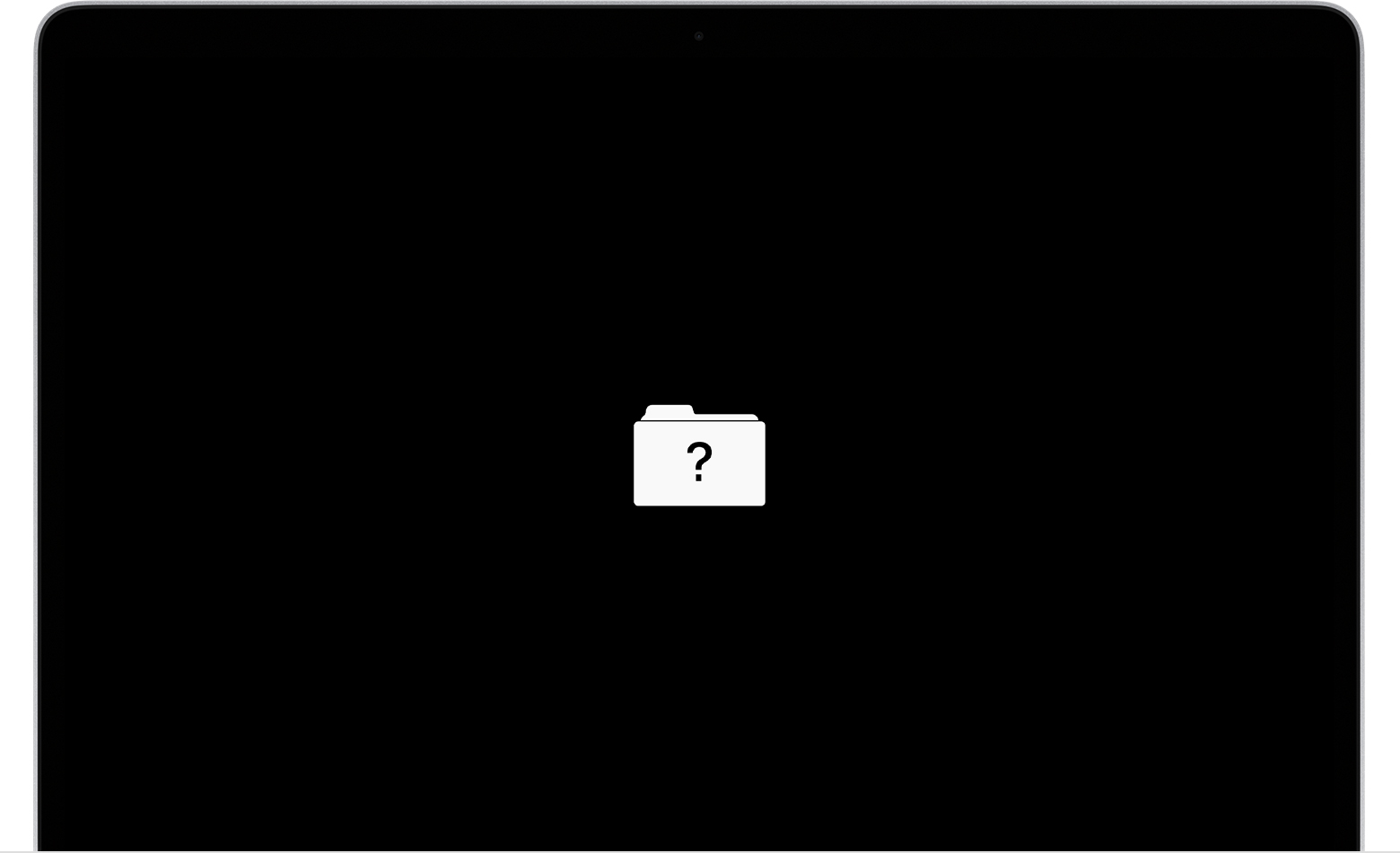
When you turn on your Mac and see a blinking file folder with a question mark, it’s easy to feel worried. This icon usually means your Mac cannot find its operating system. For many users, the blinking folder appears suddenly. Maybe your computer was working fine yesterday, but now it won’t start. Understanding what causes this, how to fix it, and how to prevent it can save you time, money, and stress.
Let’s explore why the blinking folder appears, what you should do step-by-step, and how to protect your Mac in the future. You don’t need to be a tech expert to follow this guide. If you’re a student, professional, or anyone who depends on their Mac, you’ll find clear advice here.
What Does The Blinking Folder Mean?
The blinking folder with a question mark is a signal from your Mac. It says: “I can’t find the startup disk.” Your Mac needs a disk with macOS to turn on and work. When it cannot find this disk, it shows the blinking folder. Here are the main reasons:
- Missing or corrupted macOS: The operating system files are damaged or deleted.
- Startup disk is not set: Sometimes your Mac doesn’t know which disk to use.
- Disk failure: The internal drive may be broken or disconnected.
- Connection issues: For external drives, cables or ports might fail.
Most people see this after a restart, a software update, or when a MacBook’s battery runs out. If you recently dropped your Mac or spilled something, hardware damage is possible.
Common Causes: Digging Deeper
Let’s look closer at some reasons behind the blinking folder. Understanding these helps you fix the issue faster.
System File Corruption
If macOS files are damaged, your Mac cannot load. This can happen after failed updates, improper shutdowns, or malware. For example, sudden power loss during a system update may corrupt files.
Hardware Problems
Hard drives have a limited lifespan. An average SSD lasts about 5–7 years with regular use. Old MacBooks with spinning hard disks can fail sooner. If the drive fails, your Mac cannot read any files.
Incorrect Startup Disk Setting
Sometimes, macOS loses track of the right startup disk. This may happen after installing a new operating system or connecting multiple drives. It’s a simple fix, but many users overlook it.
Loose Connections
Especially for desktop Macs, internal cables can come loose. Moving your Mac or upgrading parts can disturb connections. If you use an external SSD, check both USB and Thunderbolt cables.

Credit: www.youtube.com
How To Fix The Blinking Folder Issue
You can often solve this problem yourself. Follow these steps in order. If one doesn’t work, move to the next.
1. Restart Your Mac
A restart is the easiest solution. Sometimes the system just needs a refresh. Hold the power button to turn off your Mac. Wait 10 seconds, then turn it back on. If the folder still blinks, continue.
2. Check Startup Disk Settings
Your Mac may not know which disk to use. To check:
- Hold Option key while turning on your Mac.
- You’ll see available disks. Select your usual startup disk.
- If your disk appears, select it and press Enter.
If your disk doesn’t show, it may be disconnected or damaged.
3. Use Macos Recovery
MacOS Recovery helps you repair disks or reinstall the operating system.
- Turn off your Mac.
- Hold Command + R while turning it on.
- The Recovery screen will appear.
Here, you can use Disk Utility to check your drive:
- Open Disk Utility.
- Select your startup disk.
- Click “First Aid” to check for errors.
If errors are found, try to repair. If Disk Utility cannot repair, your drive may need to be replaced.
4. Reinstall Macos
If Disk Utility finds no errors, but the folder still blinks, reinstall macOS:
- In Recovery, choose “Reinstall macOS.”
- Follow the steps. You’ll need an internet connection.
- Reinstallation takes about 30–60 minutes depending on your Mac and connection.
Data may be erased, so backup if possible.
5. Check Hardware
If none of the above works, hardware is likely the problem.
- For desktops, open the case and check connections.
- For laptops, listen for unusual noises from the drive.
- If possible, connect your drive to another Mac using a USB adapter.
If the drive isn’t recognized anywhere, it’s probably dead.
6. Contact Apple Support
If you can’t fix the issue, seek professional help. Apple Support can diagnose problems and offer solutions. Sometimes, they can recover your data even if the drive fails.
Comparison: Common Fixes And Their Success Rates
Here’s a look at how often each solution works, based on user reports and Apple data.
| Solution | Success Rate | Average Time |
|---|---|---|
| Restart | 10% | 1 minute |
| Startup Disk Setting | 20% | 3 minutes |
| Disk Utility Repair | 35% | 10 minutes |
| macOS Reinstall | 25% | 45 minutes |
| Hardware Check | 5% | 15 minutes |
| Professional Service | 5% | Varies |
Disk Utility Repair and macOS Reinstall solve most blinking folder issues. Restarting works only for minor glitches.
Credit: www.reddit.com
How To Prevent The Blinking Folder In The Future
Prevention is easier than repair. Here are practical tips:
- Regular backups: Use Time Machine or cloud services.
- Keep macOS updated: Updates fix bugs and improve stability.
- Shutdown properly: Avoid sudden power loss.
- Check disk health: Use apps like Disk Utility every few months.
- Avoid physical shocks: Don’t drop or bump your Mac.
Many users ignore backups until it’s too late. Even if your Mac is new, make backups. Hard drives fail without warning.
Data Recovery: What Are Your Options?
If your Mac’s drive fails, you may still recover data. Here’s what to know.
Software Solutions
If the disk is visible in Disk Utility, try recovery software:
- Disk Drill
- Data Rescue
- EaseUS Data Recovery
These tools can recover files from damaged drives. Success depends on the level of damage.
Professional Recovery
If software doesn’t help, consider data recovery services. They use special equipment to recover data from dead drives. Prices range from $300 to $2,000 depending on the damage.
| Recovery Type | Success Rate | Estimated Cost |
|---|---|---|
| Software | 60% | $50–$100 |
| Professional Lab | 90% | $300–$2,000 |
Professional labs offer higher success, but the cost is high.
Real-world Example
Let’s consider a common scenario. Anna, a college student, sees the blinking folder after a system update. She tries restarting, but nothing changes. Anna uses macOS Recovery, and Disk Utility finds errors. It repairs her disk, and her Mac starts normally.
Anna realizes she never backed up her files. She quickly sets up Time Machine to avoid future problems.
Many users, like Anna, don’t prepare for disasters until they happen. It’s better to be proactive.
When To Upgrade Hardware
If your Mac is old (more than 7 years), hardware failure is likely. Upgrading to a new SSD improves speed and reliability. For MacBooks, replacing a battery and SSD can cost $150–$300. New Macs have better protection against disk failure, but regular backups are still needed.
| Mac Age | Failure Risk | Upgrade Cost |
|---|---|---|
| <3 years | Low | $0–$100 |
| 3–7 years | Medium | $100–$200 |
| >7 years | High | $150–$300 |
If you plan to keep your Mac for years, consider upgrading hardware before problems start.
Common Mistakes To Avoid
Many people make these mistakes when facing the blinking folder:
- Ignoring the problem: Don’t keep restarting if nothing changes.
- Skipping backups: Always backup before repairs or reinstalling macOS.
- Using unreliable recovery tools: Stick to well-known software.
- Trying random fixes: Follow step-by-step guides.
- Delaying professional help: If your data is important, get expert help quickly.
Avoiding these mistakes can save your files and your Mac.
Extra Tips For Non-technical Users
If you’re not comfortable with repairs, ask a friend or expert for help. Apple stores offer free diagnostics. Use official Apple guides and avoid risky third-party advice.
If you have another Mac, use Target Disk Mode to access files from your broken Mac. This requires a Thunderbolt or USB-C cable.
Useful Resources
For more details on startup issues and disk repair, visit the official Apple Support page. It offers step-by-step help for all Mac models.
Frequently Asked Questions
What Does The Blinking Folder With A Question Mark Mean?
It means your Mac cannot find the startup disk or operating system. This happens if the disk is missing, damaged, or not set correctly.
Can I Fix The Blinking Folder Without Losing My Data?
Yes, but it depends on the cause. If the disk is not damaged, you can reset the startup disk or use Disk Utility. Always backup your data before any repairs.
How Can I Check If My Mac’s Hard Drive Is Failing?
Use Disk Utility in macOS Recovery. If your drive has many errors or cannot be repaired, it’s likely failing. Strange noises and slow performance are also signs.
Is It Expensive To Repair The Blinking Folder Issue?
Simple fixes are free. If you need a new drive or professional recovery, costs range from $100 to $2,000. Upgrading hardware is usually cheaper than buying a new Mac.
How Do I Prevent The Blinking Folder From Appearing?
Make regular backups, keep macOS updated, and handle your Mac with care. Check disk health often and upgrade old hardware before it fails.
A blinking file folder with a question mark can seem scary, but most problems have solutions. By understanding the causes, following clear steps, and preparing with backups, you can protect your Mac and your important files. Take action now—not just when trouble starts.
Your Mac will thank you, and you’ll avoid the stress of lost data.
Credit: www.salvagedata.com