
If you own a Roku device, you probably love its simple design and easy streaming. But sometimes, technology throws a curveball. One common issue is the Roku remote blinking green. This small light can be confusing or even worrying, especially if your favorite show is about to start. Many users wonder what this blinking means, why it happens, and how to stop it. Understanding this problem can save you time and frustration—and might even help you avoid buying a new remote.
Let’s break down everything you need to know about the green blinking light on your Roku remote. You’ll learn what it means, the main causes, how to fix it step by step, and when you should think about getting a replacement.
Along the way, you’ll find helpful tips and answers to questions that beginners often miss.
What Does The Green Blinking Light Mean?
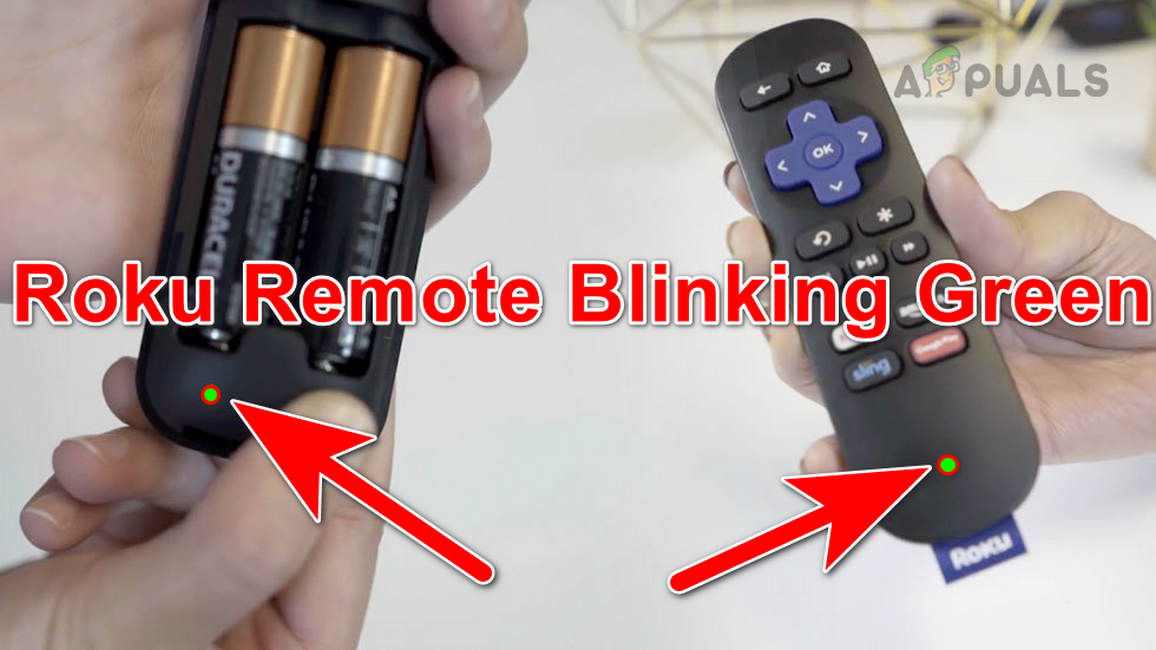
A green blinking light on your Roku remote isn’t just a random signal. It’s your remote’s way of telling you that something isn’t right. Most Roku remotes use this light to show their connection status or power issues.
Usually, the green light means:
- The remote is trying to pair with the Roku player.
- The remote can’t connect to the streaming device.
- There’s a battery problem—either low power or incorrect placement.
Sometimes, the blinking can mean more than one thing, depending on the remote model. For example, some advanced remotes use the green light for voice command errors, while basic remotes use it mainly for pairing or battery alerts.
Types Of Roku Remotes And Their Indicators
Not all Roku remotes are the same. Understanding which remote you have can help you solve the green blinking light problem faster.
| Remote Type | Pairing Method | Green Light Purpose |
|---|---|---|
| Simple IR Remote | Infrared (line of sight) | No green light/blinking |
| Enhanced “Voice” Remote | Wi-Fi Direct | Pairing, battery issues |
| Gaming Remote | Wi-Fi Direct | Pairing, battery issues, firmware alerts |
Simple IR remotes don’t have a green blinking light at all. If your remote does blink green, you’re likely using an Enhanced or Gaming remote, which connects using Wi-Fi and not just an infrared beam.
Common Causes Of A Blinking Green Light
Let’s dig into the main reasons your Roku remote is blinking green. Each cause has its own solution, so identifying the real problem is important.
- Pairing Mode Activated
- When you insert batteries or press the pairing button, the remote enters pairing mode. The green light blinks to show it’s searching for the Roku device.
- Batteries Are Low or Dead
- If the batteries can’t provide enough power, the remote might blink green but not function.
- Batteries Inserted Incorrectly
- If batteries are placed the wrong way, the remote can’t work. It may blink green while trying to restart.
- Out of Range or Blocked Signal
- The remote uses Wi-Fi to connect, so if you’re too far or there’s interference, the green light blinks because it can’t reach your Roku.
- Software or Firmware Glitch
- Sometimes, the remote or Roku device needs a reset due to software errors.
- Hardware Damage
- Drops, spills, or worn-out parts can cause the green light to blink as a warning.
- Pairing Button Stuck
- If the pairing button on the back of the remote is stuck, the remote keeps trying to pair.
- Network Interference
- Other Wi-Fi devices can interfere with the connection, causing pairing problems and green blinking.
- Roku Device Not Powered On
- If your Roku player or stick isn’t fully on, the remote cannot connect.
- Recent System Update
- Sometimes, after a system update, the remote unpairs and tries to reconnect, causing the blinking.
How To Fix A Roku Remote Blinking Green
Now that you know the causes, let’s get practical. You don’t need to be a tech expert to troubleshoot this issue. Most problems can be solved with a few simple steps.
Step 1: Check And Replace Batteries
This is the easiest fix and often solves the problem.
- Remove the old batteries.
- Wait 10 seconds.
- Insert fresh, high-quality batteries, making sure the positive (+) and negative (–) ends are correct.
- If the light keeps blinking, try a different set of batteries.
Non-obvious tip: Use alkaline batteries, not rechargeable ones. Rechargeables often have lower voltage, which can cause pairing problems.
Step 2: Power Cycle Both Devices
Unplug your Roku device from power. Wait at least 30 seconds. While it’s unplugged, remove the batteries from the remote.
- Plug the Roku device back in and wait for it to fully restart.
- Once you see the home screen, insert the batteries into the remote.
This simple process solves small software glitches that often cause pairing issues.
Step 3: Pair The Remote Again
Many users miss this step or do it in the wrong order.
- Open the battery compartment.
- Find the small pairing button (usually near the bottom).
- Press and hold the button for 3–5 seconds until you see the blinking green light.
- Wait. On your TV screen, you should see a pairing message.
If nothing happens after 30 seconds, repeat the process. Sometimes, pairing takes two or three tries, especially if there’s interference.
Step 4: Remove Interference
Move other wireless devices (especially Wi-Fi routers, cordless phones, or baby monitors) away from your Roku and remote.
If possible, switch your Wi-Fi router to a different channel. Interference is a common cause, but many users overlook it.
Step 5: Check For Updates
Your Roku device may need a software update.
- Go to Settings > System > System update on your Roku menu.
- Select Check Now.
If your device updates, try pairing the remote again. Outdated firmware can cause repeated blinking.
Step 6: Reset The Remote
If nothing else works, try a full reset:
- Remove the batteries.
- Press and hold the pairing button for 20 seconds (with no batteries inside).
- Release, insert batteries, and try pairing again.
This clears any stuck commands or memory errors.
Step 7: Test With Another Remote Or App
Download the Roku mobile app on your smartphone and use it as a remote. If the app works but the physical remote keeps blinking, your remote may be faulty. If neither works, your Roku device may be the problem.
Step 8: Inspect For Physical Damage
Check the battery contacts for rust or corrosion. Clean them with a small piece of cloth or a cotton swab. Also, inspect the remote for cracks or water damage.
Step 9: Contact Support Or Replace
If you’ve tried everything and the green light keeps blinking, the remote may be broken. Contact Roku support or buy a compatible replacement.

Credit: www.reddit.com
Advanced Troubleshooting (for Persistent Problems)
If you’re still stuck after the steps above, here are some advanced strategies. These are especially useful if your home has many wireless devices, or if your Roku is in a tricky spot.
Check Your Roku Device’s Location
Where you place your Roku device matters. If it’s behind the TV or in a cabinet, signals from the remote can get blocked. Place the device in a more open space if possible.
Use A Wired Connection (for Roku Ultra And Some Models)
If your Roku device supports Ethernet, try connecting it to your router with a cable. This reduces Wi-Fi traffic and can improve remote reliability.
Factory Reset Your Roku Device
As a last resort:
- Go to Settings > System > Advanced system settings > Factory reset
- Follow the on-screen instructions.
Warning: This erases all your settings and apps, so only use it if you’ve tried everything else.
What If The Green Light Won’t Stop Blinking?
Sometimes, the remote keeps blinking green even after all the steps above. This can be a sign of a hardware failure.
Signs you need a new remote:
- The remote gets hot.
- Green light flashes as soon as batteries are inserted, with no button press.
- No response on the TV even after successful pairing steps.
- Damage from water, dropping, or battery leaks.
In these cases, replacement is the best option. Many users spend hours troubleshooting when a $15 replacement remote solves the problem instantly.
When To Consider Upgrading Your Remote
If your Roku is more than three years old, newer remotes might have better range, voice features, and improved reliability. Modern remotes also support headphones and private listening.
Upgrading can help if:
- Your remote loses connection often.
- The battery drains quickly.
- You want extra features like voice search.
Compare features before buying. Here’s a quick look at how newer remotes stack up:
| Feature | Basic Remote | Enhanced Remote | Voice Remote Pro |
|---|---|---|---|
| Green Light Indicator | No | Yes | Yes |
| Voice Control | No | Yes | Yes |
| Rechargeable Battery | No | No | Yes |
| Find My Remote | No | No | Yes |
Real User Experiences And Surprising Insights
Many Roku owners are surprised to learn that low-quality batteries cause most blinking problems. Bargain batteries or old ones often have less power than needed for reliable Wi-Fi.
Another common mistake: not waiting long enough during pairing. The green light can blink for up to 30 seconds before your TV shows a pairing message. Impatience leads many users to interrupt the process, making things worse.
One non-obvious insight: If your Roku is close to your Wi-Fi router, try moving them further apart. Too much signal can cause interference, not just too little.
Preventing Future Green Blinking Light Issues
A few simple habits can keep your Roku remote working smoothly.
- Use only fresh, name-brand batteries.
- Avoid placing your Roku device near metal or inside cabinets.
- Update your Roku software regularly.
- Keep other wireless gadgets away from your Roku.
- Clean battery contacts every few months.
These steps help your remote stay paired and ready, with no blinking surprises.
When To Contact Roku Customer Support
If you’ve tried everything and the green light is still blinking, or if you see other strange behavior (like random button presses), contact Roku support. Keep your Roku’s serial number handy, and describe all the steps you’ve tried. Sometimes, a warranty replacement is possible, especially for newer devices.
For official guidance and warranty info, visit the Roku Support Site.
Credit: appuals.com
Quick Reference: Troubleshooting At A Glance
Here’s a summary of what to do if your Roku remote blinks green:
| Problem | Solution |
|---|---|
| Blinking green after battery change | Check battery orientation, use fresh batteries, pair remote |
| Blinking green, remote not working | Power cycle Roku and remote, remove interference, try pairing |
| Green light won’t stop, remote hot | Replace remote—possible hardware failure |
| Remote works with app, not physical remote | Physical remote likely faulty—replace |
Frequently Asked Questions
Why Does My Roku Remote Blink Green Even With New Batteries?
If you’ve inserted new batteries and still see a blinking green light, your remote is likely stuck in pairing mode or cannot connect to your Roku device. Try power cycling both the remote and the streaming device, then attempt to pair again.
Check for any physical damage or blocked pairing button as well.
How Long Should The Green Light Blink During Pairing?
Normally, the green light blinks for 10–30 seconds during pairing. If it continues for more than a minute with no pairing message on your TV, something is wrong—possibly interference, incorrect battery placement, or a device issue.
Can I Use My Roku Device Without The Remote If The Green Light Keeps Blinking?
Yes. You can use the official Roku mobile app on your smartphone as a temporary remote. Make sure your phone is on the same Wi-Fi network as your Roku device.
Will The Green Blinking Harm My Roku Device?
No. The green light is just a signal from your remote, not your Roku device. It doesn’t harm the device, but it does mean your remote isn’t connected or working properly.
When Should I Replace My Roku Remote?
Replace your remote if:
- The green light blinks non-stop after all troubleshooting steps.
- The remote is damaged (cracked, corroded, or water-damaged).
- The remote gets hot or drains batteries very quickly.
If your remote is under warranty, contact Roku support for a replacement.
—
A blinking green light on your Roku remote can be annoying, but it’s usually a simple fix. Most problems come from batteries, pairing, or interference. With the steps above, you can solve the issue in just a few minutes and get back to streaming.
Remember, patience and careful troubleshooting save both time and money. And if you ever need more help, the Roku support community is always there for you.

Credit: www.youtube.com