
Many people depend on their Linksys routers every day for fast, stable internet. But when a Linksys router blinks red, it can quickly turn a normal day into a frustrating one. If you see this red light, you might worry something is broken or your connection is lost for good. The good news: a blinking red light is usually a warning, not a death sentence for your device. It means the router is having trouble, but most problems can be fixed with some careful steps.
If you’re not a tech expert, a blinking red light may seem like a mystery. You might ask, “What does it mean? Can I fix it myself? Do I need a new router?” This guide will help you understand the common reasons for a Linksys blinking red light, how to fix it, and what to do if nothing works. Whether you use the router for work, video calls, or streaming, these solutions can get you back online faster and with less stress.
What Does A Blinking Red Light Mean On Linksys Routers?
A blinking red light on your Linksys router is a signal. It’s telling you something is wrong. But what exactly? Most Linksys routers use a simple color system:
- Solid blue/green: Everything is working well.
- Blinking blue: The router is starting up or updating.
- Solid red: Major error, usually hardware.
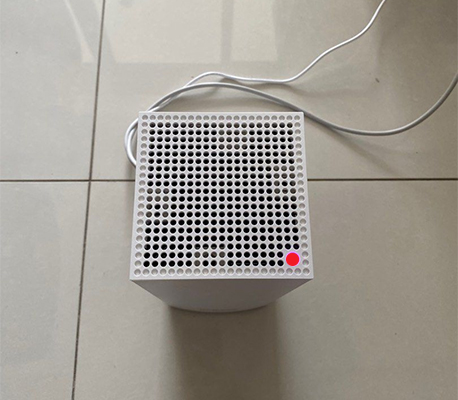
- Blinking red: Trouble connecting to the internet, a firmware problem, or device error.
The main reason for a blinking red light is a connection issue. Your router is not able to reach your internet service provider (ISP). But it can also mean:
- The router is not getting power correctly.
- There is a problem with the firmware (the software inside the router).
- Hardware (like cables or ports) is loose, broken, or not working.
Some Linksys models have a light for each band (2. 4 GHz, 5 GHz). Others have just one system light. Always check your user manual or the Linksys support site for your model’s exact light codes.
Common Causes Of Linksys Blinking Red
Several issues can make your Linksys router blink red. Knowing these can help you fix the problem faster. Here are the most common causes:
1. Internet Connection Lost
The router cannot get a signal from your modem or ISP. This happens if:
- The internet service is down in your area.
- The modem is off or not connected.
- A cable is unplugged or damaged.
2. Firmware Problems
The router’s internal software may be out of date or corrupted. This can happen after a failed update or a sudden power loss during a firmware upgrade.
3. Power Supply Issues
If your router’s power adapter is broken or the power socket is faulty, the router may not start correctly. This can cause blinking red or other error lights.
4. Overheating
Routers get warm during use. If dust blocks the vents or the device is in a hot place, overheating can cause errors. Some routers blink red as a warning.
5. Faulty Cables Or Ports
A bad Ethernet cable, loose plug, or damaged port can break the connection. The router will blink red if it cannot send or receive data.
6. Isp Authentication Problems
Some ISPs need a username and password set in the router. If these are wrong or missing, you’ll lose connection.
7. Hardware Failure
In rare cases, a blinking red light means a serious hardware problem. This is more common in older routers or after a power surge.
Not-so-obvious Causes
Many users miss these less obvious reasons:
- Incorrect router settings: Changing settings (like the wrong IP address or DNS) can cause a loss of internet.
- Interference from other devices: Strong signals from cordless phones or microwaves nearby can confuse the router, especially if it’s already unstable.
How To Fix A Linksys Blinking Red Light
You don’t always need a technician. Many red light problems can be solved at home with simple steps. Try these methods, in order, for the best chance of success.
1. Check All Connections
Start with the basics. Make sure every cable is plugged in tightly. This includes:
- Power cable (to the wall and router)
- Ethernet cable (from modem to router’s WAN/Internet port)
- Any cables to your computer or other devices
If a cable looks damaged, replace it.
2. Restart Your Router And Modem
This step solves many problems. Here’s how:
- Unplug the router’s power cord.
- Unplug the modem’s power cord (if you have a separate modem).
- Wait 30 seconds.
- Plug the modem back in first. Wait 1-2 minutes for all lights to turn solid.
- Plug in the router. Wait for the lights to stabilize.
This process resets both devices and often clears errors.
3. Check Your Internet Service
Sometimes, the problem is with your ISP. Use your phone’s mobile data to check if there’s an outage in your area. Visit your ISP’s website or call their support. If the service is down, you’ll have to wait for them to fix it.
4. Inspect The Power Supply
If your router is not getting stable power, try these:
- Use a different power outlet.
- Try another compatible power adapter.
- Avoid extension cords with many devices.
If the red light stops blinking with a new adapter, the old one may be faulty.
5. Update Or Reinstall Firmware
Firmware bugs can cause blinking red lights. Here’s how to update firmware:
- Connect your computer directly to the router with an Ethernet cable.
- Go to the router’s admin page (often at 192.168.1.1).
- Log in (see your manual for username/password).
- Check for firmware updates in the menu.
- Follow the instructions to update.
If the router is stuck and you can’t log in, you may need to reinstall firmware with a method called TFTP (Trivial File Transfer Protocol). This is more advanced. Check the Linksys support site for step-by-step guides.
6. Reset To Factory Settings
If nothing works, reset the router. Warning: This will erase all your settings (Wi-Fi name, password, etc.).
- Find the small reset button (often on the back).
- Press and hold for 10 seconds with a paperclip.
- Wait for the router to reboot. Set it up again as new.
7. Move The Router To A Cooler Place
If your router feels hot, move it to a cooler spot with good airflow. Remove any dust from the vents.
8. Check For Interference
Place the router away from microwaves, cordless phones, and thick walls. This reduces signal problems, especially if the router is already having trouble.
9. Double-check Isp Settings
For some ISPs, you must enter your account details in the router setup. Make sure:
- Username and password are correct.
- The internet connection type (PPPoE, Dynamic IP, Static IP) matches your ISP’s instructions.
10. Try A Different Device
Test with another phone or computer. If only one device can’t connect, the issue might not be the router.
11. Replace Faulty Hardware
If you’ve tried everything and the light still blinks red, the router itself may be damaged. Try using another router if possible. If the new router works, your Linksys device may need repair or replacement.
Linksys Blinking Red: Model-specific Light Codes
Different Linksys routers have different light patterns. Here are common models and what their red lights mean:
| Model | Blinking Red Meaning | Action Needed |
|---|---|---|
| Linksys EA7500 | Internet or firmware error | Check cables, update firmware, restart |
| Linksys MR8300 | Unable to connect to ISP | Check modem, ISP service, reset router |
| Linksys WRT3200ACM | Power or hardware failure | Try different power supply, reset device |
| Linksys Velop | Node cannot connect to main router | Move node closer, check mesh settings |
Always check your router’s manual or Linksys’ official support for the most accurate light code meanings.

Credit: www.youtube.com
How Linksys Blinking Red Compares To Other Router Brands
Is a blinking red light unique to Linksys? Not really. Most major router brands use color codes. Here’s a quick comparison:
| Brand | Blinking Red Meaning | Common Fix |
|---|---|---|
| Linksys | Connection or firmware problem | Check cables, restart, update firmware |
| Netgear | Internet not detected | Check modem, reset, update firmware |
| TP-Link | WAN port issue | Replace cables, check ISP settings |
| ASUS | Hardware or boot failure | Try power cycle, hard reset |
The steps to fix a blinking red light are similar across brands—always start with cables, power, and firmware.
When Should You Contact Support?
Sometimes you’ve tried everything, and the blinking red light won’t stop. Here’s when to contact Linksys support:
- The router is under warranty and won’t power on.
- You see a solid red light (not just blinking)—this often means serious hardware failure.
- Firmware update fails repeatedly.
- There’s physical damage (burn marks, melted plastic, broken ports).
- You need TFTP firmware recovery and don’t feel comfortable doing it.
Before calling, write down:
- Your router model and serial number
- What steps you tried already
- Any error messages from the admin page
This helps support help you faster.
Credit: www.mysupportly.com
How To Prevent Linksys Blinking Red Issues
Prevention is better than cure. Here are some tips to avoid problems in the future:
1. Keep Firmware Updated
Check for updates every few months. Most new Linksys routers can auto-update, but it’s good to check manually.
2. Use A Surge Protector
Power surges can damage routers. Plug your router into a surge protector to lower the risk.
3. Place The Router In A Safe Spot
Keep your router away from heat, dust, and water. Don’t cover the vents.
4. Avoid Unnecessary Changes
Only change advanced settings if you know what they do. Wrong settings can break the connection.
5. Replace Old Hardware
If your router is over 5 years old, consider replacing it. Newer models are more reliable and faster.
6. Use Quality Cables
Cheap or damaged cables cause many issues. Use good Ethernet and power cables.
Advanced Troubleshooting: For The Tech-savvy
If basic steps don’t help, these advanced tips might:
1. Check Router Logs
Most Linksys routers keep logs of errors. Access the admin page and look for “Logs” or “System Log. ” Errors like “WAN Down” or “DHCP Fail” give clues.
2. Ping Test
Connect your computer to the router. Open Command Prompt and type:
ping 8.8.8.8
If you get replies, the router is working and the problem is likely with your ISP. If not, the router may be the issue.
3. Static Ip Vs Dynamic Ip
Some ISPs require a static IP. Check your account details or ask your ISP. Setting the wrong type can cause a red light.
4. Use Tftp Recovery
If your router firmware is completely broken, you can sometimes restore it using TFTP. This involves sending the firmware file to the router over your network. It’s a risky process—follow the guide on the Linksys site exactly.
5. Test With A Different Modem
If you have another modem, try swapping it. Sometimes, the modem is the source of the problem, not the router.
Real-world Example: Fixing A Linksys Blinking Red
Let’s walk through a real situation:
Case: Maria’s Linksys router started blinking red after a storm. She lost her internet connection.
Steps she took:
- Checked all cables—no damage found.
- Restarted both modem and router—no change.
- Tried another power outlet—still blinking red.
- Called her ISP—service was up and running.
- Logged into the router admin page—could not connect.
- Did a factory reset—the red light continued.
What solved it: Maria borrowed a friend’s power adapter. The red light stopped, and her internet came back. The storm had damaged the original adapter, not the router.
Lesson: Even if the router seems broken, check every part—including the power supply. Not all problems are inside the device itself.
Is It Time To Upgrade Your Router?
If your Linksys router blinks red often, it might be time for a new one. Here’s how to decide:
| Sign | What It Means | Recommended Action |
|---|---|---|
| Frequent red lights | Hardware is aging | Consider upgrading |
| Slow speeds, even after reset | Outdated technology | Upgrade to a newer model |
| Can’t support new devices | Old Wi-Fi standards | Look for Wi-Fi 6 or newer |
| No more firmware updates | End of support | Buy a new router |
New routers often have better range, faster speeds, and fewer bugs. For most homes, upgrading every 4-6 years is a good rule.
Credit: linksys-wifi.com
Frequently Asked Questions
Why Does My Linksys Router Blink Red After A Power Outage?
A power outage can interrupt the router’s startup process or corrupt its firmware. When power returns, the router may have trouble reconnecting to the internet or may need a firmware reinstall. Unplugging and restarting both the router and modem can fix most issues.
Is A Blinking Red Light The Same As A Solid Red Light On Linksys Routers?
No. A blinking red light usually means a connection or software problem, which is often fixable. A solid red light is more serious—it usually signals a hardware failure or a critical error. If your light is solid red, contact Linksys support.
Can I Fix A Blinking Red Light Without Resetting My Router?
Yes, often you can fix it by checking cables, restarting devices, or updating firmware. A factory reset should be your last step, as it erases all settings. Try basic troubleshooting first.
What Should I Do If Updating The Firmware Doesn’t Stop The Blinking Red Light?
If firmware updates don’t help, there may be a deeper issue like hardware failure or ISP connection problems. Check power supply, test with new cables, and contact your ISP. If all else fails, reach out to Linksys support.
Where Can I Find Official Guides For My Linksys Router Model?
You can find manuals, troubleshooting steps, and firmware files for every Linksys model on the Linksys official support page. Always use the official site to avoid unsafe files.
Getting a Linksys blinking red light can be annoying, but it’s rarely the end of your router. With the right steps, you can often solve the problem yourself and get back online quickly. If you run into trouble, don’t hesitate to use support resources—they’re there to help you stay connected.