
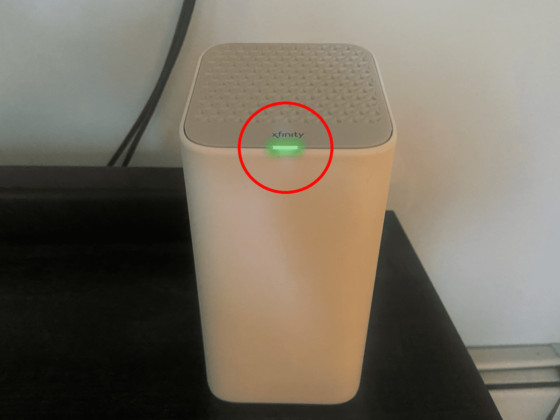
If you own an Xfinity Xfi Gateway, you expect your home internet to just work. But sometimes, instead of a steady white light, you see the Xfi Gateway blinking green. This small signal can lead to big frustration, especially if you’re unsure what it means. Is your internet down? Is there a problem with your modem, wiring, or even your internet provider? If you’re seeing a blinking green light and feeling stuck, you’re not alone—many users face this issue.
This article will help you understand what the blinking green light means, why it happens, and most importantly, how to fix it. We’ll also share what makes this problem trickier than it looks, give you practical steps to solve it, and help you avoid future headaches.
If you want a stable, reliable connection again, keep reading.
What Does The Xfi Gateway Blinking Green Mean?
The blinking green light on your Xfi Gateway is more than just a random signal. It’s a communication from your device, telling you that something is wrong with your internet connection. Most often, a blinking green light means the gateway is trying to establish a connection with your internet service provider (ISP) but can’t finish the process.
In normal operation, the Xfi Gateway should show a steady white light (or sometimes blue, depending on the model) when everything is working. A blinking green light is a warning—it’s not getting a stable connection. This can happen for several reasons:
- Network outage in your area
- Loose or damaged cables
- Problems with the splitter (if you use one)
- Outdated firmware on your device
- Service provider issues
A short blink during startup is normal. But if the blinking lasts several minutes or never stops, it’s a sign of trouble.
Why Your Xfi Gateway Is Blinking Green
Understanding the root causes can help you fix the problem faster. Here are the most common reasons:
1. Internet Service Provider Outage
Sometimes, the issue is not in your home at all. Xfinity (or your ISP) may have an outage in your neighborhood. When this happens, your gateway cannot complete its connection, leading to a blinking green light.
2. Loose Or Damaged Cables
Your Xfi Gateway connects to the internet using a coaxial cable. If this cable is loose, unplugged, or damaged, the gateway cannot communicate with the network. Even a slightly loose connector can cause connection drops.
3. Splitter Problems
A splitter divides the signal between different devices (like your TV and modem). If the splitter is faulty or old, it can weaken the signal enough to cause connection problems.
4. Faulty Gateway Hardware
Like any electronic device, the Xfi Gateway can develop faults. Overheating, power surges, or age can all damage the internal components.
5. Outdated Firmware
Your gateway runs on firmware, a type of software that controls its operation. If this firmware is outdated, you may see connection issues and blinking lights.
6. Environmental Factors
Interference from other electronics, moisture, or extreme temperatures can affect the cables or the gateway itself.
7. Account Or Service Suspension
If your internet bill is overdue or there is a problem with your Xfinity account, your service may be suspended. This can also cause the blinking green light, although usually, you’ll also get a notification from your provider.
What Makes The Blinking Green Light Tricky
Many people think a blinking green light is a minor, temporary issue. However, this signal can point to more complex network problems. Here are two insights beginners often miss:
- Intermittent connections: Sometimes, the gateway will connect and disconnect rapidly, causing the light to blink. This can lead to slow speeds, buffering, and dropped video calls—even if your internet seems to work occasionally.
- Upstream vs. downstream issues: Most people check only their download speeds. But a blinking green light can mean your upload (upstream) channel is faulty, which can affect video calls, cloud backups, and gaming.
Ignoring the blinking light can mean ignoring a bigger problem that will return again and again.
Step-by-step Fixes For Xfi Gateway Blinking Green
Solving this problem is often straightforward, but you need to follow the right steps. Here’s what you should do:
1. Check For Service Outages
Before you do anything else, check if your ISP is down.
- Visit the official Xfinity outage map online using your phone’s mobile data.
- You can also call Xfinity’s support number for updates.
If there’s an outage, you’ll need to wait until it’s resolved.
2. Inspect All Cables
Look at every cable connected to your Xfi Gateway.
- Unplug and replug the coaxial cable and power cable.
- Check for frayed or damaged wires.
- Ensure the cables are tightly connected.
If you see any damage, replace the cable.
3. Remove Or Replace The Splitter
If you use a splitter, try removing it and connecting the cable directly to the gateway. If the blinking stops, the splitter is faulty or not compatible with high-speed internet.
4. Restart The Gateway
A simple restart can solve many problems.
- Unplug the gateway from power.
- Wait at least 60 seconds.
- Plug it back in and wait for the lights to stabilize.
If the green light stops blinking, you’re good to go.
5. Move The Gateway
Place your Xfi Gateway in a well-ventilated, central location. Avoid putting it near microwaves, cordless phones, or thick walls.
6. Update Firmware
Your device may update firmware automatically. However, you can force a check using the Xfinity app or by logging into the gateway’s admin panel. If updates are available, install them.
7. Contact Support
If nothing works, contact Xfinity support. They can:
- Run remote diagnostics on your line
- Schedule a technician visit
- Replace your gateway if needed

Credit: www.youtube.com
Comparing Xfi Gateway Light Signals
Understanding the different light signals helps you know exactly what’s going on. Here’s a quick comparison:
| Light Color | Pattern | Meaning |
|---|---|---|
| White (steady) | Solid | Normal operation, connected |
| Blue (blinking) | Blinking | WPS pairing mode |
| Green (blinking) | Blinking | Trying to connect, no internet |
| Amber/Yellow | Solid or blinking | Firmware update or hardware issue |
| Red | Solid | No connection, error state |
Knowing the meaning behind each color and pattern can save you time and effort when troubleshooting.
Xfi Gateway Models And Blinking Green Light
Different Xfi Gateway models may show slightly different light patterns. Here’s how the most popular models compare:
| Model Name | Green Light Pattern | Typical Cause |
|---|---|---|
| XB6 | Blinking green | Connection issue, often cable or splitter |
| XB7 | Blinking green or blue-green | Firmware update, service outage |
| XB8 | Rapid blinking green | Serious hardware or ISP problem |
Always check your model’s manual or the official Xfinity support page for details about your specific device.
When To Replace Your Xfi Gateway
A blinking green light is not always a sign that you need a new device. However, replacement might be needed if:
- The device is more than 3–5 years old
- You see physical damage (cracks, burn marks)
- Support tells you the device is faulty
- Frequent restarts don’t solve the problem
Older gateways may not support the latest speeds and security features. If you upgrade your internet plan, make sure your gateway can handle it.
Avoiding The Blinking Green Light In The Future
You can prevent many connection problems with a few simple habits:
- Check cables regularly. Make sure they are tight and undamaged.
- Keep your gateway clean and cool. Dust and heat can cause hardware failures.
- Update firmware when prompted by the Xfinity app.
- Avoid overloading power strips. Power surges can damage your gateway.
- Use surge protectors for all electronics, especially networking devices.
Credit: theflexibleworker.com
Common Mistakes When Troubleshooting
Beginners often make small mistakes that slow down their troubleshooting:
- Focusing only on Wi-Fi: Sometimes the problem is with the wired connection or the main cable, not Wi-Fi.
- Ignoring splitters: Old splitters can cause major issues, even if they worked before.
- Skipping the power cycle: Unplugging and replugging the gateway is a key step.
- Not checking for outages: People often waste time troubleshooting when the problem is with the ISP.
If your gateway is blinking green, be systematic. Check the basics first before moving to more advanced steps.
The Role Of Firmware And Software
Firmware is the “brain” of your Xfi Gateway. It controls how the device communicates with your ISP, manages Wi-Fi, and keeps your network secure. Outdated or buggy firmware can lead to connection drops and the dreaded blinking green light.
- Most Xfi Gateways update automatically. If yours does not, check the Xfinity app or visit the admin page (usually at http: //10.0.0.1).
- Never interrupt a firmware update. If the device is blinking amber and green, it may be updating.
- If you suspect a firmware issue, contact support for the latest version.
How Xfi Gateway Blinking Green Affects Your Devices
When your gateway is blinking green, all devices in your home—phones, laptops, smart TVs, and more—lose internet access. But sometimes, you might notice:
- Some devices connect, others don’t: This can mean the issue is with the 2.4GHz or 5GHz Wi-Fi bands.
- Slow speeds or frequent disconnections: Blinking green is often the first sign before a total outage.
- Smart home devices (like cameras or thermostats) might stop working, causing security risks.
If you work from home or rely on streaming, even a short loss of connection can cause big problems.
Xfi Gateway Blinking Green Vs. Other Issues
It’s easy to mix up the blinking green light with other problems. Here’s a quick comparison:
| Issue | Light Pattern | Typical Cause | Fix |
|---|---|---|---|
| Blinking green | Green, blinking | Connection, cable, ISP | Check cables, restart, call support |
| No light | Off | No power | Check power outlet and adapter |
| Red light | Red, steady | Device error, hardware issue | Restart, replace device |
| Blinking blue | Blue, blinking | WPS pairing | Wait or reset pairing |

Credit: www.reddit.com
When To Call A Technician
You can fix most blinking green light problems yourself. But sometimes, you need professional help:
- If you’ve checked cables, splitters, and restarted with no change
- If your neighbors have internet but you do not
- If you see burning smells or physical damage
- If your gateway keeps rebooting or never shows a steady light
Xfinity technicians have special tools to test your line and replace hardware if needed. Don’t hesitate to ask for help—sometimes, the problem is outside your home.
Reliable Resources For Xfi Gateway Troubleshooting
For detailed, up-to-date troubleshooting, the official Xfinity support site is your best resource. They offer step-by-step guides, video tutorials, and live chat with experts. For further reading, visit Xfinity Internet Troubleshooting.
Frequently Asked Questions
Why Does My Xfi Gateway Keep Blinking Green After Restarting?
If your Xfi Gateway continues to blink green after a restart, it means it’s still struggling to connect to the internet. Check for service outages, inspect all cables, and make sure no splitters are interfering. If the problem persists, your device may need a firmware update or replacement.
Can I Use My Xfi Gateway During A Blinking Green Light?
No, a blinking green light means your gateway is not fully connected to the internet. You may have no internet access or very unstable service. Wait until the light turns solid white (or your model’s normal operation color) before using the internet.
Is A Blinking Green Light A Sign Of A Security Problem?
Usually, a blinking green light points to a connection issue, not a security breach. However, if you suspect your network is compromised (for example, unknown devices appear on your Wi-Fi), reset your gateway and change your Wi-Fi password as a precaution.
How Long Should The Xfi Gateway Blink Green After A Reset?
After a reset or power cycle, it’s normal for the gateway to blink green for 2–5 minutes while reconnecting. If the blinking continues longer than 10 minutes, there may be a deeper problem with cables, the device, or your service provider.
Will Replacing My Xfi Gateway Stop The Blinking Green Light?
Replacing the gateway can solve the problem if the device is faulty or outdated. But always check your cables, splitters, and service status first. If you still see the blinking green light after replacing the device, the issue is likely with your home wiring or your ISP.
If your Xfi Gateway is blinking green, don’t panic. Use the steps and insights above to find and fix the problem. A steady connection is within reach—even if it takes a little detective work. With the right approach, you can get back online quickly and avoid future disruptions.