
Many PlayStation 4 owners have faced a common, frustrating issue: the light bar on their PS4 controller keeps blinking and doesn’t seem to stop. Sometimes it flashes blue, white, or even orange, and nothing happens when you press buttons. If you’re stuck in this situation, you’re not alone. Understanding why your controller is blinking can help you fix the problem quickly and get back to gaming.
This guide explains, in plain language, the main reasons why your PS4 controller keeps blinking. We’ll break down the four most common causes, show you how to identify each one, and give you practical tips to fix them. Along the way, you’ll see comparisons, clear tables, and answers to frequently asked questions.
Whether you’re a new gamer or an experienced player, this article will help you solve your blinking controller problem with confidence.
What Does The Blinking Light Mean?
The blinking light on your PS4 controller is not random. Sony designed the light bar to give you important information about the controller’s status. The color and pattern of the blinking can tell you what’s wrong.
- Blue blinking: Usually means the controller is trying to connect to the console.
- White blinking: Often shows pairing issues or hardware problems.
- Orange blinking: Indicates charging or rest mode.
If the blinking does not stop, it’s usually a sign of an error. The four main causes are:
- Connection issues
- Low battery
- Syncing problems
- Hardware faults
Let’s look at each cause in detail, see how to recognize them, and learn how to fix them.
1. Connection Issues
A very common reason for a blinking PS4 controller is connection issues. This means the controller cannot communicate with your PlayStation 4 console.
How Connection Issues Happen
- The controller is too far from the PS4.
- Wireless signals are blocked by walls or electronics.
- The USB cable is damaged or not working.
- The PS4 system is frozen or overloaded.
Signs Of Connection Problems
- The light bar blinks blue or white and does not turn solid.
- Buttons on the controller do not respond.
- The controller works on another PS4, but not on yours.
Fixing Connection Issues
- Move closer to your PS4. Make sure there are no large objects or other electronics between you and the console.
- Restart your PS4. Hold the power button for 7 seconds until you hear two beeps. Unplug the power cable for 30 seconds, then plug it back in.
- Try a different USB cable. Not all USB cables carry data; some only charge. Use the original cable if possible, or a high-quality replacement.
- Reset your controller. Turn over the controller and press the small reset button near the L2 button for 5 seconds using a pin.
Example
Imagine you moved your PS4 behind a metal TV stand. The signal weakens, and the controller blinks but will not connect. Moving the console or removing obstacles often solves the issue.
Data Table: Common Connection Issue Causes
| Cause | How to Identify | Easy Fix |
|---|---|---|
| Too far from console | Controller works when closer | Move closer |
| Blocked signal | Obstacles between controller & console | Clear obstacles |
| Damaged USB cable | Controller doesn’t pair with cable | Try a new cable |
| System freeze | PS4 not responding at all | Restart PS4 |
Non-obvious Insight
Not all USB cables are the same. Many users try charging cables that do not transmit data, so the controller never pairs. Always use a data-compatible cable for troubleshooting.
2. Low Battery
If your PS4 controller’s battery is very low, you’ll often see a blinking light (usually orange or white). Many people think their controller is broken, but it just needs charging.
How Low Battery Causes Blinking
- The controller can’t stay connected with too little power.
- The battery may be old and not holding a charge.
- Charging port or cable could be dirty or faulty.
Signs Of Low Battery
- The controller blinks for a few seconds, then turns off.
- The light bar flashes orange when plugged in.
- The controller only works while plugged in.
Fixing Low Battery Problems
- Charge the controller for at least one hour. Plug it directly into the PS4, not a wall charger.
- Try another cable and port. Sometimes, the USB port or cable is the problem, not the controller.
- Clean the charging port. Use a small brush or compressed air to remove dust.
- Replace the battery (advanced). If your controller is old, the battery may be failing. Replacing it can solve the blinking problem.
Example
A user notices that their controller blinks white and then dies, even after charging overnight. They try a new USB cable and the controller works perfectly—showing the original cable was at fault.
Comparison Table: Battery Vs. Hardware Blinking
| Symptom | Low Battery | Hardware Fault |
|---|---|---|
| Blinks when unplugged | Yes | Sometimes |
| Works while plugged in | Yes | No |
| Light color changes when charging | Yes (orange) | No |
| Needs battery replacement | Maybe | Rarely helps |
Non-obvious Insight
Some charging cables and power sources provide too little power. Always charge your controller using the PS4’s USB port, not a phone charger, for best results.
3. Syncing Problems
Syncing problems happen when the controller and console do not “remember” each other. This usually happens after using the controller on a different PS4, after a system update, or if the controller software is corrupted.
How Syncing Issues Occur
- The controller was paired with another PS4 or PC.
- Recent system updates changed Bluetooth settings.
- Pairing data is corrupted.
Signs Of Syncing Problems
- The light bar blinks blue or white, but does not stop.
- The controller is not detected in the PS4’s device menu.
- The controller works on another device, but not your PS4.
Fixing Syncing Issues
- Reset the controller. Use the small hole on the back and hold for 5 seconds.
- Pair via USB cable. Connect the controller to the PS4 with a data-compatible USB cable, then press the PS button.
- Remove and re-add controller. Go to Settings > Devices > Bluetooth Devices. Delete the old controller, then re-pair.
- Update your PS4 system software. Sometimes, outdated software causes pairing bugs.
Example
After visiting a friend, you try to use your controller at home, but it blinks blue and won’t connect. Resetting the controller and re-pairing it with a USB cable solves the issue.
Comparison Table: Syncing Vs. Connection Issues
| Feature | Syncing Problem | Connection Issue |
|---|---|---|
| Light bar blinks endlessly | Yes | Yes |
| Controller seen by PS4 | No | Sometimes |
| Fix with USB pairing | Often works | Sometimes |
| Related to system updates | Yes | No |
Non-obvious Insight
If you use the controller with a PC or another PS4, you must re-sync it every time you switch back. Many users forget this and think their controller is broken.

Credit: gaming.stackexchange.com
4. Hardware Faults
Sometimes, the blinking light means there is a real hardware fault inside the controller. This could be a damaged Bluetooth chip, a broken button, or a power problem.
How Hardware Faults Occur
- Dropping the controller
- Water or liquid spills
- Worn-out internal components after years of use
Signs Of Hardware Faults
- The controller blinks no matter which cable, port, or console you use.
- Buttons do not work, or only some buttons respond.
- The controller gets hot or makes strange noises.
- Resetting and re-pairing do not help.
Fixing Hardware Faults
- Try the controller on another PS4 or PC. If it still blinks, hardware is likely the problem.
- Inspect for physical damage. Check for cracks, sticky buttons, or bent USB ports.
- Open the controller (advanced users only). Look for loose connections or burnt parts.
- Replace or repair. If your controller is under warranty, contact Sony. Otherwise, replacing the controller may be the best solution.
Example
A controller that was dropped from a table starts blinking blue and never connects, even after resets. Testing with another PS4 gives the same result—showing a hardware fault.
Non-obvious Insight
If you notice your controller blinking and vibrating randomly, the internal battery connector might be loose. Gently opening the controller and reseating the connector can sometimes fix the problem. This is not recommended for beginners, but it’s a common issue with old controllers.
How To Tell Which Problem You Have
Many people waste time guessing the cause of a blinking controller. Here’s a simple process to identify the root problem:
- Plug in with a new USB cable and try pairing.
- Charge for 1 hour and test while plugged and unplugged.
- Try on another PS4 or a PC.
- Reset the controller using the small button.
- Check for physical damage.
If none of these steps work, the problem is likely hardware-related.
When To Replace Your Controller
While many blinking problems can be fixed, sometimes replacement is the only option. You should replace your controller if:
- It fails all troubleshooting steps.
- It is physically damaged (cracked, water-damaged).
- The battery no longer holds any charge, even after replacement.
- The cost of repair is close to the price of a new controller.
A typical PS4 controller lasts 2–4 years with normal use. Heavy gamers may need a replacement sooner.
Preventing Blinking Issues
Prevention is often easier than repair. Here are some tips to avoid blinking controller problems:
- Store your controller safely. Avoid dropping it or spilling drinks nearby.
- Charge regularly. Do not let the battery drain completely if possible.
- Use quality cables. Cheap cables often cause pairing and charging issues.
- Keep firmware updated. Regularly update your PS4 system for best compatibility.
- Clean your controller. Dust and grime can get into ports and buttons, causing problems.
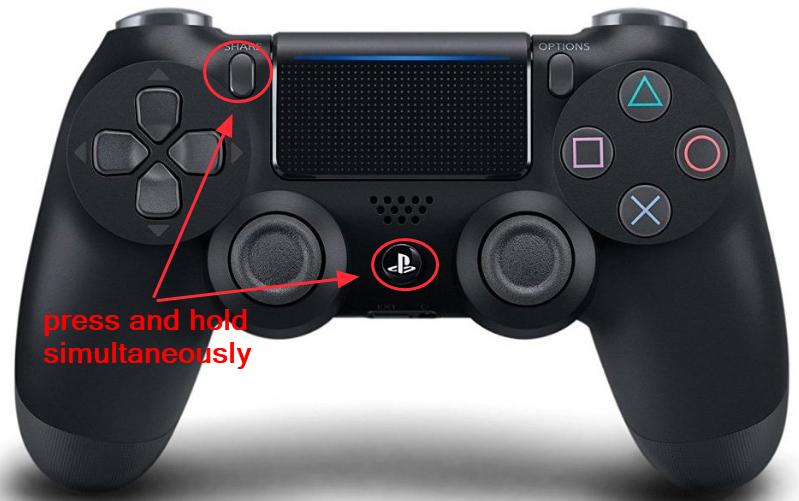
Credit: www.drivereasy.com
Ps4 Controller Blinking Patterns: What Each Color Means
Understanding the meaning of each blinking color can save you time.
- Blue blinking: Controller is trying to pair with the PS4.
- White blinking: Controller is not paired; possible syncing or hardware issue.
- Orange blinking (slow): Charging in rest mode.
- Red blinking: Rare; often signals overheating or hardware failure.
If the light pattern does not match normal use, troubleshooting is needed.
Should You Try Third-party Repair Services?
If your controller is out of warranty, you might consider third-party repair shops. Here are some things to know:
- Cost: Repairs may cost $20–$40, but new controllers are often $50–$60.
- Quality: Some shops use low-quality parts.
- Warranty: Repairs usually void any remaining Sony warranty.
For expensive or rare controllers, professional repair may be worth it. For standard controllers, replacement is often a better value.

Credit: www.youtube.com
Useful Resources For Advanced Troubleshooting
For more help, check the official PlayStation support page: PlayStation Support. They offer step-by-step guides, videos, and contact options for complex problems.
Frequently Asked Questions
What Does It Mean When My Ps4 Controller Is Blinking Blue?
A blinking blue light usually means the controller is trying to connect to the PS4. If it keeps blinking and never turns solid, it could be a connection or syncing problem. Try resetting the controller and pairing with a USB cable.
Why Does My Ps4 Controller Keep Blinking While Charging?
If your controller blinks orange slowly while plugged in, it is charging in rest mode. If it blinks quickly or does not stop after charging, the battery or cable might be faulty. Try a different cable, and clean the charging port.
Can A Bad Usb Cable Cause My Controller To Keep Blinking?
Yes. Many USB cables only carry power, not data. A bad cable can stop the controller from syncing or charging correctly, causing endless blinking. Always use a high-quality, data-capable USB cable.
How Do I Reset My Ps4 Controller?
Turn off your PS4. Find the small hole near the L2 button on the back of the controller. Use a pin to press and hold the reset button for 5 seconds. Then reconnect with a USB cable and press the PS button to re-pair.
What Should I Do If None Of The Fixes Work?
If your controller blinks on all consoles, with all cables, and after resets, it likely has a hardware fault. Check for warranty coverage or consider buying a new controller. Attempting internal repairs is only for advanced users.
Conclusion
Getting your PS4 controller working again can seem confusing, but most blinking issues have simple solutions. With the right steps, you’ll spend less time fixing and more time playing your favorite games.