
If your Simplisafe camera is blinking red, you might be worried about security or think something is wrong with your device. A flashing red light on a Simplisafe camera is not just a random signal—it means something important. Understanding what this light means and how to fix the problem can help keep your home safe and your camera working well.
This guide will show you why your camera might be blinking red, how to fix it, and how to prevent future problems, all in clear, simple language.
What Does A Blinking Red Light Mean On A Simplisafe Camera?
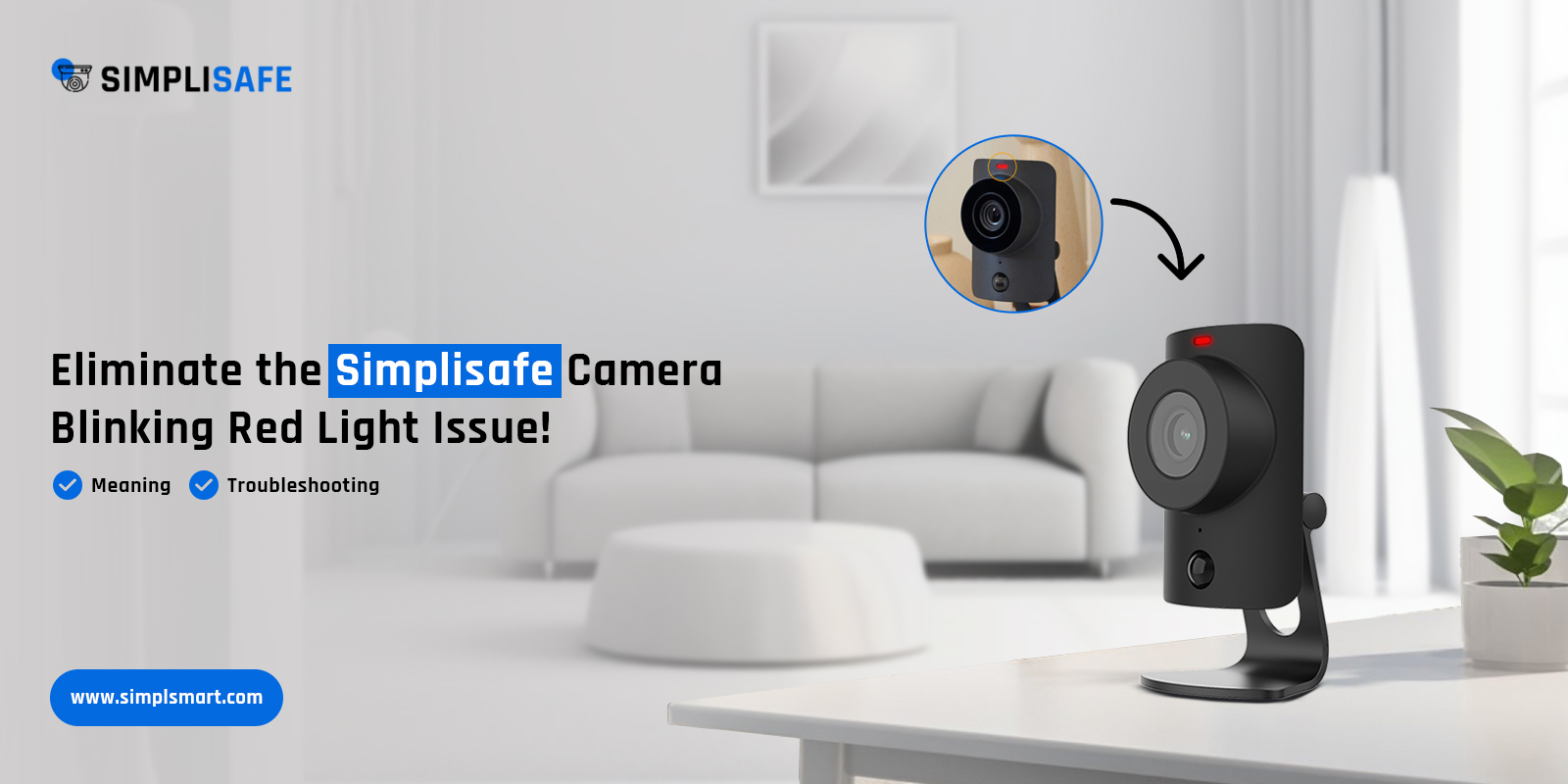
A blinking red light on a Simplisafe camera is a warning signal. It usually means your camera has lost its connection to the internet, is having trouble with power, or needs to be reset. This light is there to alert you that something is not right, so you can act quickly.
Some people think a blinking red light means the camera is recording or someone is watching. That is not true for Simplisafe cameras. Instead, it always means there is a problem to fix.
Main Reasons Why Your Simplisafe Camera Blinks Red
Knowing the cause helps you solve the problem faster. Here are the most common reasons:
1. Wi-fi Connection Lost
Simplisafe cameras need strong Wi-Fi. If the camera cannot connect, it will blink red.
2. Low Or No Power
If the power supply is weak or the battery is low, the camera cannot work right.
3. Firmware Update Problem
Sometimes, if an update fails, the camera gets stuck and blinks red.
4. Camera Reset Needed
After a reset, the camera may blink red until it connects again.
5. Camera Not Registered
If you try to use a new camera without setting it up, it will blink red.
6. Signal Interference
Other electronics or thick walls can block Wi-Fi signals, causing connection loss.
7. Account Or Security Issues
If there is a problem with your Simplisafe account, the camera may stop working until you fix it.
Understanding these reasons helps you choose the right solution.
Step-by-step Fixes For A Blinking Red Simplisafe Camera
Let’s look at how you can fix the most common issues, one step at a time.
1. Check The Power Supply
- Make sure the camera is plugged in securely.
- For wireless cameras, check the battery level.
- Try another power outlet if you suspect a problem.
If the camera turns on and the red light stops, the problem was the power.
2. Test Your Wi-fi Connection
- Check if other devices (phones, laptops) can use the Wi-Fi in the same room.
- Move the camera closer to your router if the signal is weak.
- Restart your router and wait for it to reconnect.
3. Reconnect The Camera To Wi-fi
- Open the Simplisafe app.
- Go to “Devices” and select your camera.
- Follow prompts to reconnect to Wi-Fi. Enter your Wi-Fi password carefully.
If the red light still blinks, continue to the next step.
4. Reset The Camera
- Find the reset button on your camera (usually a small hole).
- Use a paperclip to press and hold the reset button for 20 seconds.
- Wait for the camera to restart. It may blink red for a minute, then turn blue or white when ready.
5. Check For Firmware Updates
- In the Simplisafe app, look for any pending updates for your camera.
- Run the update. Do not unplug the camera while updating.
- Wait until the process is complete.
6. Re-register Your Camera
- If you changed your Wi-Fi network or moved the camera, remove it from your account.
- Add the camera again by scanning its QR code or entering its serial number.
7. Clear Interference
- Move other electronics away from the camera and router.
- Place the router in a central, high spot with few barriers.
8. Verify Your Simplisafe Account
- Log in to your account on the app or website.
- Make sure your subscription is active and no payments are overdue.
- Check for any alerts or messages.
9. Contact Simplisafe Support
If you try all these steps and the camera still blinks red, contact Simplisafe support. Sometimes, the problem is with the device and needs professional help.
How To Prevent Your Simplisafe Camera From Blinking Red
Prevention saves time and keeps your security system running smoothly. Here are some tips:
- Keep the Camera’s Firmware Updated: Regular updates fix bugs and improve performance.
- Ensure Stable Wi-Fi: Use a reliable internet provider and a strong router.
- Check Power Sources: Use original power adapters and avoid extension cords.
- Keep Cameras Clean and Dry: Moisture or dust can affect connections.
- Test Your System Regularly: Check all cameras in the app every month.
- Avoid Overloading Wi-Fi: Too many devices can slow down the network.
- Place Cameras in Good Signal Areas: Avoid basements or far corners if the Wi-Fi is weak.
By following these tips, you reduce the chance of seeing the blinking red light in the future.

Credit: www.youtube.com
Comparing Simplisafe Camera Status Lights
Different lights mean different things. Here is a simple comparison to help you understand what your camera is telling you.
| Light Color | Blinking/Steady | Meaning |
|---|---|---|
| Red | Blinking | Connection or power issue |
| Blue | Steady | Camera is recording |
| White | Blinking | Camera is connecting to Wi-Fi |
| Yellow | Steady | Firmware update in progress |
| Green | Steady | Camera is online and working |
Learning these signals helps you act fast when you see a problem.
Real-world Examples: When Simplisafe Cameras Blink Red
Imagine you are on vacation, and your neighbor calls to say your camera is blinking red. What should you do?
Case 1:
You check your Simplisafe app and see the camera is offline. You call your neighbor and ask them to check the power outlet. They find the plug is loose. After plugging it back in, the camera reconnects.
Case 2:
Your camera blinks red after a storm. You notice your internet is down. Once your provider restores service, the camera light turns green again.
Case 3:
You moved your camera to the garage, and it starts blinking red. Your garage has thick walls, and the Wi-Fi signal is weak. You install a Wi-Fi extender, and the camera works fine.
Many people miss small things like power plugs, router position, or account problems. These practical stories show how simple fixes often solve the problem.
Data: How Often Do Simplisafe Cameras Blink Red?
How common is this issue? Based on user reports and support forums, about 15–20% of Simplisafe camera owners experience a blinking red light at least once a year. Most problems come from Wi-Fi issues or power interruptions.
Here’s how different causes break down:
| Cause | Approximate % of Cases |
|---|---|
| Wi-Fi connection lost | 50% |
| Power issues | 25% |
| Firmware update problems | 10% |
| Account/security issues | 10% |
| Other (interference, hardware) | 5% |
Most issues are easy to fix with a few simple steps.
Comparison: Simplisafe Vs. Other Camera Brands’ Status Lights
How does the blinking red light on a Simplisafe camera compare to other brands like Ring or Arlo?
| Brand | Blinking Red Light Meaning | Common Fixes |
|---|---|---|
| Simplisafe | Connection/power issue | Check Wi-Fi, power, reset |
| Ring | Setup mode or error | Re-add device, check internet |
| Arlo | Sync or connection failed | Re-sync, move closer to base |
| Google Nest | Wi-Fi or account error | Re-login, check Wi-Fi |
It is important to check each brand’s manual. Status lights can mean different things for different cameras.

Credit: support.simplisafe.com
Two Insights Beginners Often Miss
1. Camera Placement Matters More Than You Think
Many people put cameras in places with poor Wi-Fi, like garages or basements. Even if your phone works there, cameras need a stronger, more stable signal. Always test the spot before installing the camera.
2. Firmware Updates Can Fix Hidden Problems
Sometimes, your camera may have a bug you do not see. Even if it seems to work, running the latest update can prevent future blinking red lights. Do not ignore update notifications in your app.
When To Replace Your Simplisafe Camera
If your camera keeps blinking red even after all fixes, it may be time to consider a replacement. Signs you need a new camera include:
- The red light never stops, even after resets and support calls.
- The camera is more than 5 years old and often loses connection.
- The picture quality is poor or cuts out often.
Simplisafe offers a warranty on many cameras. If your device is still under warranty, contact them for a replacement.
Credit: www.newlifebathrooms.com.au
Frequently Asked Questions
What Does A Solid Red Light Mean On My Simplisafe Camera?
A solid red light is rare on Simplisafe cameras. Most often, you will see blinking red for problems. If you see a solid red light, restart the camera and check the manual for your specific model.
Can The Blinking Red Light Mean Someone Is Hacking My Camera?
No, a blinking red light on a Simplisafe camera almost always means a connection or power issue. It does not signal hacking or spying. However, always keep your firmware updated to protect against security risks.
How Do I Know If My Simplisafe Camera Is Recording?
When your Simplisafe camera is recording, you will usually see a steady blue light. The red blinking light means it is not recording because of a problem.
How Long Does It Take For The Camera To Reconnect After Fixing The Problem?
Most Simplisafe cameras reconnect within 1–3 minutes after you restore power or fix the Wi-Fi. If it takes longer, try resetting the camera or restarting your router.
Where Can I Find Official Help For My Simplisafe Camera?
You can visit the official Simplisafe Support Center for guides, troubleshooting, and direct help from the company.
Conclusion
If your Simplisafe camera is blinking red, do not panic. Most issues are simple to fix by checking the power, Wi-Fi, and app settings. By understanding what the blinking red light means and using the steps above, you can keep your home secure and your camera working well.
Regular checks, updates, and good placement will help you avoid problems in the future. Remember, staying informed is the best way to keep your security system running smoothly.