
If you own a pair of AirPods, you know they usually work without problems. But sometimes, you see a small light on the case blinking orange. This light can make you worry, especially if your AirPods are not working as expected.
What does this orange (sometimes called amber) light mean? Is it a serious problem, or is it easy to fix? This article explains everything you need to know about why your AirPods are blinking orange, what it means, and how to solve it.
You will also learn some tips to keep your AirPods working well and avoid future problems.
Understanding Airpods Status Lights
Before you fix the blinking orange light, it helps to know how the AirPods case light works. The small LED light on your charging case gives you quick information about the status of your AirPods and the case itself. The meaning changes depending on the color and whether your AirPods are in the case or not.
What Do The Lights Mean?
AirPods use two main colors: green and orange (also called amber). Here’s a quick overview:
| Light Color | Status | What It Means |
|---|---|---|
| Green (solid) | Charged | Fully charged or case has enough power |
| Orange/Amber (solid) | Charging or Low Power | Charging in progress or low battery |
| Orange/Amber (blinking) | Error | Pairing or connection problem; needs attention |
| White (blinking) | Ready to Pair | AirPods in pairing mode |
| No Light | Off | Case battery is empty or not in use |
The blinking orange light is different from a solid orange light. If you see a blinking or flashing orange light, your AirPods or case are trying to tell you there’s a problem.
Main Reasons Why Airpods Blink Orange
When your AirPods blink orange, it usually means one of these issues:
- Pairing Error: AirPods can’t connect to your iPhone, iPad, or another device.
- Firmware Problem: The software inside the AirPods needs an update or has a glitch.
- Charging Issue: The case or AirPods are not charging properly.
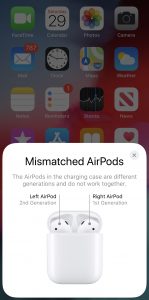
- Unrecognized AirPods: The AirPods inside the case are not a matched pair, or one is missing.
- Hardware Fault: A rare, more serious problem inside the AirPods or case.
Let’s look at each reason in more detail.
1. Pairing Error
The most common reason for a blinking orange light is a pairing issue. This happens if your AirPods are not able to connect to your device. Sometimes, this can occur after you try to connect AirPods to a new phone or computer. If the connection fails, the case blinks orange to let you know.
2. Firmware Problem
All AirPods have built-in software called firmware. This software helps them work with your devices. If the firmware is out of date or gets corrupted, the AirPods may not work right. The case might then blink orange as a signal that something is wrong with the software.
3. Charging Issue
A charging problem can also cause the orange light. If the AirPods are not charging correctly, or if the case battery is very low, the light may blink. This can happen if there is dirt in the charging port, a faulty cable, or a problem with the battery itself.
4. Unrecognized Airpods
Sometimes, people mix up their AirPods with a friend’s or lose one and replace it. If the two AirPods in the case are not a matched pair, or if one is missing, the case may show a blinking orange light.
5. Hardware Fault
Very rarely, the blinking orange light means a hardware problem inside the AirPods or the charging case. This can be due to water damage, a drop, or a manufacturing defect.
Credit: www.plattar.com
How To Fix Airpods Blinking Orange
Seeing a blinking orange light is not the end of the world. In most cases, you can fix it yourself with a few simple steps. Here is a step-by-step guide to help you.
Step 1: Check Battery And Charging
Start with the basics. Make sure your AirPods and case have enough charge.
- Place both AirPods in the charging case.
- Connect the case to a power source using an official Apple cable and charger.
- Wait at least 15-20 minutes.
After charging, open the lid near your iPhone or iPad. You should see the battery status pop up. If the orange light turns solid or green, the charging problem is solved.
Pro Tip: If the AirPods still won’t charge, try cleaning the charging contacts inside the case and on the AirPods with a dry, soft brush. Dust and lint can block the connection.
Step 2: Make Sure Airpods Are A Matched Pair
If you borrowed or replaced an AirPod, the case may not recognize both as a set.
- Put both AirPods in the case.
- Close the lid for 30 seconds, then open it.
- Hold the case near your phone and check if you see both AirPods in the battery pop-up.
If only one AirPod shows, or if you see an error, you might have a mismatch. If you recently replaced an AirPod, follow the pairing instructions given by Apple Support to match them.
Step 3: Reconnect Airpods To Your Device
A simple reconnect can solve most pairing issues.
- Go to your phone’s Bluetooth settings.
- Find your AirPods in the list and tap the “i” info button.
- Tap “Forget This Device.”
- Place both AirPods in the case, close the lid, and wait 30 seconds.
- Open the lid and press the setup button on the back of the case until the light flashes white.
- Bring the case near your phone and follow the on-screen steps to reconnect.
This process resets the Bluetooth link and often clears up a blinking orange light.
Step 4: Reset Your Airpods
If reconnecting doesn’t work, try a full reset.
- Put both AirPods in the case and close the lid for 30 seconds.
- Open the lid. Press and hold the setup button (on the back of the case) for about 15 seconds, until the light flashes orange, then white.
- Release the button. The AirPods are now reset.
- Reconnect them to your device by following the normal pairing steps.
Note: Resetting will remove your AirPods from all devices signed in with your Apple ID. You will have to reconnect them everywhere.
Step 5: Update Firmware
Check if your AirPods have the latest firmware. Firmware updates happen automatically when your AirPods are charging and near your phone.
- To check the firmware version, go to Settings > Bluetooth > tap the “i” next to your AirPods.
- Compare your version with the latest one listed on Apple’s official site.
If your AirPods are not updating, try keeping them plugged in, with the lid open, and your phone nearby for at least 30 minutes.
Step 6: Try A Different Device
Sometimes, the problem is with your phone or computer, not the AirPods. Try connecting your AirPods to another device. If they work normally, the issue is likely with the first device’s Bluetooth.
Step 7: Contact Apple Support
If none of the above works, the blinking orange light may signal a hardware problem. In this case, contact Apple Support or visit an Apple Store. If your AirPods are under warranty, you may get a free repair or replacement.
Airpods Models And Status Light Differences
Not all AirPods are exactly the same. Here’s a quick comparison of how the status lights work for different models:
| AirPods Model | Light Location | Wireless Charging? | Status Light Function |
|---|---|---|---|
| AirPods (1st & 2nd Gen) | Inside the case | No (1st), Yes (2nd, optional) | Shows battery and error status |
| AirPods (3rd Gen) | Front of the case | Yes | Shows battery, charging, pairing, and errors |
| AirPods Pro (all) | Front of the case | Yes | Shows battery, charging, pairing, and errors |
| AirPods Max | No case light, uses headphones’ LED | N/A | Shows battery and pairing status |
Older AirPods have the light inside the case, while newer models (AirPods Pro and 3rd Gen) have the light on the front. The basic meanings are the same, but placement is different.
Common Myths About The Blinking Orange Light
Some users worry that a blinking orange light always means their AirPods are broken. This is not true. Here are a few myths and the reality behind them:
- Myth: Blinking orange always means hardware failure.
- Reality: Most of the time, it’s a simple pairing or charging issue.
- Myth: Resetting AirPods will erase your Apple ID or iCloud account.
- Reality: Resetting only removes AirPods from your devices, not your Apple ID.
- Myth: Cleaning AirPods with water will solve charging problems.
- Reality: Water can damage AirPods. Only use a dry, soft brush or cloth.
Understanding these facts will help you avoid panic and fix issues confidently.
Preventing Future Problems
You can reduce the chances of seeing a blinking orange light by taking good care of your AirPods. Here’s how:
- Keep the case and AirPods clean. Use a dry, soft brush to remove dust from the charging contacts.
- Avoid moisture. Don’t use AirPods in the rain or clean them with water.
- Charge with official accessories. Cheap or third-party chargers can cause problems.
- Update your devices regularly. New firmware and iOS updates fix bugs and improve performance.
- Store in the case when not in use. This keeps AirPods safe and charged.
These habits help your AirPods last longer and work better.
Credit: www.plattar.com
Real-world Examples
Many people have faced the blinking orange light, and most solve it with a simple reset or cleaning. For example:
- Case 1: A student’s AirPods blinked orange after falling out of their backpack. After cleaning the charging contacts and resetting the AirPods, the problem disappeared.
- Case 2: Another user mixed up left and right AirPods with a friend. The case blinked orange until they paired both original AirPods together again.
- Case 3: Someone left their AirPods out in the rain. After drying them overnight and resetting, the orange light continued. Apple replaced them under warranty due to water damage.
These stories show that most solutions are quick, but sometimes you need expert help if there is real damage.
Comparing Airpods Blinking Lights With Other Brands
It helps to know how other wireless earbuds signal problems compared to AirPods. Here’s a comparison:
| Brand | Error Indicator | Common Fix |
|---|---|---|
| Apple AirPods | Blinking orange light | Reset and reconnect |
| Samsung Galaxy Buds | Blinking red or blue light | Remove and re-pair buds |
| Jabra Elite | Blinking yellow or red | Reset and update firmware |
| Sony WF series | Blinking orange/red on buds | Charge fully and reset |
Most brands use blinking lights to show errors, and a reset is often the solution. But always check your brand’s support page for details.
When Should You Worry?
While most blinking orange light issues are easy to fix, there are times when you should be concerned:
- Persistent blinking after all steps above.
- Visible damage or water inside the case.
- AirPods heating up during charging.
- No sound or only one AirPod working, even after reset.
If you see these signs, stop using your AirPods and get professional help.
Extra Tips Most People Miss
Many beginners overlook two helpful steps:
- Try a different charging cable and adapter. Sometimes the problem is with the accessories, not the AirPods.
- Update your iOS or iPadOS before resetting. Software bugs on your device can cause Bluetooth problems that look like AirPods errors.
Also, if you use AirPods with non-Apple devices (like Android), some features like firmware updates or battery status may not work as well.
Frequently Asked Questions
What Does It Mean When My Airpods Are Blinking Orange?
A blinking orange light usually means your AirPods have a pairing or connection problem. It can also signal a charging issue or that the AirPods in the case do not match. Try resetting or reconnecting them to your device.
How Do I Reset My Airpods If They Are Blinking Orange?
Put both AirPods in the case, close the lid, wait 30 seconds, then open the lid. Hold the setup button on the case for 15 seconds until the light flashes orange, then white. Release the button and reconnect to your device.
Will I Lose My Airpods Warranty If I Try To Fix The Blinking Orange Light Myself?
Doing basic steps like resetting or cleaning your AirPods will not void your warranty. However, opening the case or using liquids to clean them can cause damage and may affect your warranty. Always follow official instructions.

Credit: burga.com
Can A Damaged Charging Cable Cause My Airpods To Blink Orange?
Yes, a faulty charging cable or adapter can prevent your AirPods from charging properly, leading to a blinking orange light. Try using an official Apple cable and adapter to rule out this issue.
Where Can I Get More Help If My Airpods Keep Blinking Orange?
If you have tried all troubleshooting steps and the problem continues, contact Apple Support or visit an Apple Store for help. You can also check the official Apple Support page for more details.
Conclusion
If your AirPods are blinking orange, don’t panic. Most issues are easy to fix at home. By understanding what the light means and following these steps, you can get your AirPods working again quickly. And with a little care, you can avoid seeing that orange light in the future.