
The small, colorful light on your Roku remote is easy to ignore—until it starts blinking red. Suddenly, your streaming stops, and you’re left wondering what’s gone wrong. For many Roku users, a blinking red light on the remote causes confusion and frustration. But this simple signal is not random—it’s your remote’s way of telling you something important. Understanding the reason behind the blinking red light can save you time, money, and stress.
Let’s explore what a Roku remote blinking red actually means, the most common causes, how to fix it, and how to avoid remote problems in the future. If you want a quick and reliable streaming experience, solving the blinking red light issue is an important step.
What Does A Roku Remote Blinking Red Mean?
A blinking red light on your Roku remote is a warning. It does not mean your Roku device is broken, but it does mean your remote needs attention.
Most of the time, a blinking red light means:
- Low battery power
- Connection problems
- Hardware or pairing issues
The blinking pattern can vary, but the message is the same: your remote cannot work normally until you fix the problem. If you ignore it, you may lose control of your streaming device completely.
Main Causes Of Roku Remote Blinking Red
Solving the blinking red light starts with finding the real cause. Here are the most common reasons this happens:
1. Low Or Dead Batteries
The number one cause is weak batteries. Roku remotes use AA or AAA batteries, and streaming, voice search, or private listening can drain them quickly. When power drops below a certain level, the remote blinks red to get your attention.
2. Poor Battery Contact
Even with new batteries, sometimes metal connectors inside the battery compartment do not touch well. Dust, corrosion, or a slightly loose battery can cause the remote to lose power for a split second—enough to trigger the warning light.
3. Interference Or Signal Blockage
Roku remotes use infrared (IR) or wireless (WiFi Direct) signals. Thick walls, microwaves, or other electronics can block or disrupt these signals, causing communication errors and a blinking light.
4. Pairing Or Sync Issues
Some Roku remotes need to pair with the streaming device. If the connection breaks—because of a system update, power outage, or switching to a new Roku box—the remote may blink red until you pair it again.
5. Faulty Remote Or Device
Rarely, a problem with the remote’s internal parts or the Roku receiver causes the blinking. Drops, water damage, or old age can all lead to hardware failure.

Credit: www.reddit.com
How To Fix A Roku Remote Blinking Red
Solving the blinking red light is not hard if you follow a process. Start with simple fixes, then try more advanced steps if needed.
Step 1: Replace The Batteries
- Remove the battery cover on your Roku remote.
- Take out the old batteries.
- Insert new, high-quality AA or AAA batteries (check your remote’s type).
- Make sure the batteries are inserted the correct way (+ and – signs).
- Check if the blinking red light stops.
Pro tip: Rechargeable batteries often have less power than fresh alkaline batteries. For the most reliable results, use new alkaline batteries.
Step 2: Clean The Battery Contacts
Dust or corrosion can block power. To clean:
- Take out the batteries.
- Use a dry cotton swab or a soft cloth to wipe the metal contacts.
- If you see corrosion, gently rub with a pencil eraser.
- Put batteries back and test.
Step 3: Check For Interference
- Move other electronics (like WiFi routers or microwaves) away from your Roku device and remote.
- Remove objects blocking the line between your remote and the Roku box (for IR remotes).
- Try using the remote closer to the device.
Step 4: Re-pair Your Remote
If your Roku remote uses WiFi Direct (usually with a pairing button inside the battery compartment):
- Remove the batteries.
- Unplug your Roku device for 10 seconds, then plug it back in.
- When you see the Roku home screen, put batteries back in the remote.
- Press and hold the pairing button for 5 seconds or until the light flashes.
- Wait for the pairing process to finish.
Step 5: Restart Your Roku Device
- Unplug the Roku box or stick from power for 10 seconds.
- Plug it back in and wait for it to restart.
- Test the remote.
Step 6: Try A Different Remote
If you have access to another Roku remote, try pairing it. If the new remote works, your old remote may be faulty.
Step 7: Reset The Remote
Some remotes have a reset process:
- Remove batteries.
- Press all the remote buttons twice (to discharge static).
- Put batteries back in.
- Test the remote.
Step 8: Replace The Remote
If none of these steps work, your remote may be damaged. You can order a new official Roku remote or use the Roku mobile app as a temporary solution.
Comparing Roku Remote Types
Understanding your remote helps you fix problems faster. Here’s a comparison of the main Roku remote types:
| Remote Type | How It Connects | Pairing Needed? | Common Issues |
|---|---|---|---|
| Simple (IR) | Infrared (line of sight) | No | Blocked signal, dead batteries |
| Voice/WiFi Direct | Wireless (WiFi Direct) | Yes | Pairing errors, interference, battery drain |
| Enhanced (Rechargeable) | Wireless + USB charging | Yes | Charging failure, pairing issues |
If you’re not sure which remote you have, check for a pairing button or a headphone jack—these features are only on advanced models.
Common Mistakes When Troubleshooting
Even experienced Roku users make mistakes when fixing a blinking red remote. Avoid these common errors:
- Using old batteries: Even if they “look new,” weak batteries are often the cause.
- Wrong battery type: Some remotes need alkaline, not rechargeable, batteries for full power.
- Ignoring the pairing process: Skipping pairing can keep the remote from working, even with new batteries.
- Missing the line of sight: For IR remotes, blocking the path—even with glass—will stop signals.
- Not checking the device: Sometimes the problem is with the Roku box, not the remote.
Preventing Roku Remote Issues
A little care can make your Roku remote last longer and work better:
- Use high-quality batteries and change them every 2–3 months.
- Keep the battery compartment clean and dry.
- Don’t drop or get the remote wet—moisture can ruin the electronics.
- Keep your Roku device and remote away from strong WiFi routers, microwaves, or cordless phones.
- If you use the remote often, consider a model with rechargeable batteries.
When To Replace Your Roku Remote
Roku remotes are built to last, but all electronics have a lifespan. Here’s when to buy a new one:
- The remote does not work, even with new batteries and after re-pairing.
- The blinking red light stays on after all troubleshooting steps.
- Buttons stop responding or get stuck.
- The remote is physically damaged (cracked, wet, or burned).
New Roku remotes cost between $10–$30, depending on features like voice search or private listening. You can buy them from the official Roku website or major retailers.
Using The Roku Mobile App As A Remote
If your physical remote stops working, use the Roku mobile app as a backup. The app is free for Android and iOS devices. Here’s how:
- Download the Roku app from the App Store or Google Play.
- Connect your phone to the same WiFi network as your Roku device.
- Open the app and find your Roku device.
- Use your phone as a full remote, including voice and keyboard input.
This is a great temporary solution if you’re waiting for a replacement remote.

Credit: www.reddit.com
Troubleshooting Advanced Roku Remote Problems
Some users face more complex issues, like the remote blinking red only after updates or when using certain features (like voice search). Here’s what to do:
- Update your Roku device: Go to Settings > System > System Update.
- Reset network settings: If interference is suspected, restart your WiFi router.
- Try another USB port: If using a streaming stick powered by USB, try another port or a wall adapter for more stable power.
Data: How Often Do Roku Remotes Fail?
Recent surveys show that about 15% of Roku users report remote issues each year. The most common problems are battery-related, but about 3% require a new remote due to hardware failure.
| Problem Type | % of Users Affected |
|---|---|
| Battery issues | 8% |
| Pairing problems | 5% |
| Hardware failure | 3% |
| Signal interference | 2% |
Most problems are easy to solve at home, but a small number need a full replacement.
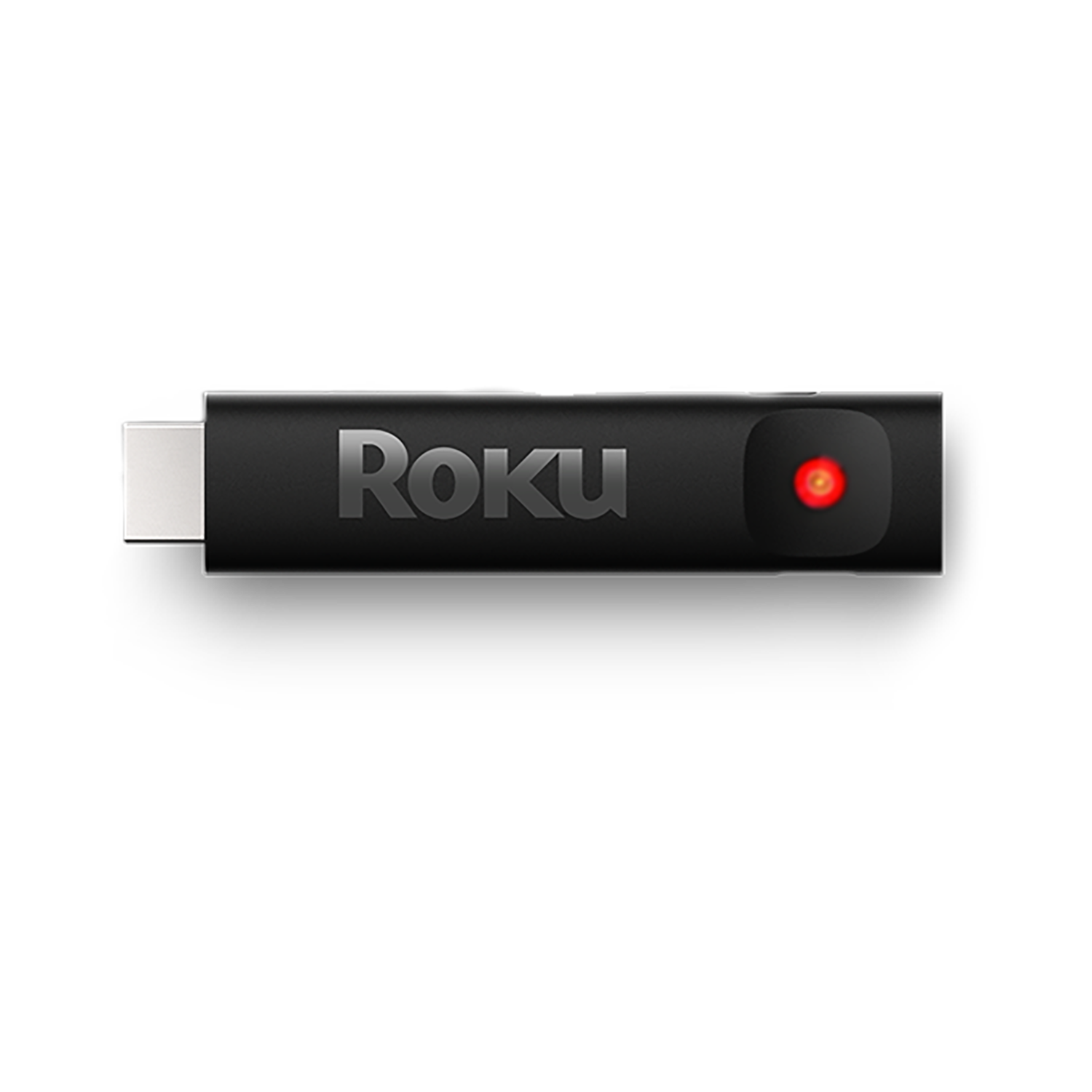
Credit: support.roku.com
Where To Find Help And More Information
If you try everything and your remote still blinks red, visit the official Roku Support page for guides and warranty info. They offer step-by-step help and can guide you in ordering a replacement remote.
Frequently Asked Questions
Why Is My Roku Remote Blinking Red Even With New Batteries?
A blinking red light with new batteries usually means a pairing problem or signal interference. Try re-pairing the remote and removing other electronics nearby.
Can I Use My Roku Without The Remote?
Yes. Download the free Roku mobile app for Android or iOS. It lets you control your Roku device over WiFi, including typing and voice search.
Do All Roku Remotes Blink Red For Battery Issues?
Most newer Roku remotes have a blinking red (or sometimes green) light for battery problems. Simple IR-only remotes may not have a blinking light but just stop working.
How Long Do Roku Remote Batteries Last?
With regular use, most batteries last 2–3 months in standard remotes. Heavy voice search or private listening can drain them faster. Always use quality alkaline batteries for best results.
Is A Blinking Red Light A Sign My Roku Device Is Broken?
No. The blinking red light is almost always a remote issue, not a sign your Roku box or streaming stick is broken. Fix the remote first before worrying about the device.
A blinking red Roku remote is annoying, but with the right steps, you can solve it quickly. Most problems are small—like weak batteries or a missed pairing step. Keep your remote and batteries in good shape, and use the mobile app if you need a backup.
With a little care, your Roku streaming will stay smooth and stress-free.