
If you own a Roku device, you probably enjoy its simple streaming and easy navigation. But sometimes, technology throws a curveball—like your Roku remote blinking green. This small light can quickly turn into a big headache, especially if your favorite show is just a button press away. Understanding what this blinking green light means, why it happens, and how to fix it can save you time and frustration. This article breaks down everything you need to know, with step-by-step solutions, common mistakes to avoid, and practical advice to get you back to streaming.
What Does The Blinking Green Light Mean?
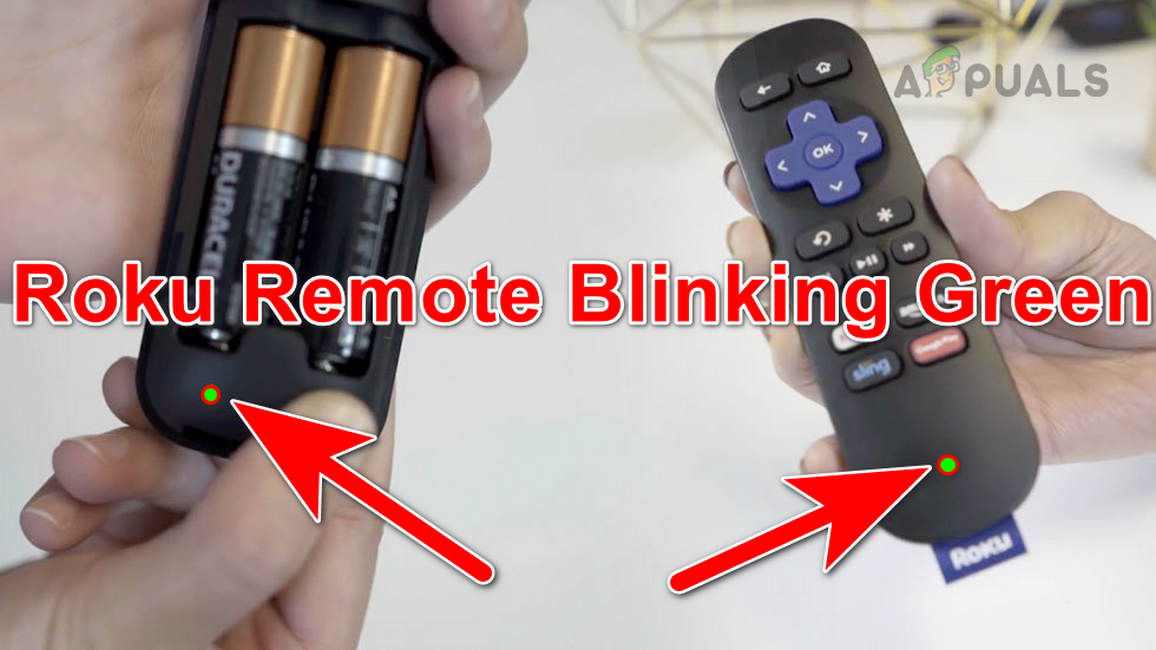
When you see a blinking green light on your Roku remote, it’s a signal, not just a random glitch. This light is the remote’s way of communicating a problem. Typically, it means your remote is trying to pair with your Roku device, but something is blocking the process. Sometimes, it’s a simple battery issue. Other times, it points to interference or hardware problems.
There are two main types of Roku remotes:
- Simple IR remotes: Use infrared signals and do not have a pairing light.
- Enhanced “point-anywhere” remotes: Use wireless signals (Wi-Fi Direct or Bluetooth) and have a pairing light that can blink green.
If your remote is blinking green, you’re likely using an enhanced model.
Main Causes Of A Roku Remote Blinking Green
Several reasons can trigger the blinking green light. Knowing these causes helps you pick the right fix and avoid wasting time.
- Low or faulty batteries: Weak batteries are a common culprit. If the power is too low, the remote cannot complete the pairing.
- Pairing mode activated: The remote may be searching for a device to pair with, especially after a reset or battery change.
- Interference: Wireless signals from routers, microwaves, or other electronics can block the connection.
- Software updates: Sometimes, after a Roku device update, remotes need to be paired again.
- Hardware problems: Physical damage or internal failures in the remote or Roku device can interrupt pairing.
Credit: appuals.com
Quick Troubleshooting Steps
Before diving into advanced solutions, try these quick fixes. Many users find that simple steps resolve the blinking green light.
1. Replace The Batteries
Always start with the basics. Remove the old batteries and insert a fresh set. Avoid mixing old and new batteries, or different brands. For best results, use alkaline batteries.
2. Restart Your Roku Device
Unplug your Roku device from power, wait about 10 seconds, and plug it back in. When the Roku logo appears on your TV, try pairing the remote again.
3. Re-pair The Remote
- Remove the batteries from the remote.
- Unplug your Roku device, then plug it back in.
- When you see the home screen, insert the batteries back into the remote.
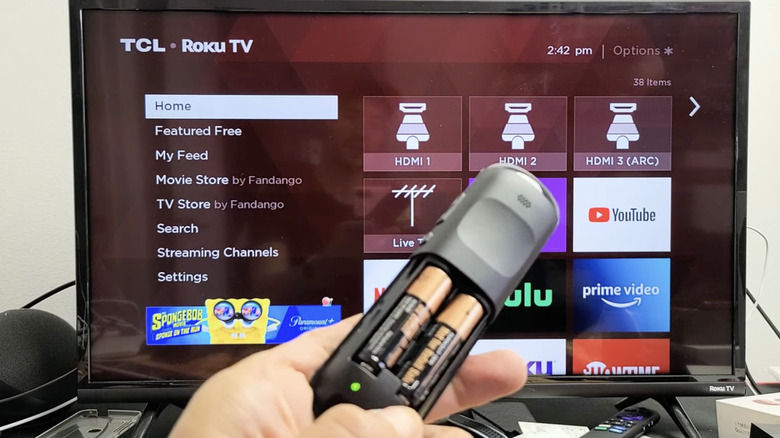
- Press and hold the pairing button (usually inside the battery compartment) for 5 seconds, or until the green light starts blinking.
- Wait for the pairing process to finish. This can take 30–60 seconds.
4. Eliminate Interference
Move other wireless devices away from your Roku and remote. If your router is very close, shift it a few feet away. Even microwaves running nearby can cause problems.
5. Try The Roku App
If you’re stuck, download the Roku mobile app on your smartphone. The app allows you to control your Roku device over Wi-Fi and can help you check if the device itself is working fine.
Comparing Simple And Enhanced Roku Remotes
Not sure which remote you have? Here’s a quick comparison:
| Feature | Simple IR Remote | Enhanced (Wireless) Remote |
|---|---|---|
| Pairing Button | No | Yes |
| Blinking Green Light | No | Yes |
| Works Behind Walls | No (needs direct line of sight) | Yes |
| Voice Control | No | Some models |
If your remote has a pairing button and a blinking green light, it’s the enhanced type.
Advanced Fixes For Persistent Issues
If the basic steps didn’t solve your problem, try these more advanced solutions.
1. Power Cycle Everything
- Turn off your TV and Roku device.
- Unplug the Roku device and your TV from power.
- Remove the batteries from the remote.
- Wait at least 60 seconds.
- Plug in the TV and Roku device, then turn on the TV.
- Insert batteries back into the remote and try pairing again.
This process clears temporary glitches from all devices.
2. Factory Reset Your Roku
A factory reset should be a last resort, as it erases all your settings and installed channels.
- Locate the reset button on your Roku device (usually at the back or bottom).
- Press and hold it for at least 10 seconds using a paperclip or pen.
- Wait for the device to restart and display the setup screen.
- Pair your remote again.
3. Update Your Roku Software
Sometimes, software bugs cause pairing issues. Make sure your Roku has the latest update.
- Use the Roku mobile app (if your remote isn’t working).
- Go to Settings > System > System update > Check now.
If your Roku updates, try pairing the remote again.
4. Check For Physical Damage
Inspect your remote and device for signs of damage. Cracked cases, corroded battery contacts, or water damage can stop the pairing process. If you spot damage, you may need a replacement.
When To Buy A New Remote
If you’ve tried all solutions and the blinking green light won’t stop, your remote might be faulty. Roku remotes are affordable and widely available online and in stores. Before buying, confirm that your new remote is compatible with your device model.
Here’s a quick comparison of popular Roku remotes:
| Remote Model | Main Features | Compatible Devices | Price Range (USD) |
|---|---|---|---|
| Simple IR Remote | Basic controls | Roku Express, Roku TV | $10–$15 |
| Voice Remote | Voice search, TV controls | Roku Streaming Stick+, Ultra | $20–$30 |
| Voice Remote Pro | Rechargeable, hands-free voice | Most current Roku devices | $30–$40 |
Always check the official Roku website or product packaging for compatibility.
Common Mistakes And How To Avoid Them
Many users accidentally make things worse while trying to fix the blinking green light. Here are common pitfalls and how to avoid them:
- Mixing old and new batteries: This can cause inconsistent power and pairing failures.
- Not waiting long enough during pairing: The process can take up to a minute. Be patient.
- Ignoring interference: Even simple electronics, like cordless phones or microwaves, can interrupt pairing.
- Skipping updates: Outdated software can create bugs that affect the remote.
- Buying the wrong remote: Not all remotes work with every Roku model. Double-check before buying.
Non-obvious Insights For Troubleshooting
- Router Placement Matters: If your router is too close or too far from your Roku, it can cause pairing problems. Ideally, keep your router and Roku device 4–10 feet apart to minimize interference and signal loss.
- Use the HDMI Extender: For Roku Streaming Stick models, using the included HDMI extender can reduce interference from your TV and improve remote performance.
- Pair Before Setup: When setting up a new Roku, always pair the remote before adding Wi-Fi details. This ensures smoother setup and reduces errors.

Credit: www.youtube.com
Real-world Example
Maria, a Roku user from Chicago, noticed her remote’s green light blinking after she moved her TV to a new room. She tried changing batteries, but nothing worked. Finally, she realized her router was right next to her Roku device.
After moving the router three feet away and re-pairing the remote, the blinking stopped. This simple change made a big difference.
When To Contact Roku Support
If all else fails, don’t waste more time. Visit the official Roku support page or reach out directly. Have your device model and serial number ready. Support can walk you through device-specific solutions or arrange for a replacement if your remote is under warranty.
For more technical details, you can also visit the official Roku Support page.
Credit: www.slashgear.com
Frequently Asked Questions
Why Is My Roku Remote Blinking Green But Not Working?
The blinking green light means the remote is trying to pair but can’t complete the connection. This is usually caused by low batteries, interference, or the need to re-pair the remote.
How Do I Reset My Roku Remote?
Remove the batteries, unplug your Roku device, wait 10 seconds, plug the device back in, then reinsert the batteries. Hold the pairing button for 5 seconds until the green light blinks.
Can I Use My Roku Without The Remote?
Yes, you can use the Roku mobile app as a temporary remote. The app works over Wi-Fi, so your phone and Roku must be on the same network.
What If The Remote Still Blinks Green After All Troubleshooting?
If none of the solutions work, your remote may be broken. Consider replacing it or contact Roku support for further help.
Do All Roku Remotes Have A Blinking Green Light?
No, only enhanced (wireless) Roku remotes have a pairing light that blinks green. Simple IR remotes do not have this feature.
A blinking green light on your Roku remote can be annoying, but it’s often easy to fix with the right steps. Start simple—check batteries, restart devices, and re-pair the remote. If problems persist, try the advanced methods above. Remember to avoid common mistakes, and don’t hesitate to use the Roku mobile app or contact support if you’re stuck.
With a bit of patience, you’ll be back to streaming your favorite content in no time.