
When you rely on your Owlet camera for peace of mind, a sudden blinking blue light can feel unsettling. Many parents and caregivers use the Owlet camera to keep an eye on their little ones, especially for monitoring sleep and safety. But what does it mean when the camera starts blinking blue? Is there a problem with your internet, the camera, or something else? Understanding this issue is important for quick troubleshooting and restoring your confidence in the device.
This article explains the reasons behind the Owlet camera blinking blue, the steps you should take, and the solutions that work best for most users. With clear advice and practical examples, you’ll know exactly what to do, even if you’re new to smart baby monitors.
What Does The Owlet Camera Blinking Blue Mean?
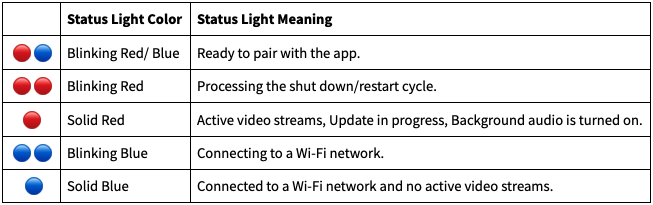
A blinking blue light on your Owlet camera is not random—it’s a signal from the device. In most cases, the blinking blue indicates a Wi-Fi connection problem. It means the camera is trying to connect to your network but cannot establish a stable link. Sometimes, it may also signal a problem during the setup process or after a recent power outage.
Owlet designed this blue light indicator as a way to alert users immediately. Unlike a solid blue light, which usually means everything is working, blinking blue is a call to action. It’s not a hardware failure, but it’s important to fix it quickly to resume live streaming and monitoring.
Common Reasons For Owlet Camera Blinking Blue
Several factors can cause the blue light to start blinking. Understanding these helps you identify and solve the issue faster.
- Weak Wi-Fi Signal: If the camera is too far from your router or there are thick walls in between, the signal may not be strong enough.
- Network Changes: Changing your Wi-Fi password, SSID (network name), or switching routers can cause the camera to lose its connection.
- Power Interruptions: If the power supply to the camera is unstable or interrupted, it may reboot and struggle to reconnect.
- Firmware Updates: Sometimes, after a software update, the camera needs to reconnect and may blink blue during the process.
- Interference: Other electronic devices, such as microwaves or cordless phones, can interfere with the Wi-Fi signal.
- Router Settings: Advanced settings like firewalls or parental controls may block the camera’s access to the internet.
- Incorrect Setup: Errors during the initial setup or app configuration can prevent proper connection.
Here’s a quick look at how these causes compare:
| Reason | How Often? | How to Check? |
|---|---|---|
| Weak Wi-Fi Signal | Very Common | Test signal near camera with phone |
| Network Changes | Common | Check recent router changes |
| Power Interruptions | Occasional | Notice recent power cuts |
| Firmware Updates | Less Common | Check app notifications |
| Interference | Occasional | Look for new electronics nearby |
| Router Settings | Rare | Review router security settings |
| Incorrect Setup | Common for new users | Revisit setup steps |

Credit: support.owletcare.com
Step-by-step Troubleshooting Guide
Fixing the blinking blue light is usually straightforward if you follow a logical process. Here’s how you can solve the problem, even without technical expertise.
1. Check Wi-fi Signal Strength
First, see if the camera is getting a strong signal.
- Use your phone or tablet to connect to Wi-Fi in the same location as the camera.
- If your device struggles to load websites, the camera will too.
- Try moving the router closer or use a Wi-Fi extender.
2. Power Cycle The Camera
A simple restart often fixes connection glitches.
- Unplug the camera from the power source.
- Wait for 30 seconds.
- Plug it back in and watch the light.
If the blue light continues to blink, move to the next step.
3. Restart Your Router
Sometimes the issue isn’t with the camera, but your home network.
- Unplug your router and modem for 30 seconds.
- Plug them back in and wait 2-3 minutes for them to restart.
- Check if the camera reconnects.
4. Reconnect The Camera To Wi-fi
If the network name or password changed, you’ll need to set up the connection again.
- Open the Owlet app on your phone.
- Go to camera settings and select “Reconnect to Wi-Fi.”
- Follow the in-app instructions and enter your Wi-Fi details.
5. Check For Firmware Updates
Outdated software can cause odd behavior.
- In the Owlet app, check for camera firmware updates.
- If available, update and restart the camera.
6. Reduce Interference
Move any large metal objects, microwaves, or cordless phones away from the camera and router.
- Place the camera at least 3 feet from Wi-Fi-blocking objects.
- Position the router in a central, elevated spot.
7. Review Router Security Settings
Sometimes, advanced settings block new devices.
- Log in to your router’s admin page.
- Check if there are parental controls, MAC address filtering, or firewalls that could block the camera.
- Temporarily disable these to test if the camera connects.
8. Reset The Camera
If all else fails, a factory reset can help.
- Hold the reset button (usually on the camera base) for 10-15 seconds.
- Wait for the light pattern to change, then set up the camera again in the app.
Here’s a summary of common troubleshooting actions and their effectiveness:
| Action | Success Rate (Estimated) | When to Use |
|---|---|---|
| Power Cycle Camera | 60% | First step for any issue |
| Reconnect Wi-Fi | 70% | After network changes |
| Reset Camera | 90% | Last resort |
Non-obvious Insights For Faster Fixes
Many people focus only on their camera and router, but there are other factors beginners often miss:
- ISP Problems: Sometimes, your internet provider has temporary outages or maintenance in your area. If you notice all devices disconnecting, contact your ISP.
- 2.4 GHz vs 5 GHz Networks: The Owlet camera usually works only with 2.4 GHz Wi-Fi. If your phone is on a 5 GHz network during setup, the camera may fail to connect. Always use 2.4 GHz when pairing.
- Device Limits: Some routers limit how many devices can connect at once. If your network is crowded, disconnect a few devices and try connecting the camera again.
Credit: support.owletcare.com
Real-world Example: Owlet Camera Blinking Blue After Storm
Imagine a family in Texas who recently experienced a thunderstorm. Their Owlet camera started blinking blue the next morning. After checking, they found the Wi-Fi was working for phones but not for the camera. They performed a power cycle on both the camera and the router, but the blue light continued.
Finally, they reset the camera and reconnected it using the Owlet app. The issue was fixed within 10 minutes.
Lesson: Even if your other devices work, the camera may need a reset to reconnect after power surges.
When To Contact Support
If you’ve tried all troubleshooting steps and the blue light still blinks, it’s time to contact Owlet support. Make sure to note:
- What troubleshooting steps you’ve already tried
- The camera’s serial number (usually found on the base)
- Your router and internet provider details
Owlet support can check for hardware faults or walk you through advanced fixes. In rare cases, they may offer a replacement if the camera is under warranty.
Preventing Future Blue Light Issues
Prevention can save you time and stress in the future. Here’s how to minimize the chances of your Owlet camera blinking blue again:
- Stable Power: Use surge protectors to prevent damage during storms.
- Strong Wi-Fi: Place your router in a central location and avoid overcrowding your network.
- Regular Updates: Check the app for firmware and software updates every few months.
- Backup Internet: If possible, consider a backup mobile hotspot for critical monitoring periods.
- Document Settings: Keep your Wi-Fi name and password written down for quick recovery after changes.
Comparing Owlet To Other Baby Cameras
Many parents wonder how the Owlet camera stacks up against other brands when it comes to connectivity and troubleshooting.
| Brand | Common Connection Issue | Ease of Troubleshooting |
|---|---|---|
| Owlet | Blinking Blue Light | Simple, clear app instructions |
| Nanit | Red Light for Wi-Fi | Good, but needs more app steps |
| Arlo Baby | Amber Blinking | App and web support, more complex |
| Motorola Halo+ | Green/Red Blinking | Basic troubleshooting, less guidance |
Owlet’s clear light signals and app guidance make it one of the more user-friendly options for non-technical parents. However, all smart cameras can face Wi-Fi issues, especially in crowded or complex home networks.
Credit: www.youtube.com
Frequently Asked Questions
Why Does My Owlet Camera Keep Blinking Blue Even After Resetting?
If the blinking blue light continues after a reset, double-check your Wi-Fi credentials and router settings. Make sure your camera is within range and that your router supports 2.4 GHz networks. If the problem persists, there could be a hardware fault.
Can I Use My Owlet Camera With 5 Ghz Wi-fi?
No, the Owlet camera is designed to work with 2.4 GHz Wi-Fi only. If you try to connect it to a 5 GHz network, it won’t work. Make sure your phone is also on the 2.4 GHz network during setup.
Will My Camera Work If My Internet Is Down?
Your Owlet camera needs an active internet connection to stream video to your phone. If your internet is down, live streaming and alerts will not work. Some features may be available locally, but you lose remote monitoring.
How Do I Update My Owlet Camera’s Firmware?
Open the Owlet app, go to camera settings, and look for firmware updates. Follow the instructions to update. Firmware updates can improve reliability and fix bugs.
Where Can I Get More Help If These Solutions Don’t Work?
You can contact Owlet’s official support team through their website or app. For more troubleshooting advice, visit the Owlet Support Center.
Smart baby monitoring is all about peace of mind. A blinking blue light on your Owlet camera can be frustrating, but it’s usually easy to fix with the right steps. By understanding what causes the problem and how to solve it, you can get back to what matters most—caring for your family with confidence.