
When you see your Netgear router blinking orange, it can be worrying. You may wonder if your internet is down or if your device has a bigger problem. This guide will help you understand why this happens, what the blinking orange light means, and how to fix it. Even if you are not an expert, you’ll learn simple steps to solve the issue and prevent it in the future.
What Does The Orange Light Mean On A Netgear Router?
The orange light on a Netgear router usually signals a problem with your internet connection or the router itself. It is not the same as the green or white lights, which often mean the device is working well. The orange light can blink or stay solid. Each type gives you clues:
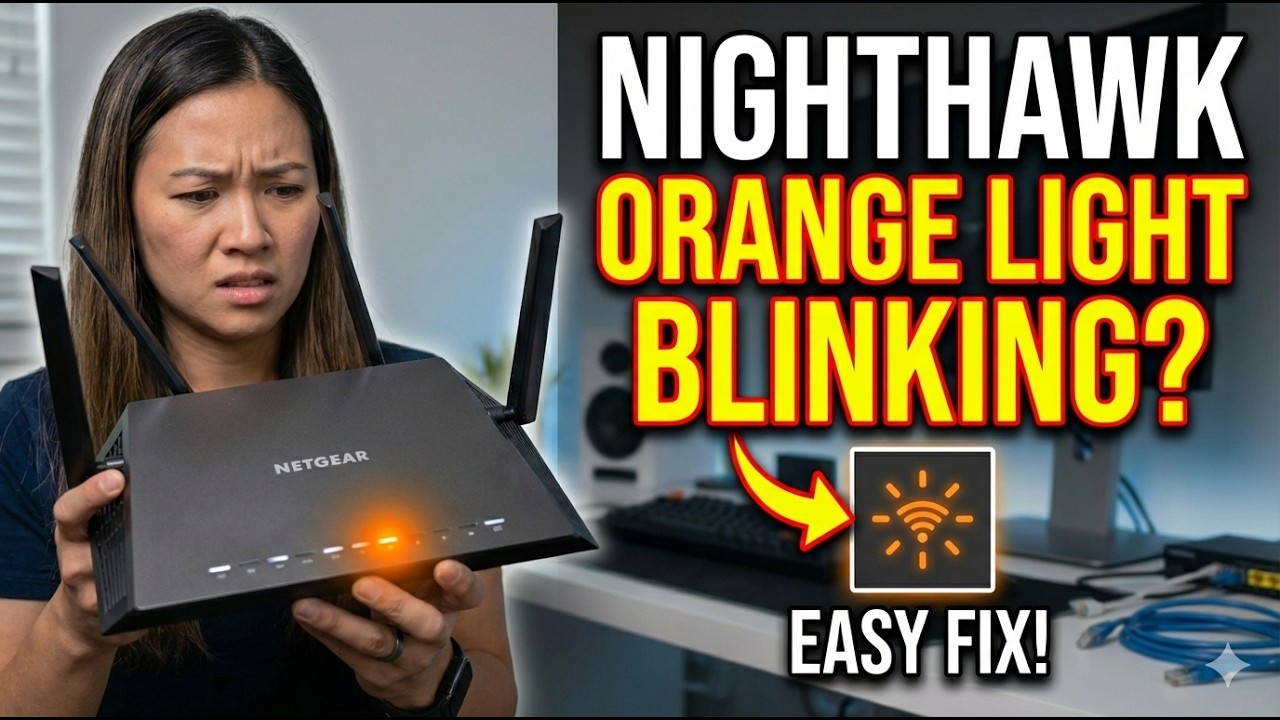
- Blinking orange: The router is trying to connect to the internet or update its firmware.
- Solid orange: The router is on, but not connected to the internet.
Different models may use slightly different light patterns, but the orange light is almost always a warning. It helps you spot issues quickly.
Common Causes Of Netgear Router Blinking Orange
Understanding the cause is the first step. Here are the main reasons you may see an orange light:
- Firmware update in progress: The router is updating its software. Do not turn off the router during this process.
- Bad internet connection: The router cannot connect to your modem or to your internet service provider (ISP).
- Loose cables: Ethernet or power cables are not connected properly.
- ISP outage: The internet provider has problems in your area.
- Hardware failure: A part of your router is broken.
- Wrong settings: The router’s configuration does not match your network.
- IP conflict: Two devices have the same IP address.
- Overheating: The router is too hot and is protecting itself.
Some of these issues are easy to fix. Others may need more steps or help from your ISP.
Credit: www.reddit.com
How To Fix Netgear Router Blinking Orange
If you see a blinking orange light, try these steps. They are arranged from easiest to more advanced.
1. Check Your Cables
Many problems come from simple cable issues. Make sure:
- The power cable is plugged in tightly.
- The Ethernet cable between the router and modem is secure.
- No cables are damaged or frayed.
If you find loose or broken cables, replace or reconnect them.
2. Restart Your Router And Modem
Restarting is often the fastest fix. Here’s how:
- Turn off your router and modem.
- Wait 30 seconds.
- Turn the modem on first and wait until all lights are stable.
- Turn on the router.
This step resets the connection and often solves the blinking orange light.
3. Confirm Internet Service Status
Your ISP may have an outage. Check by:
- Calling your ISP’s support number.
- Using their website or app to see service alerts.
If there is a known outage, you must wait for them to fix it.
4. Update Router Firmware
Outdated firmware causes problems. To update:
- Connect a computer to your router using an Ethernet cable.
- Open a web browser and type the router’s IP address (usually 192.168.1.1 or 192.168.0.1).
- Log in with your admin username and password.
- Go to the Firmware Update section.
- Follow instructions to update.
Do not turn off the router during the update. Firmware updates fix bugs and improve performance.
5. Check Router Settings
Sometimes, settings are wrong after a reset or update. Make sure:
- WAN settings match your ISP’s requirements.
- IP address is set correctly (automatic for most users).
- No manual changes have blocked the internet.
If unsure, use the router’s factory reset option. This returns it to original settings.
6. Look For Overheating
Routers can get hot if placed in tight spaces. Signs of overheating:
- The router feels hot to touch.
- The blinking orange light appears after hours of use.
Move the router to a cooler area and ensure air can flow around it.
7. Replace Faulty Hardware
If none of the above work, your router may have a hardware issue. You may need to:
- Contact Netgear support for repairs.
- Replace the router if it is old or damaged.
Comparing Netgear Router Lights
It’s helpful to know what the different lights mean. Here is a quick comparison:
| Light Color | Meaning | Action Needed |
|---|---|---|
| Green/White | Normal operation | No action |
| Orange (Blinking) | Connecting/Updating firmware | Wait, check cables |
| Orange (Solid) | No internet connection | Check ISP, cables, settings |
| Red | Serious error/hardware failure | Restart, contact support |
Netgear Router Models: Orange Light Behavior
Different Netgear models may show the orange light in slightly different ways. Here’s a comparison:
| Model | Orange Light Location | Common Cause |
|---|---|---|
| R6400 | Internet port | Bad connection to modem |
| Nighthawk AX6000 | Power and Internet LED | Firmware update or ISP issue |
| Orbi RBK50 | Ring LED | Sync issue with satellite |
| R7000 | Internet LED | IP conflict, hardware fault |
Knowing your model helps you find solutions faster. Always check the manual for details.
Firmware Update Statistics
Firmware updates are a common cause of blinking orange lights. According to Netgear’s official forum, about 15% of user support requests are related to firmware issues. Most routers need updates every 3-6 months. Updating firmware reduces security risks and fixes bugs.
Credit: leetcode.com
Real-life Example: Solving The Orange Light
Let’s look at a real case. Maria lives in Houston and uses a Netgear Nighthawk. One day, her router started blinking orange. She checked her cables — all were fine. She restarted her devices, but the problem stayed. Next, she logged into her router and found a firmware update was available.
After updating, the orange light stopped, and her internet worked again.
This shows that checking for firmware updates can solve the issue, even when other steps don’t.
Non-obvious Insights For Beginners
Many people overlook these points:
- Power cycling order matters: Always turn on the modem first, then the router. This helps the router get the right signal.
- Hidden ISP outages: Sometimes, outages are not listed online. Ask neighbors if they also have problems.
- Third-party firmware risks: Using unofficial firmware can cause blinking orange lights. Stick to official updates.
Credit: www.youtube.com
Preventing Netgear Router Issues
You can avoid blinking orange lights by taking some simple steps:
- Update firmware regularly.
- Use surge protectors to prevent power damage.
- Keep the router clean and cool.
- Check cables every few months.
- Avoid changing advanced settings unless necessary.
These steps keep your router working smoothly.
When To Contact Support
If you try all the steps and still see a blinking orange light, it’s time to contact Netgear support. They can:
- Run remote diagnostics.
- Help with warranty replacement.
- Give advanced instructions.
You can reach Netgear at their official support website or phone line.
Comparing Netgear Vs Other Brands: Led Behavior
Netgear uses clear LED signals to show problems. How does this compare to other brands?
| Brand | LED Warning Color | Common Issues |
|---|---|---|
| Netgear | Orange/Red | Firmware, connection, hardware |
| TP-Link | Red | Internet, hardware |
| Linksys | Yellow | Connection, IP conflict |
| Asus | Red | Firmware, overheating |
Netgear’s orange light is unique and easy to understand, but always check your manual for your brand.
Frequently Asked Questions
Why Is My Netgear Router Blinking Orange After A Power Outage?
Power outages can reset the router or modem. When power returns, the router may need extra time to reconnect. Try restarting both devices and check your cables.
Can I Use Wifi If The Router Is Blinking Orange?
Usually, the blinking orange light means the internet connection is not working. Your devices may connect to the WiFi signal, but they will not have internet access.
How Long Does A Firmware Update Take On A Netgear Router?
Firmware updates typically take 5-10 minutes. Do not turn off the router during this time. If the orange light stays longer, restart the router and check the update status.
Is It Safe To Factory Reset My Netgear Router?
Yes, but a factory reset will erase custom settings (like WiFi name and password). Only use this step if other fixes don’t work. Write down your settings before resetting.
Where Can I Find Official Netgear Firmware Updates?
Always download firmware from the official Netgear website. Here is a trusted link: Netgear Support. Avoid third-party sites for security reasons.
Netgear routers are reliable, but blinking orange lights can be confusing. With the right steps, you can solve most problems at home. Regular updates, careful cable checks, and understanding your device’s signals will keep your internet working smoothly. If issues continue, don’t hesitate to contact Netgear support for help.