
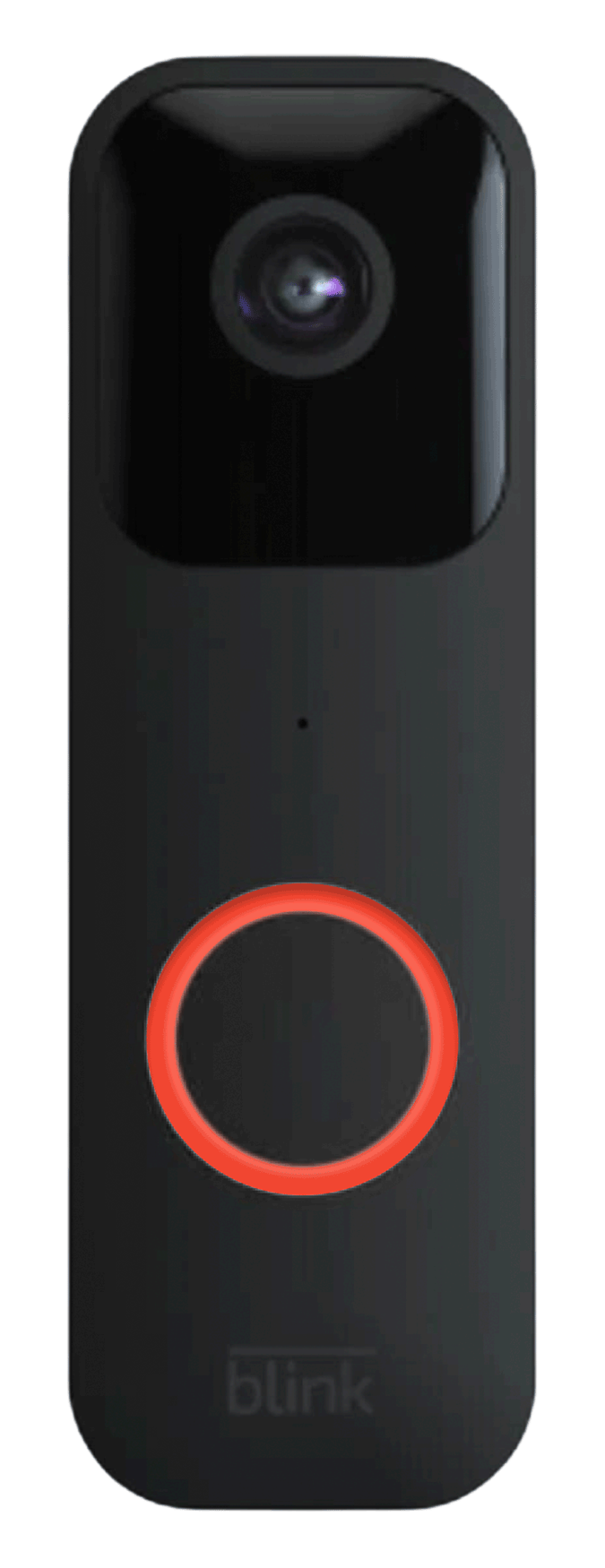
If you own a Blink Doorbell, seeing a blinking red light can be worrying. You might wonder, “Is my doorbell broken?” or “Will I miss important visitors?” The good news: a blinking red light is usually the device’s way of telling you something specific. By understanding what it means, you can fix the issue quickly and keep your home secure. This article will guide you through all the reasons your Blink Doorbell blinks red, show you how to fix each one, and help you avoid common mistakes. You’ll learn what the blinking red light means, how to troubleshoot, and when to get help—without spending hours searching online.
What Does A Blinking Red Light Mean On Blink Doorbell?
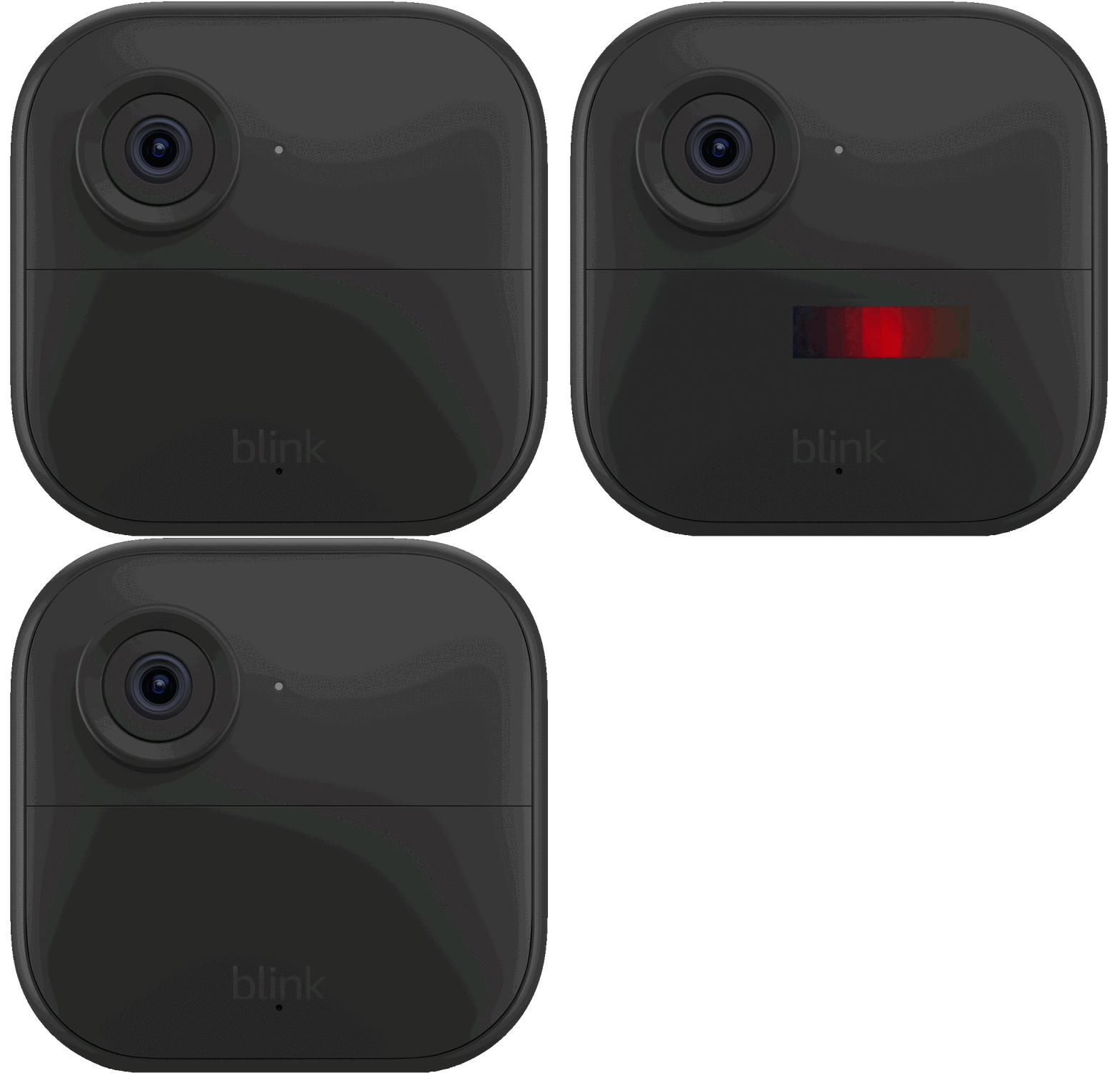
A blinking red light on your Blink Doorbell is not just a random signal—it’s a direct message from your device. The Blink system uses colored lights for communication, and red is reserved for problems or important alerts.
Here’s what the red blinking usually indicates:
- Low battery: Most often, the red blinking means your battery is running out of power.
- Wi-Fi issue: Your doorbell may have trouble connecting to your Wi-Fi network.
- Setup mode: During installation or reset, the doorbell may blink red to show it’s ready for setup.
- Firmware update: Sometimes, a red blink appears during updates, but this is less common.
- Motion detected: Rarely, the red light signals motion detection, but this is usually a blue light.
The blinking pattern matters too. For example, slow blinking versus fast blinking can mean different things. Always check your device manual or Blink support page for your specific model, but these are the usual reasons.
Understanding Blink Doorbell Light Patterns
Not all blinks are equal. Knowing the difference can save time and frustration.
| Light Color | Blinking Pattern | Meaning |
|---|---|---|
| Red | Slow blink | Low battery |
| Red | Fast blink | Wi-Fi issue/setup mode |
| Blue | Solid | Motion detected |
| Green | Solid | Normal operation |
It’s easy to misread the signals. Some users confuse a fast red blink (setup or Wi-Fi) with a slow red blink (battery). Always notice the speed, color, and timing.
Credit: support.blinkforhome.com
Common Reasons Your Blink Doorbell Is Blinking Red
1. Low Battery
The most frequent cause is low battery. Blink Doorbells use two AA lithium batteries, which last up to two years with normal use. However, cold weather, frequent motion alerts, or high usage can drain them quickly.
Signs of low battery:
- Red light blinks slowly
- Doorbell stops recording or sending notifications
- App shows battery warning
If you ignore the blinking red, your device may stop working altogether. Replace with fresh, high-quality lithium batteries—not alkaline or rechargeable. These alternatives often cause more problems.
2. Wi-fi Connection Problems
A fast blinking red light often points to a Wi-Fi issue. Your doorbell must connect to your home Wi-Fi to work properly. If the signal is weak, interrupted, or the password changes, the device will blink red.
Common Wi-Fi problems:
- Router too far from doorbell
- Network drops or changes
- Interference from other devices
- Wrong Wi-Fi password entered
If your Wi-Fi is unstable, your doorbell can miss alerts or fail to record video. Place your router closer, use a Wi-Fi extender, or check your network settings.
3. Device Setup Mode
During installation or after a reset, the Blink Doorbell enters setup mode. Here, the red light blinks rapidly. This means the device is ready to connect to your app.
Setup mode steps:
- Press the reset button (usually inside the battery compartment)
- Wait for the red blink
- Open the Blink app and follow instructions
If the red light continues after setup, something went wrong. Repeat the process or check for app updates.
4. Firmware Update
Blink Doorbells update their software automatically. A red blink during update is rare but possible. If this happens, avoid pressing buttons or removing batteries. Interrupting an update can damage the device.
Wait for the light to stop blinking. The doorbell should return to normal operation. If it doesn’t, restart your device.
5. Motion Or Tampering Alerts
Some Blink models blink red if someone tries to tamper with the device. This is a security feature. It’s less common but good to know if you see blinking after someone touches the doorbell.
How To Fix A Blinking Red Light On Your Blink Doorbell
Getting your doorbell back to normal is usually simple. Follow these steps, based on the cause.
- Replace the batteries: Always start with new AA lithium batteries. Remove the old ones, wait 10 seconds, and insert fresh ones.
- Check your Wi-Fi: Move your router closer, or add a Wi-Fi extender if needed. Make sure your network is 2.4 GHz, not 5 GHz, as most Blink devices use 2.4 GHz.
- Restart your doorbell: Remove batteries, wait 30 seconds, then reinstall. This often clears temporary glitches.
- Re-enter setup mode: Press the reset button. Follow the app instructions to reconnect.
- Update the Blink app: Sometimes, the app needs updating to fix bugs or connect properly.
- Check for firmware updates: The app will show if your device needs updating. Run updates only when the battery is strong.
- Contact support: If none of these steps work, contact Blink support. They can check your device remotely.
It’s tempting to skip steps and just restart, but the problem may return. Follow each step carefully.
Comparing Blink Doorbell Models: Red Light Issues
Not all Blink Doorbells behave the same. Here’s a comparison of popular models:
| Model | Blinking Red Meaning | Battery Life | Wi-Fi Compatibility |
|---|---|---|---|
| Blink Video Doorbell | Low battery, Wi-Fi, setup | Up to 2 years | 2.4 GHz only |
| Blink Doorbell Plus | Low battery, firmware update | Up to 18 months | 2.4 GHz only |
| Blink Mini Doorbell | Setup, Wi-Fi issue | Plug-in, no battery | 2.4 GHz & 5 GHz |
If you use the Blink Mini, red blinking is rare because it doesn’t rely on batteries. Understanding your model helps you fix issues faster.
Avoiding Common Mistakes
Many users make simple mistakes when fixing a blinking red light. Here are two non-obvious tips:
- Don’t use alkaline batteries: They fit, but don’t last. Alkaline batteries can cause blinking even when new. Always use lithium.
- Check your Wi-Fi frequency: Blink Doorbells often don’t support 5 GHz Wi-Fi. If your router uses only 5 GHz, your doorbell won’t connect, causing a red blink.
Also, avoid covering the device with thick materials or placing it behind metal objects. This weakens Wi-Fi and drains batteries faster.

Credit: www.youtube.com
Practical Examples And Real-life Scenarios
Let’s look at how users solved blinking red light issues:
- Case 1: Sarah noticed her Blink Doorbell blinking red every morning. She replaced the batteries with cheap alkaline ones, but the blinking continued. After switching to lithium, the problem stopped.
- Case 2: Mark moved his router to another room. The doorbell started blinking red rapidly. He installed a Wi-Fi extender near the door, and the light disappeared.
- Case 3: Priya updated her Blink app after the doorbell blinked red during setup. The app connected, and the device worked normally.
These real-life examples show the importance of using the right batteries and maintaining strong Wi-Fi.
When To Contact Blink Support
You should contact Blink support if:
- The red blinking continues after replacing batteries and fixing Wi-Fi.
- The device won’t enter setup mode or finish updates.
- You see blinking patterns not listed in the manual.
Blink has a helpful support team and online guides. For more information, visit the official Blink Support page.
How To Prevent Future Red Light Issues
Prevention is easier than fixing problems later. Here are smart tips:
- Check batteries every 6 months
- Keep your Wi-Fi router close to the doorbell or use an extender
- Update the Blink app regularly
- Avoid extreme temperatures (very cold or hot weather drains batteries)
- Clean the doorbell lens and casing (dust can affect performance)
If you travel, ask a neighbor to check your device occasionally. Staying proactive means fewer surprises.
Frequently Asked Questions
What Should I Do First When My Blink Doorbell Blinks Red?
Start by checking the batteries. Replace them with new, high-quality lithium AA batteries. If the red light continues, check your Wi-Fi connection and restart the device.
Can I Use Rechargeable Or Alkaline Batteries In My Blink Doorbell?
No. Blink recommends using only lithium batteries. Rechargeable and alkaline types can cause performance issues, blinking lights, or even damage your device.
How Do I Know If The Red Blink Is A Wi-fi Problem?
If the red light blinks quickly right after setup or after moving your router, it’s likely a Wi-Fi issue. Check your network settings and make sure you’re on a 2.4 GHz band.
Will My Doorbell Stop Working If I Ignore The Blinking Red Light?
Yes. If you ignore a slow blinking red light (battery) or a fast blink (Wi-Fi), your doorbell may stop recording, sending alerts, or connecting to the app. Always fix the issue quickly.
Where Can I Find Official Help For Blink Doorbell Problems?
For trusted advice, visit the official Blink Support page. It has troubleshooting guides, FAQs, and contact information.
Your Blink Doorbell is a smart device, but like all electronics, it needs attention. If you see a blinking red light, don’t panic—just follow the steps above. Most problems are easy to fix with the right batteries, strong Wi-Fi, and regular updates. By understanding the signals and staying proactive, you’ll keep your device running smoothly and your home safe.
Credit: support.blinkforhome.com