
When you turn on your Mac and see a blinking folder with a question mark, it can feel alarming. This icon means your computer can’t find its startup disk—the place where macOS lives. Suddenly, your files and apps seem out of reach. But don’t panic. This problem is common, and most users can fix it themselves with a bit of guidance. In this article, you’ll learn what causes the blinking folder, how to troubleshoot, and how to prevent it from happening again. Whether you use a MacBook, iMac, or Mac Mini, these steps will help you understand and solve the issue.
What Does The Blinking Folder Question Mark Mean?
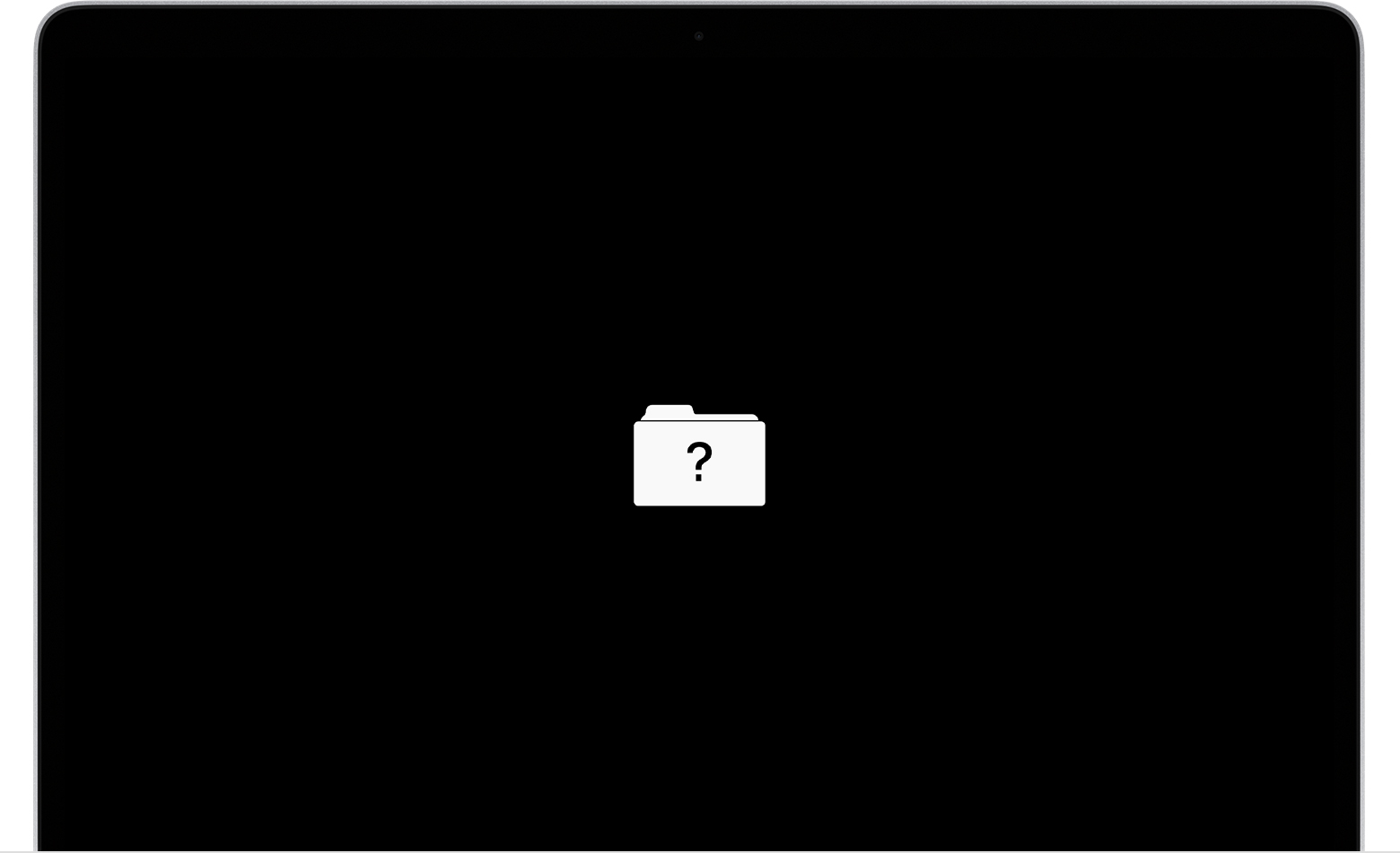
The blinking folder with a question mark is your Mac’s way of saying, “I can’t find the operating system.” It appears during startup when your computer cannot locate a valid startup disk, or the disk is damaged. This is not just a technical glitch—it’s a warning that your Mac can’t boot as usual.
Common Causes
- Corrupted macOS: The operating system files may have become damaged or deleted.
- Disconnected drive: Internal hard drive or SSD is not properly connected.
- Failed hardware: The disk may be physically broken.
- Wrong startup disk: The Mac is set to start from a disk that isn’t available.
Diagnosing The Problem
Before you try to fix the issue, it’s important to understand what’s wrong. There are a few ways to check.
Visual Clues
If the folder blinks for a few seconds and then your Mac starts, the startup disk isn’t set correctly. If it keeps blinking and your Mac won’t boot, the disk is missing or damaged.
Listen For Sounds
A hard drive that makes clicking noises often indicates hardware failure. If your Mac is silent, it may be a software issue.
Use Recovery Mode
You can enter macOS Recovery to diagnose the disk:
- Shut down your Mac.
- Turn it on and immediately hold Command (⌘) + R.
- If you see the Apple logo or a spinning globe, you’re in Recovery Mode.
From here, you can use Disk Utility to check your drive.
Troubleshooting Steps
Let’s walk through practical steps to fix the blinking folder question mark. Most issues fall into three categories: software, settings, or hardware.
1. Reset Startup Disk
Sometimes, your Mac is set to start from the wrong disk. Here’s how to fix it:
- Restart your Mac and hold Option (⌥).
- You’ll see a list of available disks. Select your main drive (usually called Macintosh HD).
- If your Mac boots, go to System Settings > Startup Disk and set it as default.
2. Repair Disk With Disk Utility
If your Mac won’t boot, try repairing the disk:
- Enter Recovery Mode (Command + R).
- Open Disk Utility.
- Select your disk and click First Aid.
- Follow the instructions. If errors are fixed, restart.
3. Reinstall Macos
If the disk is fine but macOS is corrupted:
- In Recovery Mode, choose Reinstall macOS.
- Follow the prompts to download and install a fresh copy.
4. Check Physical Connections
For desktop Macs, check the internal drive connection:
- Shut down and unplug your Mac.
- Open the case carefully.
- Make sure the drive cables are secure.
If you’re not comfortable doing this, ask a technician.
5. Replace The Drive
If the disk has failed, you’ll need a new one. Install the new drive and reinstall macOS.
Data Recovery Options
Many users worry about losing files. If your drive is accessible, you can recover data.
Using Target Disk Mode
If you have another Mac:
- Connect your broken Mac to a working one with a Thunderbolt or USB cable.
- Start the broken Mac holding T. It will appear as an external disk.
- Copy files to the working Mac.
Professional Recovery
If your disk is physically damaged, consider professional recovery. Data recovery services can sometimes rescue files from broken drives, but this can be expensive.
Comparing Solutions
Here’s a quick look at solutions and their effectiveness.
| Solution | Success Rate | Difficulty | Risk of Data Loss |
|---|---|---|---|
| Reset Startup Disk | High | Easy | Low |
| Disk Utility Repair | Medium | Medium | Low |
| Reinstall macOS | Medium | Medium | Medium |
| Replace Drive | High | Hard | High |
| Professional Recovery | Varies | Hard | Low |
Practical Tips To Prevent The Blinking Folder
Avoiding the blinking folder is possible if you follow some simple practices.
- Back up regularly: Use Time Machine or cloud services.
- Keep macOS updated: Updates fix bugs and prevent corruption.
- Avoid sudden shutdowns: Always shut down your Mac properly.
- Check disk health: Use Disk Utility or third-party tools to check for problems.
- Be careful with cables: For desktop Macs, don’t move or bump the machine while it’s running.

Credit: www.it-tech.com.au
Common Mistakes To Avoid
Many beginners make errors that make the issue worse.
- Ignoring the problem: Waiting too long can turn a simple fix into a major repair.
- Trying too many solutions at once: Stick to one step at a time.
- Not backing up before repair: Always try to save your files first.
- Opening the Mac without skill: You can damage parts. Ask for help if unsure.
- Forgetting login info: You’ll need your Apple ID and password for reinstalling macOS.
Real-world Example
Let’s look at a typical case. Maria, a student, saw the blinking folder on her MacBook Air. She tried restarting, but the folder stayed. She entered Recovery Mode and used Disk Utility—her disk was fine, so she reinstalled macOS. Her files were safe because she had a Time Machine backup.
This shows how preparation and careful steps can save time and stress.
Data Table: Backup Methods
Choosing the right backup method can make recovery easier. Here’s a comparison of popular options.
| Backup Method | Storage Type | Automatic? | Recovery Speed |
|---|---|---|---|
| Time Machine | External Drive | Yes | Fast |
| iCloud Drive | Cloud | Yes | Medium |
| Manual Copy | External Drive | No | Slow |
Should You Fix It Yourself Or Get Professional Help?
Deciding whether to fix your Mac or ask for help depends on your skill level and the problem.
When To Diy
- If the issue is software, like resetting the startup disk or reinstalling macOS.
- If you have recent backups and can use Recovery Mode.
When To Call A Technician
- If the disk is physically damaged.
- If you hear strange sounds from your Mac.
- If you’re not confident opening the case.
Cost Comparison
Here’s a look at the typical costs for each approach.
| Fix Type | Estimated Cost | Time Required |
|---|---|---|
| DIY Software Fix | Free | 30–90 minutes |
| Professional Repair | $100–$400 | 1–3 days |
| Data Recovery Service | $300–$1500 | 3–7 days |
Credit: www.reddit.com
Two Insights Beginners Often Miss
- The blinking folder isn’t always hardware failure: Many users assume their drive is broken, but often it’s just a software issue or wrong startup disk setting.
- You can recover files before reinstalling: If the disk isn’t damaged, use Target Disk Mode or external drives to save your files first. Don’t rush to reinstall macOS without trying to recover data.
Where To Find More Help
Apple’s official support page offers step-by-step guides for this issue. For more advanced troubleshooting, see Apple Support.
Credit: www.salvagedata.com
Frequently Asked Questions
What Is The Blinking Folder Question Mark On A Mac?
The blinking folder with a question mark means your Mac can’t find the operating system. It happens when your computer cannot locate or access the startup disk.
Can I Fix The Blinking Folder Myself?
Yes. Most users can fix it by resetting the startup disk, using Disk Utility, or reinstalling macOS. If your drive is physically damaged, you’ll need help from a technician.
Will I Lose My Files If I See The Blinking Folder?
If the disk is not broken, your files are safe. Try to recover data using Target Disk Mode or backups before reinstalling macOS. Physical disk damage can lead to file loss.
How Do I Prevent The Blinking Folder Problem?
Back up your Mac regularly, keep macOS updated, avoid sudden shutdowns, and check disk health. These steps lower your risk.
Is The Blinking Folder A Sign Of Hardware Failure?
Not always. Sometimes it’s just a software issue or wrong startup disk setting. But if you hear clicking sounds or your disk doesn’t show up in Disk Utility, it could be hardware failure.
Seeing a blinking folder with a question mark is stressful, but it’s not the end for your Mac. With careful steps and the right tools, you can solve the problem and recover your files. Remember to back up often and stay calm when troubleshooting.
Most cases can be fixed at home, but don’t hesitate to ask for help if needed.