
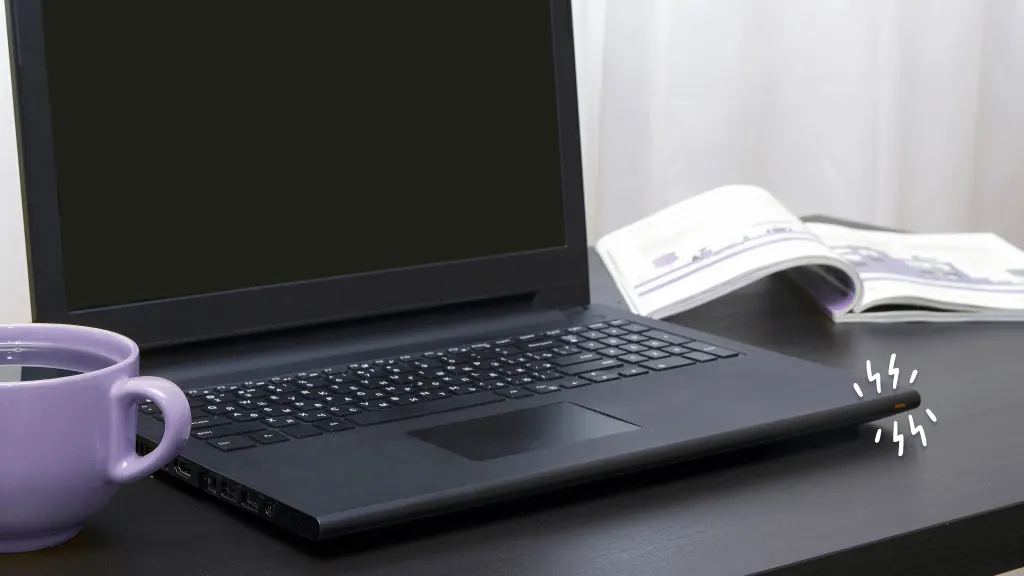
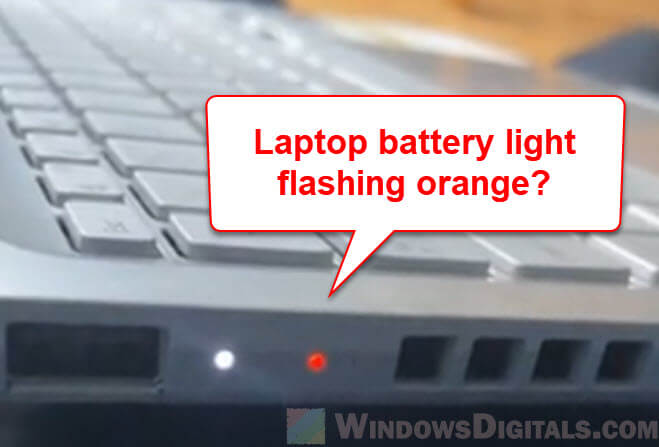
When your Dell laptop battery light starts blinking orange, it can be worrying—especially if you rely on your computer for work, study, or staying connected. This small, flashing light is your laptop’s way of saying something is wrong, but the real challenge is understanding what it means, why it happens, and what you should do next.
Many people assume it’s a sign the battery is dying, but the orange blinking can signal different issues, from simple battery drain to more serious hardware problems. Knowing how to read these signals and respond correctly can save you time, money, and stress.
This guide is for anyone facing the orange blinking battery light on a Dell laptop. Whether you’re a student, office worker, or home user, you’ll find clear explanations, practical troubleshooting tips, and expert advice to get your laptop working again.
Along the way, you’ll also learn some less obvious facts and best practices that most beginners miss when dealing with battery and charging issues.
Understanding The Dell Laptop Battery Light
Most Dell laptops use a set of LED indicator lights to show battery and charging status. These lights are usually found near the keyboard, on the side, or next to the charging port. The colors and blinking patterns are not random—they’re coded messages from your laptop.
Common Battery Light Colors And What They Mean
Dell uses these main colors for battery status:
- White/Solid: Battery is fully charged or working fine.
- White/Blinking: Battery is charging.
- Orange/Amber/Blinking: Problem with battery or charging.
- Orange/Amber/Solid: Serious battery fault.
- No Light: Laptop is off, battery is dead, or disconnected.
The orange blinking light is the most urgent signal. It usually means there’s a problem that needs attention right away. Ignoring it can lead to bigger issues, like sudden shutdowns or even data loss.
Blinking Patterns And Their Meanings
The way the light blinks is important. Dell laptops use different blink sequences to communicate specific problems:
- Steady blinking (on-off, even intervals): Battery not charging or low.
- Two quick blinks, pause, repeat: Battery error.
- Four orange, one white, repeat: Critical battery failure.
- Three orange, three white, repeat: Adapter not recognized.
Check your user manual or Dell’s support website to confirm the exact pattern for your model. Each pattern can point to a different root cause.
Why Is Your Dell Laptop Battery Light Blinking Orange?
Understanding the possible reasons helps you act fast and avoid guessing games. Here are the most common causes behind the blinking orange battery light:
- Low Battery Charge: The battery is almost empty and needs charging.
- Battery Not Detected: The laptop can’t see the battery.
- Battery Failure: The battery is faulty or has reached end of life.
- Adapter Not Recognized: The charger is wrong, damaged, or not connected well.
- Overheating: The battery or laptop is too hot to charge safely.
- Firmware or BIOS Error: Software inside the laptop is confused about battery status.
- Loose or Damaged Connections: Charging port or battery connectors are not secure.
- Motherboard Issues: Rare, but possible if all else fails.
How To Diagnose The Problem
Before replacing anything, take a few smart steps to diagnose the real issue. This will save you money and effort.
Step 1: Observe The Blinking Pattern
Carefully watch the orange blinking—is it slow, fast, or mixed with white blinks? Write down the pattern or record a short video. This is key for finding the exact error code.
Step 2: Check The Battery Charge
Plug in your charger and let it sit for a few minutes. Does the blinking stop or change? Open Windows and click the battery icon in the taskbar. Does it say “Plugged in, not charging” or “No battery detected”? These messages offer important clues.
Step 3: Inspect The Charger And Port
Look for physical damage on the charger, cable, and laptop charging port. Sometimes, dust or bent pins can break the connection. Try another Dell charger if you have one.
Step 4: Use Dell’s Built-in Diagnostics
Many Dell laptops have a built-in test. To run it:
- Turn off your laptop.
- Hold the Fn key and press the power button.
- The laptop will start a diagnostic test. Follow the on-screen instructions.
If an error code appears, write it down. You can search Dell’s support site for detailed meanings.
Step 5: Check The Battery Health In Bios
Restart your laptop and press F2 (or the BIOS key for your model) as soon as it starts. Look for a “Battery Information” or “Battery Health” section. It may say:
- Battery Performing Normally
- Battery Needs Replacement
- No Battery Detected
This is a reliable way to check battery status.
Fixes For The Dell Laptop Battery Light Blinking Orange
Once you know the likely cause, you can try the following solutions. Start with the easiest and move to advanced steps if needed.
1. Reseat The Battery And Charger
Sometimes, the battery or charger isn’t connected well. Here’s what to do:
- Turn off your laptop and unplug the charger.
- If possible, remove the battery (check your model’s manual).
- Hold the power button for 30 seconds to clear any static charge.
- Reinsert the battery, plug in the charger, and turn on the laptop.
This simple reset can fix many minor issues.
2. Try A Different Charger Or Battery
Faulty chargers are a common cause. If you have a spare Dell charger, try it. If your battery is removable and you have a spare, swap it in. If the orange blinking stops, the replaced part was the problem.
3. Clean The Charging Port
Dust or debris can block the connection. Use a can of compressed air to gently blow out the charging port. Avoid using sharp objects, as they can damage the pins.
4. Update Bios And Drivers
Outdated firmware can confuse battery readings. To update:
- Visit the Dell support site for your model.
- Download the latest BIOS and battery driver updates.
- Follow Dell’s instructions to install them.
Always connect your laptop to power before updating the BIOS.
5. Cool Down The Laptop
If your laptop is hot, let it cool down before charging. High temperatures can block charging for safety reasons. Place your laptop on a hard, flat surface, and avoid using it on soft surfaces that block airflow.
6. Replace The Battery
If diagnostics or the BIOS say the battery is failing, replacement is needed. Use an official Dell battery for best results. Non-original batteries can cause more problems, including further blinking errors.
7. Check For Adapter Recognition
Dell laptops often require genuine Dell adapters to charge and work properly. If your laptop displays a warning about the adapter type, you may need to replace it with an official Dell charger.
8. Reset The System
A full power reset can clear minor glitches. Turn off your laptop, unplug the charger, and remove the battery (if removable). Hold the power button for 1 minute. Reconnect everything and power up.
9. Seek Professional Help
If none of the above works, the problem may be with your laptop’s motherboard or internal charging circuit. Visit an authorized Dell service center for expert diagnosis.
Less Obvious Insights About Battery Light Issues
Many users make common mistakes or miss subtle details when dealing with battery lights. Here are two key insights that are often overlooked:
- Battery Age Matters More Than Most Think: Even if your laptop seems fine, batteries typically lose a large part of their capacity after 300–500 charge cycles (about 1.5–3 years for most users). If you’ve used your laptop for several years, random blinking can mean the battery is simply too old—even if diagnostics say it’s “OK.”
- Software Can Block Charging: Some Dell laptops have a “battery charge limiter” or “battery conservation mode” that stops charging at 60–80% to extend battery life. If this is turned on in Dell Power Manager or BIOS, your battery light may blink or stop charging at a lower percent. Double-check these settings if your battery won’t charge to 100%.
Comparing Dell Battery Light Blinks And What They Mean
For quick reference, here’s a comparison of common battery light blink patterns on Dell laptops:
| Blink Pattern | Color | Likely Cause |
|---|---|---|
| Steady blink (1s on, 1s off) | Orange | Low battery/Not charging |
| 2 quick blinks, pause | Orange | Battery error |
| 4 orange, 1 white, repeat | Orange/White | Critical battery failure |
| 3 orange, 3 white, repeat | Orange/White | Adapter not recognized |
| Solid white | White | Normal operation/Charging |
Credit: www.asurion.com
Real-world Examples And Solutions
Let’s look at a few real-life scenarios where users faced the orange blinking battery light and how they solved it.
Example 1: Old Battery On A Dell Inspiron
Lisa’s Dell Inspiron started blinking orange after two years of daily use. Windows said “Plugged in, not charging. ” She checked her battery health in BIOS and saw “Battery needs replacement. ” After replacing the battery with an official Dell part, the orange blinking stopped, and the laptop charged normally.
Example 2: Wrong Adapter On Dell Latitude
Mark used a third-party charger for his Dell Latitude. The battery light blinked three times orange, three times white. The BIOS showed “Adapter not recognized. ” Switching to an official Dell adapter fixed the problem instantly.
Example 3: Overheating Issue
Sophie noticed the battery light blinked orange only after long gaming sessions. Her laptop felt hot, and charging paused. After letting the laptop cool and cleaning the vents, the blinking stopped.
Example 4: Software Glitch
Raj’s Dell XPS started blinking orange after a Windows update. He ran Dell’s diagnostics, which showed no hardware fault. Updating the BIOS and battery drivers fixed the issue.
These examples show that while the orange blinking can be caused by hardware, software, or user errors, a careful step-by-step approach usually finds the answer.
Tips To Prevent Dell Battery Light Problems
Taking care of your laptop battery and charger can help you avoid blinking orange lights in the future. Here are some proven tips:
- Use only official Dell batteries and chargers to avoid compatibility issues.
- Keep your laptop cool by cleaning vents and using it on hard surfaces.
- Avoid deep discharges—try not to let your battery drop below 10%.
- Update BIOS and drivers regularly to keep battery management working right.
- Check battery health every few months in BIOS or with Dell’s utilities.
- Store the laptop at 50% charge if you won’t use it for a long time.
- Replace old batteries before they fail completely to avoid sudden shutdowns.
Comparing Dell Battery Vs. Third-party Battery Performance
Many people wonder if saving money with a third-party battery is worth it. Here’s a quick comparison:
| Feature | Dell Official Battery | Third-Party Battery |
|---|---|---|
| Compatibility | Guaranteed | Varies (may cause errors) |
| Battery Life | 6–24 months (typical) | 3–18 months (typical) |
| Warranty | Yes | Limited or none |
| Risk of Orange Blinking | Low | Medium to High |
| Price | Higher | Lower |
While third-party batteries can be cheaper, they often lead to more problems, including the orange blinking light.
Common Mistakes To Avoid
People often make errors when they see the orange blinking light. Here are some to watch out for:
- Ignoring the blinking light: Waiting too long can cause the laptop to shut down suddenly or lose data.
- Using non-Dell parts: Third-party batteries and chargers cause many compatibility issues.
- Forcing the charger into the port: This can damage internal connections and make things worse.
- Skipping diagnostics: Guessing the problem wastes time. Use Dell’s built-in tools first.
- Updating BIOS while on battery only: Always plug in your charger before updating firmware.

Credit: www.youtube.com
What To Do If Your Laptop Won’t Charge After Fixing
Sometimes, the orange blinking stops, but the battery still won’t charge. If this happens:
- Double-check the adapter and battery connections.
- Reset the BIOS to default settings.
- Uninstall and reinstall the “Microsoft ACPI-Compliant Control Method Battery” driver in Device Manager.
- If possible, try another battery or adapter.
- Contact Dell support if the problem remains.
External Resources
If you want more technical details or need official help, check the Dell Support Knowledge Base for updated guides and troubleshooting steps.
Credit: www.windowsdigitals.com
Frequently Asked Questions
Why Does My Dell Laptop Battery Light Blink Orange And White?
The orange and white blinking pattern usually signals a battery or adapter problem. It often means the charger is not recognized, the battery is failing, or there is a charging issue. Check your charger and battery connections, and run Dell diagnostics for more details.
Can I Use My Dell Laptop With The Battery Removed If The Orange Light Blinks?
Yes, most Dell laptops can run on AC power alone without a battery. If the orange light blinks due to a bad battery, removing it and using the charger directly is a safe workaround until you replace the battery. However, sudden power loss will shut down your laptop, so save work often.
How Do I Check Dell Laptop Battery Health?
You can check battery health by entering the BIOS (press F2 at startup) and looking under “Battery Information.” Alternatively, Dell’s SupportAssist software and Windows Battery Report (type “powercfg /batteryreport” in Command Prompt) can also show battery health data.
Is It Safe To Use Third-party Chargers Or Batteries?
It is not recommended. Non-Dell chargers or batteries may not be fully compatible and can trigger warning lights, reduce battery life, or even damage your laptop. For best results, always use official Dell parts.
My Laptop Blinks Orange Even After Changing The Battery—what Should I Do?
If changing the battery does not fix the orange blinking, check your charger and charging port for damage or dust. Update your BIOS and drivers. If the problem continues, the issue may be with your laptop’s motherboard or internal circuits. Contact Dell support for a professional diagnosis.
A blinking orange battery light is never good news, but with the right information and steps, it’s usually possible to fix the problem quickly. By understanding what your laptop is trying to tell you and responding wisely, you can keep your Dell running smoothly for years to come.