
Every home or office with fast internet needs a good router. But when you see your Linksys router blinking in strange patterns, it’s easy to feel worried or frustrated. What do those blinking lights really mean? Is your internet in danger? Can you fix it yourself, or is it time to call support?
This article breaks down everything you need to know about a Linksys router blinking—what causes it, how to read the different lights, and step-by-step solutions. You’ll get clear advice, practical examples, and useful tips to keep your network healthy. Even if you don’t know much about routers, this guide will help you understand and solve most blinking light problems.
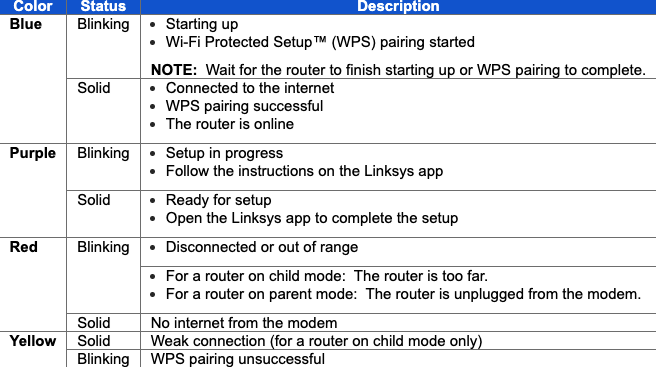
Understanding Linksys Router Lights
Linksys routers use different LED lights to show what’s happening inside. Each light tells you about power, internet connection, Wi-Fi, and devices. When something goes wrong, these lights often start blinking in special patterns.
What Each Light Means
Most Linksys routers have these main lights:
- Power: Shows if the router is on.
- Internet: Shows connection to the internet.
- Wi-Fi (2.4GHz/5GHz): Shows wireless signals.
- LAN (Ethernet): Shows wired device connections.
- WPS: For secure device setup.
- USB: If your router supports USB storage.
Some newer models use a single multicolor light. Others have separate lights for each feature.
Common Light Colors And Actions
The color and blinking pattern matter. Here’s a quick reference:
| Light Color | Blinking Pattern | Meaning |
|---|---|---|
| Solid Green/White | None | Normal operation |
| Blinking Green/White | Slow/Fast | Startup, firmware update, or activity |
| Amber/Orange | Solid | No internet connection |
| Amber/Orange | Blinking | Error or weak connection |
| Red | Solid/Blinking | Critical error |
| Off | None | No power or feature disabled |
Knowing these helps you quickly spot what’s wrong without guessing.
Why Is My Linksys Router Blinking?
A blinking light can mean many things. Sometimes it’s normal, like when the router is starting up or sending data. Other times, it’s a sign of trouble.
Most Common Causes
- Startup Process: Routers blink when turning on or restarting.
- Firmware Update: The light may flash during updates.
- Internet Issues: No signal from your provider or cable problems.
- Overheating: The router gets too hot and tries to protect itself.
- Device Problems: A faulty modem, Ethernet cable, or power supply.
- Configuration Errors: Wrong settings block connections.
- Hardware Failure: Internal parts are damaged.
Beginners often miss that a blinking light isn’t always a disaster. It can be part of normal operation—especially right after setup or a power outage.
How To Identify The Blinking Pattern
Not all blinking is the same. The speed, color, and which light blinks help you understand the problem.
Examples Of Blinking Patterns
- Power light blinking rapidly: Router is updating or stuck in a boot loop.
- Internet light blinking orange: No internet from the modem.
- Wi-Fi light blinking slowly: Wi-Fi is broadcasting, normal activity.
- All lights blinking: Router reset or major hardware issue.
If you’re unsure about your model, check the user manual or the official Linksys support site. Each model can have slightly different meanings.
Troubleshooting Linksys Router Blinking
When your Linksys router starts blinking, don’t panic. Most issues can be fixed with simple steps at home.
Step 1: Check The Power
Make sure your router is plugged in and the power outlet works. Try plugging the router into a different outlet. If you use a surge protector, test it by plugging something else in to rule out power problems.
Step 2: Inspect Cables And Connections
Loose or damaged cables are a common cause. Check these:
- Power cable: Firmly connected and not frayed.
- Ethernet cable: Securely attached to both router and modem.
- Coaxial/DSL line: From the wall to your modem (if you use one).
A simple cable swap can fix many issues.
Step 3: Restart The Router
Restarting solves many tech problems. Turn the router off, wait 30 seconds, then turn it back on. Wait 2–3 minutes for the lights to settle.
Step 4: Check The Modem
If your internet light blinks, the problem might be with your modem or internet provider. Restart the modem the same way: unplug, wait, plug back in. If you see no change, check for an outage with your provider.
Step 5: Update The Firmware
Old firmware can cause blinking lights or glitches. Log in to your router’s admin page (usually at 192.168.1.1 or 192.168.0.1). Check for firmware updates and install if needed. Always use a wired connection during updates to avoid interruptions.
Step 6: Factory Reset (last Resort)
If nothing works, reset the router:
- Find the reset button (usually a small hole).
- Use a paperclip to press and hold for 10–15 seconds.
- Release and wait for the router to reboot.
This wipes all settings, so you’ll need to set up Wi-Fi and passwords again.
Step 7: Call Your Internet Provider
If the router blinks amber/red even after a reset, the problem might be outside your home. Your provider can test the line and replace faulty modems if needed.
Step 8: Hardware Replacement
If none of these steps help, your router may be broken. Linksys routers usually last 3–5 years. If yours is older, it might be time for a replacement.
Credit: support.starry.com
Specific Blinking Patterns And What They Mean
Let’s look at some common Linksys router blinking patterns and their solutions.
Power Light Blinking
- Solid green/white: Good.
- Blinking green/white: Starting up or updating.
- Blinking red: Firmware error or hardware problem.
If it blinks red for more than 5 minutes, try a firmware update or reset.
Internet Light Blinking
- Blinking orange/amber: No internet. Check modem and cables.
- Solid orange/amber: No connection detected.
Try restarting the modem first. If it stays orange, contact your provider.
Wi-fi Light Blinking
- Blinking green/white: Normal when devices are connected.
- Fast blinking: WPS setup in progress.
If your devices can’t connect, check Wi-Fi settings and passwords.
All Lights Blinking
This often means a firmware crash or hardware failure. Try a reset or contact Linksys support.
Advanced Troubleshooting Tips
Sometimes, router issues need more than basic checks. Here are deeper steps for power users or anyone comfortable with tech.
Use The Router’s Admin Page
Log in to the router interface using a browser. Look for:
- Status page: Shows connection health.
- Logs: Errors or connection attempts.
- Firmware version: Check for updates.
This can reveal hidden problems, like IP conflicts or repeated disconnects.
Check For Overheating
Routers overheat if they are in tight spaces or near hot electronics. Signs include:
- Router is hot to touch
- Blinking or red lights after heavy use
Move the router to a cooler, open space. Dust vents regularly. Overheating is a silent killer many people miss.
Use A Wired Connection
Connect a laptop directly to the router with an Ethernet cable. If the internet works, the problem is with Wi-Fi settings—not the router or modem.
Test With Another Device
Try connecting a different phone or computer. If only one device fails, the issue is with that device, not the router.
Replace Cables With Known-good Ones
Ethernet and power cables fail more often than people expect. Swapping cables can solve tricky problems.
Linksys Router Models And Light Differences
Not all Linksys routers are the same. Some use a single multicolor light, while others have many. Here’s a quick comparison of two popular types:
| Model Type | Light System | Common Blinking Issue | Reset Process |
|---|---|---|---|
| Linksys Velop | Single multicolor | Blinking purple during setup | Press reset for 10 sec |
| Linksys EA-Series | Multiple lights | Blinking orange internet | Press reset for 10 sec |
Always check your model’s manual for exact light meanings.
Firmware: The Hidden Cause Of Blinking
Outdated or corrupt firmware is a common but overlooked reason for blinking lights. Many users forget to update firmware, which can lead to strange problems, especially after power outages or new device setups.
How To Update Linksys Firmware
- Download the latest firmware from the official Linksys site.
- Log in to your router’s admin page.
- Go to the Firmware Update section.
- Upload the new firmware and wait for the router to restart.
Never unplug the router during an update. If the process fails, the router may blink red and need a manual reset or recovery.
How To Recover From A Failed Firmware Update
If your router is stuck with a blinking power light after an update:
- Unplug the router for 1 minute.
- Plug it back in and wait.
- If lights still blink, perform a factory reset.
- If the reset fails, contact Linksys support for recovery help.
Firmware issues are one of the most confusing problems for beginners, but they are fixable with patience.

Credit: support.linksys.com
When To Replace Your Linksys Router
If you’ve tried every fix and the blinking lights won’t stop, it may be time for a new router.
Signs You Need A New Router
- The router is more than 4–5 years old.
- Blinking red or orange lights stay on after resets.
- The router often disconnects or overheats.
- Firmware updates won’t install.
- Internet speed is much slower than your plan.
Newer routers offer better speed, range, and security. If your model is outdated, investing in a new one can solve many issues instantly.
Comparing Old Vs. New Linksys Routers
Here’s a look at key differences between older and newer Linksys models:
| Feature | Older Routers | Newer Routers |
|---|---|---|
| Wi-Fi Standard | 802.11n | 802.11ac/ax (Wi-Fi 6) |
| Light System | Multiple, single color | Multicolor, smart LEDs |
| Speed | Up to 300 Mbps | Up to 1 Gbps or more |
| Security | WPA2 | WPA3, better firewalls |
| Firmware Updates | Manual | Automatic (some models) |
If your needs have grown or you have many devices, upgrading can prevent future blinking light headaches.
Tips To Prevent Linksys Router Blinking Problems
It’s better to prevent issues than fix them. Here are practical ways to keep your Linksys router working smoothly:
- Update firmware every 3–6 months.
- Keep the router cool and dust-free.
- Use surge protectors to avoid power spikes.
- Check cables every few months for wear.
- Restart the router monthly to clear memory.
- Secure your Wi-Fi with strong passwords and WPA3 if available.
- Avoid stacking electronics on top of the router.
A common mistake is hiding the router in a cabinet, which traps heat and weakens signals. Keep it in the open for best performance.
When To Call Linksys Support
Some problems are too tough to fix alone. Contact Linksys support if:
- The power light blinks red after resets.
- Firmware update fails and router won’t boot.
- Internet light blinks, but your provider says the line is fine.
- The router is under warranty and hardware might be faulty.
Have your model and serial number ready. Linksys may offer advanced troubleshooting or a replacement if needed.
For more details on official support and troubleshooting, you can visit the Linksys official support page.
Frequently Asked Questions
Why Does My Linksys Router Keep Blinking Orange?
A blinking orange light usually means your router can’t detect the internet. Check your modem, cables, and service provider. Restart both modem and router. If the problem stays, it could be a provider issue or faulty hardware.
How Long Should The Linksys Router Lights Blink After Turning On?
After powering on, normal blinking lasts 1–3 minutes as the router boots and connects. If blinking continues for more than 5 minutes, check cables, restart, and update firmware. Long blinking often signals a setup or hardware issue.
Can A Firmware Update Fix Blinking Light Issues?
Yes, outdated firmware causes many blinking problems. Updating firmware often fixes bugs, improves stability, and restores normal light patterns. Always update firmware using a wired connection to avoid interruptions.
Is It Safe To Reset My Linksys Router If It’s Blinking?
Resetting is safe, but it will erase all your settings. Only reset if basic fixes don’t work. Be ready to set up your Wi-Fi and passwords again. If you’re not sure, try restarting before resetting.
What Should I Do If All My Linksys Router Lights Are Blinking?
All lights blinking usually means a major error—often a failed firmware update or hardware problem. Try a full reset. If the router doesn’t recover, contact Linksys support for help or consider a replacement.
Conclusion
A blinking Linksys router can be stressful, but most problems have clear solutions. If you follow the advice above, you’ll fix or avoid most issues—often without needing a technician. With a little patience and regular care, your Linksys router will keep your internet fast and reliable.

Credit: www.youtube.com