
A smart home should make life simpler, not bring new frustrations. But when your Kasa light switch starts blinking on and off, it can be confusing and annoying. You might ask, “Is my switch broken? Is my Wi-Fi failing? Did I install it wrong?” If you want clear answers and practical solutions, you’re in the right place.
This guide explains, in simple English, why your Kasa light switch might blink on and off, what each blinking pattern means, and how to fix it step by step. Whether you’re a first-time smart home user or have installed Kasa devices before, you’ll find tips and insights to save time and avoid common mistakes.
What Is A Kasa Light Switch?
A Kasa light switch is a smart device from TP-Link. It lets you control your home lighting from your phone, with voice commands, or through routines. You can schedule lights to turn on at sunset, or switch them off when you leave. Many users like Kasa switches for their reliability, affordable price, and easy integration with Alexa or Google Assistant.
There are different Kasa switch models, including:
- Single-pole switches (for controlling one light from one location)
- 3-way switches (for controlling one light from two switches)
- Dimmers (for adjusting brightness)
All Kasa switches need a stable Wi-Fi network and a neutral wire for installation.
Why Is Your Kasa Light Switch Blinking On And Off?
When your Kasa switch blinks, it’s not just a random error. The blinking pattern is a message. Understanding these signals can help you fix the problem faster.
Here are the main reasons for a blinking Kasa switch:
- Wi-Fi connection issues: The switch lost contact with your router.
- Power supply problems: There’s a wiring issue or the power is unstable.
- Firmware updates: The switch is updating its software.
- Factory reset in progress: Someone pressed the reset button.
- Device malfunction: The switch hardware may be faulty.
Each reason has its own blink pattern. Let’s break them down.
Understanding Kasa Light Switch Blink Patterns
Kasa switches use different LED colors and blink speeds to tell you what’s wrong. Here’s a comparison chart to help you decode the signals:
| Blink Pattern | LED Color | Meaning |
|---|---|---|
| Slow blinking | Amber | Connecting to Wi-Fi |
| Fast blinking | Green | Ready to pair / Factory reset |
| Blinking on and off | White | Lost Wi-Fi or power problem |
| Solid | White or Green | Connected and working |
| Blinking with pauses | White/Amber | Firmware update or error |
Most users notice the blinking on and off pattern. When the LED turns on and off repeatedly, it usually means the switch is searching for Wi-Fi or has a power supply issue.
Examples
- If your Kasa switch blinks slowly in amber, it’s trying to join the Wi-Fi network.
- If it flashes green quickly, someone might have pressed and held the reset button.
- If it blinks white on and off in a steady rhythm, the switch can’t find your Wi-Fi or is rebooting due to wiring problems.
Common Causes For Blinking On And Off
Let’s look at what triggers the blinking and how to tell them apart.
1. Wi-fi Problems
The most frequent cause is a lost Wi-Fi connection. This can happen if:
- Your router is too far from the switch.
- The Wi-Fi signal is weak due to walls or interference.
- The router was restarted or replaced.
- The Wi-Fi password changed, but not updated in Kasa app.
- Your network uses 5 GHz only (Kasa needs 2.4 GHz).
A Kasa switch that can’t connect to Wi-Fi will keep blinking until it reconnects.
2. Power Supply Issues
Poor wiring or unstable power can cause the switch to reboot in a loop. Signs include:
- The switch blinks even when Wi-Fi is fine.
- The connected lights flicker or don’t respond.
- You hear a clicking sound from inside the switch.
This often happens if the neutral wire is missing or loose, or if the home’s wiring is old.
3. Firmware Update In Progress
During a firmware update, the switch may blink in a special pattern (often white and amber together). This usually stops after a few minutes. Don’t turn off the power during an update—interrupting it can cause errors.
4. Factory Reset
If someone presses and holds the reset button (usually for 5+ seconds), the switch blinks green rapidly and restarts. After this, you must re-add it to the Kasa app.
5. Hardware Fault
Rarely, a faulty switch or surge can cause endless blinking. If other solutions fail, the switch might need replacement.
How To Fix A Kasa Light Switch That Keeps Blinking
Let’s go step by step. Each fix below is based on the most common causes. You don’t need to be an electrician, but basic safety and patience are important.
Step 1: Check Wi-fi Connection
- Move your router closer if possible. Kasa switches work best within 30 feet and fewer walls.
- Make sure your Wi-Fi is using 2.4 GHz. Most Kasa models do NOT support 5 GHz only.
- Restart your router. Wait for all lights to come on.
- On your phone, connect to the same Wi-Fi and check if the internet works.
- In the Kasa app, tap the switch and check if it shows “Offline.”
If the switch connects after these steps, the problem was likely Wi-Fi related.
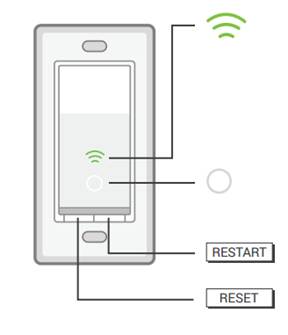
Step 2: Reboot The Switch
- Press the small reset button on the switch (usually at the bottom or side).
- Hold for 1 second (not 5 seconds, which resets to factory settings).
- Release and wait 1 minute.
- The switch should reconnect. If it keeps blinking, move to the next step.
Step 3: Update Wi-fi Details In Kasa App
If you changed your Wi-Fi password or router, the switch needs new details.
- Open the Kasa app.
- Tap the switch > Device Settings > Wi-Fi Settings.
- Enter the new Wi-Fi password.
- Wait for the switch to reconnect.
If the app doesn’t find the switch, try factory resetting (see below).
Step 4: Inspect Wiring And Power
Safety tip: Turn off power at the circuit breaker before touching wires.
- Remove the faceplate of the switch.
- Check all wire connections: Line (live), load, ground, and neutral.
- Make sure the neutral wire (usually white) is firmly connected.
- Look for signs of burning, corrosion, or loose wires.
- Re-tighten screws if needed.
- Turn the power back on and test.
If you’re not sure about wiring, ask a licensed electrician.
Step 5: Factory Reset The Switch
If all else fails, perform a full reset.
- Hold the reset button for 5+ seconds until the LED blinks green rapidly.
- Release the button and wait for the switch to restart.
- In the Kasa app, tap “Add Device” and follow the prompts to set up the switch again.
This erases previous settings but can fix many software issues.
Step 6: Firmware Update
- Open the Kasa app.
- Tap the switch > Device Settings > Firmware Update.
- If an update is available, follow the instructions.
- Do not cut power during update.
Firmware updates often fix bugs that cause blinking.
Step 7: Try A Different Switch (advanced)
If you have another Kasa switch, swap them. If the new switch works in the same spot, the old one is likely faulty.
Real-world Example
Sarah installed a Kasa switch in her hallway. It worked for months, then started blinking white every few seconds. Her router was two rooms away, and she had recently added a new microwave. After moving the router closer, the switch stopped blinking.
The problem was Wi-Fi interference from the new appliance.
Non-obvious insight: Many users overlook interference from microwaves, cordless phones, or baby monitors. These can weaken 2.4 GHz Wi-Fi, causing the Kasa switch to blink.
Credit: www.tp-link.com
Comparing Kasa Switches: Are Some Models More Prone To Blinking?
Some Kasa models have different features or requirements. Here’s a side-by-side look:
| Model | Wi-Fi Support | Neutral Wire Needed | Common Blinking Issues |
|---|---|---|---|
| Kasa HS200 | 2.4 GHz only | Yes | Wi-Fi drop, power loss |
| Kasa HS210 (3-way) | 2.4 GHz only | Yes | Wiring errors, Wi-Fi drop |
| Kasa HS220 (Dimmer) | 2.4 GHz only | Yes | Firmware update, power |
Non-obvious insight: 3-way switches (HS210) are more sensitive to wiring errors, which often cause blinking. Dimmer models (HS220) may blink during heavy power draw or old wiring.
Common Mistakes When Installing Or Troubleshooting
Even experienced users make these errors:
- Ignoring the neutral wire: Kasa switches need a neutral. Skipping it leads to blinking or no power.
- Using 5 GHz only Wi-Fi: Kasa can’t connect to 5 GHz networks.
- Mounting the switch too far from the router: Signal drops cause blinking.
- Restarting the router during setup: Interrupts pairing and leaves the switch blinking.
- Not updating firmware: Old software can have bugs that cause blinking.

Credit: community.smartthings.com
When To Call An Electrician Or Replace The Switch
If you’ve tried all the steps above and the switch still blinks:
- The home wiring might be outdated or faulty.
- The switch may have a manufacturing defect.
- The electrical load may be too high for the switch.
Warning: If you see sparks, smell burning, or the switch feels hot, turn off the power at the breaker and call an electrician.
How To Prevent Future Blinking Problems
A little planning can keep your Kasa switch running smoothly:
- Place your Wi-Fi router centrally and avoid thick walls or metal objects nearby.
- Check your home wiring before installing. Make sure there’s a neutral wire.
- Keep the Kasa app updated and check for firmware updates monthly.
- Label your circuit breakers to avoid confusion during maintenance.
- Use surge protectors to prevent electrical damage.
Advanced Solutions: Using A Wi-fi Extender
If your switch is far from the router, adding a Wi-Fi extender can help. These devices boost the signal to hard-to-reach places.
Tip: Make sure the extender broadcasts a 2.4 GHz network. Some extenders default to 5 GHz, which Kasa switches can’t use.
Kasa Switch Blinking Vs. Other Smart Switches
How does Kasa compare with similar brands like Wemo or Lutron?
| Brand | Common Blink Patterns | Typical Causes | Unique Fixes |
|---|---|---|---|
| Kasa | White/Amber, Green, Fast/Slow | Wi-Fi, power, firmware | Requires neutral, 2.4 GHz only |
| Wemo | White/Orange, Red | Wi-Fi, firmware | Some models don’t need neutral |
| Lutron Caseta | Green, Flashing | Hub communication | Uses a proprietary hub |
Key takeaway: Kasa switches are simple but rely heavily on good Wi-Fi and proper wiring. Other brands may need hubs but are less sensitive to Wi-Fi issues.

Credit: community.tp-link.com
What If The Kasa Switch Won’t Stop Blinking?
If you’ve tried all troubleshooting steps and the switch still blinks:
- Remove the switch and test it on a different circuit.
- Check for faulty bulbs or fixtures.
- Contact TP-Link support for warranty replacement.
- Consider switching to a different smart switch model if your wiring or Wi-Fi isn’t compatible.
Safety Tips For Working With Smart Switches
- Always turn off power at the breaker before touching wires.
- Use a voltage tester to confirm no electricity is present.
- Don’t force wires into terminals.
- Replace worn or damaged wires.
- When in doubt, call a professional.
Frequently Asked Questions
Why Does My Kasa Light Switch Blink After A Power Outage?
When power returns, the switch tries to reconnect to Wi-Fi. If the router takes longer to restart, the switch may blink until the connection is restored. Give it a few minutes. If blinking continues, reboot your router and switch.
Can I Use Kasa Switches With 5 Ghz Wi-fi?
No, Kasa switches require a 2.4 GHz Wi-Fi network. If your router broadcasts only 5 GHz, create a separate 2.4 GHz network or enable “dual band” mode.
What Does A Rapid Green Blinking Mean?
A fast green blink usually means the switch is in pairing mode or was just factory reset. Open the Kasa app and add the device again.
How Do I Update The Firmware On My Kasa Switch?
Open the Kasa app, select your switch, go to Device Settings, and tap Firmware Update. Follow the prompts. Make sure you don’t lose power during the update.
Where Can I Find Official Help Or Warranty Service?
The official TP-Link Kasa support page offers manuals, FAQs, and warranty help. Visit TP-Link Support for more details.
A blinking Kasa light switch doesn’t mean you need a new one. Most problems can be fixed with careful checks and updates. With the right guidance, you can keep your smart home running smoothly and avoid unnecessary stress. Remember, good Wi-Fi and proper wiring are the keys to a trouble-free Kasa experience.