
When your HP printer starts blinking an orange light, it can feel confusing or stressful, especially if you need to print something urgently. This blinking light is not just a random signal—it usually means your printer needs attention. Understanding what the orange light means, how to fix it, and ways to prevent it from happening again can save you time and frustration. Many users overlook simple steps, or misunderstand the signals their printer gives. In this guide, you’ll learn everything you need to know about the HP printer blinking orange light, including troubleshooting, practical tips, and answers to common questions. Whether you are a home user or manage a busy office, you’ll find clear solutions for this problem.
What Does The Hp Printer Blinking Orange Light Mean?
When you see an orange blinking light on your HP printer, it’s a warning. It usually means there’s an error, but the exact reason can vary. Sometimes it’s a simple issue like a paper jam, low ink, or missing cartridge. Other times, it points to something deeper, like a hardware failure or network problem.
Different HP printer models may use orange lights in unique ways. For example, in some models, the orange light can blink slowly or rapidly, with each pattern meaning something different. Always check your printer’s manual for details, but here are the most common causes:
- Paper Jam – Paper is stuck inside the printer.
- Low Ink or Toner – Ink or toner is almost empty.
- Cartridge Error – Cartridge not installed properly or is damaged.
- Print Head Issue – Print head needs cleaning or replacement.
- Connectivity Problem – Printer cannot communicate with computer or Wi-Fi.
- Cover Open – Printer cover is not closed fully.
- Service Required – Printer needs maintenance or has a hardware fault.
Understanding these signals is key. Some users ignore blinking lights, thinking the printer will fix itself, but this is rarely true. Acting quickly prevents bigger problems.
Common Causes And Symptoms
Let’s look deeper at the main reasons why your HP printer shows a blinking orange light.
Paper Jam
Paper jams are the most frequent issue. If paper gets stuck inside, the printer will blink an orange light and stop printing. You may hear unusual noises, and the printer often displays a message on the screen or computer.
Low Ink Or Toner
When ink or toner runs low, the orange light blinks to warn you. Some printers show this even if there’s a small amount left, so you can prepare before ink runs out completely.
Cartridge Problems
If a cartridge is not installed correctly or is incompatible, your printer won’t print. The orange light blinks to signal the issue. Sometimes, using third-party cartridges triggers this warning.
Print Head Issues
Dirty or clogged print heads can cause the orange light to blink. This happens after many prints, or if you haven’t used the printer for a long time.
Connectivity Issues
If your printer can’t connect to your computer or Wi-Fi, it will signal with an orange light. This is common when switching networks or after a power outage.
Cover Open
Printers need all covers closed for safety. If a cover is open, the orange light blinks and the printer will not work.
Service Required
Major hardware failures, like a broken sensor or worn-out rollers, will trigger a blinking orange light. In these cases, professional service is often needed.
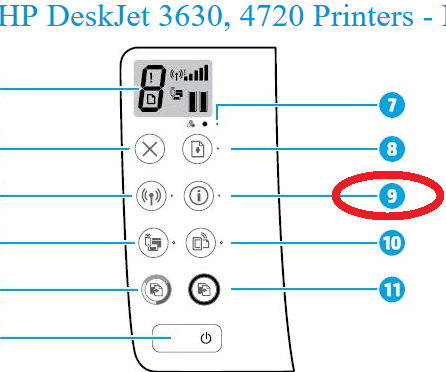
Credit: h30434.www3.hp.com
Troubleshooting Hp Printer Blinking Orange Light
Solving the blinking orange light starts with identifying the cause. Here’s a step-by-step troubleshooting guide. Many users miss these steps or skip important checks.
Step 1: Check For Paper Jam
- Open all printer covers.
- Remove any stuck paper carefully.
- Check for small scraps inside rollers.
- Close covers properly.
If you find and remove a jam, the orange light should stop blinking. If not, move to the next step.
Step 2: Inspect Ink Or Toner Levels
- Look at the printer screen or use HP software on your computer.
- Replace cartridges if they are low or empty.
- Make sure cartridges are installed correctly.
Tip: Use genuine HP cartridges to avoid compatibility issues. Some third-party cartridges can cause errors.
Step 3: Examine Cartridges
- Remove cartridges and check for damage.
- Wipe contacts gently with a dry cloth.
- Reinstall cartridges, making sure they click into place.
Sometimes, cleaning cartridge contacts solves the issue. Beginners often miss this step.
Step 4: Clean Print Head
- Use HP’s built-in cleaning tool (found in printer software).
- If the printer does not have this feature, remove the print head and clean it with a soft cloth.
Cleaning can fix poor print quality and stop the orange light from blinking.
Step 5: Check Connectivity
- Make sure printer is connected to Wi-Fi or USB.
- Restart your router and printer.
- Reconnect to your computer.
Tip: If switching networks, update printer settings. Many users forget to do this after moving.
Step 6: Close Printer Cover
- Double-check all covers and trays.
- Close firmly until you hear a click.
Step 7: Reset The Printer
- Turn off the printer.
- Unplug it from power for 60 seconds.
- Plug back in and turn on.
This simple reset fixes many issues.
Step 8: Seek Professional Help
If the orange light still blinks, contact HP support or visit a service center. Hardware faults often need expert repair.
Hp Printer Models And Orange Light Patterns
Different HP printers use unique blinking patterns. Here’s a comparison between some popular HP models:
| HP Printer Model | Blinking Pattern | Common Cause | Action Required |
|---|---|---|---|
| HP DeskJet 2600 | Slow blink | Paper jam | Remove jam, reset printer |
| HP LaserJet Pro MFP | Rapid blink | Cartridge error | Check cartridge, replace if needed |
| HP OfficeJet 3830 | Blink with beeps | Low ink | Replace ink cartridge |
| HP Envy 5055 | Steady orange | Cover open | Close cover |
This table shows that blinking patterns help you identify the problem. Always refer to your model’s manual for details.

Credit: support.hp.com
How To Prevent Orange Light Errors
Prevention is better than cure. Here are practical tips to avoid seeing the blinking orange light:
1. Use High-quality Paper
Cheap or damaged paper increases jams.
2. Store Cartridges Properly
Keep cartridges in a cool, dry place. Avoid touching the contacts.
3. Clean Printer Regularly
Dust and debris cause jams and errors.
4. Use Genuine Hp Supplies
Fake cartridges or paper cause compatibility issues.
5. Update Printer Software
Install updates to avoid bugs.
6. Handle Printer Gently
Rough handling can damage sensors and covers.
7. Check Connections Often
Loose cables or weak Wi-Fi cause errors.
8. Print Regularly
Printers left unused for long periods have more issues.
Many users skip regular maintenance, thinking printers are “set and forget. ” But simple care keeps your printer working smoothly.
Hp Printer Error Codes And Lights
Besides the orange light, HP printers use other lights and error codes. Here’s a quick comparison:
| Error Light | Color | Meaning | How to Fix |
|---|---|---|---|
| Paper Jam | Orange | Paper stuck | Remove jam |
| Low Ink | Orange | Ink almost empty | Replace cartridge |
| Cover Open | Orange | Cover not closed | Close cover |
| Ready | Green | Printer ready | No action needed |
| Connectivity | Blue | Wi-Fi connected | No action needed |
Understanding these lights helps you react faster. Don’t confuse orange with green or blue—each has its own meaning.
Advanced Solutions For Persistent Orange Light
If basic troubleshooting does not solve the issue, try these advanced steps. Many beginners overlook these methods.
Update Firmware
- Go to HP’s official website.
- Download the latest firmware for your printer model.
- Follow instructions to install.
Firmware updates fix bugs and improve performance.
Reinstall Printer Software
- Uninstall HP printer software from your computer.
- Download and install the latest version.
This step solves connection and compatibility issues.
Check Printer Settings
- Open printer settings on your computer.
- Look for error messages or warning signs.
- Adjust settings if needed.
Tip: Some settings cause the printer to show errors, like “print offline” or “delay printing.”
Replace Faulty Components
If your printer is old, some parts may be worn out. Common replacements include:
- Rollers
- Print head
- Sensors
HP service centers can help with replacements.
Use Hp Diagnostic Tools
HP offers free diagnostic tools online. These tools scan your printer and tell you exactly what’s wrong.
You can find these tools on HP’s official support site. They are easy to use and save time.
Real-life Examples And Statistics
Let’s see how often users face the blinking orange light and how they solve it.
- According to HP, over 30% of support calls are about error lights.
- Paper jams account for 50% of orange light cases.
- Users who perform regular maintenance report 40% fewer errors.
- Using third-party cartridges increases orange light errors by up to 25%.
Example:
Sarah runs a small business. Her HP LaserJet started blinking orange. She found a paper jam, removed it, but the light continued. After cleaning the cartridge contacts, the light stopped. She learned that simple steps, often missed, can solve the problem.
Another case:
Mike uses an HP DeskJet at home. He ignored the orange light for days, thinking it was a minor issue. Eventually, his printer stopped working. A technician found a clogged print head—something regular cleaning could have prevented.
These stories show the importance of action and maintenance.
Comparing Hp Printer Errors To Other Brands
How does HP’s orange light compare to other brands like Canon or Epson?
| Brand | Error Light Color | Common Causes | Ease of Troubleshooting |
|---|---|---|---|
| HP | Orange | Paper jam, ink, cover open | Easy with manuals |
| Canon | Yellow | Cartridge, paper jam | Moderate |
| Epson | Red | Ink, hardware | Moderate |
HP’s use of orange is clear and consistent. Canon and Epson use other colors. HP’s manuals and support make troubleshooting easier.
When To Replace Your Hp Printer
Sometimes, fixing the blinking orange light is not enough. If you face repeated errors, it may be time to replace your printer.
Signs you need a new printer:
- Frequent orange light errors
- High repair costs
- Outdated model (no support or updates)
- Slow printing speed
Tip: Compare new models for energy efficiency and better features. Modern HP printers have improved error detection.
Environmental And Safety Concerns
Ignoring printer errors can cause more than just inconvenience. Overheated or jammed printers may become fire hazards. Always turn off your printer before fixing jams or replacing parts.
Proper disposal of old cartridges and printers is important. Many HP stores offer recycling programs. Protecting the environment and your safety should be a priority.
Expert Advice For Non-native English Readers
If English is not your first language, focus on these tips:
- Look for simple troubleshooting guides.
- Use HP’s visual manuals—they use pictures.
- Seek help from HP support, which offers chat in many languages.
- Do not ignore warning lights—act quickly.
Many guides use technical language. HP’s official site offers simple instructions for beginners.

Credit: www.youtube.com
Frequently Asked Questions
Why Is My Hp Printer Blinking Orange Even After Fixing A Paper Jam?
If the orange light keeps blinking, it could be another issue like cartridge error or cover open. Try checking all possible causes. Sometimes, a reset is needed after removing a jam.
Can I Use Third-party Cartridges To Fix Orange Light Errors?
Third-party cartridges may cause compatibility issues. HP printers are designed for genuine cartridges. Using non-HP cartridges can trigger errors or damage the printer.
How Do I Reset My Hp Printer To Clear The Orange Light?
Turn off the printer, unplug from power for 60 seconds, then plug in and turn on. This reset clears many temporary errors.
What Should I Do If None Of The Troubleshooting Steps Work?
If basic and advanced steps do not fix the problem, contact HP support or a technician. Persistent orange light usually means hardware failure or requires professional help.
Are Hp Printers Easier To Troubleshoot Than Other Brands?
HP printers have clear manuals and support tools. The orange light is a simple signal. Compared to other brands, HP offers better guidance for solving common issues.
Understanding the blinking orange light on your HP printer is not just about fixing one problem. It’s about keeping your printer reliable and safe. With the right steps, regular care, and quick action, you can avoid wasted time and keep your printing smooth. For more detailed help, visit the HP Support Center.
By following this guide, you can solve most orange light problems and prevent future errors. Always act quickly, use genuine supplies, and don’t forget regular maintenance. Your printer will thank you with years of trouble-free service.