
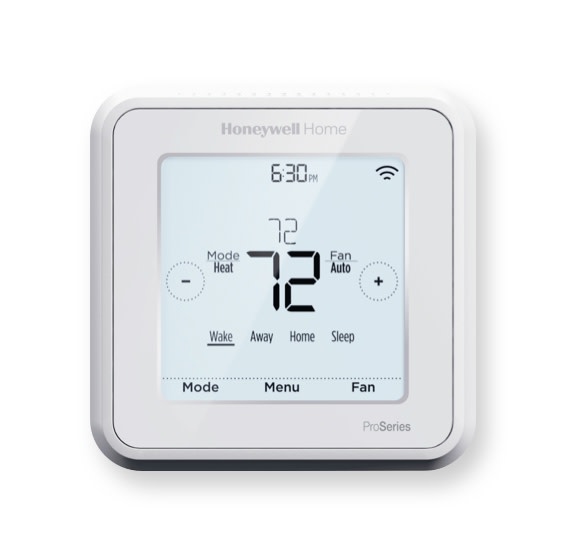
If your Honeywell Home Pro Series Thermostat shows a “Cool On” blinking message, you may feel confused or even worried. Is something wrong with your air conditioner? Will your home stay comfortable? The blinking message is common, but what it means—and what you should do—depends on several factors. Understanding this signal can save you time and money, prevent unnecessary repairs, and keep your indoor climate stable.
In this guide, you’ll find clear explanations, practical solutions, and expert advice. Whether you’re a homeowner, renter, or technician, you’ll discover what causes the blinking, how to fix it, and how to avoid common mistakes. Let’s make your Honeywell thermostat work smoothly again.
What Does “cool On” Blinking Mean?
The “Cool On” blinking message appears when the thermostat wants to cool your home, but cooling hasn’t started yet. This signal tells you the thermostat is waiting to turn on the air conditioner. It is not an error, but a normal part of the thermostat’s function.
Why Does It Blink?
Most Honeywell Pro Series thermostats use a delay feature to protect your air conditioning system. When you change settings or power returns after an outage, the thermostat waits a few minutes before starting the cooling. This delay prevents damage to your compressor.
Typical reasons for the blinking include:
- Recently changed temperature settings
- Power outage or reset
- System switched from heat to cool
- Short cycling detected (system turns on and off too quickly)
The delay usually lasts five minutes. After this, the thermostat should stop blinking and turn on cooling.
Is It A Problem?
In most cases, “Cool On” blinking is not a problem. It is a sign the thermostat is doing its job. However, if the blinking does not stop after several minutes, something may be wrong.
Common Causes For “cool On” Blinking
To fix the blinking, you need to know why it happens. Here are the most frequent causes:
- Compressor Delay: After changing settings or power loss, the thermostat waits to protect the AC compressor.
- Incorrect Wiring: Loose or wrong wires can prevent proper signals.
- Low Battery: Weak batteries can cause communication errors.
- Faulty Thermostat: Internal problems may stop normal operation.
- AC System Issues: Problems with the air conditioner itself (fuse, circuit breaker, etc.)
- Dirty Filters: Clogged filters reduce airflow and trigger system delays.
- Frozen Evaporator Coil: If the coil freezes, the system may pause cooling.
Let’s look at these causes in more detail.
Compressor Delay
The most common cause is compressor delay. When you turn your system back on, the thermostat waits before starting cooling. This is a safety feature. If you see the blinking right after changing settings, wait five minutes.
Incorrect Wiring
Thermostats depend on proper wiring. If you just installed or moved your thermostat, check the wires. Loose or wrong connections can cause the blinking to stay on.
Low Battery
Many Honeywell Pro Series thermostats use batteries. If the batteries are weak, the thermostat may malfunction. Replace the batteries if you see the blinking and your cooling does not start.
Faulty Thermostat
Electronic parts can fail. If your thermostat is old or has been exposed to moisture, it may stop working correctly. If none of the other solutions work, the thermostat may need replacement.
Ac System Issues
Your air conditioner has components like fuses, circuit breakers, and contactors. If any of these fail, the thermostat cannot start cooling. If you hear no sound from your AC, check your electrical panel.
Dirty Filters
A dirty air filter lowers airflow, making your system work harder. This can trigger safety delays and cause the blinking message.
Frozen Evaporator Coil
If your AC runs too long or has airflow problems, the coil can freeze. When this happens, the thermostat may pause cooling and show the blinking message.
Troubleshooting Steps For “cool On” Blinking
If the blinking does not stop after five minutes, try these steps. You do not need technical skills—most steps are safe for homeowners.
Step 1: Wait Five Minutes
The delay is normal. If you changed settings or power just returned, wait at least five minutes.
Step 2: Check Thermostat Settings
Make sure the thermostat is set to “Cool” and the temperature is below room level.
- Set the system to “Cool”
- Lower the set point by 2–3 degrees
Step 3: Inspect Batteries
If your thermostat uses batteries, replace them with fresh ones. Weak batteries can cause blinking issues.
Step 4: Look At Wiring
Remove the thermostat faceplate and inspect the wires. They should be tight and connected to the correct terminals.
- Turn off power before touching wires
- Check for loose or corroded wires
Step 5: Check Ac Power
Go to your electrical panel. Make sure the breaker for your air conditioner is ON. If it is off, switch it back on.
Step 6: Examine Air Filter
Find your air filter and check if it is clean. Replace it if dirty. A clean filter helps the system run smoothly.
Step 7: Listen For Ac Sounds
Stand near your air conditioner. If you hear nothing, the system may not be getting power.
Step 8: Reset Thermostat
Turn off the thermostat, wait 30 seconds, and turn it back on. This can fix minor glitches.
Step 9: Call A Technician
If none of the above steps work, contact a professional. There may be deeper issues inside your AC or thermostat.
Honeywell Home Pro Series Models And Features
Honeywell Pro Series thermostats are popular for their reliability and smart features. Knowing your model helps you troubleshoot better.
Main Models
- T4 Pro: Simple, easy-to-use interface
- T6 Pro: Programmable, Wi-Fi options
- T9 Pro: Smart sensors, app control
Features
- Compressor protection delay
- Easy battery replacement
- Large display
- Flexible programming
- Wi-Fi and app integration (on T6, T9)
Model Comparison
Here is a quick comparison of Honeywell Pro Series thermostats:
| Model | Display Size | Wi-Fi | Programming | Compressor Delay |
|---|---|---|---|---|
| T4 Pro | Small | No | Basic | Yes |
| T6 Pro | Medium | Optional | Advanced | Yes |
| T9 Pro | Large | Yes | Smart/App | Yes |
Most Pro Series models have the compressor delay feature. This is why “Cool On” blinking is common across models.
When Should You Worry About Blinking?
Not every blinking message means trouble. But you should pay attention if:
- Blinking lasts longer than ten minutes
- Room temperature does not drop
- AC does not turn on (no sound, no air)
- Thermostat screen is dim or dead
- You smell burning or see water leaks
These signs suggest a deeper problem. If you see them, do not ignore.
How To Prevent “cool On” Blinking Issues
Regular care keeps your system healthy. Here are smart ways to avoid problems:
- Change Filters Monthly: A clean filter prevents airflow issues.
- Check Batteries Twice a Year: Fresh batteries keep your thermostat reliable.
- Inspect Wiring Annually: Loose wires cause errors.
- Schedule AC Maintenance: Professional checks catch problems early.
- Avoid Rapid Setting Changes: Switching between heating and cooling quickly can trigger delays.
- Keep Vents Open: Closed vents reduce airflow and cause delays.
Data: Common Causes Of Ac Failure
Let’s look at the top reasons for AC system failure in US homes:
| Cause | Percentage |
|---|---|
| Dirty Filters | 37% |
| Low Refrigerant | 22% |
| Electrical Issues | 18% |
| Frozen Coil | 12% |
| Other | 11% |
Dirty filters are the number one cause of AC trouble. Regular maintenance reduces blinking messages and keeps your system running.

Credit: www.blind-guardian.com
Real-life Example: “cool On” Blinking Situation
Let’s look at a real case:
Sarah, a homeowner in Texas, noticed her Honeywell T6 Pro thermostat was blinking “Cool On” for more than ten minutes. She waited, but her air conditioner did not start. After checking settings, she replaced batteries and found the air filter was very dirty.
She changed the filter, reset the thermostat, and the AC started cooling in two minutes.
This shows how simple steps can fix blinking issues. Many problems are easy to solve without a technician.
Advanced Tips For Honeywell Pro Series Users
If you want more control, here are advanced tips:
Custom Delay Settings
Some Pro Series models let you change the delay time. Check the manual for “Compressor Protection” settings.
Using Wi-fi And App Integration
If you have a T6 or T9 Pro, use the Honeywell Home app to monitor and adjust settings. The app can alert you if the system is not cooling.
Firmware Updates
Occasionally, Honeywell releases software updates. Keeping your thermostat updated improves reliability.
Professional Installation
If you upgrade your thermostat, use a certified technician. This avoids wiring mistakes that can cause blinking.

Credit: www.youtube.com
Common Mistakes To Avoid
Many homeowners make errors that cause unnecessary blinking:
- Changing settings too quickly
- Ignoring filter maintenance
- Using old batteries
- Not checking wiring after installation
- Forgetting to schedule professional AC checks
Avoiding these mistakes keeps your thermostat and AC system in good condition.
Honeywell Support And Warranty
Honeywell offers support for all Pro Series thermostats. If you have a problem you cannot fix, visit their official support page. Most thermostats have a five-year warranty. If your thermostat fails within this period, you may get a free replacement.
For more details, visit the official Honeywell Home Support page.
Comparison: Honeywell Vs. Other Thermostats
How Does Honeywell Pro Series Compare To Other Brands?
| Brand | Compressor Delay | Battery Backup | Wi-Fi/App | Warranty |
|---|---|---|---|---|
| Honeywell Pro Series | Yes | Yes | Optional | 5 years |
| Nest | Yes | No | Yes | 2 years |
| Ecobee | Yes | No | Yes | 3 years |
| Emerson Sensi | Yes | Yes | Yes | 5 years |
Honeywell offers reliable features and a strong warranty. The compressor delay is standard across most major brands.
How To Reset Honeywell Pro Series Thermostat
If you need to reset your thermostat, follow these steps:
- Remove the thermostat faceplate.
- Find the reset button (usually inside or on the back).
- Press and hold for 10 seconds.
- The screen will go blank, then restart.
- Reattach the faceplate and set your preferences.
This simple reset can fix many blinking issues.
Energy Savings And Efficient Cooling
Using your Honeywell thermostat wisely helps save energy and money:
- Set temperatures higher when away (78°F is ideal in summer)
- Use programmable settings to adjust cooling automatically
- Clean filters monthly to reduce energy use
- Seal windows and doors to keep cool air inside
Studies show that programmable thermostats can save up to 10% on cooling costs every year.
Credit: ring.com
Frequently Asked Questions
Why Does My Honeywell Pro Series Thermostat Blink “cool On” After A Power Outage?
The blinking is a compressor delay to protect your AC. After power returns, the thermostat waits up to five minutes before starting cooling. This prevents damage to the compressor.
How Long Should “cool On” Blinking Last?
Usually, the blinking lasts five minutes. If it continues for more than ten minutes, check batteries, wiring, and filters.
Can I Turn Off The Compressor Delay Feature?
Most Honeywell Pro Series thermostats do not let you turn off the delay. It is a safety feature. Some advanced models may let you adjust the delay time in settings.
What Should I Do If Blinking Does Not Stop And Ac Won’t Start?
Check thermostat settings, replace batteries, inspect wiring, and clean filters. If the problem continues, reset the thermostat. If your AC still does not start, call a technician.
Does “cool On” Blinking Mean My Thermostat Is Broken?
No, blinking is usually normal. If it lasts too long or your AC does not start, it may signal a deeper issue. Follow troubleshooting steps before replacing the thermostat.
Conclusion
Your Honeywell Home Pro Series Thermostat is designed for safety and reliability. The “Cool On” blinking message is usually a sign of protection, not a fault. With the steps and tips above, you can solve most blinking issues yourself. Regular care and smart settings keep your home comfortable and your AC running smoothly. If problems persist, professional help is always available.