
If your Firestick remote starts blinking orange, it can be confusing and even a bit stressful. Maybe you’re just trying to watch your favorite show, and suddenly your remote isn’t working as expected. This small orange light is more than just a blinking distraction—it’s your Firestick remote’s way of telling you something is wrong. Understanding what this orange light means, why it happens, and how to fix it can save you time, money, and frustration.
In this guide, you’ll find clear explanations, practical steps, and real examples to help you solve the problem quickly. Whether you’re new to Firestick or you’ve been using it for years, you’ll discover tips and solutions you might not have seen before.
By the end, you’ll know exactly what to do when your Firestick remote blinks orange, and how to prevent the issue from coming back.
What Does The Orange Light Mean On A Firestick Remote?
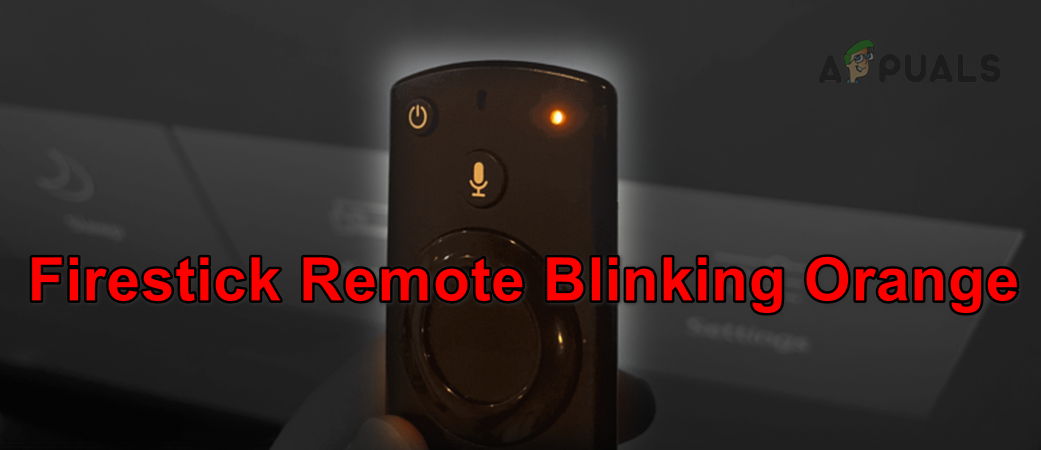
When you see the orange blinking light on your Firestick remote, it’s not just a random signal. It’s a built-in feature designed to communicate specific problems. The orange light usually means your remote is having trouble connecting to your Firestick device. This is called pairing mode. In some cases, the orange light can also indicate Wi-Fi issues or a firmware update.
Common Reasons For The Orange Light
- Pairing issues: The remote is not paired with the Firestick.
- Wi-Fi connection problems: The remote uses Wi-Fi Direct, so network issues can trigger the light.
- Firmware update in progress: Sometimes the remote blinks orange during updates.
- Battery issues: Low or faulty batteries can cause pairing problems.
- Hardware faults: Internal issues with the remote.
Many users think the orange light always means the batteries are low, but that’s not true. Usually, it’s a pairing or connection problem.
How Firestick Remotes Communicate
Understanding how your Firestick remote connects can help you fix issues faster. Most Firestick remotes use Bluetooth or Wi-Fi Direct to talk to the Firestick device. Unlike traditional remotes that use infrared, Bluetooth and Wi-Fi Direct don’t need a direct line of sight. This makes your remote more powerful, but it also means new types of problems can appear.
Bluetooth Vs Wi-fi Direct
| Feature | Bluetooth | Wi-Fi Direct |
|---|---|---|
| Range | About 30 feet | Up to 200 feet |
| Interference | More common | Less common |
| Pairing | Manual | Automatic/Manual |
| Used By | Older Firestick remotes | Newer Firestick remotes |
Most newer Firestick remotes use Wi-Fi Direct because it’s faster and more reliable. However, if your Wi-Fi is unstable or crowded, it can cause pairing problems and trigger the orange light.
Credit: appuals.com
Quick Solutions For A Blinking Orange Firestick Remote
If your remote is blinking orange, try these solutions before buying a new one. In most cases, you can fix the problem at home in just a few minutes.
1. Check And Replace Batteries
Weak batteries are a common cause of remote issues. Even if your remote has power, low batteries can interfere with the Bluetooth or Wi-Fi Direct connection.
- Remove the battery cover from the remote.
- Take out the old batteries.
- Insert fresh, high-quality batteries (preferably alkaline).
- Wait a few seconds, then check if the orange blinking stops.
Tip: Avoid mixing old and new batteries, and don’t use rechargeable batteries unless they’re recommended for your remote.
2. Re-pair The Remote To Your Firestick
If new batteries don’t work, try pairing your remote again.
- Unplug your Firestick device from the power source.
- Wait 30 seconds.
- Plug it back in and wait for the Firestick to restart.
- Hold down the Home button on your remote for 10-20 seconds.
- Watch for a blue light or a message on your TV saying the remote is paired.
If the orange light is still blinking, try moving closer to the Firestick device. Walls, metal objects, or electronics can block the signal.
3. Reset The Remote
Some issues need a remote reset. The steps depend on your remote model, but here’s a common method:
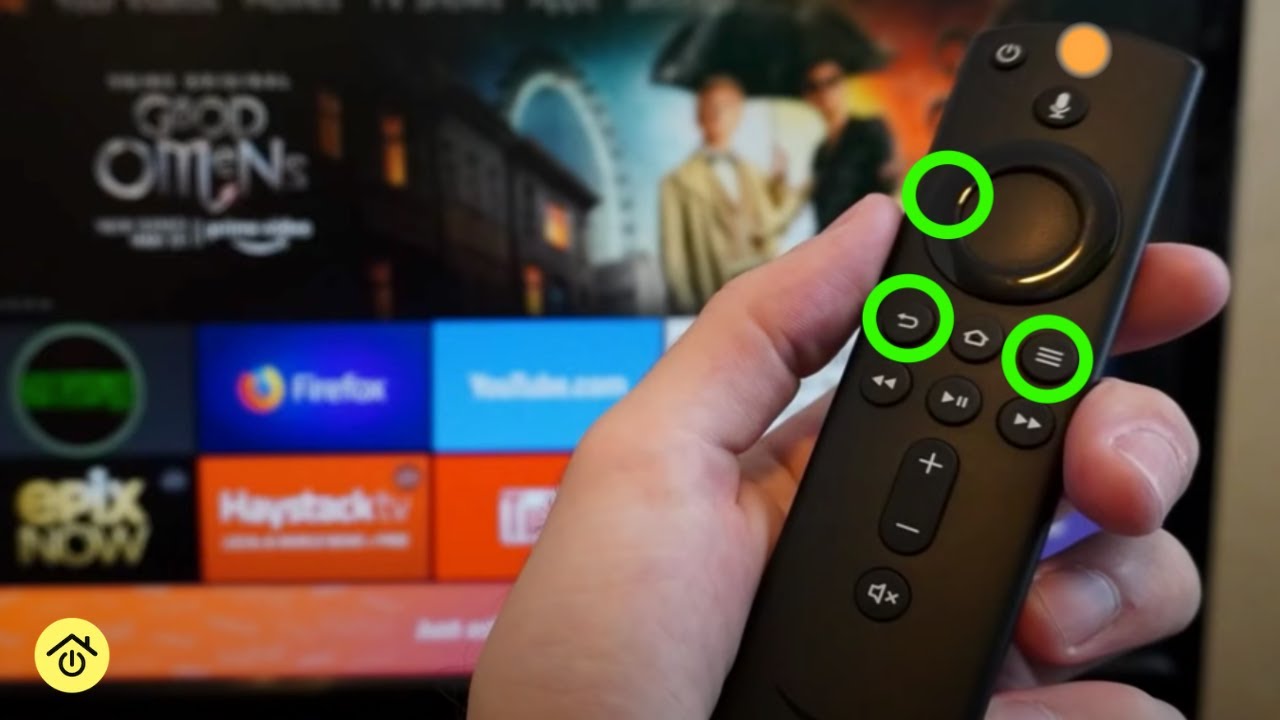
- Hold the Back, Menu (three lines), and Left buttons together for 15 seconds.
- Release the buttons and wait 60 seconds.
- Remove the batteries, wait another 60 seconds, and put the batteries back in.
- Hold the Home button for 10 seconds to re-pair.
This process clears out any stuck settings that might cause the orange light.
4. Check For Interference
Other wireless devices, like Wi-Fi routers, cordless phones, or microwaves, can interfere with your Firestick remote.
- Move the Firestick and remote away from other electronics.
- Try turning off other wireless devices to see if the orange light stops blinking.
- Make sure there’s a clear path between your remote and the Firestick.
5. Use The Fire Tv App As A Temporary Remote
If you’re stuck, you can use your smartphone as a remote.
- Download the Amazon Fire TV app from the App Store or Google Play.
- Connect your phone to the same Wi-Fi network as your Firestick.
- Open the app, find your Firestick device, and follow the instructions to pair.
This app lets you control your Firestick while you fix the physical remote.
Less Obvious Causes: What Most People Miss
Some issues are easy to overlook, especially for beginners. Here are two that many people don’t think about:
- TV USB Power: If you power your Firestick using your TV’s USB port, it might not give enough power. This can cause remote pairing issues and the orange blinking. Try plugging your Firestick into a wall outlet using the official adapter.
- Overheated Firestick: If your Firestick device gets too hot, it can affect Bluetooth and Wi-Fi Direct connections. This sometimes leads to remote problems and orange blinking. Keep your Firestick in a well-ventilated area, and avoid stacking it with other electronics.
Credit: www.youtube.com
When To Factory Reset Your Firestick Device
If nothing else works, a factory reset can solve deep software issues. But be careful: this will erase all your apps, settings, and accounts.
Steps To Factory Reset
- Go to the Firestick Home screen.
- Select Settings.
- Choose My Fire TV.
- Click on Reset to Factory Defaults.
- Confirm your choice.
If your remote isn’t working at all, use the Fire TV app or press and hold the Right and Back buttons together for 10 seconds on the physical remote.
Note: Only use a factory reset as a last resort.
Common Firestick Remote Problems And How To Identify Them
It’s important to know if your blinking orange light is a pairing problem, a hardware fault, or something else. Here are the most common remote issues:
| Problem | Symptoms | Solution |
|---|---|---|
| Remote not responding | No lights, no action | Replace batteries, check remote |
| Blinking orange light | Orange LED flashing | Re-pair or reset remote |
| Intermittent connection | Remote works then stops | Check for interference, move closer |
| Voice commands not working | Voice button does nothing | Update Firestick firmware |
| Physical damage | Cracked, water damage | Replace remote |
If your remote is blinking orange and none of the solutions above work, it might be a hardware issue. In that case, contacting Amazon support or buying a replacement remote may be the only options.
How To Prevent Firestick Remote Pairing Issues
You can avoid many remote problems by following simple habits:
- Use high-quality batteries and change them regularly.
- Keep your Firestick device and remote in a cool, ventilated area.
- Avoid powering your Firestick from your TV’s USB port.
- Keep the remote and Firestick device within 10 feet of each other.
- Regularly update your Firestick device for the latest features and bug fixes.
Firestick Remote Models And Compatibility
Not every Firestick remote is the same. Over the years, Amazon has released several models with different features. Knowing your remote model can make troubleshooting easier.
Common Firestick Remote Versions
| Remote Model | Main Features | Compatible Firestick Versions |
|---|---|---|
| 1st Gen | No voice control, Bluetooth | Fire TV Stick (1st Gen) |
| 2nd Gen | Voice control, Alexa | Fire TV Stick (2nd Gen), 4K |
| 3rd Gen | Volume, power buttons | Fire TV Stick 4K, 4K Max, Lite |
| Alexa Voice Remote Pro | Backlight, remote finder | Most Fire TV devices |
If you buy a new remote, always check compatibility with your Firestick model.
Troubleshooting Steps: A Step-by-step Approach
Here’s a simple path to follow if your Firestick remote blinks orange:
- Replace the batteries with fresh, high-quality ones.
- Re-pair the remote by holding the Home button for 10-20 seconds.
- Reset the remote using the combination: Back + Menu + Left for 15 seconds.
- Check for interference and move devices if needed.
- Use the Fire TV app as a backup remote.
- Power the Firestick with the original adapter instead of the TV’s USB port.
- Restart the Firestick by unplugging it for 30 seconds.
- Factory reset the Firestick only if nothing else works.
- Replace the remote if hardware damage is suspected.
By following these steps in order, you can often solve the problem without professional help.
Why Do Firestick Remotes Lose Connection?
The most common reason for a blinking orange light is lost connection. Here’s why it happens:
- Battery drain: As batteries get weaker, the Bluetooth or Wi-Fi Direct signal drops.
- Software bugs: Updates or glitches can break the pairing.
- Environmental interference: Wi-Fi routers, microwaves, and thick walls can block signals.
- Overheating: Both the remote and Firestick device can overheat, especially in tight spaces.
- Distance: If you’re too far from the Firestick, connection will drop.
Keeping your devices updated and in a good environment can prevent most of these problems.

Credit: www.reddit.com
How To Update Firestick Firmware
Sometimes, a firmware bug is the cause of remote issues. Updating your device can fix hidden problems.
- Go to Settings on your Firestick.
- Select My Fire TV.
- Click on About.
- Choose Check for Updates.
- Install updates if available.
After updating, restart your Firestick and try pairing the remote again.
When To Contact Amazon Support
If you’ve tried every solution and your remote still blinks orange, it’s time to contact Amazon. They can guide you through advanced troubleshooting steps or send a replacement if your remote is under warranty.
You can reach Amazon support through the Help section on your Firestick or by visiting the official Amazon support website.
Is It Worth Buying A Replacement Remote?
Replacement remotes are easy to find, but not all are high-quality. Here’s what to consider:
- Official Amazon remotes are more reliable and fully compatible.
- Third-party remotes may cost less but sometimes miss features or have pairing issues.
- If your remote is out of warranty and you’ve tried everything, a new remote is often faster and less stressful than continued troubleshooting.
Tips For A Better Firestick Experience
- Keep your Firestick firmware updated to avoid software bugs.
- Use the Fire TV app when your physical remote is lost or broken.
- If you have frequent connection issues, try moving your Firestick device closer to your Wi-Fi router.
- Avoid placing the Firestick behind the TV if possible—this can block Bluetooth and Wi-Fi signals.
Frequently Asked Questions
What Should I Do First When My Firestick Remote Blinks Orange?
Start by changing the batteries to fresh, high-quality ones. If the light still blinks, try re-pairing the remote by holding the Home button for 10-20 seconds. If that doesn’t work, follow the reset steps outlined above.
Can I Use My Phone As A Firestick Remote If The Original One Is Not Working?
Yes, the Amazon Fire TV app on your smartphone can work as a remote. Just connect your phone to the same Wi-Fi network as your Firestick and follow the app’s instructions.
Does The Orange Blinking Light Always Mean The Remote Is Broken?
No, the orange light usually means a pairing or connection issue, not a broken remote. Most of the time, the remote can be fixed with fresh batteries, re-pairing, or a reset.
Will A Factory Reset Delete My Apps And Settings?
Yes, a factory reset will erase all your apps, accounts, and settings from your Firestick. Only use this as a last resort after trying other solutions.
Where Can I Get Official Help If I Can’t Fix The Problem?
You can contact Amazon’s customer support for help. They have step-by-step guides and can send replacement remotes if needed. For more details, see the official Amazon Fire TV support page.
Conclusion
A blinking orange light on your Firestick remote can be annoying, but it’s often easy to fix. By following the steps and tips in this guide, you can get back to streaming quickly and avoid future problems. Always use quality batteries, keep your devices updated, and don’t be afraid to reach out for help if you need it.
Your Firestick remote is designed to last, and with the right care, it will serve you well for years.