
When your Dell laptop starts blinking two orange and four white lights, it’s easy to feel confused or even worried. Many people see these lights and wonder if their device is broken for good. The truth is, this blinking pattern is a helpful signal from your laptop.
It’s trying to tell you there’s a specific problem that needs attention. Understanding what these lights mean, and how to fix the issue, can save you time, money, and frustration. This guide will walk you through everything you need to know, step by step.
Whether you’re a student, professional, or just someone who relies on their laptop every day, you’ll learn how to diagnose and solve the “2 orange and 4 white” blinking light issue like a pro.
What Does The 2 Orange And 4 White Light Blinking Mean?
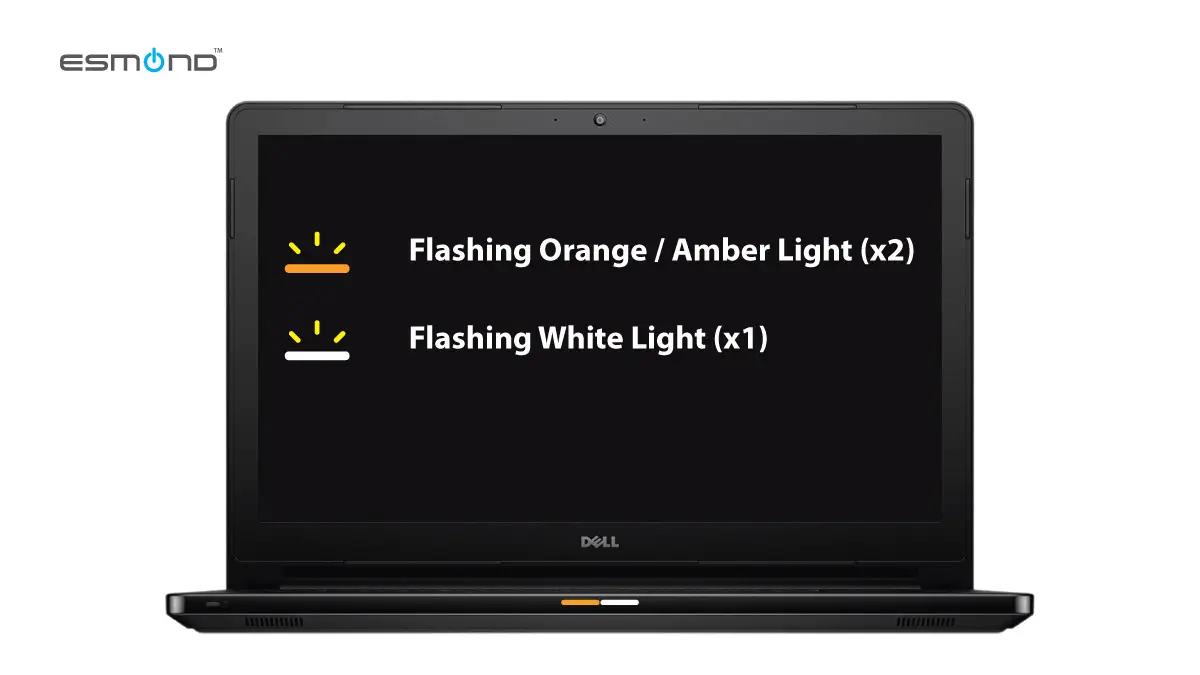
Dell laptops use blinking light codes to help users and technicians identify hardware problems quickly. The 2 orange and 4 white blinking pattern appears on the LED indicator near the power button or on the side of the laptop. According to Dell’s official documentation, this specific pattern indicates a memory failure.
When your laptop’s memory (RAM) isn’t working correctly, it can’t start Windows or run programs. The laptop’s motherboard detects the issue and sends you a warning by blinking the lights in a precise sequence. It’s important to note that this code is different from other blinking patterns, such as 3 orange and 3 white, which may signal a different hardware problem.
Why Does Dell Use Light Codes?
Dell laptops have many parts inside, and not all problems can be seen on the screen. Sometimes, the laptop won’t turn on or show any error message. Light codes help users identify problems even if the laptop is completely dead.
This method is fast, reliable, and doesn’t require special tools.
When Do You See This Blinking Pattern?
You’ll usually see the 2 orange and 4 white blink when:
- The laptop is powered on, but the screen stays black.
- The laptop tries to start, then stops or restarts itself.
- You hear beeps or fan noises, but nothing shows up on the display.
If you see this pattern, it means the laptop’s RAM is not working as it should. The cause could be a loose stick, a faulty module, or even a problem with the motherboard’s RAM slot.
Understanding Ram Failure: Causes And Symptoms
RAM is short for Random Access Memory. It’s a crucial part of any computer, helping programs load and run smoothly. If your laptop’s RAM fails, the entire system can stop working. Let’s look at why RAM fails and what symptoms you might notice.
Common Causes Of Ram Failure
- Loose RAM Stick: Sometimes, RAM modules are not seated properly inside the laptop. A minor bump or movement can cause them to lose contact.
- Defective RAM Module: Manufacturing defects or age can cause RAM sticks to stop functioning.
- Dirty or Corroded Contacts: Dust or corrosion on the RAM contacts can block the connection.
- Motherboard Issues: The slot where the RAM connects might be damaged or malfunctioning.
- Overheating: Excess heat can damage RAM over time.
- Electrical Surges: Sudden power spikes may harm sensitive electronic parts.
Key Symptoms You’ll Notice
- Laptop won’t boot: The screen stays black, and you hear no startup sound.
- Frequent crashes: If your laptop does turn on, it may freeze or crash often.
- Error messages: Sometimes, you might see “memory error” or similar warnings.
- Blinking lights: The 2 orange and 4 white pattern is the main clue.
Example: Real-life Scenario
Imagine a student drops their Dell laptop on the floor. The laptop doesn’t turn on, and the lights blink 2 orange and 4 white. This is a classic sign that the RAM may have come loose or been damaged.

Credit: www.youtube.com
How To Diagnose The Problem
Before you rush to buy new parts or call a technician, it’s smart to check a few things yourself. Diagnosing the issue doesn’t require technical skills—just patience and careful steps.
Step 1: Confirm The Light Pattern
Watch the blinking sequence carefully. Is it exactly 2 orange and 4 white? Count the flashes and note the order. If it’s different, check Dell’s support site for other codes.
Step 2: Remove External Devices
Disconnect all USB devices, printers, and external displays. Sometimes, outside devices can cause conflicts. Restart your laptop and watch for the blinking lights.
Step 3: Try A Hard Reset
A hard reset can clear minor glitches. Here’s how:
- Turn off the laptop.
- Unplug the power adapter.
- Remove the battery (if possible).
- Hold the power button for 30 seconds.
- Reconnect the battery and power adapter.
- Turn the laptop on.
If the blinking continues, move to the next step.
Step 4: Inspect The Ram Modules
This step needs a bit of care:
- Turn off and unplug the laptop.
- Open the bottom cover (usually with a screwdriver).
- Locate the RAM sticks—they look like slim green modules with chips.
- Gently remove each stick by pressing the side clips.
- Inspect for dust or damage.
- Reinsert each stick firmly.
- Close the cover and turn on the laptop.
If you have more than one RAM module, try starting the laptop with one stick at a time. This helps you find out if a particular module is faulty.
Step 5: Check For Physical Damage
Look for signs of burnt marks, corrosion, or broken parts. If you see anything unusual, the RAM or motherboard may need replacement.
Step 6: Use Dell Diagnostics
Dell laptops often have built-in diagnostic tools. Press the F12 key during startup to access the Boot Menu. Select “Diagnostics” and run the test. The laptop will check for hardware issues and give you detailed results.
Comparing Ram Faults Vs Other Laptop Issues
To help you understand how RAM faults compare to other common laptop problems, here’s a clear table:
| Issue | Light Pattern | Main Symptoms | Possible Fix |
|---|---|---|---|
| RAM Failure | 2 orange, 4 white | No display, blinking lights | Reseat/replace RAM |
| Battery Error | 3 orange, 3 white | Won’t charge, battery warning | Replace battery |
| Motherboard Fault | Continuous orange | No power, no lights | Replace motherboard |
| Display Issue | No blinking, just black screen | Screen dead, laptop running | Replace screen |
This comparison helps you see why the 2 orange and 4 white code points directly to a RAM problem.
Credit: elservicecentre.com
Practical Steps To Fix The 2 Orange And 4 White Blinking Issue
Now that you know the cause, let’s look at how to fix it. You don’t need to be a tech expert, but you do need to be careful.
Step 1: Power Down And Prepare
Always turn off the laptop and unplug it before opening. If your laptop has a removable battery, take it out.
Step 2: Open The Laptop Safely
Most Dell laptops have screws on the bottom. Use a small screwdriver to open the panel. Make sure you don’t lose the screws.
Step 3: Reseat The Ram
Gently push the side clips outward and lift the RAM stick. If you have two sticks, remove both. Clean the contacts with a soft, dry cloth. Put the RAM back in firmly.
Step 4: Test Each Ram Stick
If you have more than one RAM module:
- Insert only one stick and try to power on.
- If the laptop works, the other stick may be faulty.
- If not, try the other stick in the same slot.
This helps you find out if the problem is with the RAM or the slot itself.
Step 5: Try Different Slots
If your laptop has two RAM slots, try moving the module to the other slot. Sometimes, only one slot fails.
Step 6: Replace Ram If Needed
If reseating doesn’t work, you may need to buy a new RAM module. Check your laptop’s specifications for the correct type (e. g. , DDR4, 8GB). It’s important not to buy random RAM—always match the specs.
Step 7: Seek Professional Help
If you’ve tried all steps and the blinking continues, there may be a deeper issue with the motherboard. At this point, it’s wise to contact a Dell service center or qualified technician.
Data: Dell Laptop Ram Failure Statistics
It helps to know how common RAM issues are. Studies show that RAM is one of the top three laptop parts to fail.
| Component | Failure Rate (%) | Average Lifespan (years) |
|---|---|---|
| RAM | 7.3 | 5–8 |
| Hard Drive | 12.1 | 3–7 |
| Battery | 10.5 | 2–4 |
| Motherboard | 3.8 | 6–10 |
RAM failures are less common than hard drive or battery issues, but they still account for a significant share of laptop breakdowns.
Buying New Ram: What Matters Most
If you decide to buy new RAM, it’s important to choose wisely. Many beginners make mistakes that cost them money or cause new problems.
Key Factors To Consider
- Type and Size: Check if your laptop uses DDR3 or DDR4, and the maximum supported size (e.g., 8GB, 16GB).
- Brand Quality: Stick to reputable brands like Crucial, Kingston, or Corsair.
- Speed: Match the RAM speed (e.g., 2400MHz) to your laptop’s specs.
- Form Factor: Laptops use SODIMM modules, not desktop DIMMs.
- Compatibility: Check Dell’s official support site for compatible models.
Common Buyer Mistakes
- Buying desktop RAM instead of laptop RAM.
- Ignoring the speed or type specification.
- Mixing RAM brands or sizes, which can cause instability.
- Not checking the maximum supported RAM for your laptop.
Example: Matching Ram
If your Dell laptop supports DDR4 SODIMM, 8GB, 2400MHz, buying DDR3 or desktop-sized RAM won’t work. Always double-check before purchasing.
Preventing Ram Failure: Tips For Longevity
You can reduce the risk of RAM failure with a few simple habits. Here are practical tips:
- Avoid physical shocks: Don’t drop or bump your laptop.
- Keep it clean: Regularly dust the vents and internal parts.
- Use a surge protector: This protects against electrical spikes.
- Monitor temperatures: Overheating can damage RAM. Use your laptop in cool environments.
- Upgrade carefully: Only use compatible RAM.
These steps will help you avoid seeing the 2 orange and 4 white blinking lights in the future.
When To Replace Vs Repair
Sometimes, reseating RAM or cleaning contacts is enough. But there are cases when you need a replacement.
Repair Makes Sense If:
- The RAM stick is loose or dirty.
- Only one module is faulty, and the other works fine.
- The slot is the problem, and you can use the other slot.
Replace If:
- Both RAM modules fail in all slots.
- The modules show physical damage or burn marks.
- The laptop is old, and upgrades are needed.
If the motherboard is damaged, replacement is often costly. In such cases, consider whether it’s better to buy a new laptop.
Practical Examples Of Fixing Dell Laptop Ram Issues
Let’s look at some real-world examples to make things clearer.
Example 1: Loose Ram
A user notices their Dell laptop blinking 2 orange and 4 white after moving it between rooms. Opening the laptop and reseating the RAM fixes the problem instantly.
Example 2: Faulty Ram Stick
A professional’s laptop starts blinking after years of use. They test each RAM stick one at a time. One stick fails, the other works. Replacing the faulty stick solves the issue.
Example 3: Damaged Slot
A student’s laptop blinks the code, even after changing RAM sticks. Using the other slot works, confirming the original slot is damaged.
These examples show how easy fixes can solve what seems like a big issue.
Comparing Dell Models: Ram Access And Repair Difficulty
Different Dell laptop models have varying levels of difficulty when accessing RAM. Here’s a handy comparison:
| Model | RAM Access | Repair Difficulty | Typical RAM Type |
|---|---|---|---|
| Inspiron 15 | Easy (bottom panel) | Low | DDR4 SODIMM |
| XPS 13 | Medium (remove base) | Moderate | DDR4 SODIMM |
| Latitude 5400 | Easy (quick access) | Low | DDR4 SODIMM |
| G5 Gaming | Medium (multiple screws) | Moderate | DDR4 SODIMM |
| Vostro 14 | Easy (simple cover) | Low | DDR4 SODIMM |
The easier it is to access the RAM, the faster you can diagnose and fix issues.
Additional Insights Most Beginners Miss
- RAM failure can mimic other issues. Sometimes, a dead screen or random crashes might seem like battery or display problems, but the real cause is faulty RAM. Always check the RAM first if you see the 2 orange and 4 white pattern.
- Mixing RAM types can cause the blinking light. Even if both sticks are “working,” using different speeds or brands can trigger compatibility errors. Always use matching modules.
Where To Find Official Support
If you’re unsure or need more help, Dell’s official support page is a trusted resource. Visit Dell Support for manuals, troubleshooting guides, and live chat options.
Frequently Asked Questions
What Does 2 Orange And 4 White Blinking Mean On Dell Laptops?
This blinking pattern signals a memory (RAM) failure. Your laptop cannot communicate with the RAM properly, so it cannot start up. It’s a direct hardware warning, not a software error.
Can I Fix The Ram Issue Myself?
Yes, many users can fix RAM problems by reseating or replacing the modules. It’s important to follow safe steps and match the RAM type to your laptop’s specifications.
Does This Error Mean The Laptop Is Dead?
No. Most of the time, the laptop can be repaired by fixing or replacing the RAM. Only if the motherboard is damaged would the laptop require expensive repairs.
What Type Of Ram Does My Dell Laptop Use?
Most modern Dell laptops use DDR4 SODIMM RAM. Older models may use DDR3. Always check your laptop’s manual or Dell’s website for exact specifications.
How Much Does Ram Replacement Cost?
RAM prices vary. For an 8GB DDR4 SODIMM module, expect to pay between $30 and $60. Professional installation may add extra cost. Always buy from trusted brands.
Conclusion
When you see the 2 orange and 4 white blinking lights on your Dell laptop, don’t panic. This signal is clear: your RAM needs attention. By following the steps above, you can diagnose, fix, or replace the faulty component. In most cases, the repair is simple, cost-effective, and restores your laptop to normal. Remember, understanding light codes is a powerful way to keep your laptop running smoothly and avoid unnecessary stress. If you need more help, Dell’s official support page is always there to guide you.

Credit: www.reddit.com