
When your Dell computer suddenly shows a blinking orange light, it can be worrying—especially if you don’t know what it means. You try pressing the power button, but the screen stays dark. The orange light keeps blinking, almost like it’s sending a message. For many users, this is a common problem, but the solution is not always obvious. Understanding what this blinking light means, why it happens, and how to fix it can save you time, money, and stress.
In this article, you’ll discover the real reasons behind the Dell computer blinking orange issue. You’ll learn how to identify the root cause, what each blink pattern means, and the steps you can take to solve the problem—whether you’re at home or in the office. We’ll also share some lesser-known tips that help many users avoid making mistakes that could make the problem worse. Let’s break down the mystery of the blinking orange light and get your Dell PC running again.
What Does The Blinking Orange Light Mean?
Most Dell computers have diagnostic lights near the power button. These lights are there to help you when something goes wrong. The blinking orange (sometimes called amber) light is a warning. It usually means there is a problem with the hardware, not the software. In simple terms: something inside your computer is not working right.
But not every orange blink means the same thing. The number of blinks, how fast the light blinks, and whether it stays solid or flashes all matter. Dell uses these patterns to help you find the problem faster.
Common Causes Of The Orange Light
- Power supply issues: The computer is not getting enough power, or the power supply is failing.
- Motherboard problems: The main circuit board may have a fault.
- Memory errors: One or more RAM modules are not working or are loose.
- Graphics card issues: The GPU is not seated correctly or is failing.
- Overheating: Fans or cooling systems are not working, causing the system to protect itself.
- Loose cables or connections: Simple connection problems inside the case.
Surprisingly, a blinking orange light is rarely caused by software or Windows errors. It’s almost always hardware.
Understanding Dell’s Diagnostic Codes
Dell engineers designed a system of diagnostic blink codes to give clues about the problem. These codes can be different depending on your model—Inspiron, OptiPlex, XPS, Vostro, and others might use slightly different patterns.
How To Read The Blink Pattern
Watch the power button or the LED near it:
- Count the number of times the light blinks before it pauses.
- Note if the light blinks fast or slow.
- Some models use both orange and white lights together.
After you note the pattern, you can compare it to Dell’s code list. Here’s a helpful table that shows what different blink patterns usually mean on common Dell desktops and laptops.
| Blink Pattern | Possible Cause | What to Check |
|---|---|---|
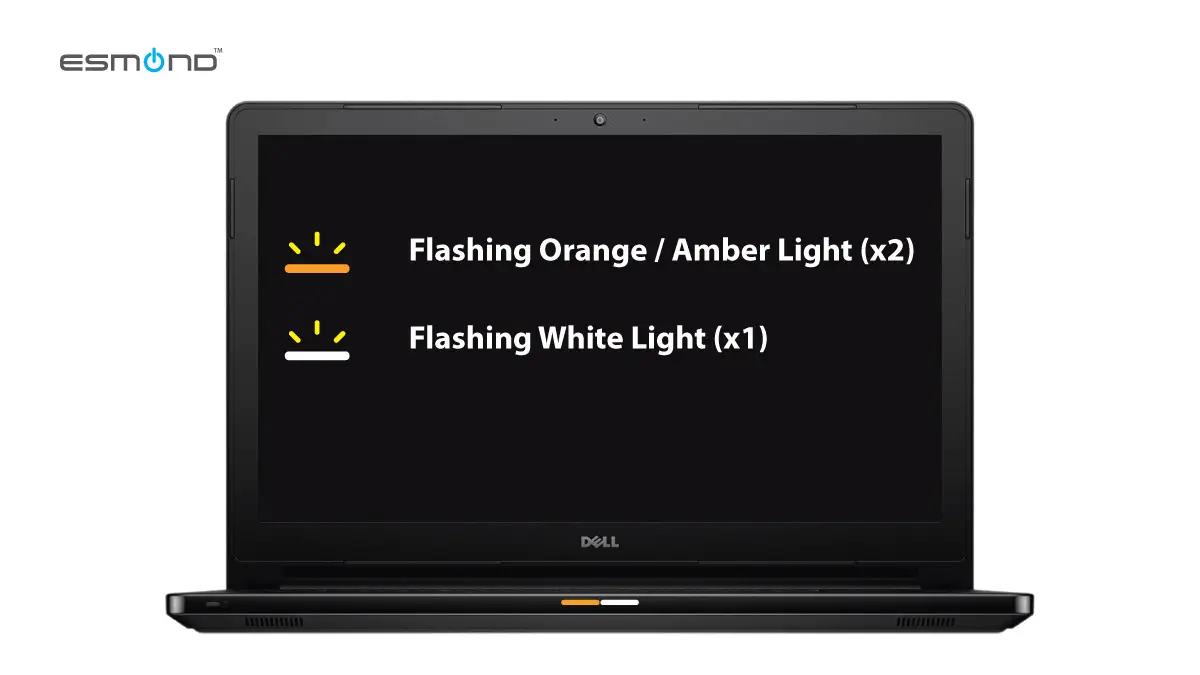
| 2 orange, 1 white | RAM error | Reseat or replace RAM |
| 3 orange, 2 white | Motherboard failure | Check motherboard, seek service |
| 4 orange, 2 white | Power supply issue | Test or replace power supply |
| Steady orange | General power fault | Check all connections |
| Flashing orange (no white) | Hardware fault | Check all components |
These are general codes. For your exact model, check Dell’s support site or your user manual.
Step-by-step Troubleshooting Guide
Now that you know what the blinking orange light could mean, let’s look at what you can do to fix it. You don’t need to be an expert to follow these steps. Just work carefully and take your time.
1. Unplug And Reset
Before opening your computer, start with a simple reset:
- Shut down the computer.
- Unplug the power cord from the wall.
- If it’s a laptop, remove the battery (if possible).
- Hold the power button for 15-20 seconds. This drains any remaining power.
- Plug the power cord back in and try to start the computer.
This step can clear up temporary faults or static electricity. If the orange light is gone, the issue may have been a simple power glitch.
2. Check Power Supply And Cable
A weak or faulty power supply is a leading cause of the orange light. Here’s how to check:
- Make sure the power cable and wall outlet are working. Try another cable or outlet if possible.
- For desktops, look for a green light on the back of the power supply. If it’s off or blinking, the power supply may be bad.
- Listen for fans or any sign of life when you try to power on.
If you suspect the power supply, replacing it is often the solution. Always use a compatible replacement.
3. Inspect Internal Connections
Loose connections inside the case are a common reason for hardware errors. If you’re comfortable opening your PC:
- Turn off the computer and unplug it.
- Open the side panel (for desktops).
- Gently press all connectors, RAM modules, and cards to make sure they are seated.
- Look for any signs of damage or burnt smells.
For laptops, this is more challenging, but you can often access RAM or battery slots.
4. Test The Ram
A faulty or loose RAM stick often causes a blinking orange code. Here’s what to do:
- Remove the RAM modules carefully.
- Clean the contacts with a soft, dry cloth.
- Insert one module at a time and try to boot.
- If the system works with one stick but not the other, you’ve found the bad RAM.
Don’t mix up which slot or stick you’ve tested—keep track.
5. Remove Non-essential Devices
Sometimes, USB drives, printers, or external hard drives can confuse the computer at startup. Unplug everything except the keyboard, mouse, and monitor. Then try to power on. If the orange light goes away, plug devices back in one by one to find the problem.
6. Check For Overheating
Overheating can trigger a blinking orange light to protect your computer. Dust buildup is a common cause. Blow out the fans and vents with compressed air. Make sure all fans spin freely. If you hear odd noises or fans don’t work, replace them.
7. Test The Graphics Card
If your Dell has a separate graphics card, remove it and try to start the computer using the built-in video port (if available). If the computer starts, the graphics card may be faulty.
8. Try A Cmos Reset
The CMOS battery stores settings for your motherboard. If it’s dead or settings are wrong, you might see a blinking orange light. To reset:
- Turn off the computer and unplug it.
- Find the small, round battery on the motherboard.
- Remove it for 5 minutes, then put it back.
- Plug in and try to power on.
This resets BIOS settings to default.
9. Look For Physical Damage
Burn marks, leaking capacitors (small metal cans on the motherboard), or a burnt smell often mean the motherboard has failed. This usually requires professional repair or replacement.
Common Scenarios And Fixes
Each Dell model family has its own quirks. Let’s look at some real-world examples.
Dell Inspiron Desktop
A user reports: “My Inspiron 3670 shows two orange blinks, pauses, then repeats.” This matches the RAM error code. Reseating both RAM sticks solves the problem.
Dell Optiplex
An OptiPlex 7010 blinks orange three times, pauses, and repeats. After removing dust and checking all connections, the system boots. In this case, overheating was the trigger.
Dell Xps Laptop
A Dell XPS 13 blinks orange four times, then white twice. This points to a power supply issue. Using the correct Dell charger fixes the problem.
When To Seek Professional Help
Not all problems can be fixed at home. If you notice these signs, it’s best to contact Dell support or a repair shop:
- No lights or fans at all after all steps above.
- Physical damage to the motherboard or power supply.
- The problem returns even after replacing parts.
- Your computer is under warranty—opening it may void coverage.
You can find Dell’s support options on their official site. Always use genuine or trusted parts to avoid future problems.
Preventing Future Blinking Orange Issues
Most hardware problems can be prevented with good habits:
- Keep your PC clean and dust-free.
- Use a surge protector to guard against power spikes.
- Don’t move your computer while it’s on.
- Avoid blocking vents or fans.
- Check cables regularly for wear or damage.
One insight many users miss: Laptops and desktops often need BIOS updates to work with new hardware. Check Dell’s website for updates, especially after replacing RAM or adding new parts.
Another tip: If you work in an area with unstable power, an uninterruptible power supply (UPS) can protect your computer from sudden outages that cause hardware errors.

Credit: www.youtube.com
Comparing Orange Light Patterns On Different Dell Models
Let’s compare how different Dell models display the orange light and what it means for each system.
| Dell Model | Light Location | Common Orange Pattern | Main Cause |
|---|---|---|---|
| Inspiron Desktop | Power button | Steady or blinking | Power supply, RAM |
| OptiPlex | Power button, motherboard | Blinking with pauses | Motherboard, overheating |
| XPS Laptop | Front edge | Orange/white sequence | Battery, charger, RAM |
| Vostro Desktop | Power button | Flashing orange | Loose connections, hardware fault |
Knowing your model helps you find the right solution faster.
Mistakes To Avoid When Fixing The Orange Light
Many users accidentally make things worse by:
- Pulling out parts while the PC is still plugged in. Always unplug first.
- Forcing RAM or cards into slots. If it doesn’t fit easily, it’s not in the right place.
- Using the wrong power supply. Only use Dell-approved units.
- Ignoring repeated orange light errors. If the problem keeps coming back, get help.
- Skipping BIOS updates. Sometimes, new hardware needs new firmware.
Fixing the orange light is often simple, but rushing can lead to bigger problems.
Data Loss: What To Watch For
Most orange light issues don’t cause data loss. But if the motherboard or power supply fails suddenly, there’s a risk. If your computer starts after fixing the problem, back up important files right away. If you can’t start your PC, you may need a data recovery service.
One overlooked insight: If you hear clicking or beeping along with the orange light, the hard drive may also be in trouble. Act quickly to save your files if you can.
How Dell’s Blinking Orange Light Compares To Other Brands
Dell isn’t the only brand with diagnostic lights, but their system is known for being detailed. Here’s a quick comparison with other brands:
| Brand | Diagnostic Light Color | Pattern Usage | User Friendliness |
|---|---|---|---|
| Dell | Orange/white | Detailed blink codes | High |
| HP | Red/white | Blink/beep codes | Medium |
| Lenovo | Amber | Steady/flashing | Medium |
| Acer | Blue/orange | Basic patterns | Low |
Dell’s blink codes are more precise, making troubleshooting easier for users who know what to look for.
Credit: elservicecentre.com
Useful Resources
If you need more details about your specific model, Dell’s official support site has guides, manuals, and even video instructions. Visit Dell Support for more help.
For general computer troubleshooting, Wikipedia’s page on Power-on self-test offers a good technical overview.
Frequently Asked Questions
Why Is My Dell Computer Blinking Orange And Not Turning On?
A blinking orange light usually means a hardware problem—often with power, RAM, or the motherboard. Try unplugging the computer, checking all internal connections, and testing the RAM. If the problem continues, consult your Dell model’s diagnostic codes for more details.
Can I Fix The Blinking Orange Light Problem Myself?
Many orange light problems can be fixed at home, especially if it’s a loose cable, bad RAM, or dust. However, if you see physical damage, or if the problem is with the motherboard or power supply, it’s safer to get professional help.
Will I Lose My Files If My Dell Shows A Blinking Orange Light?
Most of the time, your files are safe. The orange light usually points to a hardware issue that stops the computer from starting. If you can fix the problem and boot up, back up your files right away. If you can’t, a repair shop may be able to recover your data.
What Does 2 Orange And 1 White Blink Mean On My Dell?
This specific pattern often means a RAM error. Try removing and reseating the RAM modules. If the problem continues, you may need to replace the RAM.
How Can I Prevent The Blinking Orange Light From Happening Again?
Keep your computer clean, use a surge protector, and check for BIOS or firmware updates regularly. Don’t ignore repeated orange light errors—fix them early to avoid bigger problems.
Conclusion
When you see the blinking orange light on your Dell computer, it’s a sign that something needs attention. With careful troubleshooting, many users solve the problem at home and get back to work quickly. Pay attention to the blink pattern, work methodically, and remember: patience is key. If you ever feel unsure, Dell’s support options are always available to help.

Credit: www.reddit.com