
A blue blinking light on your Cox modem or router can be worrying, especially if you rely on the internet for work, school, or entertainment. Many people see this light and wonder: Is my internet down? Did something break? Should I call for help? Understanding what the Cox blinking blue light means, why it happens, and how to fix it can save you time, stress, and maybe even money. In this guide, you’ll learn everything you need to know to get your Cox internet connection back to normal.
What Does The Cox Blinking Blue Light Mean?
When you notice a blinking blue light on your Cox modem or router, it’s your device’s way of communicating. The light is not just a decoration. It shows what’s happening with your internet connection.
On most Cox devices, a blinking blue light means the modem or gateway is trying to establish a connection with the Cox network. It’s searching for a signal from your local provider. In many cases, this process only takes a few minutes. But if the light keeps blinking and never turns solid (usually green or white), something is wrong.
Solid Vs Blinking: Why It Matters
- Solid blue or green light: Connection is successful. Your device is online.
- Blinking blue light: Device is searching for or trying to lock onto the network.
- Blinking orange or red light: Usually a more serious error (hardware failure, no signal detected).
Understanding these signals can help you troubleshoot faster. If the blue light keeps blinking for more than 5-10 minutes, there’s likely a problem.
Common Causes Of A Blinking Blue Light
Knowing the possible reasons for the Cox blinking blue light will help you fix it effectively. Here are the most frequent causes:
- Loose or disconnected cables: If the coaxial cable or power cord is not plugged in well, your modem cannot connect.
- Service outage: Sometimes the problem is outside your home. If Cox is having an outage, your modem will blink blue until service returns.
- Device startup or reboot: After restarting, your modem naturally blinks blue while reconnecting.
- Account or provisioning issues: If your modem is not activated or there’s a billing problem, it might not connect.
- Signal issues: Weak or poor signal from the cable line can prevent a stable connection.
- Firmware updates: Occasionally, the modem updates its software and blinks blue during this process.
- Hardware failure: Rare, but if the modem is damaged, it may never connect.
Some of these issues are easy to fix at home, while others need professional help.
Step-by-step Guide: Fixing The Cox Blinking Blue Light
If you notice the blinking blue light, don’t panic. In many cases, you can solve the issue yourself in a few minutes. Here’s a practical, step-by-step approach:
1. Check All Cables And Connections
A loose or poorly connected cable is a common cause. Make sure:
- The coaxial cable is tightly connected to both the wall outlet and the modem.
- The power cord is plugged in and secure.
- If you use a splitter, check if it’s working or try connecting directly.
2. Restart Your Modem Or Gateway
A simple restart can fix many problems.
- Unplug the modem’s power cord.
- Wait for 30 seconds.
- Plug it back in.
- Wait 2-5 minutes for lights to stabilize.
3. Verify Service Status
Sometimes, the issue is not in your home. Cox may be having a local outage.
- Visit the Cox outage map or use the Cox app to check for outages in your area.
- If there’s an outage, you must wait for Cox to fix it.
4. Check For Account Or Activation Problems
If you just got a new modem, or if you recently changed your account, your device might not be activated.
- Log in to your Cox account online.
- Look for any alerts or messages.
- If needed, use the activation page to register your modem.
5. Inspect For Signal Problems
A weak signal can cause connection issues.
- Check if other devices on the same line (like cable TV) are working.
- If you see pixelation or poor TV quality, your signal may be weak.
- Call Cox support to check the signal strength remotely.
6. Reset To Factory Settings (if Needed)
If you’ve tried everything and the problem continues, a full reset can help:
- Locate the reset button (usually a small hole).
- Use a pin to press and hold for 10 seconds.
- Release and wait for the modem to reboot.
This erases custom settings but can solve stubborn issues.
7. Contact Cox Support
If none of these steps work, the problem may be more serious. Contact Cox support for help. They can:
- Check your signal remotely.
- Re-provision your modem.
- Schedule a technician visit if needed.
How The Cox Blinking Blue Light Affects Your Internet
A blinking blue light on your Cox modem means your internet is not working. All devices connected to your network will lose access to online services.
This can impact:
- Work and school: No access to video calls, emails, or online classes.
- Entertainment: Streaming services like Netflix or YouTube won’t load.
- Smart devices: Home automation, security cameras, and voice assistants stop working.
If you rely on the internet for important tasks, it’s wise to have a backup plan, such as a mobile hotspot.
Cox Modem And Router Models: Light Patterns Compared
Not all Cox devices use the same light patterns. Here’s a comparison of popular Cox models and what their lights mean:
| Device Model | Blinking Blue Light Meaning | Solid Blue/Green Light |
|---|---|---|
| Panoramic WiFi Gateway | Connecting to network | Online, connection established |
| Arris TG1682 | Searching for signal | Connected, ready for use |
| Technicolor CGM4141 | Establishing downstream sync | Fully online |
| Netgear C7000 | Trying to lock channels | Online, channels locked |
It’s important to consult your device’s manual if you’re unsure what a certain light means. Some models use different colors for similar messages.
When To Worry: Blinking Blue Vs Other Lights
Not every blinking light means the same thing. Here’s a quick guide to what different light colors usually mean on Cox devices:
| Light Color | Meaning | Action Needed |
|---|---|---|
| Blinking Blue | Trying to connect | Wait, check cables, restart if needed |
| Blinking Orange/Amber | Firmware update or minor error | Wait for update, restart if stuck |
| Blinking Red | No signal or hardware failure | Check cables, call support |
| Solid Green/Blue | Connected, normal operation | No action needed |
Non-obvious tip: Sometimes, a blinking orange or red light appears after a long blue blink cycle. This can mean the device tried to connect but failed. In this case, it’s usually a signal or account issue.
Firmware Updates And The Blue Blinking Light
Cox modems occasionally download and install firmware updates. During this process, the device may blink blue or orange for several minutes.
- Do not unplug the device during updates. Interrupting the process can cause errors or require a reset.
- If the light blinks for more than 20 minutes, it could mean an update has failed. Try restarting.
Beginner insight: Many people think the modem is broken during a firmware update, but waiting a bit longer often solves the problem.
How To Prevent Future Cox Blinking Blue Light Problems
While some causes are out of your control, you can reduce the chance of seeing that blinking blue light again:
- Secure all cables tightly every few months to prevent loosening.
- Keep your modem in a cool, ventilated spot to avoid overheating.
- Avoid using damaged splitters or old cables.
- Check your Cox bill and account status regularly to avoid service interruptions.
- Restart your modem occasionally—this can clear minor bugs before they become bigger problems.
- Replace outdated equipment: Modems older than 5 years may have more frequent problems.
Differences Between Cox Modem And Third-party Devices
Some Cox customers use their own purchased modem or router instead of renting from Cox. Here’s what you should know:
- Activation can be more complex with third-party devices. Make sure the device is on Cox’s approved list.
- Some third-party models may use different LED color codes. Always check the manual.
- If you see a blinking blue light on a third-party device, the troubleshooting steps are similar, but you may need to contact the manufacturer for help.
Example: If you use a Netgear modem with Cox service, check both the Netgear and Cox guides for troubleshooting.
Cox Blinking Blue Light And Internet Speed
Many people believe that a blinking blue light means slow internet. In reality, it’s worse: your internet is disconnected. However, sometimes the blue light blinks briefly, and your internet comes back but feels slower.
This can be a sign of signal issues. If your modem struggles to lock onto the network, you might see:
- Frequent disconnections
- Buffering during streaming
- Slow downloads
If these problems happen often, ask Cox to check your signal levels. They can usually do this remotely.

Credit: www.youtube.com
What To Do If The Problem Keeps Returning
If your modem often shows a blinking blue light, it’s more than a one-time glitch. Recurring issues can mean:
- There’s a problem with the wiring in your home.
- Your modem is aging or failing.
- Your area has unstable network conditions.
In these cases, ask Cox for a line test. They can send a technician to check signal quality and replace faulty splitters, cables, or even the modem itself.
Non-obvious insight: Many customers don’t realize that adding new TVs or moving furniture near the modem can affect signal quality. Even heavy rain or construction outside can cause temporary drops.
Tips For Faster Troubleshooting
When you call Cox support, you’ll save time if you:
- Write down the model number of your modem or gateway.
- Note how long the blue light has been blinking.
- List any error messages from the Cox app or website.
- Mention if you’ve already restarted or reset the modem.
This helps the support agent pinpoint the problem faster.
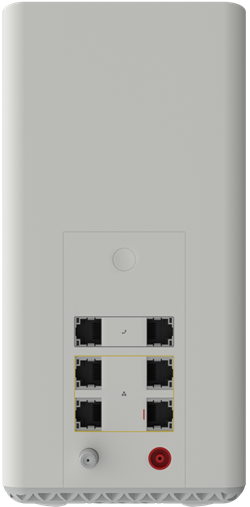
Credit: www.cox.com
Is It Ever Safe To Ignore The Blinking Blue Light?
You should never ignore a blinking blue light for more than 10 minutes. It always means your modem isn’t fully connected. Even if your internet comes back, frequent blinking is a warning sign of a deeper issue.
If you notice the blue light flashing every day, or during certain times, document the timing and share it with Cox support. This can help diagnose problems like network congestion or local outages.
Data Table: Cox Internet Outage Statistics
Understanding how often outages happen can help you plan. Here’s a look at recent Cox outage data:
| Year | Total Reported Outages | Average Duration (minutes) | Most Common Cause |
|---|---|---|---|
| 2021 | 3,200 | 38 | Weather/Storms |
| 2022 | 2,850 | 29 | Equipment Failure |
| 2023 | 2,940 | 33 | Maintenance |
Most outages are short, but some can last hours, especially after storms.

Credit: www.wikihow.com
When You Might Need A New Modem
If you see the blue blinking light often, and your modem is more than 5 years old, consider replacing it. Newer models:
- Connect faster
- Are more reliable with Cox’s network
- Offer better WiFi speeds
Cox can recommend models that work best with their service. You can also check the official Cox approved modem list for compatible devices.
Why You Should Act Quickly
Ignoring a blinking blue light can cause bigger headaches later. For example:
- Missed work deadlines
- Loss of security monitoring if cameras go offline
- Frustration from repeated disconnections
By following the steps above, you can get your internet running smoothly again and avoid future surprises.
Frequently Asked Questions
Why Is My Cox Modem Blinking Blue But I Still Have Internet?
Sometimes, your modem may blink blue while briefly losing connection but quickly reconnecting. In rare cases, you might still have internet access for a short time, but this is unstable. It’s best to troubleshoot as the connection can drop at any moment.
How Long Should The Blue Light Blink Before I Worry?
If the blue light blinks for more than 10 minutes after a restart or power cycle, something is wrong. Most modems connect in 2-5 minutes. Prolonged blinking means a connection or signal problem.
Can Weather Affect My Cox Modem’s Blue Light?
Yes. Heavy rain, snow, or storms can damage cables or disrupt the signal, leading to a blinking blue light. If this happens during bad weather, the issue may resolve once conditions improve.
Should I Buy Or Rent A Cox Modem To Avoid Blue Light Problems?
Both rented and purchased modems can have blinking blue light issues. However, renting from Cox ensures compatibility and easier support. Buying can be cheaper long term, but make sure to choose an approved model.
Where Can I Check For Cox Outages?
You can check for outages on the Cox official outage page. They update it regularly with current issues and estimated repair times.
A blinking blue light on your Cox modem is your network’s way of asking for help. By staying calm, checking connections, and following the right steps, you can often solve the problem quickly. Understanding what the lights mean, and what actions to take, will keep your internet running smoothly and your day on track.
If you ever get stuck, don’t hesitate to reach out to Cox support—they’re there to help.