
A blinking blue light on your Litter Robot can feel confusing or even worrying. If you own a Litter Robot and see this signal, you might wonder what it means, how to fix it, and how to keep your cat’s litter box running smoothly. Today, we’ll explore everything about the blue blinking light on Litter Robot devices. You’ll learn how to decode the signal, fix common problems, and avoid issues in the future. Whether you’re a first-time user or someone who’s had a Litter Robot for years, this guide will help you understand and solve the blue blinking light mystery.
What Is The Litter Robot?
The Litter Robot is an automatic self-cleaning litter box for cats. It’s designed to make life easier for cat owners by removing waste after your cat uses the box. The device rotates, separates clumps from clean litter, and stores waste in a hidden drawer. The system is smart and uses sensors to detect when your cat has used it.
There are several models, including the Litter Robot 3 and Litter Robot 4. Each model has its own features, but all use lights to communicate status and errors. Understanding these lights is key to keeping your unit working well.
Decoding The Blue Blinking Light
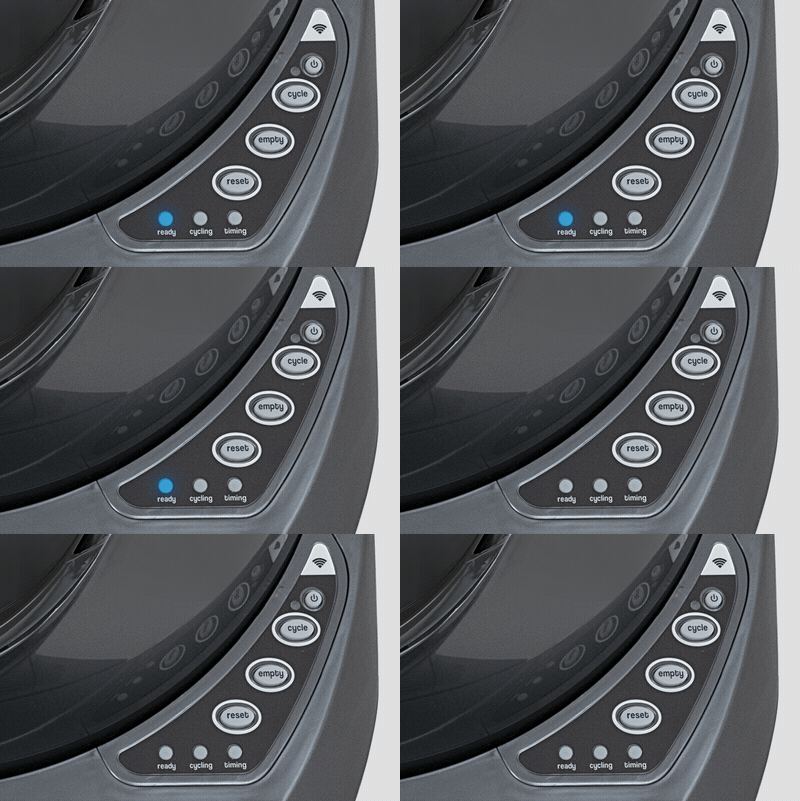
One of the most common signals is the blue blinking light. This light can mean different things depending on your Litter Robot model. Here’s what it usually indicates:
- For Litter Robot 3: The blue blinking light means the waste drawer is full or not properly inserted.
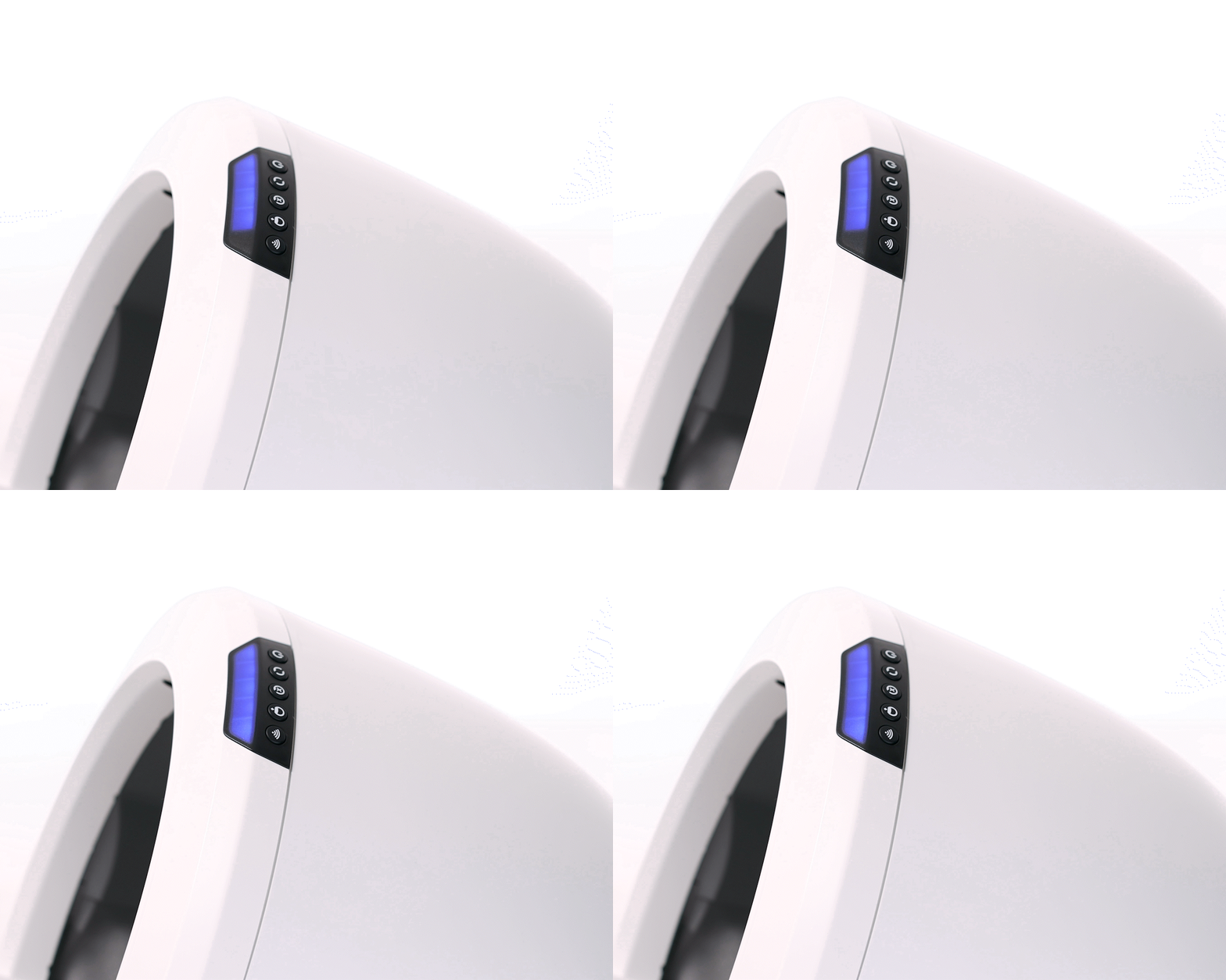
- For Litter Robot 4: It can signal a full waste drawer, drawer misalignment, or sometimes a sensor error.
This light is meant to alert you to take action. Ignoring it can lead to waste buildup, odor, or device malfunction.

Credit: www.reddit.com
Common Reasons For Blue Blinking Light
Let’s break down the main causes for the blue blinking light on Litter Robot units:
- Full Waste Drawer: The most frequent cause. The robot senses the drawer is full and needs emptying.
- Drawer Misalignment: If the drawer isn’t pushed in all the way, the sensor can’t detect it properly.
- Sensor Issues: Dust or litter can block sensors, causing a false alert.
- Firmware Glitch: Sometimes, the software inside the robot misreads the situation.
- Power Fluctuations: If the device loses power or is unplugged, the light might blink as it resets.
Knowing these reasons helps you troubleshoot faster. Most issues are simple to fix.
Step-by-step Troubleshooting Guide
When you see the blue blinking light, follow these steps to resolve it:
1. Empty The Waste Drawer
Pull out the drawer and dispose of the waste. Clean the drawer if needed. Slide it back in until it clicks.
2. Check Drawer Alignment
Make sure the drawer is pushed in all the way. The sides should be flush with the base.
3. Clean The Sensors
Use a dry cloth or cotton swab to gently wipe the sensors. For Litter Robot 3, sensors are near the waste drawer. For Litter Robot 4, they may be inside the base.
4. Reset The Device
Press the reset button on your Litter Robot. This clears sensor memory and tells the robot to check the drawer again.
5. Inspect For Firmware Issues
Turn the device off and unplug it for one minute. Plug it back in and turn it on. This often fixes software glitches.
6. Check Power Source
Ensure the power cable is secure. If you’re using a battery backup, make sure it’s charged.
7. Run A Manual Cycle
Press the cycle button to start a cleaning cycle. Watch for any errors during the process.
8. Contact Support If Needed
If the light keeps blinking after these steps, contact the manufacturer’s support team. They can guide you through advanced troubleshooting.
Litter Robot Models And Blue Blinking Light Differences
Different Litter Robot models have unique sensor designs and error signals. Here’s a quick comparison:
| Model | Blue Blinking Light Meaning | Sensor Type | Reset Method |
|---|---|---|---|
| Litter Robot 3 | Drawer full or misaligned | Infrared drawer sensor | Press reset button |
| Litter Robot 4 | Drawer full, misalignment, or sensor error | Weight sensor + optical sensor | Press reset or reboot device |
The newer models add more sensors for accuracy but can also be more sensitive to dust and alignment.
How Sensor Technology Works
Sensors are the heart of the Litter Robot’s automation. Here’s how the main sensor types work:
- Infrared Sensors: Detect if the waste drawer is full by measuring light reflection.
- Optical Sensors: Used in newer models to check drawer placement and waste level.
- Weight Sensors: Sense when a cat enters and leaves, helping time the cleaning cycle.
If sensors get blocked by dust or litter, they may send false signals. Keeping sensors clean is key to avoiding the blue blinking light.
Preventing Blue Blinking Light Problems
You can avoid most blue blinking light issues with simple habits:
- Empty the waste drawer regularly: Don’t wait for the light; set a schedule.
- Clean sensors weekly: A quick wipe prevents dust buildup.
- Check power connections: Loose plugs can cause false alerts.
- Keep the unit on a flat surface: Uneven floors can affect sensors.
- Update firmware when available: New updates fix bugs and improve reliability.
These steps help your Litter Robot run smoothly and reduce error signals.
Real-life Examples And User Experiences
Many users report seeing the blue blinking light, especially after busy days or if multiple cats use the box. Here are some real-world stories:
- Samantha, New York: “I noticed the blue blinking light after my two cats used the box heavily. Emptying the drawer fixed it instantly.”
- Daniel, California: “The drawer wasn’t pushed in all the way. After realigning, the light stopped blinking.”
- Priya, Texas: “Dust blocked the sensor. Cleaning it solved the problem, but I had missed this step for weeks.”
These examples show most issues are simple and can be solved in minutes.
Common Mistakes Beginners Make
New Litter Robot owners often make mistakes that trigger the blue blinking light:
- Waiting too long to empty the drawer: This causes overflow and sensor alerts.
- Ignoring sensor cleaning: Dust quickly builds up, especially in homes with multiple cats.
- Not aligning the drawer fully: It’s easy to miss the click that signals proper placement.
- Overfilling the litter: Too much litter can block sensors or throw off weight readings.
- Using incompatible litter types: Heavy, sticky, or scented litter can confuse sensors.
Avoiding these mistakes saves time and keeps your device running well.
How To Fix Sensor Errors
If you suspect a sensor error, try these advanced tips:
- Blow compressed air into the sensor area to remove fine dust.
- Check for loose wires if you’re comfortable opening the device. Only do this if your warranty allows.
- Recalibrate sensors: Some models let you recalibrate using the control panel. Follow the manual closely.
Sensor errors are rare but can happen after years of use or in dusty homes.
Litter Robot Vs. Other Automatic Litter Boxes
How does the Litter Robot compare to other brands when it comes to error alerts and blue blinking lights?
| Brand | Error Alert Type | Sensor Cleaning Ease | Waste Drawer Capacity |
|---|---|---|---|
| Litter Robot | Colored lights & app notifications | Easy (weekly wipe) | Large (up to 7 days for 1 cat) |
| PetSafe ScoopFree | Red light | Moderate (requires tray removal) | Medium (3-5 days) |
| CatGenie | LCD screen message | Easy (rinse sensors) | Medium (4-6 days) |
The Litter Robot stands out for its clear lights and large drawer, but is more sensitive to drawer alignment and sensor cleanliness.
Data: How Often Does The Blue Blinking Light Occur?
Based on user surveys and forums, the blue blinking light is a common but manageable issue:
- Average occurrence: Once every 5-7 days in single-cat homes
- Multi-cat households: Every 2-4 days
- Sensor errors: Less than 10% of blue blinking alerts
- Drawer misalignment: About 15% of cases
This shows most alerts are due to full drawers, not technical faults.
Litter Robot App And Notifications
Newer models and upgrades include a mobile app. The app can notify you when the blue blinking light is triggered, showing you:
- Waste drawer status
- Sensor alerts
- Cycle completion
- Error codes
If you travel or are away from home often, the app helps you stay informed. This is especially useful for multi-cat homes or busy owners.
Quick Fixes For Busy Owners
If you’re pressed for time, here’s a rapid checklist:
- Empty the drawer first.
- Wipe sensors quickly.
- Check alignment of the drawer.
- Reset the robot.
- Run a cycle to verify.
Most blue blinking light issues disappear after these steps. Keeping your unit clean and maintained prevents most alerts.
Credit: www.litter-robot.com
When To Call For Professional Help
Some problems may need expert attention. Call support if:
- The blue blinking light won’t stop after all fixes.
- You see other lights blinking or error codes.
- The device smells bad even after cleaning.
- The robot won’t cycle at all.
Professional help can diagnose deeper issues, like faulty sensors or wiring problems. Warranty coverage often includes sensor replacement or repair.
Upgrading Your Litter Robot
If your unit is older, consider upgrading. Newer models have improved sensors, app integration, and better error alerts. Upgrading can reduce blue blinking light issues and offer more convenience.
- Litter Robot 4: More accurate sensors, quieter operation, larger drawer.
- Litter Robot 3 Connect: App notifications, remote control, firmware updates.
Older models may have more frequent sensor errors and require manual cleaning.
Cleaning Tips For Long-term Reliability
Regular cleaning keeps your Litter Robot running smoothly. Follow these best practices:
- Weekly sensor wipe: Prevents dust buildup.
- Monthly deep clean: Remove the globe and base, wash with mild soap.
- Check for stuck litter: Remove clumps or heavy debris from sensors.
- Use unscented, lightweight litter: This is best for sensor accuracy.
These habits extend your robot’s life and reduce alerts.
Comparison: Litter Robot 3 Vs. Litter Robot 4 Blue Blinking Light
Here’s a focused look at the differences in blue blinking light behavior between the two main models:
| Feature | Litter Robot 3 | Litter Robot 4 |
|---|---|---|
| Blue Blinking Light Trigger | Drawer full or misaligned | Drawer full, misaligned, or sensor error |
| Reset Process | Press reset button | Press reset, reboot, or use app |
| Sensor Type | Infrared | Optical + weight |
| App Notification | Optional (with Connect) | Standard |
Litter Robot 4 is more advanced, but also a bit more sensitive to sensor alignment and cleaning.
Two Insights Most Beginners Miss
- Sensor cleaning matters more than drawer emptying. Many owners focus only on the waste drawer, but dirty sensors cause most false alerts.
- Drawer alignment is a frequent culprit. Even a small gap can trigger the blue blinking light. Always check alignment after emptying.
These tips can save you hours of troubleshooting.
Environmental Impact And Waste Management
Litter Robots help reduce manual scooping and keep homes cleaner. However, they also create waste bags. To minimize environmental impact:
- Use biodegradable waste bags
- Recycle litter if possible
- Clean sensors and drawer with eco-friendly products
Automatic litter boxes are more efficient but require responsible waste management.
Credit: www.litter-robot.com
What To Do If You’re Traveling
If you travel often, the blue blinking light can cause worry. Here’s how to manage it:
- Ask a friend or pet sitter to check the robot every 3 days.
- Use the app to monitor status remotely (Litter Robot 4).
- Leave extra waste bags and instructions for easy drawer emptying.
This prevents overflow and ensures your cat stays comfortable.
Choosing The Right Litter For Sensor Reliability
Not all cat litter works well with Litter Robot sensors. Choose:
- Clumping clay litter: Best for sensor accuracy.
- Unscented, lightweight litter: Reduces dust and buildup.
- Avoid silica or pellet litter: These can confuse sensors.
Correct litter choice prevents many blue blinking light alerts.
Warranty And Support
Litter Robot offers a warranty (usually 18 months) and customer support. If your device has frequent blue blinking light issues:
- Check your warranty status
- Contact support for troubleshooting
- Request sensor or drawer replacement if needed
Most problems are covered if your unit is under warranty.
Frequently Asked Questions
What Does The Blue Blinking Light Mean On My Litter Robot?
The blue blinking light usually means the waste drawer is full or misaligned. It can also signal a sensor issue, especially in newer models. Empty the drawer, check alignment, and clean sensors to fix it.
Can I Use Any Type Of Cat Litter With My Litter Robot?
No, not all litter types work well. Use clumping clay litter for best results. Avoid silica, pellets, or sticky litter, as these can confuse sensors and cause false alerts.
How Often Should I Clean The Sensors?
Clean the sensors once a week with a dry cloth or cotton swab. This prevents dust buildup and ensures reliable operation. If you have multiple cats, clean more often.
Is The Blue Blinking Light A Sign Of A Serious Problem?
Usually, it’s not serious. It means action is needed, like emptying the drawer or cleaning sensors. If the light stays on after fixes, contact support for help.
Where Can I Find Official Troubleshooting Guides?
Official guides are available on the manufacturer’s website. You can also check Litter Robot Support for detailed steps and videos.
Conclusion
The blue blinking light is a helpful signal—not a cause for panic. With regular maintenance and the tips above, your Litter Robot will keep your cat’s bathroom clean and stress-free. If you ever need extra help, the app and support team are there to guide you.