
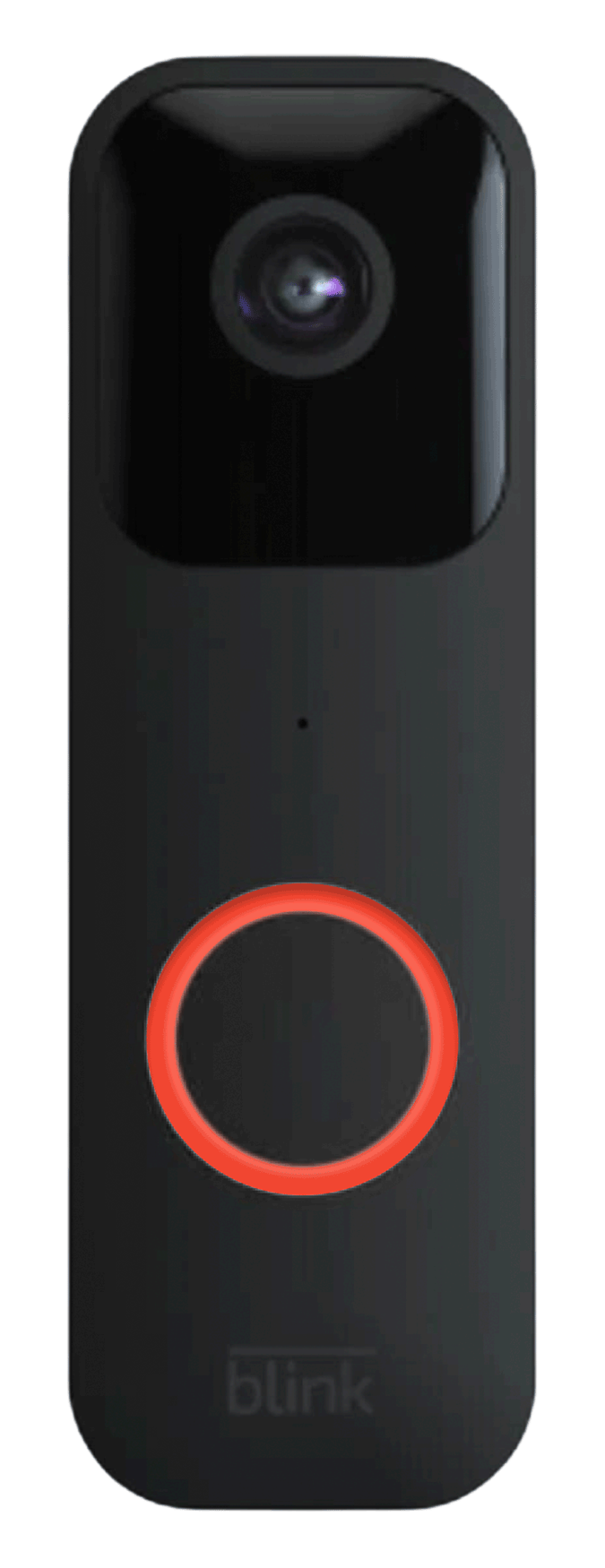
A blinking red light on your Blink Doorbell Camera can be confusing, especially if you rely on your camera for safety. Many people worry when they see this light. Does it mean a problem, or is it normal? Understanding what your Blink Doorbell Camera is telling you can help you fix problems faster and keep your home secure. In this guide, you’ll learn what causes the red blinking, how to fix it, and ways to avoid future trouble.
You don’t need to be a tech expert to solve most issues with a Blink Doorbell Camera. With some simple steps and a little patience, you can get your camera working again. Let’s look at why your Blink Doorbell Camera might be blinking red and what you should do next.
What Does A Blinking Red Light Mean?
The blinking red light on a Blink Doorbell Camera is a signal. It tells you something about the camera’s status. However, the meaning depends on how the light blinks and when it appears.
Most common reasons for a blinking red light:
- The camera is not connected to Wi-Fi
- The battery is low or dead
- The camera is in setup mode
- There’s a hardware or software error
Let’s break down each meaning:
- Slow Blinking Red: Often means the camera is ready to be set up or is searching for Wi-Fi.
- Fast Blinking Red: This usually signals a problem, like a lost connection or a major error.
- Solid Red or Brief Red Flash: Sometimes, a quick red light shows the camera is powering up or resetting.
Knowing the pattern helps you find the cause faster.
How Blink Doorbell Cameras Use Lights To Communicate
Blink cameras use LED lights to show status. These lights are your main way to know if the camera is working right. Besides red, you might see blue or green lights, too. But red usually means an action is needed.
Here’s a comparison of Blink Doorbell LED signals:
| Light Color | Blink Pattern | Meaning |
|---|---|---|
| Red | Slow Blink | Setup mode, looking for Wi-Fi |
| Red | Fast Blink | Error or lost connection |
| Blue | Solid | Recording or live view |
| Green | Solid | Ready and connected |
If you see red, pay attention to the speed and pattern. This will save time when you start troubleshooting.
Common Reasons Your Blink Doorbell Camera Is Blinking Red
Understanding the causes behind a blinking red light is the first step to fixing it. Here are the most common reasons:
1. Wi-fi Connection Problems
The most frequent cause is Wi-Fi issues. If your Blink Doorbell loses connection or cannot find your network, it will blink red. This can happen if:
- The Wi-Fi router is off or too far away
- The password has changed
- There’s interference from other devices
- The internet is down
If you moved your router or changed your Wi-Fi settings, the camera may need to reconnect.
2. Low Or Dead Battery
A low battery is a common trigger for a red blinking light. Blink Doorbell Cameras often use AA lithium batteries. When these run low, the camera warns you with a red light.
You might also see this after a power outage or if the batteries are old. Using standard (non-lithium) batteries can make the problem worse, as they drain faster.
3. Camera In Setup Mode
If you just installed your camera or reset it, it will blink red to show it’s in setup mode. This means it’s ready to connect to your app and Wi-Fi.
4. Firmware Or Hardware Errors
Sometimes, a software update fails or the camera has a hardware problem. This can cause fast red blinking. Rarely, a component inside the camera may be damaged.
5. Environmental Issues
Extreme temperatures, moisture, or dust can affect the camera’s performance. If the camera gets too hot or cold, it may show a red light and stop working until conditions improve.
How To Fix A Blink Doorbell Camera Blinking Red
Now that you know the main causes, let’s walk through how to fix them. Most problems are easy to solve at home.
Step 1: Check The Wi-fi Connection
Start with your Wi-Fi, since this is the most common issue.
- Make sure your router is working and the internet is active.
- Check if other devices (like your phone) can connect to the same Wi-Fi.
- Move your router closer to the doorbell, or the doorbell closer to the router.
- Avoid placing the router near thick walls, metal objects, or other electronics that cause interference.
If you recently changed your Wi-Fi password or network name, update the settings in the Blink app.
Step 2: Replace Or Recharge The Batteries
Low batteries often cause a red blink.
- Open the Blink Doorbell’s back cover.
- Remove the old AA lithium batteries and replace them with new ones.
- Do not use standard alkaline batteries, as they have shorter life and can cause errors.
- After replacing, wait a minute to see if the red light stops blinking.
A fresh battery can often solve the problem instantly.
Step 3: Reconnect Or Reset The Camera
If the problem remains, try reconnecting your camera:
- Open the Blink app on your phone.
- Select the doorbell camera and choose “Sync” or “Reconnect.”
- If this does not work, remove the camera from the app and add it again.
To reset the camera:
- Press and hold the reset button (usually at the back or bottom) for 10-15 seconds.
- Release the button when you see the LED light change.
- Follow the app instructions to set up the camera as new.
Resetting fixes many issues but will remove custom settings.
Step 4: Update Firmware
Sometimes, a firmware update is needed. Check the Blink app for update notifications.
- Go to camera settings in the app.
- Look for a “firmware update” option.
- Follow the steps to install updates.
Do not interrupt the update process, as this can cause new errors.
Step 5: Check For Environmental Issues
Make sure your camera is not exposed to:
- Direct sunlight for long periods
- Heavy rain or high humidity
- Freezing temperatures
If the camera gets too hot or cold, bring it inside for a while. Once it returns to normal temperature, try again.
Step 6: Contact Support
If none of the steps work, contact Blink customer support. Sometimes, a deeper hardware issue needs professional help. If your camera is under warranty, you may get a replacement.

Credit: www.youtube.com
Practical Examples: Real-world Blink Doorbell Camera Issues
Sometimes, a real-life example helps more than theory. Here are a few situations Blink users have faced, with solutions that worked.
Example 1: Lost Wi-fi After Power Outage
Maria’s Blink Doorbell started blinking red after a storm cut power to her home. When the power returned, her camera couldn’t reconnect to Wi-Fi.
Solution:
- Maria unplugged her router and plugged it back in.
- She waited 5 minutes for the internet to come online.
- Then, she pressed the doorbell’s reset button for 15 seconds.
- The camera reconnected after she followed setup steps in the Blink app.
Example 2: Fast Red Blinking After Battery Change
James replaced his Blink Doorbell batteries but saw a fast red blink.
Solution:
- James realized he used standard AA batteries, not lithium.
- He switched to new AA lithium batteries.
- The blinking stopped and the camera worked as normal.
Example 3: Camera Won’t Stop Blinking Red In Winter
Priya’s camera started blinking red every morning during the winter.
Solution:
- She learned that extreme cold can drain battery life and affect electronics.
- She moved the doorbell to a spot with some shelter from wind and snow.
- She also used a weatherproof cover.
- The red blinking stopped, and the camera worked reliably.
Comparing Blink Doorbell Camera To Other Brands
You might wonder if this red blinking problem is unique to Blink. Many smart doorbell cameras use LED lights for alerts. But their behaviors differ.
Here’s a quick comparison of popular brands:
| Brand | Error Signal | Main Causes | Typical Fixes |
|---|---|---|---|
| Blink | Blinking Red Light | Wi-Fi, battery, setup, errors | Reconnect, replace battery, reset |
| Ring | Spinning White/Red Light | Network, power, firmware | Reconnect, charge, reboot |
| Arlo | Amber/Red Flash | Battery, sync, Wi-Fi | Replace battery, resync |
| Google Nest | Pulsing Yellow/Red | Network, overheating | Cool down, reconnect |
Most brands use colored lights for alerts, but the Blink Doorbell Camera is known for clear, simple signals.
Tips To Prevent Future Red Blinking Issues
Fixing a blinking red light is good, but preventing it is better. Here are some practical tips to keep your Blink Doorbell Camera working smoothly:
- Keep Firmware Updated: Check for updates regularly in the Blink app.
- Use High-Quality Batteries: Always choose AA lithium batteries for longer life and fewer issues.
- Monitor Wi-Fi Strength: Place your router in a central location. Use a Wi-Fi extender if your signal is weak near the doorbell.
- Protect from Weather: Install a small cover over the camera to shield it from rain and sun.
- Check Connections After Power Outages: If you lose power, check the camera as soon as possible.
- Clean Camera Regularly: Dust and moisture can cause problems. Wipe the camera with a dry, soft cloth.
- Review App Alerts: Blink’s app sends notifications if something is wrong. Pay attention to these alerts.
Avoiding some common mistakes will help keep your camera reliable.
Non-obvious Insights Most Beginners Miss
Many new Blink Doorbell Camera users miss a few key points:
- Battery quality matters more than you think. Using cheap or old batteries can cause the camera to behave strangely, including blinking red even when the batteries seem new.
- Wi-Fi interference is often invisible. Devices like microwave ovens, baby monitors, or even thick concrete walls can disrupt your signal, leading to red blinks. Sometimes moving your router just a few feet can make a big difference.
Understanding these subtleties will help you solve issues faster and avoid unnecessary frustration.
.gif)
Credit: support.blinkforhome.com
When To Consider A Professional Installation
For most people, setting up a Blink Doorbell Camera is simple. But if you face repeated problems with the red blinking light, or if your home’s Wi-Fi is weak, professional help can be a smart investment.
A professional installer can:
- Test your Wi-Fi signal strength
- Place the doorbell in the best spot
- Set up power options (wired or battery)
- Teach you how to use the Blink app
While this costs extra, it can save time and provide peace of mind.
Cost Of Repair Or Replacement
If your Blink Doorbell Camera is still under warranty, repairs or replacements are usually free. Out of warranty, the cost depends on the problem.
- Battery replacement: Under $10 (for a pack of lithium AA batteries)
- Simple repairs: $20-$50 if you hire a technician
- Full replacement: $50-$100, depending on model
Before spending money, always try basic troubleshooting steps first.
Credit: support.blinkforhome.com
What To Do If The Problem Keeps Coming Back
If you fix the blinking red light but it returns often, there may be a deeper issue:
- Check your home’s Wi-Fi: If multiple devices drop connection, consider upgrading your router or internet plan.
- Look for electrical issues: Power surges or unstable wiring can affect the camera.
- Check for firmware bugs: Visit the Blink support page for known issues and fixes. Sometimes a software patch is needed.
Persistent problems may mean your camera is defective. If it’s under warranty, request a replacement.
Useful Resources For Blink Doorbell Camera Owners
If you want more help, consider these resources:
- Blink Support Website: The official Blink support page has guides and FAQs.
- User Forums: Search for your problem in Blink user forums—many people share solutions.
- YouTube Tutorials: Visual learners can find step-by-step videos on fixing Blink Doorbell issues.
For the latest software updates, you can check the official Blink website or visit Blink Support.
Frequently Asked Questions
Why Does My Blink Doorbell Camera Blink Red After A Power Outage?
A power outage can interrupt the camera’s Wi-Fi connection. When power returns, the camera may need to reconnect. If it can’t, it will blink red. Try resetting your router and pressing the camera’s reset button. Follow setup steps in the Blink app to restore connection.
How Long Do Blink Doorbell Camera Batteries Last?
With AA lithium batteries, most Blink Doorbell Cameras last up to two years with normal use. Heavy use or extreme temperatures can shorten battery life. Always use lithium batteries for best results.
Can A Bad Wi-fi Signal Cause My Blink Doorbell To Blink Red?
Yes. A weak or unstable Wi-Fi signal is one of the top reasons for a blinking red light. Move your router closer, use a Wi-Fi extender, or remove sources of interference to improve the signal.
Will A Firmware Update Fix A Blinking Red Light?
Sometimes. If the blinking red light is due to a software issue, a firmware update can solve the problem. Always check for updates in the Blink app and install them when available.
What Should I Do If My Blink Doorbell Camera Keeps Blinking Red Even After Changing Batteries?
If new batteries don’t solve the problem, check your Wi-Fi connection, reset the camera, and update firmware. If the issue continues, contact Blink support. You may have a hardware problem that needs professional repair or replacement.
Conclusion
A blinking red light on your Blink Doorbell Camera is not a reason to panic. With the steps and tips in this guide, you can quickly find the cause and fix it yourself. Most issues are easy to solve with a little troubleshooting.
By understanding what your camera’s lights mean and how to respond, you’ll keep your home protected and your camera running smoothly.