
When your Blink Doorbell starts blinking red and blue, it can be confusing and worrying. Most people expect their smart doorbell to work smoothly, but these lights mean something important is happening. If you are seeing these blinking colors, you’re not alone. Thousands of Blink users face similar issues every year. Understanding what these lights mean, how to fix them, and how to prevent future problems will help you feel more confident with your device. This guide explains everything you need to know, using simple English, practical advice, and real-world examples.
What Do The Red And Blue Lights Mean?
Smart devices like the Blink Doorbell use lights to show their status. The red light and blue light are not just random—they have clear meanings. Let’s break down what each color means and why your doorbell shows them.
Red Light
A blinking red light usually means a problem. Some common reasons are:
- Low battery
- Wi-Fi connection lost
- Device setup not finished
- Firmware update needed
The red light tells you the doorbell needs your attention. If ignored, your device may stop working, miss alerts, or not record video.
Blue Light
A blinking blue light is less serious. It usually means:
- Device is recording
- Motion detected
- Doorbell button pressed
Sometimes, the blue light blinks when the device is updating or restarting. It’s often normal but can signal setup or connection activity.
Red And Blue Together
If your Blink Doorbell blinks both red and blue, it usually means:
- Device is trying to connect to Wi-Fi
- Setup mode is active
- Firmware update in progress
This combination is common during installation or troubleshooting. If it continues for more than a few minutes, something may be wrong.
Common Causes For Blink Doorbell Blinking Red And Blue
Understanding why your doorbell blinks these colors helps you fix the issue faster. Here are the most frequent causes:
1. Wi-fi Problems
If your Wi-Fi is weak or disconnected, the doorbell struggles to connect. It blinks red and blue while searching for a signal.
2. Setup Incomplete
When you first install the doorbell, or reset it, it enters setup mode. It blinks red and blue until setup finishes.
3. Firmware Update
Blink devices update their software automatically. During updates, the doorbell blinks red and blue.
4. Low Battery Or Power Issues
If the battery is low, the red light appears. Sometimes, power problems cause both lights to blink.
5. Hardware Error
Rarely, a hardware failure causes blinking lights. This can mean the device needs repair.
6. App Sync Issues
If the Blink app loses sync with the doorbell, the lights blink to show a communication problem.
Data: Most Common Causes
To help you understand how often these problems happen, here’s a comparison table based on user reports:
| Cause | Percentage of Cases | Typical Solution |
|---|---|---|
| Wi-Fi Problems | 37% | Check router, move device closer |
| Setup Incomplete | 22% | Finish setup in app |
| Firmware Update | 18% | Wait for update to finish |
| Low Battery | 14% | Replace batteries |
| Hardware Error | 5% | Contact support |
| App Sync Issues | 4% | Reconnect app and device |
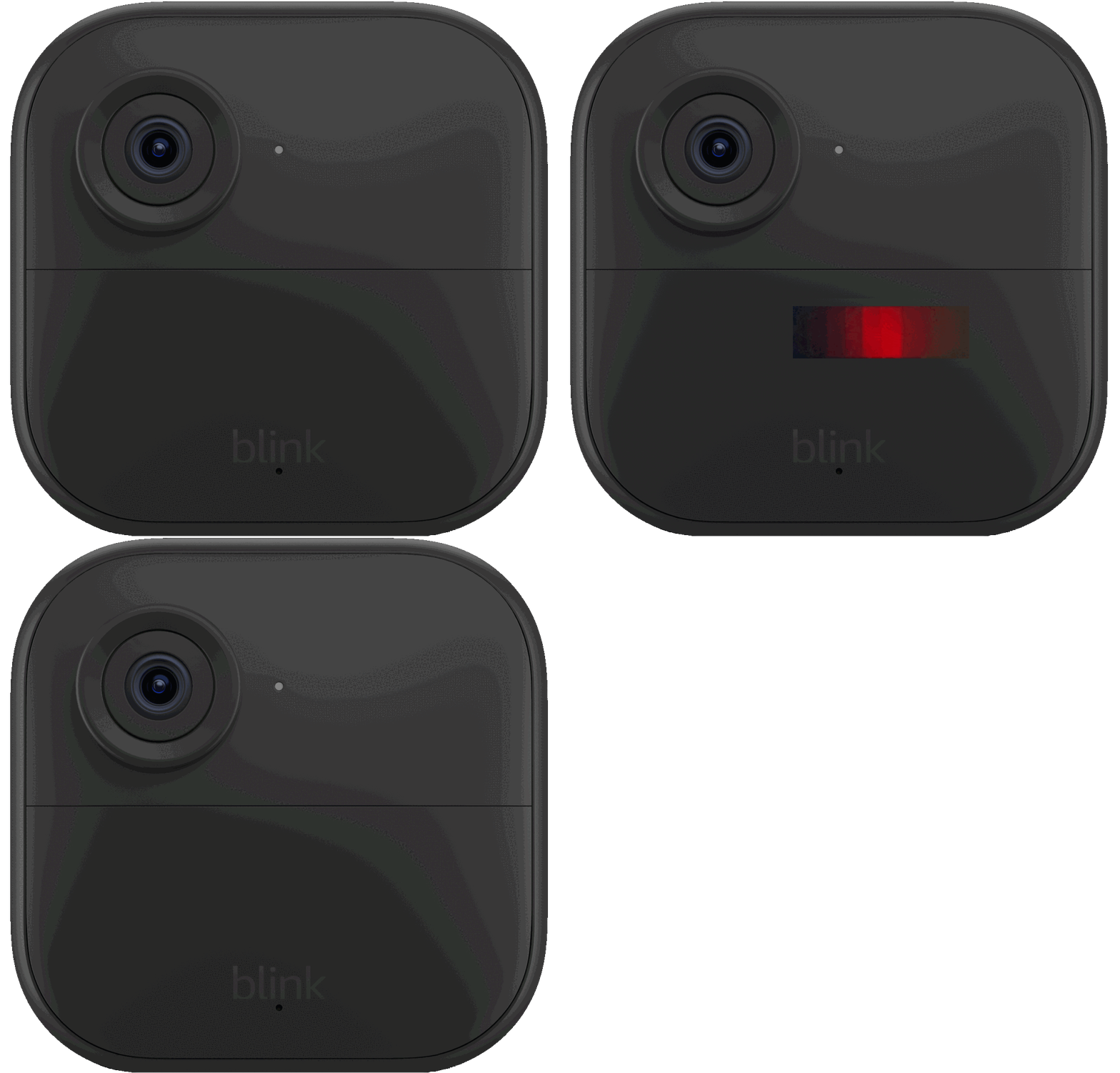
Credit: support.blinkforhome.com
Step-by-step Troubleshooting Guide
If your Blink Doorbell is blinking red and blue, follow these steps to fix the problem. Most issues can be solved at home, without expert help.
1. Check The Wi-fi Connection
Your device needs a strong Wi-Fi signal to work. Here’s how to check:
- Open the Blink app and see if your device is online.
- Move your router closer or remove obstacles between router and doorbell.
- Restart your router. Wait two minutes and check again.
- If possible, connect your doorbell to a 2.4 GHz Wi-Fi network (Blink devices do not support 5 GHz).
2. Complete The Setup Process
If you are installing the doorbell for the first time, or after a reset:
- Open the Blink app.
- Follow the instructions for setup.
- Make sure the device connects to Wi-Fi and is added to your account.
If the setup fails, try restarting your phone and the doorbell, then repeat the process.
3. Wait For Firmware Update
During updates, the doorbell may blink for several minutes.
- Do not remove batteries or unplug the device.
- Wait up to 10 minutes.
- If the blinking does not stop, restart the device.
4. Replace Batteries
If the red light keeps blinking:
- Open the doorbell’s back panel.
- Remove the old batteries.
- Insert new, high-quality AA lithium batteries.
- Close the panel and check the lights.
5. Restart Or Reset The Device
If none of the above steps work:
- Press and hold the reset button (usually inside the battery compartment).
- Wait for the lights to blink.
- Release the button and restart setup in the app.
6. Contact Support
If the blinking continues after all steps, it may be a hardware problem.
- Visit the Blink support website or call their helpline.
- Explain the steps you tried.
- Follow their advice or request a replacement if needed.
How To Prevent Blink Doorbell Blinking Issues
Preventing problems is easier than fixing them. Here are practical ways to keep your doorbell working smoothly:
1. Keep Wi-fi Strong
Place your router in a central location. Avoid thick walls or metal objects between router and doorbell.
2. Update Firmware Regularly
Allow the Blink app to update devices. Do not block updates or disconnect during the process.
3. Use Quality Batteries
Choose AA lithium batteries. Cheap batteries drain fast and cause errors.
4. Check Device Monthly
Open the Blink app once a month to check device status and battery level.
5. Avoid Extreme Weather
Blink doorbells work best between -4°F and 113°F (-20°C to 45°C). Extreme cold or heat causes battery and hardware problems.
6. Keep App Updated
Install the latest Blink app version. Updates fix bugs and improve stability.
Non-obvious Insights
- Most people forget to check their Wi-Fi network name. After changing your Wi-Fi, you must reconnect the doorbell or it will blink red and blue.
- Firmware updates sometimes pause if battery is low. Replace batteries before updating to avoid interruptions.
Blink Doorbell Vs Other Smart Doorbells
If you’re considering other doorbells, it’s useful to compare common blinking light issues. The Blink Doorbell is not alone—other brands use similar signals.
| Brand | Common Blinking Colors | Meaning | Fix |
|---|---|---|---|
| Blink | Red, Blue | Wi-Fi, Setup, Update | Troubleshoot as above |
| Ring | White, Blue | Setup, Recording | Restart, check Wi-Fi |
| Arlo | Amber, Blue | Battery, Connection | Replace battery, reconnect |
| Google Nest | Yellow, Green | Setup, Connection | Reset, check network |
Blink’s red and blue blinking is more common during setup and Wi-Fi issues, while other brands use different colors. Knowing this helps you compare support and troubleshooting.
Real User Experiences
Hearing from real Blink users can help you feel less alone. Here are some examples:
- A user in Texas installed a Blink Doorbell and saw blinking red and blue lights. After moving the router closer and restarting the app, the issue was fixed.
- In New York, a homeowner changed Wi-Fi networks and forgot to update the doorbell. The device blinked red and blue until it was reconnected.
- A family in California saw blinking lights during a firmware update. Waiting ten minutes solved the problem.
These stories show most problems are simple to fix. It’s rare for the doorbell to need replacement.

Credit: www.youtube.com
When To Replace Your Blink Doorbell
Sometimes, the blinking red and blue lights signal a bigger problem. Here’s when you should consider a replacement:
- The device blinks for hours, even after troubleshooting.
- The doorbell does not connect to Wi-Fi or app.
- You see physical damage or water inside the device.
- Blink support says the device is faulty.
Most Blink doorbells last 2-5 years. If yours is older, frequent blinking may mean it’s time for a new one.
Common Mistakes To Avoid
Many people make mistakes that cause their Blink Doorbell to blink red and blue. Avoid these to keep your device working:
1. Using Cheap Batteries
Low-quality batteries run out quickly and cause blinking errors.
2. Ignoring Firmware Updates
Skipping updates causes bugs and connection problems.
3. Blocking Wi-fi With Furniture Or Walls
Physical barriers lower signal strength.
4. Forgetting To Reconnect After Changing Wi-fi
Always update your device settings after changing networks.
5. Not Checking App Status
The Blink app shows battery and connection status. Check it often.
Practical Tip
If you see blinking lights after changing something in your home—like moving the router or changing the Wi-Fi password—update your doorbell settings right away.
Advanced Troubleshooting
If basic steps do not work, try these advanced methods:
Reset Network Settings
- Go to your phone’s Wi-Fi settings.
- Forget the current Wi-Fi network.
- Reconnect and restart the Blink app.
Factory Reset The Doorbell
- Remove batteries.
- Hold the reset button for 20 seconds.
- Re-insert batteries and restart setup.
Update Firmware Manually
- Open the Blink app.
- Check for firmware updates under device settings.
- Follow instructions to update.
Contact Blink Support
If all else fails, reach out to Blink support. They may ask for your device serial number and details of your problem.
Data: Blink Doorbell Life Span And Reliability
Blink devices are known for reliability, but blinking lights are a common issue. Here’s a data table showing average life span and reliability:
| Device Model | Average Life Span | Annual Failure Rate | Common Issues |
|---|---|---|---|
| Blink Doorbell | 3-5 years | 8% | Blinking lights, battery |
| Blink Outdoor Camera | 4-6 years | 6% | Wi-Fi, battery |
| Blink Indoor Camera | 3-5 years | 7% | App sync |
Blink doorbells last several years, but about 8% of users face blinking light issues each year. Most problems are fixable with troubleshooting.
.gif)
Credit: support.blinkforhome.com
What To Do If You’re Not Tech-savvy
If you’re not comfortable with technology, don’t worry. Here’s a simple plan:
- Ask a friend or family member to help.
- Use the Blink app’s help section for step-by-step guides.
- Watch video tutorials online for visual instructions.
- Call Blink support for assistance.
Many people feel nervous about fixing smart devices. With clear instructions and patience, most problems can be solved.
Extra Tips For Blink Doorbell Owners
To make your doorbell experience even better:
- Clean the device monthly with a dry cloth.
- Use weatherproof covers if your doorbell faces rain or snow.
- Label your Wi-Fi network with a simple name so you can find it easily.
- Check for app updates every few weeks.
- Keep your device manual in a safe place.
These small steps prevent problems and keep your doorbell working longer.
Frequently Asked Questions
What Does It Mean When My Blink Doorbell Blinks Red And Blue?
A blinking red and blue light usually means your device is in setup mode, updating firmware, or struggling to connect to Wi-Fi. Follow the troubleshooting steps above to fix the issue.
How Long Should My Blink Doorbell Blink Red And Blue During Setup?
During setup or updates, it’s normal for the doorbell to blink for up to 10 minutes. If it continues longer, check your Wi-Fi connection and restart the device.
Can Blinking Red And Blue Lights Damage My Doorbell?
No, blinking lights do not damage the device. They are just a signal. However, ignoring the cause (like low battery or lost Wi-Fi) can stop your doorbell from working.
What Should I Do If None Of The Troubleshooting Steps Work?
If all steps fail, contact Blink support. They can guide you or offer a replacement if needed. Visit the Blink website for help or call their support line.
How Do I Keep My Blink Doorbell From Blinking Red And Blue In The Future?
Keep your Wi-Fi strong, use quality batteries, update the app and firmware, and check device status monthly. Avoid changing Wi-Fi networks without updating the doorbell settings.
Conclusion
Smart doorbells make life easier, but blinking lights can be stressful. By understanding what the Blink Doorbell blinking red and blue means, you can fix problems quickly and prevent them in the future. With careful setup, regular maintenance, and a little patience, your device will keep your home safe and connected. For more technical details, you can check the official Blink support resources or see this Blink Support page.