
If you use AT&T internet at home, you may notice your gateway or modem has a blinking red light sometimes. This small signal can cause a lot of worry, especially if your internet stops working or becomes very slow. You might ask yourself: Why is the light blinking red? What does it mean for my connection? Can I fix it on my own, or should I call for help?
A blinking red light on your AT&T device is more than just a warning—it’s a clue to the health of your internet connection. Understanding what triggers this signal, how to troubleshoot it, and what steps to take can save you time and frustration. If you want to avoid long calls with customer service and get your internet working again, learning about the AT&T blinking red light is a must.
This article explains the most common reasons for a blinking red light, how your AT&T modem or gateway works, what you can do to fix the problem, and when you should call for professional help. You’ll also find tables comparing light signals, clear troubleshooting steps, and practical tips to keep your internet smooth.
What Does The At&t Blinking Red Light Mean?
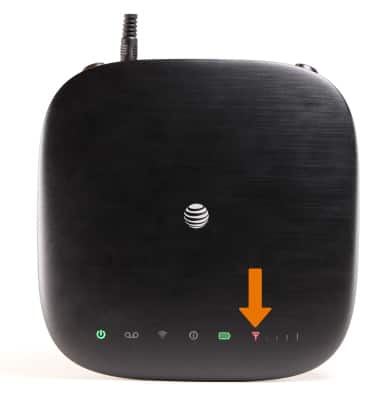
When your AT&T gateway shows a blinking red light, it’s trying to tell you something is wrong with the internet connection. The red light is a universal warning sign, but its exact meaning can vary slightly based on your device model. Usually, it means the gateway cannot establish a stable connection to the AT&T network.
The most common situations are:
- No Internet Signal: The gateway is not receiving any signal from outside.
- Authentication Failure: The device cannot log in to the AT&T network.
- Line Issues: There may be a problem with the cable, line, or connection port.
These problems can range from a loose cable at home to a service outage in your whole neighborhood.
How At&t Gateways And Modems Communicate Problems
AT&T uses a series of lights on their gateways and modems to show the status of your internet. Each light tells you something about power, broadband, service, Wi-Fi, and other features. The broadband or service light is the one that usually blinks red when something is wrong.
Here’s a simple comparison of what the different light colors and patterns mean on most AT&T modems:
| Light Color & Pattern | Meaning | Action Needed |
|---|---|---|
| Solid Green | Connection is normal | None |
| Blinking Green | Trying to connect | Wait for solid green |
| Solid Red | No connection detected | Troubleshoot |
| Blinking Red | Connection error or no signal | Troubleshoot immediately |
| No Light | Device is off or has power issue | Check power source |
The red blinking light is a direct request for your attention. If it stays that way for more than a few minutes, you need to act.

Credit: www.youtube.com
Common Causes Of The At&t Blinking Red Light
Many situations can cause your AT&T modem or gateway to show a blinking red light. Some are easy to fix at home, while others may need a technician. The most common causes are:
1. Loose Or Damaged Cables
If the cables connecting your gateway to the wall or power are loose, unplugged, or damaged, the device cannot get an internet signal. This is the simplest and most common cause.
2. Service Outage In Your Area
Sometimes, the problem is not in your home but with AT&T’s service in your region. Outages can be caused by storms, maintenance, or equipment failure at the network level.
3. Device Overheating
If your modem or gateway is too hot, it may stop working correctly. Overheating can cause the device to lose connection and blink red.
4. Hardware Failure
After years of use, modems and gateways can develop faults that stop them from working. Faulty hardware often shows a red light that will not go away, even after rebooting.
5. Incorrect Setup Or Configuration
If the device was recently moved or reset, it might need to be reconfigured. Wrong settings can block the connection.
6. Line Or Port Problems
Problems inside the wall wiring, or issues at the service box outside your home, can break the connection and cause the red light.
7. Firmware Or Software Update Failed
If your device was updating and something went wrong, it might not connect properly.
Not all causes are obvious to beginners. For example, many users do not check for device overheating or understand that a failed firmware update can break the connection.
How To Troubleshoot The At&t Blinking Red Light
Before you call AT&T support, you can try several steps to fix the blinking red light yourself. These steps often solve the problem quickly.
1. Check All Cables And Connections
Start by making sure every cable is firmly plugged in:
- Power cable to the wall outlet.
- Ethernet or DSL cable to the correct port.
- Check for any visible damage or loose connections.
- Unplug and replug each cable to reset the connection.
A surprising number of connection problems are caused by a slightly loose cable—especially after cleaning, moving furniture, or pets bumping into wires.
2. Power Cycle Your Gateway
Restarting your gateway or modem can clear temporary glitches:
- Unplug the power cord from the back of the device.
- Wait at least 30 seconds.
- Plug it back in and wait for all lights to stabilize.
This simple step fixes more issues than most people expect, as it resets the device’s internal memory.
3. Check For Service Outages
If everything is plugged in and a restart didn’t help, check if there’s an outage in your area:
- Visit the AT&T outage page on your mobile device or ask a neighbor if their internet is also down.
- You can also call AT&T support to ask about outages.
If there’s a large outage, you’ll have to wait until AT&T repairs their network.
4. Move Your Device To A Cooler Spot
If your modem feels very hot to the touch, turn it off and let it cool down for 10–15 minutes. Place it in an open area with good airflow, away from direct sunlight or other electronics.
Overheating is often missed by beginners, but keeping your device cool can prevent many connection issues.
5. Reset The Gateway (factory Reset)
If other steps fail, you can reset your AT&T device to its default settings. Warning: This will erase any custom Wi-Fi names and passwords.
- Find the small reset button (often inside a hole).
- Press and hold for 10–15 seconds using a paperclip or pin.
- Wait for the device to restart and all lights to return.
A reset can solve software or configuration errors, but only do this if you’re ready to set up your Wi-Fi again.
6. Try A Different Outlet Or Power Source
Sometimes, the problem is with your power source. Plug your modem into a different outlet to rule out power issues.
7. Contact At&t Support
If you’ve tried all steps above and the red light is still blinking, it’s time to call AT&T support. Be ready to explain what you’ve already tried, as this will speed up the process.
Understanding At&t Device Light Patterns
Every AT&T device has its own set of light codes. Knowing what each pattern means helps you troubleshoot better. Here’s a comparison of how different AT&T models show connection status:
| Model | Solid Green | Blinking Green | Blinking Red | Solid Red |
|---|---|---|---|---|
| BGW210 | Connected | Syncing | No signal | Device error |
| Pace 5268AC | Normal | Connecting | Line issue | Hardware fail |
| NVG599 | Online | Trying | Failed Sync | Critical error |
Always check the manual for your specific model if you see a pattern you don’t understand.
When Should You Call At&t For Help?
You can solve many problems with a blinking red light at home, but there are times when you must call for expert help.
Call AT&T if:
- The blinking red light stays on after all troubleshooting steps.
- You notice physical damage to the device.
- Your internet works for a few seconds, then disconnects again and again.
- There are also power issues (device does not turn on or off correctly).
- You hear static or clicking from the device.
In these cases, the problem is likely with the hardware, the outside line, or a larger issue only AT&T can fix.
Preventing Future Blinking Red Light Problems
You can reduce the chances of seeing the blinking red light in the future by following some simple habits:
- Keep cables organized and out of the way of pets or children.
- Avoid placing your modem in hot spots like near heaters, windows, or inside closed cabinets.
- Check for firmware updates using the AT&T Smart Home Manager app.
- Use a surge protector to protect your device from power surges during storms.
- Label your cables if you have multiple devices, to prevent confusion.
A little prevention can save you from future connection issues.
Real-world Examples: What Users Experience
Let’s look at two examples that show how the blinking red light can appear in real life:
Example 1: Family in Texas
After a thunderstorm, a family in Dallas noticed their AT&T gateway’s broadband light was blinking red. They checked the cables and restarted the device, but the problem continued. When they asked a neighbor, they learned the whole block had no internet.
Later, AT&T confirmed there was a local outage, and service returned after six hours.
Example 2: Apartment User in Chicago
A young professional in Chicago found the red light blinking after moving their AT&T gateway to a new room. After some frustration, they realized one cable was not fully pushed into the wall jack. Once the cable was secured, the light turned green and the internet worked.
These examples show the importance of checking both your setup and the wider network.
How At&t Support Diagnoses Red Light Problems
When you contact AT&T support, they follow a step-by-step process to find the cause:
- Remote Line Test: They check if your device is visible on their network.
- Signal Strength Check: They test the signal coming to your home.
- Device Status Inquiry: They ask about light patterns and device behavior.
- Guided Troubleshooting: They walk you through cable checks and restarts.
- Escalation: If the problem is outside your home, they schedule a technician.
If your device is under warranty, AT&T may send you a free replacement.
At&t Blinking Red Light Vs. Other Light Warnings
Some users confuse the blinking red light with other warnings. Here’s a quick comparison:
| Light Signal | Possible Issue | Severity |
|---|---|---|
| Blinking Red | No internet signal or device error | High |
| Blinking Orange | Firmware update in progress | Medium |
| Solid Red | Critical error; device not working | High |
| Solid Green | All systems normal | None |
| Blinking Green | Connecting to service | Low |
If you see a light pattern not listed in your manual, check the AT&T website for updates.
Credit: www.att.com
How To Tell If It’s Your Device Or The At&t Network
Sometimes, you’re not sure if the problem is inside your home or with AT&T’s wider network. Here’s how to check:
- Test Other Devices: If only your Wi-Fi is down but wired devices work, the problem is likely with your gateway’s Wi-Fi.
- Ask Neighbors: If others nearby have no internet, it’s probably a local outage.
- Try Another Wall Jack: If you have two phone jacks, try plugging your modem into the other one.
- Mobile Data Test: Use your phone’s mobile data to check AT&T’s service status page.
If only your home is affected and the cables look fine, your device may be failing.
The Cost Of Waiting: Why You Should Act Quickly
Many users hope the blinking red light will fix itself, but waiting can make things worse. If you rely on internet for work, school, or security systems, every hour without service matters.
- Missed work deadlines can cost money.
- Security systems may not alert you to problems.
- Smart home devices (like thermostats or cameras) might not work.
- Streamed content will stop, affecting your entertainment.
Taking action as soon as you see the red light can minimize these disruptions.
Non-obvious Insights For Beginners
- Check for Overheating: Many users never touch their modem, but overheating is a common cause of failure. If your modem is hot, unplug it and move it to a cooler spot.
- Look for Firmware Issues: Sometimes, a failed update causes connection loss. Check the Smart Home Manager app to see if your device is updating or stuck.
- Use a Wired Device: If you have a desktop or laptop, connect it directly to the modem with an Ethernet cable. This can help you see if the problem is with Wi-Fi or the whole internet connection.
- Document Your Steps: Write down what you tried before calling AT&T. This helps support solve your problem faster.
External Resources For More Help
If you want more technical detail or updates about AT&T devices and signals, visit the AT&T Support Portal.

Credit: www.youtube.com
Frequently Asked Questions
What Does A Blinking Red Light Mean On My At&t Gateway?
A blinking red light means your gateway cannot connect to the AT&T network. This can be due to loose cables, a service outage, device errors, or problems with your home’s wiring. It is a warning that something needs your attention.
How Long Should I Wait Before Troubleshooting A Blinking Red Light?
Wait about 2–3 minutes after restarting your device. If the red light keeps blinking, start troubleshooting by checking cables and power, then move on to the other steps mentioned above.
Will A Factory Reset Always Fix The Blinking Red Light?
No. A factory reset will only help if the problem is due to a software or settings error. If the issue is with cables, the device hardware, or the AT&T network, a reset will not solve it.
Is The Blinking Red Light Always A Sign Of A Broken Device?
Not always. Most blinking red light problems are due to connection issues, not hardware failure. However, if you’ve checked everything and the light is still blinking, the device could be faulty.
Can I Use The At&t App To Diagnose A Blinking Red Light?
Yes. The AT&T Smart Home Manager app can guide you through troubleshooting steps, check for outages, and sometimes even restart your device remotely.
A blinking red light on your AT&T gateway can be stressful, but with the right knowledge, you can solve most issues yourself. By understanding what the light means, following clear troubleshooting steps, and knowing when to call for help, you can get back online faster and reduce your frustration.
Remember, the key is to act quickly and not ignore the warning—your internet connection depends on it.