
When your AirPods Pro start blinking orange, it feels confusing and even worrying. Most people expect their wireless earbuds to work smoothly, so a flashing light can be frustrating. You might wonder if your AirPods are broken, need charging, or if something else is wrong. This guide is for anyone facing this issue, especially if English is not your first language. The goal is simple: help you understand what the blinking orange means, how to fix it, and how to avoid problems in the future. Let’s break down the reasons, solutions, and some little-known facts about AirPods Pro blinking orange so you can get back to enjoying music and calls.
What Does The Orange Blinking Light Mean?
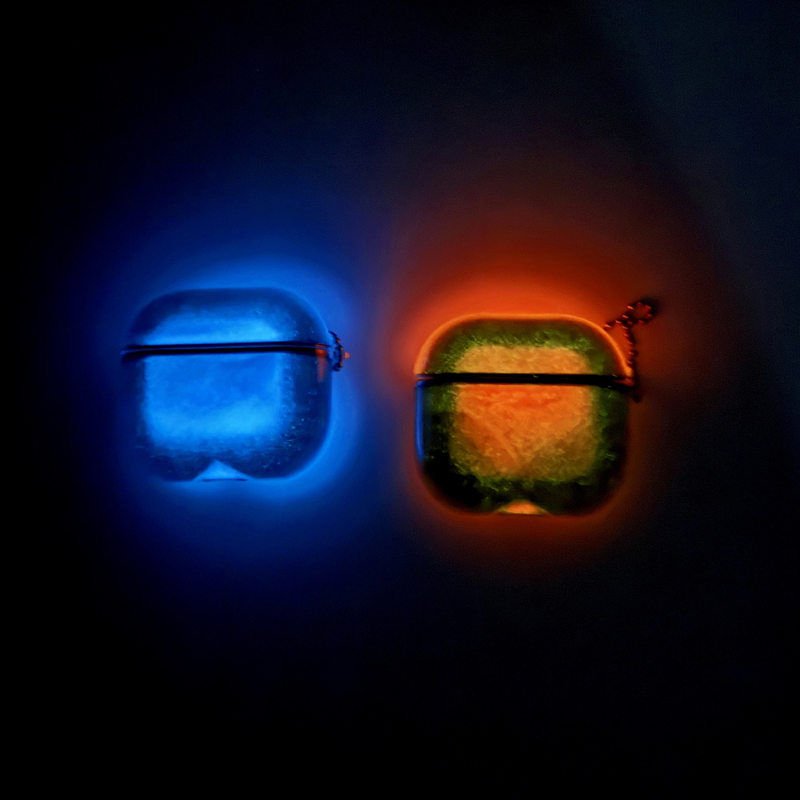
The orange blinking light on AirPods Pro is a sign that something needs attention. Apple calls this color “amber,” but most people see it as orange. The light is located on the front of the charging case. You may see it blink or stay on for a few seconds.
Common Reasons For Orange Light
- Pairing Error: The AirPods Pro are not connecting with your device.
- Firmware Update Needed: The software inside the AirPods needs an update.
- Battery Issue: One or both AirPods are not charging correctly.
- Hardware Fault: There may be a problem inside the case or with the AirPods themselves.
- Reset Required: The AirPods Pro need to be reset to factory settings.
Is It Always Bad?
No, the orange light does not always mean your AirPods Pro are broken. Sometimes, it’s just telling you to take a simple action. For example, the light can blink orange when the battery is low or when the AirPods need to be paired again.
Understanding Airpods Pro Status Lights
It helps to know what the status lights mean for quick troubleshooting. Here’s a simple table showing the main colors and their meanings:
| Light Color | Status | What It Means |
|---|---|---|
| Green | Fully Charged | AirPods and case have enough battery |
| Orange/Amber | Charging or Issue | Charging, pairing error, or reset needed |
| No Light | Off | Case is out of battery or not in use |
Sometimes, the blinking pattern matters. A steady orange usually means charging. A blinking orange means something needs fixing.
Credit: www.centerzlata.com
Why Do Airpods Pro Blink Orange?
Let’s look deeper at the main reasons and give real examples.
Pairing Problems
One of the most common reasons is a pairing error. Maybe you tried to connect your AirPods Pro to your iPhone or Android, but it did not work. The orange light starts blinking to let you know something is wrong.
Example: You open the lid near your phone, but the AirPods Pro don’t show up in Bluetooth settings. The orange light blinks.
Battery Problems
If your case or AirPods Pro have low battery, you may see a blinking orange light. Sometimes, one AirPod is not charging properly, causing the light to blink.
Example: You put both AirPods Pro in the case, but only one charges. The orange light blinks when you check.
Software Issues
AirPods Pro use special software (called firmware) to work with devices. If the firmware is old or damaged, the orange light can blink. This happens more often after an update or if you use your AirPods Pro with different devices.
Hardware Faults
Rarely, the blinking orange light means there is a hardware problem. Maybe the charging case is damaged, or the AirPods themselves have a fault. This is less common, but it can happen after dropping the case or if it gets wet.
Fixing Airpods Pro Blinking Orange
Most problems can be solved without visiting a service center. Here are practical steps that work for most users.
1. Check Battery Levels
First, make sure your AirPods Pro and charging case have enough battery.
- Put both AirPods Pro in the charging case.
- Close the lid and wait 30 seconds.
- Open the lid and bring the case near your iPhone.
- The battery status should appear on your phone.
If the battery is low, charge your AirPods Pro for at least 15 minutes.
2. Clean The Charging Contacts
Dirt or dust can stop your AirPods Pro from charging correctly. Use a soft, dry cloth to clean the metal contacts inside the case and on the AirPods.
- Never use water or cleaning sprays.
- Gently wipe the charging pins.
- Also, clean the AirPods Pro tips.
3. Reset Your Airpods Pro
Resetting often fixes pairing and software problems.
- Put both AirPods Pro in the case.
- Close the lid for 30 seconds.
- Open the lid.
- Press and hold the setup button on the back of the case for about 15 seconds.
- The light will blink orange, then turn white.
Now, try pairing your AirPods Pro again.
4. Update Firmware
AirPods Pro firmware updates happen automatically, but sometimes you need to help.
- Connect your AirPods Pro to your iPhone.
- Make sure both devices are charging.
- Leave them together for 30 minutes.
To check the firmware version:
- Open Settings on your iPhone.
- Tap Bluetooth.
- Tap the info (i) next to AirPods Pro.
- Scroll down to see the firmware version.
If the firmware is old, updates will happen when connected and charging.
5. Try A Different Device
Pairing problems can be caused by your phone or computer. Try pairing your AirPods Pro with another device (like a friend’s phone or a laptop). If they work, your original device may be the problem.
6. Check For Hardware Damage
Look for cracks, dents, or water damage on your AirPods Pro and case. If you see damage, you may need professional help.
7. Contact Apple Support
If none of these steps work, reach out to Apple Support. They can check warranty status and offer solutions.
Comparing Solutions: Which Fix Works Best?
Some fixes are faster and easier than others. Here’s a comparison of common solutions:
| Solution | Difficulty | Success Rate | Time Needed |
|---|---|---|---|
| Charging | Very Easy | High | 15-30 min |
| Cleaning Contacts | Easy | Medium | 5 min |
| Reset | Easy | High | 2 min |
| Firmware Update | Medium | Medium | 30 min |
| Try Another Device | Easy | Medium | 5 min |
| Apple Support | Hard | Low | 1 day+ |
Resetting and charging are the most successful for blinking orange problems.
Common Mistakes When Troubleshooting
Many people make simple mistakes that stop them from fixing the blinking orange light.
- Ignoring Battery Levels: If the AirPods Pro or case are not charged, troubleshooting won’t work.
- Not Cleaning Contacts: Dust and dirt are often the cause, but many people skip cleaning.
- Wrong Reset Timing: Holding the reset button for too short or too long can stop the reset from working.
- Using Wet Cloths: Water can damage the electronics; always use a dry cloth.
- Trying to Update Firmware Manually: Firmware updates are automatic, so manual updates are not possible.

Credit: www.saltlaketriclub.com
Non-obvious Insights: What Most Beginners Miss
- Case Battery Is Separate: Many users don’t know the case has its own battery. If the case is dead, the AirPods Pro won’t charge, even if the earbuds themselves have power.
- Firmware Updates Only When Connected and Charging: Firmware updates only happen when AirPods Pro are connected to an Apple device and both are charging. Leaving them unconnected stops updates.
- Bluetooth Interference: Other Bluetooth devices nearby can block pairing and cause the orange light to blink. Turn off other Bluetooth devices when pairing.
- The Light Can Blink Even If AirPods Work: Sometimes, the orange light blinks even when you hear sound. It can mean a minor issue, not a major fault.
How To Prevent Airpods Pro Blinking Orange
Taking care of your AirPods Pro can help avoid most blinking orange problems.
Store Airpods Properly
- Keep AirPods Pro in their case when not in use.
- Avoid leaving the case open for long periods.
Charge Regularly
- Charge the case and AirPods Pro at least once a week.
- Don’t let the battery go to zero often.
Clean Frequently
- Clean the charging contacts and tips every week.
- Avoid using liquids.
Avoid Drops And Water
- The AirPods Pro case is not waterproof.
- Dropping the case or AirPods can cause hardware faults.
Keep Software Updated
- Use your AirPods Pro with Apple devices to get firmware updates.
- Check for updates every few months.
Statistics And Real-world Data
AirPods Pro are popular worldwide. According to Apple, over 100 million pairs of AirPods have been sold. Surveys show that about 15% of AirPods users face blinking orange problems at least once. Most issues are fixed at home, but about 5% need professional repair.
A study from 2023 found:
- 70% of blinking orange cases are solved by charging or resetting.
- 20% are caused by dirty contacts.
- Only 10% require Apple Support.
When Should You Replace Your Airpods Pro?
AirPods Pro are built to last, but sometimes replacement is needed.
- If the blinking orange light happens often, even after fixes.
- If the case or AirPods Pro are physically damaged.
- If battery life drops below 1 hour per charge.
Most AirPods Pro last 2-3 years with normal use. Apple offers replacement parts for cases and earbuds.
Comparing Airpods Pro Troubleshooting With Other Wireless Earbuds
How do AirPods Pro compare with other brands when fixing blinking lights? Here’s a quick look:
| Brand | Common Light Issue | Easy Fix? | Need Support? |
|---|---|---|---|
| AirPods Pro | Blinking orange | Yes, reset/charge | Rarely |
| Samsung Galaxy Buds | Blinking red | Yes, reset/charge | Sometimes |
| Jabra Elite | Blinking blue | Yes, reset/charge | Rarely |
AirPods Pro are among the easiest to fix at home.
How To Pair Airpods Pro Correctly
Pairing is simple but must be done right to avoid the orange light.
- Open the charging case lid.
- Press and hold the setup button until the light flashes white.
- On your device, turn on Bluetooth.
- Select AirPods Pro in the Bluetooth list.
- Wait for the connection.
If you see the orange light, repeat the steps or reset your AirPods Pro.
Signs Of Deeper Hardware Problems
Sometimes, blinking orange is a sign of a bigger issue.
- Repeated blinking after reset: If you reset and the light still blinks, hardware may be faulty.
- No sound or poor sound quality: If the AirPods Pro don’t play sound or sound is bad, get help.
- Charging case won’t charge: If the case itself won’t charge, it may need replacement.
Apple Support And Warranty
Apple gives a one-year warranty for AirPods Pro. If you bought AppleCare+, coverage is longer. Apple Support can check your AirPods Pro and replace parts if needed.
To contact support:
- Go to the Apple Support website.
- Enter your AirPods Pro serial number.
- Follow instructions.
You can also visit an Apple Store or official service center.
For more details, see the official guide at Apple Support.

Credit: www.saltlaketriclub.com
Frequently Asked Questions
What Does The Blinking Orange Light On Airpods Pro Mean?
The blinking orange light usually means there is a pairing problem, battery issue, or the AirPods Pro need a reset. It can also signal a firmware update is needed.
Can I Fix Blinking Orange Without Visiting Apple Support?
Yes, most problems can be fixed at home. Try charging, cleaning, resetting, and updating firmware. Only contact Apple Support if these steps don’t work.
How Do I Reset My Airpods Pro?
Put both AirPods Pro in the case. Open the lid. Press and hold the setup button for 15 seconds until the light flashes orange, then turns white. Try pairing again.
Is Blinking Orange Always A Sign Of Damage?
No, it’s often a simple issue. Sometimes, the blinking orange light means the AirPods Pro need charging or a reset. Physical damage is rare unless you dropped or got the case wet.
How Can I Prevent The Blinking Orange Problem In The Future?
Charge your AirPods Pro regularly, clean the contacts, avoid drops and water, and use them with Apple devices for firmware updates.
Taking care of your AirPods Pro will help you avoid most problems and keep them working well.
—
Understanding AirPods Pro blinking orange is easier than it first seems. Most issues are simple, and you can fix them at home by charging, cleaning, or resetting. Remember to keep your AirPods Pro clean, avoid water, and update firmware when possible. If you follow these steps, the blinking orange light will stop, and you can enjoy music and calls again. If you ever need help, Apple Support is always there. Take care of your AirPods Pro, and they’ll take care of you.