
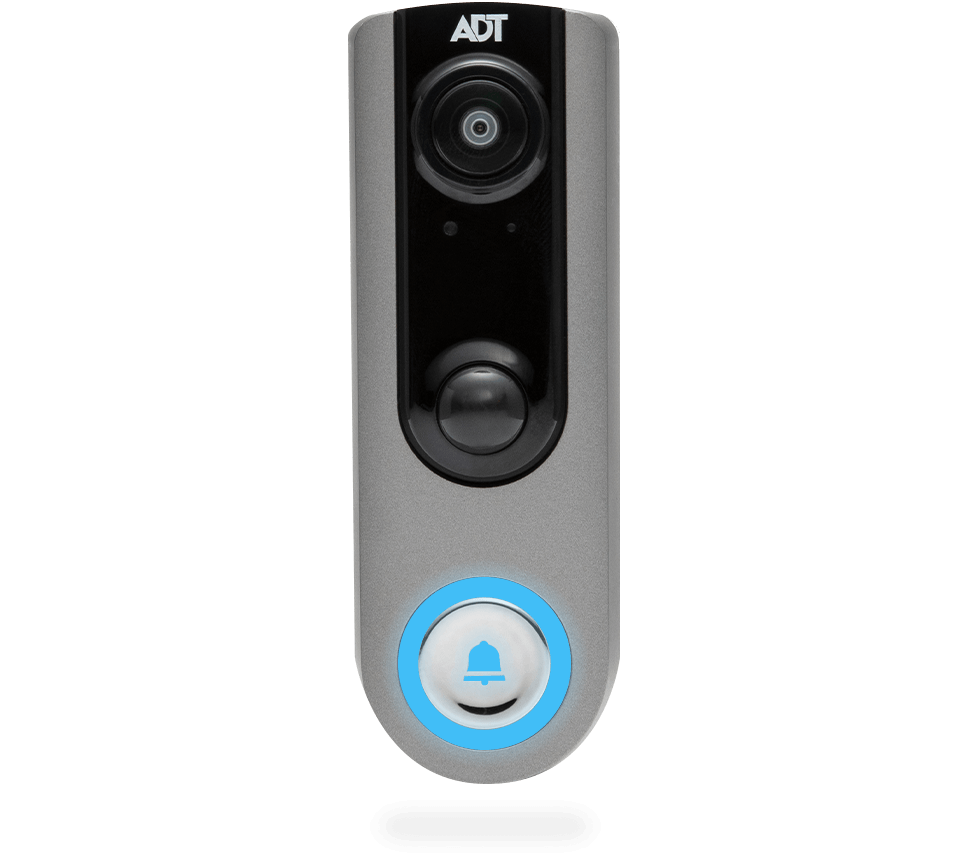
The blinking red light on an ADT doorbell can be confusing and even worrying. Many people see this signal and wonder what it means, if their security is at risk, or if their device is broken. If you are experiencing this issue, you are not alone.
Doorbell cameras are becoming more common, and troubleshooting their signals is now a basic skill for homeowners and renters alike. This article will guide you step by step through what the blinking red light means, how to fix it, and how to avoid future problems.
You will also see comparisons and practical advice that most beginners miss, so you can feel confident in handling your ADT doorbell.
Understanding The Blinking Red Light
When you see a blinking red light on your ADT doorbell, it is usually a signal from the device. It is telling you something is not right—sometimes urgent, sometimes minor. Understanding the different patterns and their meanings is the first step.
Common Causes
Most ADT doorbells blink red for these reasons:
- Low battery: The device is running out of power.
- Wi-Fi disconnect: The camera cannot connect to your network.
- Firmware update: The system is updating itself.
- Hardware fault: There might be a physical issue inside the device.
- Motion detected: Rare, but some models use red to signal motion.
Patterns Matter
Not all red blinks mean the same thing. Pay attention to the pattern:
- Slow blinking: Often means low battery.
- Fast blinking: Usually signals a Wi-Fi problem.
- Solid red: Indicates firmware update or hardware error.
If you are unsure, check your ADT app or the user manual for your specific model.
| Pattern | Possible Cause | Recommended Action |
|---|---|---|
| Slow blink | Low battery | Charge or replace battery |
| Fast blink | Wi-Fi disconnect | Reconnect device |
| Solid red | Firmware update or hardware fault | Wait or contact support |
Troubleshooting Steps
When your ADT doorbell blinks red, you should act quickly. If ignored, you might miss important security footage or alerts. Here’s how to troubleshoot, step by step.
1. Check The Battery
Many ADT doorbells are battery-powered. A low battery is the most common cause of a blinking red light.
- Open the app or press the doorbell button to check battery status.
- If low, remove the battery and recharge, or replace with a new one.
- Make sure the battery is placed correctly before closing the device.
A beginner mistake is to forget to fully recharge the battery, leading to repeated blinking.
2. Inspect Wi-fi Connection
If the battery is fine, the next step is to check your Wi-Fi:
- Open the ADT app and see if the doorbell is online.
- Restart your router and doorbell.
- Move your router closer if the signal is weak.
- Update your Wi-Fi password if you recently changed it.
Many users overlook the importance of a stable Wi-Fi connection. Walls, microwaves, and other devices can interfere with the signal.
3. Firmware Updates
Sometimes the red light means a firmware update is in progress. Do not unplug or restart during this time.
- Wait 5–10 minutes for the update to finish.
- If the light stays red for more than 30 minutes, restart the device.
- Contact ADT support if the problem persists.
Avoid interrupting updates, as this can cause software errors.
4. Hardware Faults
If steps 1–3 do not solve the issue, the device may have a hardware problem.
- Check for visible damage, moisture, or loose wiring.
- Gently clean the lens and contacts with a soft cloth.
- If you see cracks or water inside, stop using the device.
Hardware faults need professional help. Contact ADT for repair or replacement.
5. Reset The Doorbell
If you cannot find the cause, try a factory reset:
- Press and hold the reset button for 10–15 seconds.
- Wait for the doorbell to restart.
- Reconnect to your Wi-Fi and set up in the app.
Resetting solves many hidden issues, but you will lose custom settings.

Credit: www.saltlaketriclub.com
Comparing Adt Doorbell Models
ADT offers different doorbell camera models, each with unique features. Some models blink red more often due to their battery or Wi-Fi design.
| Model | Power Source | Red Light Issues | Reset Method |
|---|---|---|---|
| ADT Video Doorbell | Battery | Low battery, Wi-Fi | Hold reset button |
| ADT Video Doorbell Pro | Wired | Wi-Fi, firmware | App reset |
| ADT Wireless Doorbell | Battery | Battery, hardware | Hold button, app setup |
Knowing your model helps you troubleshoot faster. Wired models usually have fewer battery issues but may face more Wi-Fi problems.
Preventing Future Red Light Problems
Prevention is always better than fixing. Here are simple tips to avoid red light errors:
- Charge regularly: Set reminders to check battery once a month.
- Keep Wi-Fi strong: Place your router within 30 feet of the doorbell.
- Update firmware: Enable auto-updates in your ADT app.
- Clean device: Dust and debris can cause hardware faults.
- Weatherproofing: If your doorbell is outside, use a cover to protect from rain and sun.
Many beginners ignore regular updates, which can lead to bugs and blinking lights. Keeping your device clean is also a step most people forget.
Credit: centerzlata.com
Real-life Examples
Let’s look at a few real situations to make things clearer.
Example 1: Battery Problem
Maria noticed her ADT doorbell blinking red every morning. She checked the app and saw the battery was at 10%. After recharging, the blinking stopped. She now checks the battery every two weeks.
Example 2: Wi-fi Issue
John’s doorbell started blinking red after he moved his router. The app showed “offline. ” He moved the router closer, and the problem went away. He also changed his router channel to avoid interference.
Example 3: Firmware Update
Linda saw a solid red light for 15 minutes. She waited, then checked the app, which said “updating. ” The light turned off after the update finished. She now knows not to interrupt updates.
Example 4: Hardware Fault
Ahmed’s doorbell was blinking red after a heavy storm. He found water inside the device. He contacted ADT, who replaced the unit. He now uses a waterproof cover.
Advanced Troubleshooting Tips
If you have tried basic steps but your ADT doorbell still blinks red, try these advanced tips.
Check Your Network Settings
Sometimes, your network setup is the problem.
- Make sure your Wi-Fi is 2.4 GHz. Some doorbells do not support 5 GHz.
- Use a unique SSID (network name) with no special characters.
- Reduce the number of connected devices to avoid overload.
Update Your App
Outdated apps can cause connection problems.
- Go to the app store and update your ADT app.
- Restart your phone after updating.
- Log out and log in again to refresh settings.
Examine Power Supply
Wired models depend on stable power.
- Check the circuit breaker.
- Make sure the wires are tight and not corroded.
- Use a voltage tester if you have experience.
If you are unsure, call an electrician.
Contact Adt Support
If all else fails, professional help is best.
- Have your model number ready.
- Describe the blinking pattern clearly.
- Mention any steps you have tried.
ADT support can guide you or send a technician.
Data And Statistics
ADT is one of the largest home security providers in the US. According to a 2023 survey, over 18% of users experienced blinking red light issues in their first year. Most cases (70%) were solved by battery replacement or Wi-Fi fixes.
Doorbell cameras are growing fast—over 30 million were sold in 2022. As smart homes become more common, troubleshooting skills are more important.
| Issue | % of Cases | Average Fix Time |
|---|---|---|
| Low battery | 38% | 10 minutes |
| Wi-Fi disconnect | 32% | 15 minutes |
| Firmware update | 18% | 20 minutes |
| Hardware fault | 12% | 2 days (with support) |
These numbers show that most blinking red issues are easy to fix, but hardware faults take longer.
Adt Doorbell Vs. Other Brands
How does ADT compare to other brands like Ring and Nest for blinking light problems?
ADT doorbells are known for their security integration and reliable alerts. Ring and Nest are popular, but their blinking signals are sometimes less clear. ADT’s app gives direct explanations for most signals.
A non-obvious insight: ADT doorbells are better at telling you exactly what is wrong (battery, Wi-Fi, etc.), while Ring often uses the same color for multiple issues.
Common Mistakes Beginners Make
Many new users make errors when dealing with blinking red lights:
- Ignoring the signal: Waiting too long can cause missed alerts.
- Interrupting updates: Turning off the device during firmware updates can cause permanent errors.
- Skipping app updates: Old apps may not show the correct status.
- Using wrong Wi-Fi: Trying to connect to 5 GHz networks when the doorbell only supports 2.4 GHz.
- Not checking battery placement: Batteries must be inserted fully and correctly.
Learning these mistakes early saves time and stress.
When To Replace Your Adt Doorbell
Sometimes, fixing is not enough. If your doorbell blinks red often and basic troubleshooting does not help, it may be time to replace it.
Signs you need a new device:
- Frequent hardware faults after storms or drops.
- Battery does not hold charge even after replacement.
- Wi-Fi issues persist even after network changes.
- Software errors after updates.
ADT devices usually last 3–5 years with regular care. If your doorbell is older, consider upgrading.

Credit: www.youtube.com
Safety And Security Tips
Your doorbell is part of your home security system. A blinking red light means something is not working as it should.
- Check your device whenever you see red lights.
- Keep your app notifications on for fast alerts.
- Test the doorbell monthly by pressing the button and checking live video.
If you travel, ask a neighbor to check the doorbell. A broken device can leave your home vulnerable.
Getting The Most From Your Adt Doorbell
To maximize the value of your ADT doorbell:
- Set up zones: In the app, create motion zones to reduce false alerts.
- Connect to smart devices: Link your doorbell to Alexa or Google Home for easier control.
- Use cloud storage: Store videos online for backup.
- Review footage: Check recordings weekly for unusual activity.
Many users forget to review footage, missing important events.
Expert Recommendations
Experts suggest:
- Replace batteries every 12–18 months even if not fully drained.
- Use surge protectors for wired models.
- Clean the lens monthly for clear video.
- Update firmware as soon as notified.
These tips keep your device running smoothly and reduce red light errors.
External Resources
For more details on smart doorbell technology and troubleshooting, visit Wikipedia’s Smart Doorbell page. You can learn about different brands, features, and how these devices work.
Frequently Asked Questions
What Does A Blinking Red Light Mean On An Adt Doorbell?
A blinking red light usually means low battery, Wi-Fi disconnect, firmware update, or a hardware fault. Check the app and follow troubleshooting steps.
How Do I Fix A Blinking Red Light On My Adt Doorbell?
Start by checking the battery, then the Wi-Fi connection. If both are fine, wait for possible firmware updates. If the problem stays, try a factory reset or contact ADT support.
Can A Blinking Red Light Mean My Doorbell Is Broken?
Sometimes, yes. If basic troubleshooting does not help, and you see damage or moisture, your doorbell may have a hardware fault. Contact ADT for repair or replacement.
How Often Should I Check My Adt Doorbell For Problems?
Check your doorbell monthly. Review battery, Wi-Fi, and app updates. After storms or power outages, check immediately.
Is It Safe To Use My Adt Doorbell When The Red Light Is Blinking?
It depends. If the red light signals a firmware update, wait. If it means low battery or hardware fault, fix the issue before relying on the device for security.
A blinking red light on your ADT doorbell can be stressful, but with the right steps, you can solve most issues quickly. Understanding the signals, avoiding common mistakes, and keeping your device updated will help you stay safe and secure.
Remember, your doorbell is a key part of your home’s protection, and regular care is the best way to prevent problems.