
Many PlayStation 4 owners have faced a puzzling moment: their PS4 controller starts blinking yellow and won’t connect as expected. This small light can mean different things, from a simple charging process to a warning that something is wrong. If you’re frustrated or confused, you’re not alone. Understanding what the blinking yellow light means—and what to do next—can save you hours of trial and error.
This guide explains all the main reasons for the PS4 controller blinking yellow. You’ll learn how to identify the cause, what each type of yellow light means, and, most importantly, how to fix the problem. We’ll also share a few pro tips and common mistakes, so you don’t waste time on the wrong solutions.
What Does The Blinking Yellow Light Mean?
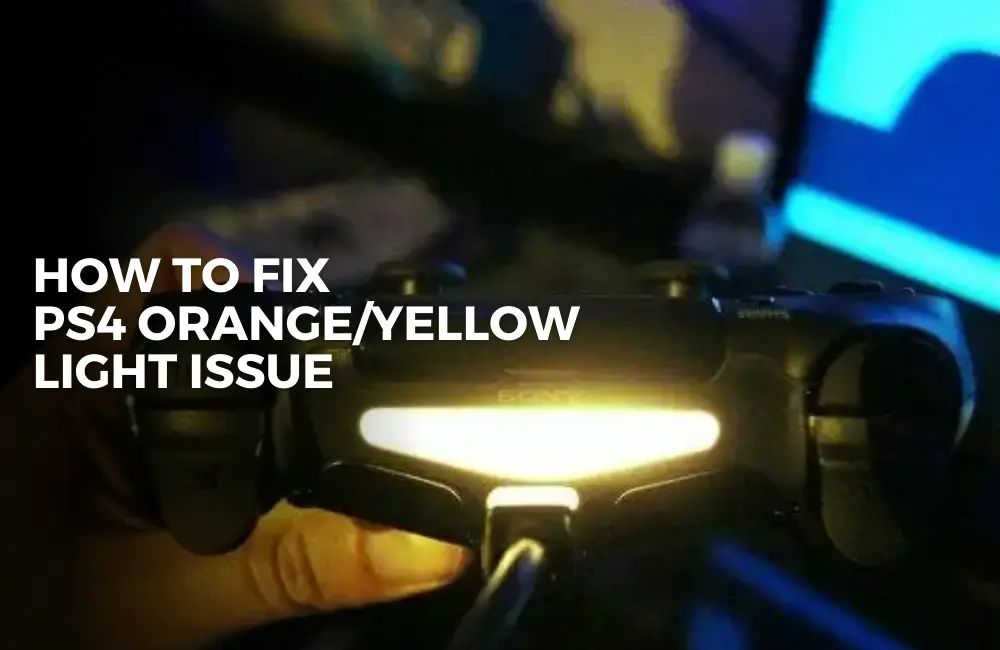
The yellow light on a PS4 controller is more than decoration. It tells you about the controller’s status and sometimes signals a problem. Not all yellow lights are bad. Sometimes, it just means your controller is charging. In other cases, it warns you about a connectivity or hardware issue.
The yellow light is located on the top of the controller, on the light bar. It’s easy to miss the difference between a slow blinking yellow, a steady yellow, or a rapidly flashing yellow. Each one can mean something different.
The 4 Main Reasons For A Ps4 Controller Blinking Yellow
Let’s break down the four most common causes. Each one needs a different solution, so pay attention to the details.
1. Charging Mode
When you plug your PS4 controller into the console or a USB charger, the light bar will often turn yellow and slowly fade in and out. This is normal and indicates the controller is charging.
How To Recognize Charging Mode
- Pulsing yellow light while plugged in.
- The light stops pulsing and turns off when fully charged (if the console is off or in rest mode).
Practical Tip
Not all USB cables or chargers are equal. A poor-quality cable may cause the light to blink oddly or not charge at all. If you see the yellow light but the controller never seems to charge, try another cable or USB port.
Example
If you connect your controller to your PS4 while it’s in Rest Mode, the yellow light should pulse. But if you use a phone charger, sometimes it blinks rapidly or doesn’t charge, signaling a power issue.
2. Pairing Or Connectivity Issues
A blinking yellow light can also mean your controller is trying to connect to the console but can’t complete the process. This usually happens if you try to use the controller wirelessly and there is a pairing problem.
How To Recognize Connectivity Issues
- The yellow light blinks rapidly when you press the PS button.
- The controller doesn’t control the PS4 or shows “Controller Not Connected” on the screen.
Common Causes
- The controller is paired with another device (like a PC or another PS4).
- Wireless interference or low battery.
- System bug after a firmware update.
Fixes
- Reset the controller: Use a paperclip to press the small button on the back near the L2 trigger for 5 seconds.
- Re-pair the controller: Connect it via USB to the PS4 and press the PS button.
- Restart the console: Sometimes a simple reboot helps.
- Try another USB cable: Faulty cables can block pairing.
Non-obvious Insight
Many people forget: if you’ve used your controller with a PC via Bluetooth, it may “remember” that pairing. You might need to remove the controller from your PC’s Bluetooth settings before it will pair with your PS4 again.
3. Hardware Problems
Sometimes, a blinking yellow light is a warning sign of a hardware issue. This is less common, but it can happen if the internal battery or circuitry fails.
Signs Of Hardware Issues
- The yellow light blinks even when plugged in, but the controller never works.
- The controller disconnects randomly or won’t power on.
- No response to any button presses.
Possible Hardware Faults
- Dead battery: Won’t hold a charge.
- Faulty USB port: Loose or broken connectors.
- Internal component failure: Damaged circuit board.
What To Do
- Test with a different cable and console if possible.
- Try a new battery if you have the skills (batteries are replaceable but require opening the controller).
- If under warranty, contact Sony support for repair or replacement.
- For older controllers, sometimes it’s more cost-effective to buy a new one.
Practical Tip
Some third-party repair shops can fix common hardware problems for less than buying new. But always check reviews—some repair shops use low-quality parts.
4. Rest Mode Behavior
The PS4’s Rest Mode is designed to save power and charge controllers. When the console is in Rest Mode, the controller’s light may blink yellow to show it is charging or maintaining a connection.
How Rest Mode Affects The Yellow Light
- The yellow light pulses slowly while charging.
- If you try to use the controller, it might blink yellow but not connect until the PS4 is fully awake.
Common Mistake
Some users think the controller is “stuck” blinking yellow, but in fact, the console is not fully on. Press the PS button to wake the PS4 completely.
Example
If you plug your controller in and walk away, the PS4 might go into Rest Mode. When you return, the yellow light is still blinking. This is normal. But if the controller won’t wake the console, try unplugging and re-plugging the USB cable.

Credit: www.reddit.com
Diagnosing The Problem: A Quick Reference Table
To help you quickly identify what your yellow light means, here’s a comparison of the most common scenarios:
| Situation | Light Behavior | What It Means | Recommended Action |
|---|---|---|---|
| Plugged in, PS4 in Rest Mode | Slow pulsing yellow | Charging normally | No action needed |
| Press PS button, not connecting | Rapid blinking yellow | Pairing or connectivity problem | Re-pair the controller |
| Controller won’t turn on | Blinks yellow then nothing | Possible hardware issue | Test battery/USB, seek repair |
| During gameplay, random blinking | Intermittent yellow flashes | Connection or battery issue | Charge or reconnect controller |
How To Fix A Ps4 Controller Blinking Yellow
Once you understand the cause, you can focus on the right fix. Here’s a step-by-step approach that covers most situations:
1. Check The Usb Cable And Port
A faulty cable or dirty USB port is often the cause. Try a different cable and clean the USB ports with a soft brush.
2. Reset The Controller
Find the small reset button on the back. Hold it for 5–10 seconds with a paperclip. This often solves Bluetooth and firmware glitches.
3. Re-pair The Controller To The Ps4
Plug the controller into the PS4 with the USB cable. Press the PS button. Wait for the light to change from yellow to blue or white.
4. Test On Another Device
If possible, try your controller on another PS4 or a PC. If it works there, the problem may be with your original console.
5. Update Ps4 Firmware
Outdated system software can cause connection bugs. Go to Settings > System Software Update and make sure you have the latest version.
6. Replace The Battery
If your controller is old, the battery may not hold a charge. Replacement batteries are available online, but installation requires opening the controller.
7. Contact Support Or A Repair Shop
If none of these solutions help, you may need professional repair. Sony’s official support is the safest choice if your device is under warranty.

Credit: www.youtube.com
Common Mistakes To Avoid
- Assuming all yellow lights are bad. Sometimes, it’s just charging.
- Using cheap USB cables. These often fail to charge or transfer data.
- Forgetting to reset the controller after using it on another device.
- Ignoring firmware updates. New updates often fix Bluetooth or power issues.
- Trying to force the controller to work by pressing lots of buttons—this can make things worse.
How Different Ps4 Controller Lights Compare
The PS4 controller uses several colors to communicate different statuses. Here’s a quick overview for comparison:
| Color | Meaning | When Seen |
|---|---|---|
| Blue | Player 1 / Connected | After successful pairing |
| Red | Player 2 / Low health (in some games) | In multiplayer or certain titles |
| Green | Player 3 | Rare, usually with more controllers |
| White | Fully charged / In use | During active play |
| Yellow | Charging / Pairing / Rest mode | While charging or connecting |
Pro Tips For Ps4 Controller Maintenance
Keeping your controller in good condition reduces yellow light issues. Here are a few pro tips:
- Charge regularly: Don’t let the battery drain completely often.
- Avoid using while charging: This helps batteries last longer.
- Clean USB ports: Dust and debris cause poor connections.
- Use official or high-quality accessories: Third-party cables can cause problems.
- Update firmware: Both for the PS4 and the controller (when available).
When To Replace Your Ps4 Controller
If you’ve tried all troubleshooting steps and your controller still blinks yellow or won’t function, it may be time for a replacement. Most controllers last 3–5 years with normal use. Signs you need a new one include:
- The controller won’t hold a charge, even with a new battery.
- Buttons or joysticks are unresponsive or stuck.
- The light bar behaves strangely, regardless of connection or charging.
Buying from reputable retailers ensures you get a genuine product. For more details about controller lifespans and troubleshooting, you can visit the official PlayStation Accessories page.
Credit: igrs.itu.edu.tr
Frequently Asked Questions
Why Does My Ps4 Controller Keep Blinking Yellow When Plugged In?
A slowly pulsing yellow light usually means the controller is charging. If it never changes or the controller doesn’t work, try another USB cable or port. If the problem remains, the battery or internal circuitry may be faulty.
Can A Blinking Yellow Light Mean My Controller Is Broken?
Not always. It can mean charging, pairing, or a minor connection problem. But if the controller doesn’t respond after trying all fixes, there may be a hardware issue.
How Do I Reset A Ps4 Controller With A Blinking Yellow Light?
Use a paperclip to press the small reset button on the back of the controller near the L2 trigger. Hold for 5–10 seconds, then reconnect to the PS4 with a USB cable and press the PS button.
Is It Safe To Use Third-party Charging Cables?
Many third-party cables work, but some are poor quality and may not charge the controller or cause strange blinking. Use official or high-quality cables for best results.
What Does It Mean If The Yellow Light Blinks When The Ps4 Is In Rest Mode?
This usually means the controller is charging while the console is in Rest Mode. The light will stop once the battery is full or when you turn the console back on.
Conclusion
A blinking yellow light on your PS4 controller doesn’t have to be a mystery or a source of frustration. By understanding the different meanings and following these practical steps, you can keep your gaming smooth and solve problems quickly. If all else fails, remember that help is available—sometimes, a new controller is the best solution for long-term enjoyment.