
Every electric vehicle (EV) driver wants a smooth charging experience. But sometimes, things don’t go as planned. If you use a ChargePoint charger and notice it blinking white, you might worry something’s wrong. What does the blinking white light mean? Is it a problem, or just a normal sign? Understanding these signals can save you time, stress, and even money.
Let’s dive deep into what a ChargePoint blinking white light means, what causes it, and how to fix it. You’ll also learn how to prevent future issues, and get answers to common questions that confuse new (and even experienced) EV owners.
What Does A Chargepoint Blinking White Light Mean?
EV charging stations, including ChargePoint, use colored lights to communicate their status. These lights are not just decoration—they’re a simple language. A blinking white light is one of the most common signals you’ll see, but its meaning depends on the context.
The Default Meaning
Most of the time, a blinking white light on your ChargePoint station means it’s in standby mode. This is the charger’s way of saying, “I’m powered on, connected to the network, and ready to use.” In other words, the charger is idle and waiting for you to plug in your car.
When Blinking White Means Something Else
However, there are times when a blinking white light can signal something different:
- Network connection: The charger may be trying to establish or re-establish a connection with the ChargePoint network.
- Startup or reboot: After a power outage or software update, the charger may blink white during its boot-up process.
- Configuration mode: When setting up the charger for the first time, or resetting it, a blinking white light can indicate it’s ready for Wi-Fi or app pairing.
How To Tell The Difference
The key detail is the pattern and speed of the blink. For example:
- Slow, steady blink: Usually means standby/ready.
- Rapid blinking: Could mean setup mode or a problem.
- Blinking with other colors: Pay attention if you see white mixed with orange, red, or blue.
Understanding these subtle differences will help you react appropriately. If you’re unsure, check the user manual or the ChargePoint app for more information.
Common Causes Of Chargepoint Blinking White
A blinking white light can be triggered by several factors. Knowing the causes helps you solve problems faster.
1. Normal Standby Mode
This is the most frequent cause. The charger is waiting for a vehicle to be plugged in. No action is required.
2. Network Issues
If the charger loses its Wi-Fi or Ethernet connection, it may blink white while trying to reconnect. This is especially true if your internet is unstable or your router has been reset.
3. Startup Or Reboot
After a power interruption, the charger will blink white during its startup sequence. This usually lasts less than a minute.
4. Initial Setup Or Configuration
When first installing your ChargePoint charger, a blinking white light means it’s ready for app pairing or Wi-Fi setup. This is normal until configuration is complete.
5. Firmware Updates
During software updates pushed by ChargePoint, you may see the light blink white. The charger may not function until the update is finished.
6. Hardware Reset
If you press the reset button, the charger will reboot and blink white until it’s ready again.
7. Faults Or Errors (rare)
In rare cases, a persistent blinking white light can indicate a hardware or software error, especially if it’s accompanied by other unusual behaviors (like no response in the app).

Credit: www.chevybolt.org
How To Troubleshoot A Chargepoint Blinking White Light
If your charger keeps blinking white and you’re unsure why, try these steps before calling for help. Most issues can be solved with simple actions.
Step 1: Check The Obvious
- Is your car plugged in?
If not, the charger is likely waiting in standby.
- Is the car fully charged?
The charger may return to standby after a session.
Step 2: Inspect Network Status
- Check your Wi-Fi router
Is It Working For Other Devices?
- Restart your router
A simple reboot can fix many connection problems.
- Check the ChargePoint app
Does the station show as “Online”? If not, it’s a network issue.
Step 3: Power Cycle The Charger
- Unplug the charger from the wall or turn off the circuit breaker
- Wait 60 seconds
- Plug it back in or turn the breaker on
This resets the charger and can resolve many glitches.
Step 4: Use The Chargepoint App
- Open the app and select your station
- Look for error messages or alerts
- Follow any instructions given
The app often provides more details than the light alone.
Step 5: Reconnect To Wi-fi
If you recently changed your Wi-Fi password or network, the charger needs to be updated.
- Follow the app’s instructions to reconnect the charger to Wi-Fi
- Make sure the signal is strong at the charger’s location
Step 6: Check For Firmware Updates
- In the app, look for available updates
- Allow the update process to complete
- Do not unplug the charger during an update
Step 7: Contact Chargepoint Support
If nothing works, it’s time to reach out.
- Note the blink pattern and any other lights
- Take a photo if possible
- Have your charger’s serial number ready
ChargePoint’s support team can diagnose issues remotely and guide you through advanced troubleshooting.
Comparing Chargepoint Status Lights
It’s helpful to understand how the blinking white light fits with other ChargePoint status indicators. Here’s a quick comparison:
| Light Color | Pattern | Meaning |
|---|---|---|
| White | Blinking | Standby, ready, or waiting for setup |
| Blue | Solid | Charging in progress |
| Green | Solid | Charging complete, car fully charged |
| Orange | Solid/Blinking | Scheduled charging or authentication pending |
| Red | Blinking | Error or fault detected |
If you notice a color other than white, check your user manual or the ChargePoint website for more information.
How The Chargepoint Blinking White Light Differs By Model
ChargePoint has several models for home and commercial use. The blinking white light can have slight differences based on the model.
| Model | Light Placement | White Blink Usage |
|---|---|---|
| Home Flex | Front Ring | Standby, setup, or firmware update |
| CT4000 (Commercial) | Top LED Strip | Network connection, ready status |
| CPF50 | Front Indicator | Standby, waiting for start |
| Express 250 | Screen/Top LEDs | Boot or network reconnect |
Always check the manual for your specific model. Some commercial stations use a combination of light and screen messages.
Real-world Examples: Chargepoint Blinking White In Action
Let’s look at a few scenarios that real ChargePoint users have faced.
Case 1: Home Charger After Storm
Anna lives in Texas and uses a ChargePoint Home Flex. After a thunderstorm, her charger blinks white for several minutes. She discovers her Wi-Fi router lost power and needs to reconnect to the network. After following the app’s Wi-Fi reset guide, the charger returns to normal.
Case 2: Commercial Charger Setup
A business installs new CT4000 stations. During setup, the lights blink white rapidly. The installer pairs them with the company’s Wi-Fi and configures them in the ChargePoint dashboard. Once setup is complete, the lights turn blue when cars are plugged in.
Case 3: Firmware Update
Jake notices his CPF50 charger blinking white for 10 minutes, longer than usual. He checks the app and sees a firmware update in progress. He waits, and the light turns green when finished. Interrupting updates can cause issues, so patience is key.
Case 4: Persistent Blinking With No Connection
Maria’s charger at her apartment keeps blinking white, but never goes solid or changes color. She realizes the charger is too far from her router and the Wi-Fi signal is weak. Moving the router closer solves the problem.
Credit: www.kiaevforums.com
What To Do If Chargepoint Blinking White Won’t Stop
If your charger is stuck on a blinking white light, don’t panic. Most problems are minor and easy to fix. Here’s a simple checklist:
1. Wait A Few Minutes
After power outages or updates, the charger needs time to reboot.
2. Check Your Network
Is your Wi-Fi/Ethernet working? Try other devices.
3. Reboot Both Charger And Router
Unplug, wait, replug.
4. Check The App For Alerts
It may tell you what’s wrong.
5. Review Recent Changes
Did you change Wi-Fi settings, relocate the charger, or experience a power surge?
6. Call Chargepoint Support
If all else fails, let the professionals help.
Two non-obvious insights:
- Wi-Fi Interference: Metal objects, microwaves, and thick walls can block or weaken the signal, causing the charger to blink white due to network loss.
- Scheduled Charging: If you set up delayed or scheduled charging in the app, the charger may blink white until the schedule begins. This confuses many new users.
Preventing Chargepoint Blinking White Problems
Prevention is better than cure. Here are some practical ways to avoid unwanted blinking white lights on your ChargePoint charger.
Keep Your Network Strong
A reliable internet connection is essential for ChargePoint chargers. Use these tips:
- Position your Wi-Fi router close to the charger.
- Use a Wi-Fi range extender if your charger is far from the router.
- Secure your network with a strong password to prevent unauthorized access.
Update Firmware Regularly
Allow automatic software updates. They fix bugs, improve performance, and add new features. Don’t unplug the charger during updates.
Use Surge Protection
Install a surge protector or have your electrician add one. Power surges from storms can disrupt or damage the charger.
Pair The Charger Properly
Follow the setup instructions in the ChargePoint app carefully. A rushed installation can lead to endless blinking and headaches.
Check For Physical Damage
Inspect the charger cable and plug for wear. Damaged hardware can cause malfunctions or error signals.
Avoid Overloading Circuits
Don’t plug other heavy appliances into the same circuit as your charger. Overloading can cause resets or blinking lights.
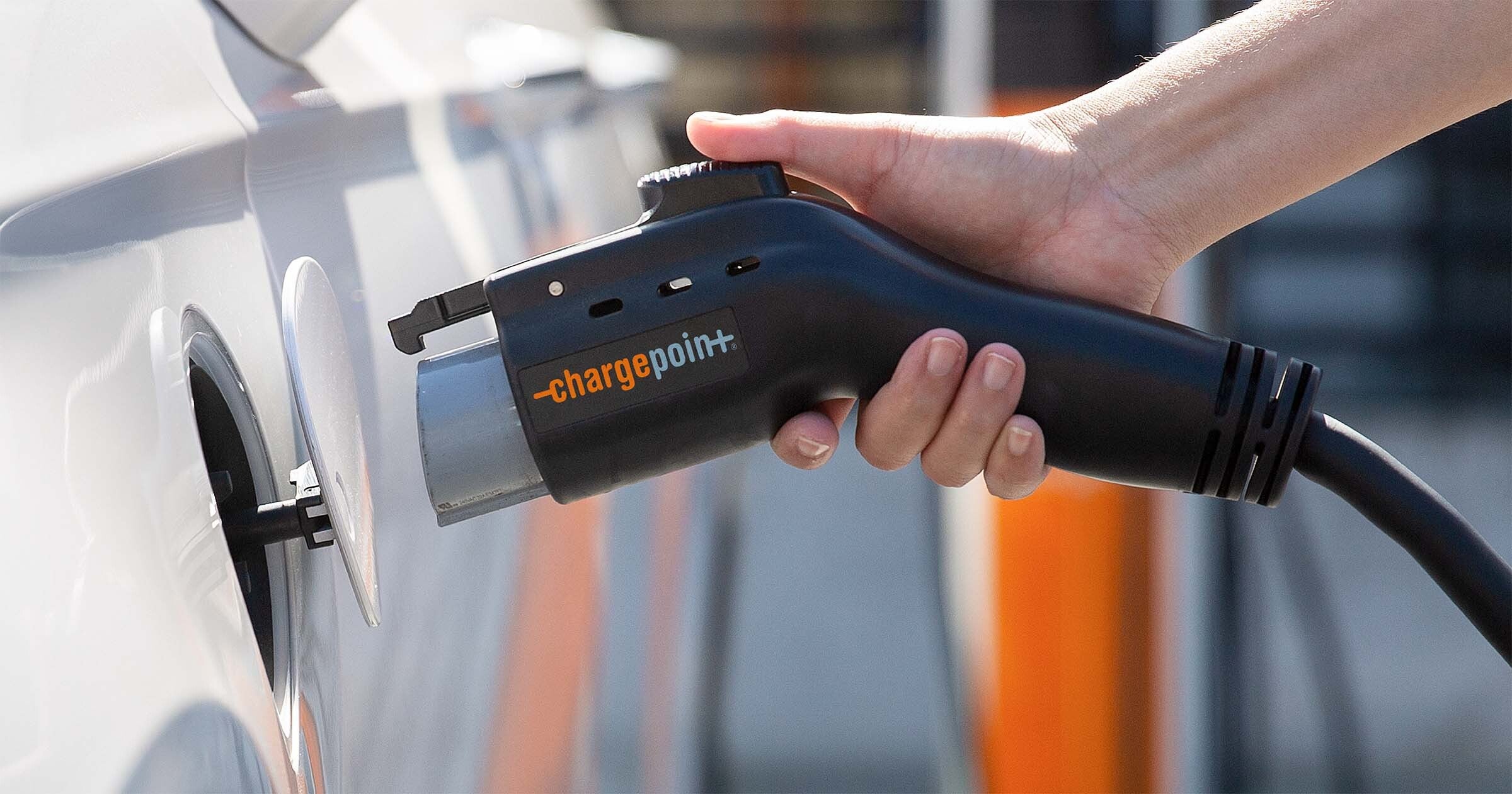
Credit: www.chargepoint.com
Chargepoint Blinking White Vs. Other Brands
How does the ChargePoint blinking white light compare to status lights on other popular EV chargers? Here’s a quick reference.
| Brand | Blinking White Meaning | Other Key Status Lights |
|---|---|---|
| ChargePoint | Standby, setup, or network reconnect | Blue (charging), Green (complete), Orange (scheduled), Red (error) |
| JuiceBox | Wi-Fi setup mode | Blue (charging), Green (ready), Red (fault) |
| Tesla Wall Connector | Startup or firmware update | Green (charging), Blue (ready), Red (fault) |
| EVBox | Booting or standby | Blue (charging), Green (ready), Red (error) |
While white often means “standby” or “setup,” the specific meanings and blink patterns can vary. Always check the manual for your charger model.
When To Call A Professional
Most blinking white light situations can be fixed without expert help. But in these cases, call an electrician or ChargePoint support:
- The light blinks white with no change for more than 30 minutes.
- Other lights (red, orange) appear or blink rapidly.
- The charger feels hot to the touch, makes noise, or smells burnt.
- Your breaker trips repeatedly when using the charger.
- The app reports a hardware fault or cannot find the charger at all.
Don’t try to open or repair the charger yourself—this can void your warranty or even be dangerous.
Chargepoint Blinking White And Your Ev Experience
Understanding your charger’s status lights turns frustration into confidence. You’ll be able to:
- Spot normal standby vs. real problems
- Prevent avoidable issues with good setup and maintenance
- Communicate clearly with support if you need help
A little knowledge goes a long way. Most of all, don’t ignore the signals—investigating a blinking white light early can prevent bigger headaches later.
Frequently Asked Questions
Why Does My Chargepoint Charger Keep Blinking White Even After Plugging In My Car?
If the charger keeps blinking white after you connect your car, it usually means the charger hasn’t detected the vehicle. Check if the car’s charging port is fully engaged. Try unplugging and reconnecting both ends. Also, see if your car’s charging settings allow immediate charging or if scheduled charging is enabled.
How Do I Reset My Chargepoint Charger If It’s Stuck Blinking White?
To reset, unplug the charger from its power source or turn off the circuit breaker for 60 seconds, then power it back up. This simple reboot can clear most temporary issues. If the light still blinks, check for network or setup problems in the ChargePoint app.
Does A Blinking White Light Mean My Charger Is Broken?
Not necessarily. A blinking white light is usually normal and just means standby, setup, or waiting for a connection. Only if it lasts unusually long or is accompanied by other signs (like no response in the app or error messages) should you suspect a hardware fault.
Can A Weak Wi-fi Signal Cause My Chargepoint Charger To Blink White?
Yes. A poor Wi-Fi connection is a common cause of persistent blinking white. The charger may struggle to connect to the network, especially if the router is far away or blocked by walls. Try moving your router closer or using a Wi-Fi extender.
Where Can I Find Official Troubleshooting Help For Chargepoint Chargers?
The best place is the official ChargePoint support center. Visit the ChargePoint Support page for guides, FAQs, and contact options. The ChargePoint app also provides alerts and troubleshooting steps tailored to your specific charger.
Conclusion
Feeling prepared for the next time you see that blinking white light? With this knowledge, you’ll handle it like a pro—and get back on the road with confidence.