
Many people rely on WiFi extenders to get a strong, reliable internet signal in every room. But what happens when your WiFi extender signal booster starts blinking blue? That little light can mean many things, and it often confuses users. If you’re reading this, you probably want to understand what the blinking blue light means, how to fix it, and how to make your WiFi network more stable. This article will give you clear answers, practical tips, and expert insights to help you enjoy better WiFi at home or in your office.
What Does A Blinking Blue Light Mean On A Wifi Extender?
The blinking blue light on a WiFi extender is a common signal, but its meaning can vary between brands and models. Usually, a blinking blue light indicates one of the following:
- The extender is trying to connect to the main WiFi router.
- The device is in pairing mode (waiting for a connection).
- There is an unstable or weak connection.
- Firmware is updating.
Some extenders use blue for a good connection, while others use it for setup mode. Always check your model’s manual, but the general rule is: steady blue means a good connection, blinking blue means activity or an issue.
Common Brands And Their Blue Light Indicators
Here’s a quick comparison of how top brands use the blue blinking light:
| Brand | Steady Blue | Blinking Blue |
|---|---|---|
| Netgear | Strong connection | Connecting/Setup mode |
| TP-Link | Good signal | Pairing or updating |
| Linksys | Connected | WPS pairing |
| D-Link | Stable link | Trying to connect |
Non-obvious insight: Sometimes, a blinking blue light means the extender is too far from your router. The device is working, but the signal is weak.
Why Does The Wifi Extender Blink Blue?
Understanding the reasons behind the blinking blue light helps you find a solution faster. Here are the main causes:
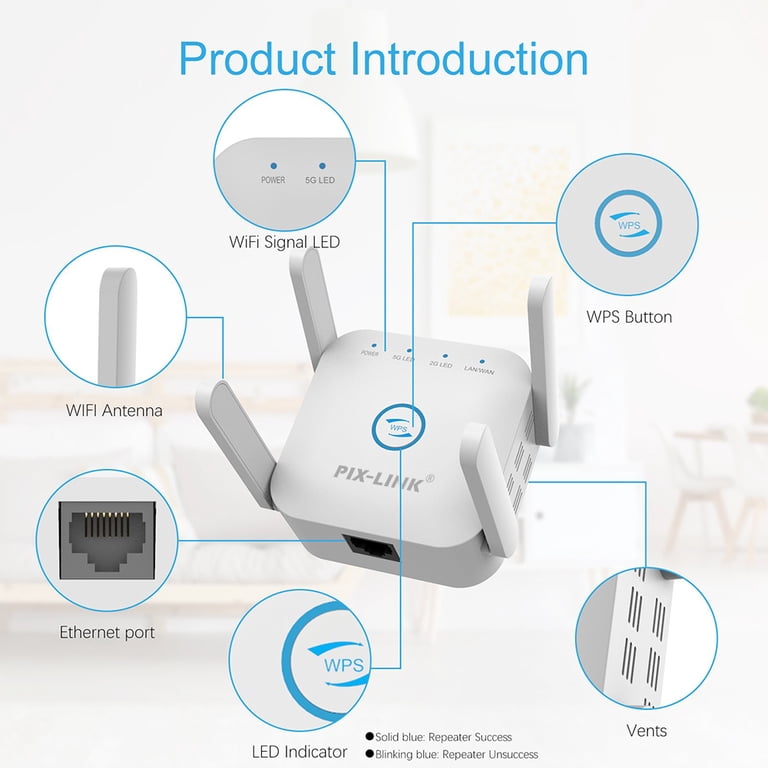
- Pairing Mode: Most extenders blink blue when you press the WPS (WiFi Protected Setup) button. The device is waiting to connect to your router.
- Signal Interference: Walls, microwaves, and even fish tanks can weaken the signal, making the extender keep searching for a better connection.
- Firmware Updates: During updates, some extenders blink blue. Do not unplug or restart the device during this time.
- Connection Lost: If the extender loses contact with the main router, it often blinks blue while trying to reconnect.
- Distance from Router: Too far from the main router? The extender will struggle to connect, causing a blinking blue light.
Real-world Example
A family placed their WiFi extender in the garage, hoping to get internet in the backyard. The blue light kept blinking. After moving the extender closer to the living room (where the router was), the blue light turned solid, and the connection improved.
Non-obvious insight: Extender lights can also blink blue if the router has changed its password or SSID (network name) and the extender has outdated settings.
How To Fix A Wifi Extender Blinking Blue
If your WiFi extender signal booster keeps blinking blue, don’t panic. Here’s a step-by-step approach to solve the problem.
Step 1: Check The Extender’s Location
- Place the extender about halfway between your router and the area with weak signal.
- Avoid thick walls, metal objects, and electronic devices nearby.
Step 2: Reset The Connection
- Unplug the extender, wait 30 seconds, and plug it back in.
- Try reconnecting using WPS or the extender’s setup app.
- For WPS: Press the WPS button on the router, then the extender. Wait for a solid blue light.
Step 3: Update Firmware
- Log in to the extender’s web interface (often at addresses like 192.168.0.1).
- Check for firmware updates and install them if available.
- Do not interrupt the update process.
Step 4: Reconfigure The Extender
- If the router’s password or SSID changed, reset the extender to factory settings.
- Reconnect using the correct details.
Step 5: Reduce Signal Interference
- Move cordless phones, microwaves, and Bluetooth devices away from the extender.
- Switch to a less crowded WiFi channel if possible (use your router’s admin page).
Common Mistakes To Avoid
- Placing the extender too far from the router
- Ignoring firmware updates
- Not checking for SSID or password changes
- Overloading the extender with too many devices
When Should You Worry About A Blinking Blue Light?
Sometimes, a blinking blue light is normal—such as during setup or a firmware update. But if the light keeps blinking for more than 5-10 minutes, it’s time to troubleshoot.
Warning Signs
- No internet connection in extended areas
- Devices keep disconnecting
- The extender feels hot (could indicate overheating)
- You see error messages in the extender’s app

Credit: lorenschitz.com
Wifi Extender Placement: Getting The Best Signal
Proper placement is key for any WiFi extender signal booster. Here are practical tips to maximize coverage:
- Midway Point: Place the extender halfway between the router and the area you want to cover.
- Avoid Obstacles: Keep the device away from thick walls, floors, and large metal objects.
- Height Matters: Set the extender on a shelf or table, not on the floor.
- Signal Strength Test: Use your phone’s WiFi signal bars to find the spot where you still get at least 50% signal from the main router.
Here’s a quick comparison of good vs. bad placement:
| Placement | Signal Strength | Result |
|---|---|---|
| Hallway, midway to target area | Strong | Stable, fast connection |
| Behind TV cabinet | Weak | Unstable, slow speeds |
| Next to microwave | Interference | Frequent disconnects |
| On the floor, far corner | Poor | Coverage gaps |
How To Know If The Wifi Extender Is Working Properly
A working WiFi extender should show a solid blue (or green) light, depending on the brand. But lights aren’t the only way to check.
Signs Of Good Performance
- Fast, stable internet in areas that were previously weak
- Devices connect to the extender’s network without drops
- Consistent speed when running speed tests (use tools like Speedtest.net)
Tools To Check
- Use the extender’s app or web interface to see signal strength and connected devices.
- Run speed tests in the area covered by the extender and compare with the main router.
Example Data
Let’s see how an extender improves signal strength:
| Room | Signal (No Extender) | Signal (With Extender) | Download Speed |
|---|---|---|---|
| Living Room | Good | Good | 50 Mbps |
| Bedroom | Poor | Good | 47 Mbps |
| Garage | None | Fair | 32 Mbps |
What To Do If The Blinking Blue Light Won’t Stop
If all else fails, try these advanced steps:
1. Factory Reset The Extender
- Find the reset button (usually a small hole).
- Press and hold for 10 seconds using a paperclip.
- Wait for the extender to reboot and try setup again.
2. Check For Network Conflicts
- Make sure your router is not using the same IP address as the extender.
- If you have multiple extenders, set them up one at a time.
3. Test With A Different Router
- Sometimes, certain routers and extenders are not fully compatible.
- Borrow a different router or test at a friend’s house to rule out device issues.
4. Contact Support
- If your device is still under warranty, contact the manufacturer.
- Have your model number, purchase date, and error details ready.
Should You Replace Your Wifi Extender?
If your WiFi extender is more than 3-4 years old, or it frequently loses connection, consider upgrading. Newer models support faster speeds (WiFi 6) and smarter mesh technology.
Signs It’s Time To Upgrade
- The device only supports 2.4 GHz band (slower speeds)
- No firmware updates are available
- You need coverage for a larger area or more devices
- The blinking blue light issue happens often, even after troubleshooting
How To Choose The Right Wifi Extender
Not all extenders are created equal. Here are key factors to consider:
1. Compatibility
- Make sure the extender supports your router’s WiFi standard (WiFi 4, 5, or 6).
2. Speed
- Look for dual-band or tri-band models for faster speeds.
3. Coverage Area
- Check the maximum coverage (measured in square feet).
4. Ease Of Setup
- Some extenders offer app-based setup, which is easier than web interfaces.
5. Extra Features
- Ethernet port for wired devices
- Mesh capability (works with mesh networks)
- Parental controls
Wifi Extender Vs. Mesh Network: Which Is Better?
A WiFi extender boosts your existing network, but a mesh network uses multiple units to cover large spaces. Here’s a comparison to help you decide:
| Feature | WiFi Extender | Mesh Network |
|---|---|---|
| Setup | Simple | Easy, but more units to install |
| Speed | May reduce speed | Consistent speed everywhere |
| Coverage | Limited | Large homes/offices |
| Cost | Low | Higher |
| Roaming | Manual (switch networks) | Seamless (one network) |
Practical advice: If you only need to cover a small dead zone, an extender is enough. For big homes or offices, a mesh system is better.
How To Prevent Wifi Extender Problems
Prevention is easier than fixing. Here’s how to avoid future blinking blue light issues:
- Update firmware regularly.
- Place the extender in a spot with strong main router signal.
- Use a surge protector to avoid damage from power spikes.
- Change your WiFi password yearly and update all devices.
- Label your extender and router with their names and passwords for easy setup.
How Signal Boosters Affect Network Security
A WiFi extender can make your home network more convenient, but it also adds risk if not set up correctly.
Security Tips
- Use WPA3 or at least WPA2 encryption.
- Change default admin passwords.
- Disable WPS after setup to prevent unauthorized access.
- Hide the extender’s SSID if possible.
Non-obvious insight: Many people forget to secure their extender’s admin page. Anyone on your network can access it if you use the default password.
Credit: www.walmart.com
Environmental Factors That Impact Wifi Extender Performance
Not all performance problems are technical. Sometimes, your home’s layout is the real issue.
Factors To Watch
- Walls and floors: Thick concrete or brick can block signals.
- Appliances: Microwaves, cordless phones, and baby monitors can interfere.
- Water: Fish tanks and water heaters absorb WiFi signals.
- Neighbor’s WiFi: Too many networks nearby can cause interference. Try changing the WiFi channel.
Tip: Use a WiFi analyzer app to see which channels are crowded in your area.
Troubleshooting Checklist For Blinking Blue Light
Use this checklist to quickly solve most blinking blue light problems:
- Is the extender too far from the router?
- Have you updated firmware?
- Did you change your router’s password/SSID?
- Are there any large objects or electronics nearby?
- Is the extender overheating?
- Have you tried a factory reset?
- Are too many devices connected to the extender?
- Are you using the correct power adapter?
- Is the extender compatible with your router?
- Have you checked for network IP conflicts?
If you answer “no” or “not sure” to any of these, that’s a good place to start troubleshooting.
Frequently Asked Questions
Why Does My Wifi Extender Keep Blinking Blue Even After Setup?
A blinking blue light often means the extender is still trying to connect or the connection is weak. Double-check the location and make sure the main router’s password and SSID haven’t changed. Try moving the extender closer to the router and restarting both devices.
Is A Blinking Blue Light Dangerous For My Extender Or Network?
No, the light itself is not dangerous. It’s just a status indicator. However, if the light keeps blinking for hours, it can mean something is wrong with the connection or device, which can affect your internet performance.
How Long Should The Blue Light Blink During Setup?
Usually, the blue light will blink for 1-5 minutes during the setup process. If it continues for more than 10 minutes, the device may have trouble connecting. Try repeating the setup process or checking for interference.
Can A Firmware Update Cause The Blue Light To Blink?
Yes, many extenders blink blue during a firmware update. Do not unplug or restart the device until the update is complete. Interrupting the update can cause errors or even damage the extender.
What Should I Do If Nothing Fixes The Blinking Blue Light?
If you have tried all troubleshooting steps and the blue light keeps blinking, perform a factory reset and set up the device from scratch. If the problem remains, contact the manufacturer’s support or consider replacing the extender with a newer model. You can also check the official support site of your brand, such as Netgear Support.
Final Thoughts
A WiFi extender signal booster blinking blue can be annoying, but it’s usually easy to fix with the right approach. Start by checking the location, updating firmware, and making sure there are no signal obstacles. If you follow the tips and steps in this article, you’ll enjoy strong WiFi in every corner of your space. And remember, technology changes fast—so keep your devices updated and don’t hesitate to upgrade if your needs grow. Better coverage and stable connections are only a few steps away.

Credit: electronics.woot.com