
If your Xbox controller keeps blinking, it’s frustrating. You’re ready to play, but the controller just flashes its lights and won’t connect. Many gamers deal with this problem, and it often comes at the worst time. Understanding why the blinking happens can save you hours of stress.
In this guide, you’ll learn what causes it, how to fix it, and how to prevent it in the future. Whether you use Xbox One, Xbox Series X/S, or even a PC, you’ll find practical solutions here.
What Does The Blinking Mean?
A blinking Xbox controller usually means there’s a connection issue. The controller isn’t paired with the console, or it’s trying to reconnect. Sometimes, blinking can signal low battery, firmware problems, or hardware faults. The exact cause depends on the blinking pattern and context.
Common blinking scenarios:
- Rapid blinking after turning on
- Slow blinking while searching for a device
- Blinking when pressing the sync button
If the controller blinks and doesn’t stop, it’s not connecting properly. If it blinks briefly and then stays solid, it’s connected.
Main Reasons Your Xbox Controller Keeps Blinking
The blinking can be caused by several issues. Here are the most frequent ones:
- Low battery: If the batteries are nearly empty, the controller can blink and refuse to connect.
- Wireless interference: Too many devices or thick walls can block the signal.
- Outdated firmware: The controller’s internal software may need an update.
- Not paired: The controller lost its pairing with the Xbox or PC.
- Hardware damage: Dropping or spilling liquid can break internal parts.
- USB cable issues: If connecting via cable, a damaged cord can cause blinking.
- Console problems: The Xbox itself might have bugs or temporary faults.
Many beginners overlook wireless interference or firmware issues. They focus only on batteries, but software and signal problems can be just as common.
How To Fix A Blinking Xbox Controller
You don’t need to panic. Most blinking issues can be solved at home. Try these steps:
1. Check The Batteries
Remove the battery cover. Replace old batteries with fresh AA ones, or fully charge the rechargeable pack. A controller with weak batteries will often blink and disconnect.
2. Re-pair The Controller
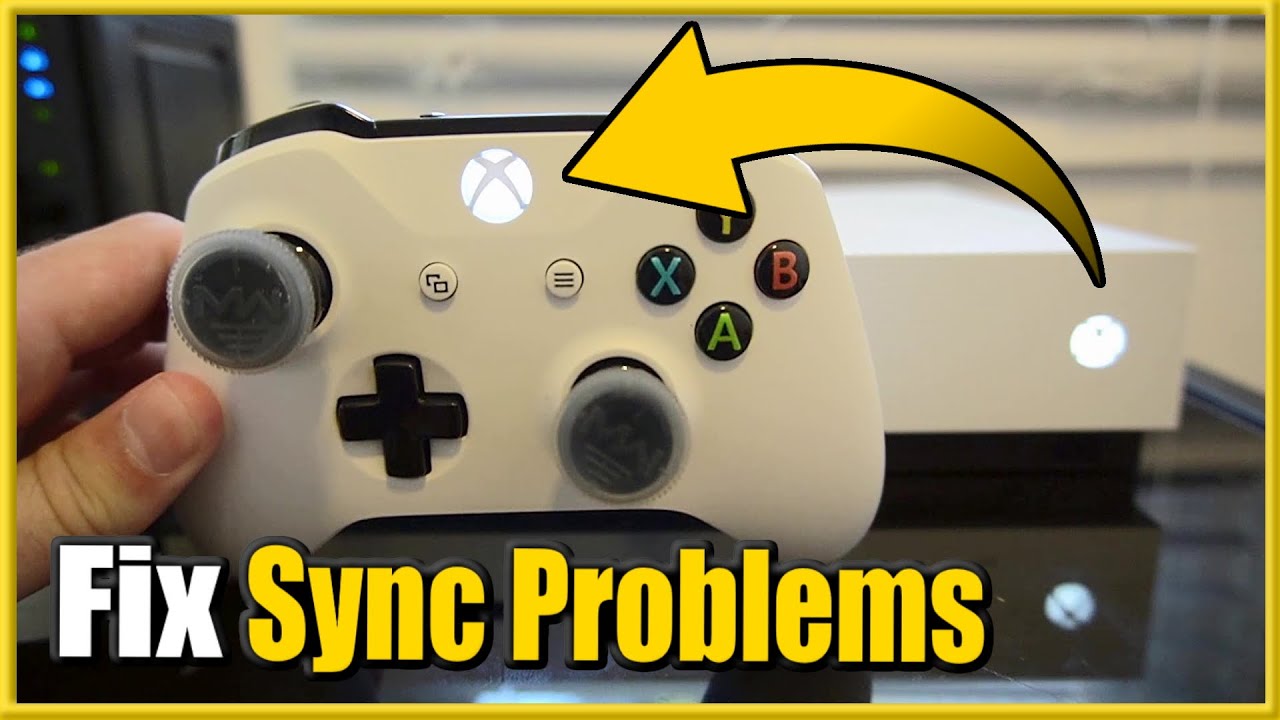
If the controller isn’t paired, it will blink. On Xbox, press the sync button on the console, then press the small sync button on the controller. Wait until the light stops blinking. On PC, use Bluetooth settings to pair again.
3. Inspect The Usb Cable
If you use a cable, check for damage. Try another cable if possible. Sometimes the cable works for charging but not for data. Only high-quality cables support both.
4. Move Closer And Remove Interference
Wireless signals can be blocked by walls, microwaves, routers, or other electronics. Move closer to the console and remove obstacles. Turn off other wireless devices if possible.
5. Update Controller Firmware
Connect the controller to the Xbox with a USB cable. Go to settings > Devices & accessories > Controller > Update. On PC, use the Xbox Accessories app from the Microsoft Store.
6. Restart Console And Controller
Turn off the Xbox completely. Unplug it for 30 seconds. Restart the controller by holding the Xbox button for 10 seconds.
7. Try Another Controller
If you have a second controller, see if it connects. If it does, your first controller may be faulty.
8. Reset The Controller
Hold the Xbox button for 10 seconds to turn it off. Turn it back on. This soft reset clears many bugs.
9. Check For Physical Damage
Look for cracks, stuck buttons, or signs of liquid. If you see damage, professional repair may be needed.
10. Test On Another Device
Pair the controller with a PC, phone, or another Xbox. If it connects, the issue is with your console.
11. Factory Reset Console
As a last resort, factory reset the Xbox. This erases all settings, so back up your data first.
Comparison: Wired Vs Wireless Connection Reliability
When your controller blinks, the connection method matters. Wired and wireless each have pros and cons.
| Connection Type | Reliability | Common Issues | Fix Difficulty |
|---|---|---|---|
| Wired (USB) | High | Cable damage, USB port faults | Easy |
| Wireless (Bluetooth) | Medium | Interference, pairing loss | Moderate |
| Wireless (Xbox Wireless) | High | Interference, battery | Easy |
Wired connections are more stable but require a good cable. Wireless can be disrupted by other signals or low battery.
Data: How Often Do Controllers Blink?
Based on surveys from Xbox forums and support sites, around 15% of users report blinking issues at least once per year. Most cases are solved with battery changes or re-pairing. Only about 2% need hardware repair.
| Issue Cause | Percentage of Reports | Easy Fix? |
|---|---|---|
| Battery | 40% | Yes |
| Pairing | 30% | Yes |
| Interference | 15% | Yes |
| Firmware | 10% | Yes |
| Hardware | 5% | No |
As you can see, most blinking problems are easy to fix.
Example: Solving A Blinking Controller
Let’s say your controller blinks after you move to a new room. You try new batteries but it keeps blinking. You move closer to the console, and suddenly it connects. The issue was wireless interference from thick walls and other electronics.
Many users miss this simple fix.
Another common case: you update your Xbox, and the controller starts blinking. Updating the controller firmware through the console fixes it. Beginners often forget firmware updates.
Credit: www.youtube.com
Preventing Future Blinking Problems
You can avoid blinking issues with a few habits:
- Change batteries regularly: Don’t wait until they die. Recharge or replace before every long session.
- Update firmware monthly: Firmware updates fix bugs and improve connection.
- Keep your console in a clear area: Avoid placing it behind TVs or near routers.
- Use quality cables: Cheap cables often fail.
- Pair controllers after major updates: Updates can reset pairing.
- Clean controllers gently: Dust and dirt can cause hardware faults.
- Store controllers safely: Avoid dropping or spilling drinks.
Many gamers overlook firmware updates and cable quality. These are simple steps that prevent blinking issues.
Common Mistakes When Fixing A Blinking Controller
Some mistakes can make the problem worse:
- Using old or low-quality batteries
- Ignoring firmware updates
- Pairing the controller with multiple devices at once
- Using damaged USB cables
- Forgetting to restart the console
Avoiding these errors saves time and trouble.
When To Seek Professional Help
If your controller keeps blinking after all fixes, it may have hardware damage. Signs include:
- Blinking with no response on any device
- Physical damage, like broken buttons or cracks
- Controller won’t turn on at all
Contact Microsoft support or a trusted repair shop. Don’t try to open the controller unless you have experience.
Xbox Controller Models And Blinking Patterns
Different models have slightly different blinking behaviors.
| Model | Blinking Pattern | Common Cause |
|---|---|---|
| Xbox One | Fast blinking | Pairing loss |
| Xbox Series X/S | Slow, steady blinking | Battery low |
| Elite Controller | Blinks twice | Firmware issue |
| PC Bluetooth | Random blinking | Interference |
Knowing your model helps you diagnose blinking faster.

Credit: www.businessinsider.com
Official Resources And Further Help
Xbox has official guides and troubleshooting steps. For in-depth support, visit Xbox Support. They update solutions for new models and firmware.
Frequently Asked Questions
Why Does My Xbox Controller Blink But Not Connect?
The controller blinks when it can’t connect or pair. This may be due to low battery, wireless interference, or lost pairing. Try new batteries, move closer to the console, and re-pair the controller.
Can Blinking Mean My Controller Is Broken?
Not always. Most blinking problems are easy to fix with batteries, pairing, or firmware updates. If the controller blinks on all devices and shows physical damage, it may need repair.
How Do I Update My Controller’s Firmware?
Connect the controller to your Xbox with a USB cable. Go to Settings > Devices & Accessories > Controller > Update. On PC, use the Xbox Accessories app from the Microsoft Store.
Does The Blinking Pattern Tell Me The Problem?
Yes. Fast blinking often means pairing loss, slow blinking means low battery, and double blinking can signal firmware issues. Check your model’s blinking pattern for clues.
Can A Blinking Controller Damage My Xbox?
No. The blinking itself doesn’t harm the console. But using a faulty controller may cause gameplay issues. Always fix or replace blinking controllers for best performance.
If your Xbox controller keeps blinking, don’t worry. Most issues are simple and fixable. With the right steps, you’ll be back in the game quickly. Remember to check batteries, update firmware, and keep your setup clear of interference. If all else fails, official support can help.
Happy gaming!
Credit: www.reddit.com