
When you see your Xfinity modem blinking, it’s easy to worry. Does it mean your internet is down? Is there a bigger problem? Blinking lights on a modem are not just random—they are messages. Each color and pattern tells you something about your network. Understanding these signals can help you fix issues quickly, avoid unnecessary calls to support, and make sure your internet stays fast and reliable. In this guide, you’ll learn what each blinking light means, how to troubleshoot, and when you should ask for expert help.
Why Xfinity Modem Lights Blink
Xfinity modems use lights to show their status. These lights give real-time feedback about connection quality, signal strength, and errors. If you know what the blinking patterns mean, you can solve most problems yourself. Let’s break down the main reasons a modem might blink:
- Startup Process: When you plug in your modem, the lights blink as it connects to the network.
- Data Transmission: Some blinking means data is flowing between your devices and the internet.
- Firmware Update: Modems blink during software updates.
- Connection Issues: Fast or unusual blinking often signals a problem.
Not all blinking is bad. Some signals are normal, while others need your attention.
Understanding Xfinity Modem Light Patterns
Each modem model has its own light system, but most follow similar patterns. Here are the most common light colors and what their blinking means:
Power Light
- Solid: Modem is on.
- Blinking: Booting up or restarting.
Downstream (ds) Light
- Blinking: Searching for a signal from Xfinity.
- Solid: Signal found.
Upstream (us) Light
- Blinking: Trying to send signal to Xfinity.
- Solid: Signal sent.
Online Light
- Blinking: Connecting to the internet.
- Solid: Connection established.
Ethernet/wifi Light
- Blinking: Data is moving between devices.
- Solid: Device connected, not transmitting data.
Color Codes
- Blue/Green: Usually means normal operation or WPS pairing.
- Red/Orange: Often signals a problem.
Below is a quick comparison of typical Xfinity modem lights:
| Light | Solid | Blinking | Color Significance |
|---|---|---|---|
| Power | On | Booting up | Green/White: Normal |
| Downstream | Signal locked | Searching | Blue: High speed |
| Upstream | Signal locked | Searching | Green: Standard |
| Online | Connected | Connecting | White: Normal Red: Error |
| Ethernet/WiFi | Connected | Transmitting | Green/Blue: Active |
Credit: www.reddit.com
Common Causes Of Xfinity Modem Blinking
A blinking modem light is often a sign of a problem, but not always. Here are the most frequent causes:
- Loose or Damaged Cables: If a cable is loose or broken, the modem can’t connect.
- Service Outage: Xfinity may be performing maintenance or facing an outage.
- Firmware Update: The modem updates its software regularly.
- Signal Interference: Electronics near your modem can cause disruptions.
- Overheating: Modems placed in hot spots can malfunction.
- Device Overload: Too many devices connected at once stress the modem.
- Incorrect Setup: Misconfigured settings block your connection.
Below is a data table comparing how often these issues cause blinking lights:
| Issue | Frequency | Typical Fix |
|---|---|---|
| Loose cables | High | Reconnect cables |
| Service outage | Medium | Wait for service |
| Firmware update | Low | Wait, don’t turn off |
| Signal interference | Medium | Move modem |
| Overheating | Low | Cool down device |
| Device overload | Medium | Disconnect some devices |
| Incorrect setup | Low | Check settings |
Step-by-step Troubleshooting For Blinking Xfinity Modem
If your Xfinity modem is blinking, follow these steps to fix the issue. Most solutions are simple and quick.
1. Check All Cables
Look at the power cable, coaxial cable, and Ethernet cable. Make sure each one is plugged in tightly. If a cable looks damaged, replace it. Loose connections cause blinking lights more often than you might think.
2. Restart Your Modem
Unplug your modem from power. Wait 30 seconds. Plug it back in. This reboot clears minor errors and refreshes your connection.
3. Move Your Modem
Place your modem away from microwaves, cordless phones, and other electronics. These devices can interfere with signals, causing blinking and slow speeds.
4. Check For Service Outages
Visit the Xfinity status page or use their mobile app to see if there’s a known outage in your area. If Xfinity is doing maintenance, you may just need to wait.
5. Update Modem Firmware
Modern Xfinity modems often update automatically. If your modem blinks during an update, do not unplug it. Interrupting the process can cause bigger problems.
6. Reduce Device Load
Disconnect devices you’re not using from your network. Too many devices can overload the modem, making lights blink as it struggles to keep up.
7. Factory Reset
If nothing else works, reset the modem to factory settings. Use the small reset button (usually found at the back). Hold it for 10 seconds. Remember, this will erase custom settings.
8. Contact Xfinity Support
If the blinking continues after all these steps, contact Xfinity support. Persistent blinking often needs expert help.
Specific Blinking Patterns And What They Mean
Not all blinking is the same. Here are some common patterns and their meanings:
Fast Blinking Blue
This usually happens during WPS pairing. Your modem is connecting to another device, like a router or printer. If it keeps blinking, the pairing failed.
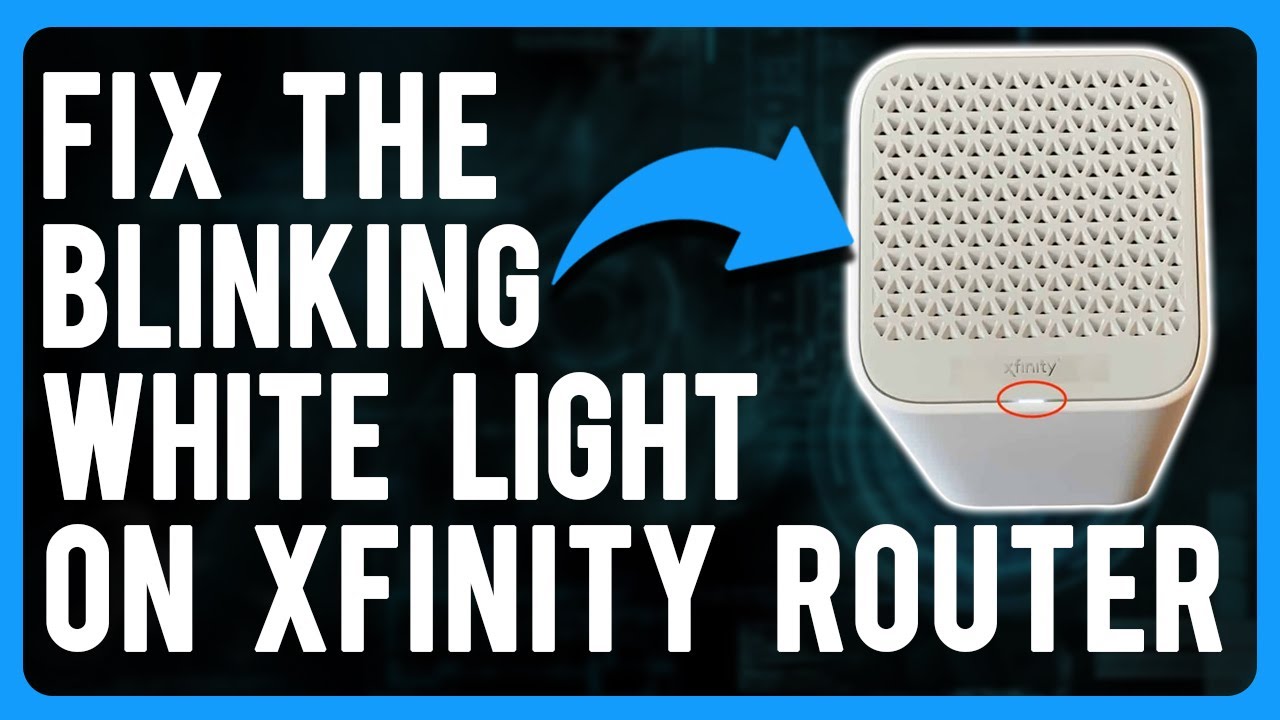
Slow Blinking White
Your modem is trying to connect to the internet. If this lasts for more than five minutes, there may be a signal problem.
Rapid Blinking Red
This means a critical error. The modem can’t connect to Xfinity servers. Check cables and call support if needed.
Alternating Colors
If the modem flashes between blue, green, and red, it’s probably updating firmware. Let it finish—never unplug during updates.
When Is Blinking Normal?
Some blinking is part of regular operation:
- When starting up, lights blink until the modem finds a signal.
- During data transmission, Ethernet or WiFi lights blink.
- During pairing with WPS, blue blinking is expected.
If the blinking stops after a few minutes, you don’t need to worry.
When To Worry About Blinking Lights
You should take action if:
- The online light blinks for more than 10 minutes.
- You see rapid red blinking.
- No lights turn solid after reboot.
- Internet is slow or offline.
These signs usually mean there’s a problem with your connection, hardware, or service.
Comparing Xfinity Modem Vs. Other Brands
Not all modems use the same light patterns. Here’s how Xfinity compares to other popular brands:
| Brand | Light Patterns | Typical Troubleshooting | Common Issues |
|---|---|---|---|
| Xfinity | Multi-color, clear labels | App support, quick reboot | Outage, cable issues |
| Netgear | Mostly green/red | Manual reset, firmware update | Firmware bugs |
| Arris | Blue/green, few labels | Web interface reset | Signal loss |
| Linksys | Blue/white, icon-based | App, cable check | WiFi drops |
Xfinity modems are easier for beginners because their lights are labeled, and the support is strong. Other brands may require more technical knowledge to read the signals.
Credit: www.reddit.com
Advanced Troubleshooting Tips
If basic steps don’t work, try these advanced solutions:
Check Signal Strength
Visit the modem’s web interface (usually 10.0.0.1) and log in. Look for downstream/upstream power levels. Normal values are:
- Downstream: -8 to +8 dBmV
- Upstream: 38–48 dBmV
If outside these ranges, contact Xfinity.
Replace Splitters
If your modem is connected through splitters, remove them and connect directly. Splitters can weaken the signal, causing blinking.
Try A Different Outlet
Plug your modem into a different power outlet. Sometimes, outlets don’t supply enough power.
Update Device Drivers
If you use your modem as a router, make sure device drivers (especially WiFi adapters) are up to date.
Log Connection Events
Many Xfinity modems have logs. Check for error messages or repeated connection drops. This helps Xfinity support diagnose your issue.
Real-life Examples And Insights
Many users think blinking lights always mean a problem. But sometimes, the issue is temporary. For example, one customer noticed their modem blinked every evening. It turned out that a neighbor’s new cordless phone interfered with the signal. Moving the modem fixed the problem.
Another user had rapid red blinking and called support. The technician found a damaged coaxial cable outside the house. Replacing it solved the issue.
Non-obvious insight #1: The placement of your modem matters. Putting it near windows or metal objects can cause blinking due to signal reflection.
Non-obvious insight #2: Splitters and long cables reduce signal strength. If you use a splitter for TV and internet, try direct connection during troubleshooting.
How To Prevent Xfinity Modem Blinking Problems
You can avoid most blinking issues with these tips:
- Check cables monthly: Make sure they are tight and undamaged.
- Keep modem cool: Place it in a ventilated area.
- Update firmware: Let your modem update automatically.
- Limit device number: Disconnect devices you don’t use.
- Avoid signal interference: Keep electronics away from the modem.
What If You Need A New Modem?
If your modem keeps blinking despite troubleshooting, it may be time for a replacement. Signs you need a new modem:
- Lights never turn solid.
- Frequent connection drops.
- Modem overheats often.
- Device is older than 5 years.
Xfinity offers rental and purchase options. You can check compatibility at their official site or at Xfinity Approved Modems.
Frequently Asked Questions
What Does A Blinking White Light On My Xfinity Modem Mean?
A blinking white light usually means your modem is trying to connect to the internet. If it blinks for a short time, this is normal. If it keeps blinking for more than 10 minutes, check cables and reboot the modem.
Why Does My Xfinity Modem Blink Blue?
A blue blinking light is often seen during WPS pairing. This is when you connect the modem to another device, like a router or printer. If it continues blinking, the pairing may have failed. Try pairing again or restart your modem.
Is It Normal For My Modem’s Lights To Blink During Firmware Updates?
Yes, blinking lights during firmware updates are normal. The modem updates its software to improve performance and security. Never unplug your modem during this process, as it can cause errors.
How Can I Fix A Blinking Red Light On My Xfinity Modem?
A blinking red light means a critical error. Start by checking all cables, reboot the modem, and look for service outages. If the problem continues, contact Xfinity support.
What Should I Do If Blinking Persists After Troubleshooting?
If blinking persists after all basic steps, try advanced troubleshooting: check signal strength, remove splitters, use a different power outlet, and check modem logs. If these steps don’t help, your modem may need replacement or professional repair.
Final Thoughts
A blinking Xfinity modem is a common issue, but it’s rarely something you can’t fix. By understanding what the lights mean and following clear steps, you can solve most problems yourself. Remember, not all blinking is bad—sometimes, it’s just your modem doing its job.
But if the lights never settle or you lose connection, take action right away. With these tips, you’ll keep your internet stable and avoid headaches. If you need more help, don’t hesitate to reach out to Xfinity or check their support resources.
Credit: www.youtube.com