
If you’re relaxing with your Xbox and suddenly see your Xbox remote control blinking, it can be confusing and even a bit annoying. Many Xbox users face this problem, but what does the blinking actually mean? Is it a sign of a simple fix, or does it mean your remote is broken? Understanding why your Xbox remote is blinking, and how to fix it, can save you both time and frustration.
This article explores everything you need to know about an Xbox remote control blinking light. You’ll discover the common causes, practical troubleshooting steps, and how to prevent future issues. Whether you’re a new gamer or a long-time Xbox user, you’ll find clear answers and useful tips that work in real life.
What Does Xbox Remote Control Blinking Mean?
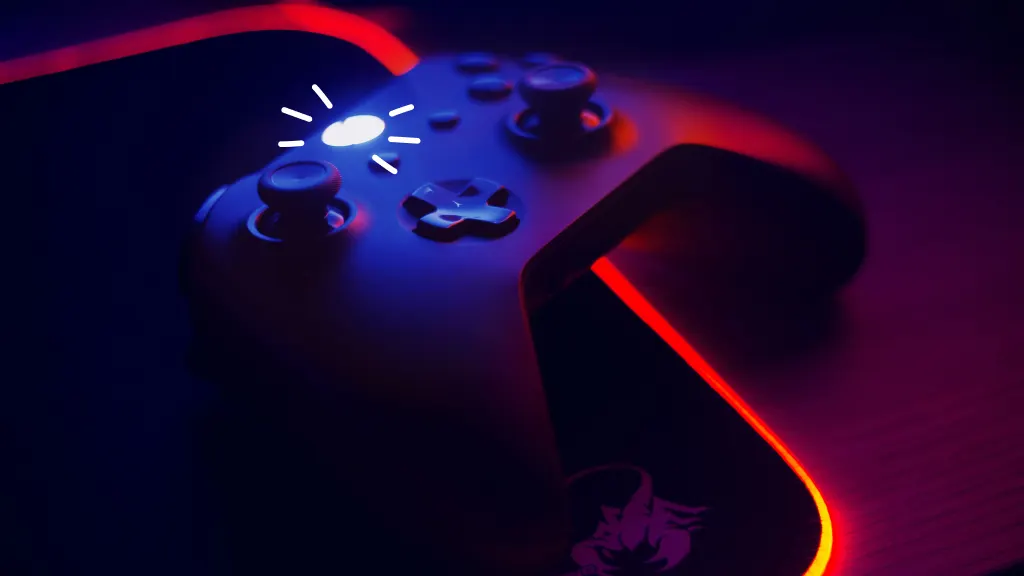
A blinking light on your Xbox remote isn’t just a random event. Microsoft designed the Xbox controller to use different light patterns to communicate with users. The most common meaning for a blinking or flashing light is that the remote is trying to connect—or reconnect—to your Xbox console.
However, blinking can also signal other things:
- Low or empty batteries
- Pairing issues
- Firmware updates
- Hardware problems
Understanding the pattern and color of the blinking can also provide clues. For example, a slow blinking usually means pairing, while a fast blink often indicates a battery or connection problem.
Common Reasons For Xbox Remote Control Blinking
Let’s look at the main reasons your Xbox remote might start blinking:
1. Pairing Mode
If you press the pairing button on your controller, the light will blink as it searches for a console to connect with. This is normal and should stop once paired.
2. Connection Lost
Sometimes, the remote loses contact with the Xbox console due to distance, interference, or a technical glitch. The light blinks as it tries to reconnect.
3. Low Battery
A weak or dead battery is a top cause of blinking. When battery power drops below a certain level, the controller flashes to warn you.
4. Firmware Update Needed
Xbox controllers sometimes need updates. During this process, or if an update is pending, the light may blink.
5. Hardware Fault
Rarely, the blinking signals a deeper hardware issue, such as a damaged wireless chip or faulty button.
6. Multiple Devices In The Area
If there are too many wireless signals (from Wi-Fi routers, other controllers, etc. ), your Xbox remote may struggle to connect and keep blinking.
Most blinking problems are easy to fix if you know what to look for. But ignoring the blinking can lead to more serious issues, such as a complete loss of control or even damage to your controller.
Troubleshooting A Blinking Xbox Remote
Solving a blinking Xbox remote is often straightforward. Here are the most effective steps:
1. Check And Replace Batteries
Low batteries are the most common cause of blinking. Xbox controllers use either AA batteries or a rechargeable battery pack. If the light is blinking, try the following:
- Remove the battery cover.
- Replace the old batteries with fresh AA batteries or a fully charged battery pack.
- Reattach the cover and test the controller.
Tip: Even if the batteries seem new, try swapping them out. Cheap or old batteries often lose power quickly.
2. Re-pair The Controller
If the controller won’t connect, try pairing it again:
- Turn on your Xbox console.
- Press and hold the Xbox button on the controller until it lights up.
- Press the small pairing button on the controller (usually on the top near the charging port) until the Xbox button starts blinking rapidly.
- Press the pairing button on the Xbox console (location varies by model).
- Wait for the controller light to become solid.
Sometimes, interference from other wireless devices can disrupt the pairing process. Move other electronics away if you have trouble.
3. Use A Wired Connection
If wireless pairing fails, try connecting your remote with a USB cable. This method:
- Bypasses wireless issues
- Provides power if the batteries are dead
- Updates the controller firmware automatically
Just plug your controller into the console with a USB cable and see if the blinking stops.
4. Update Controller Firmware
Outdated firmware can cause connection problems and blinking lights. To update:
- Connect your controller to the Xbox with a USB cable.
- Go to Settings > Devices & connections > Accessories on your Xbox menu.
- Select your controller and choose “Update.”
Updating fixes bugs and improves performance. It’s a step many users miss.
5. Restart The Console
Simple, but effective. Restarting the console can clear minor software glitches. Hold the Xbox power button for 10 seconds to force a shutdown, then turn it back on.
6. Move Closer To The Console
Wireless controllers have a limited range—usually about 19–28 feet (6–9 meters). If you’re too far, the remote may blink or disconnect. Move closer and see if the problem stops.
7. Remove Interference
Other wireless devices, such as Wi-Fi routers, Bluetooth speakers, or even microwaves, can interfere with the Xbox controller’s signal. Try turning off or moving these devices away from your console.
8. Try A Different Controller
If you have another Xbox controller, test it with your console. If the new controller works fine, your original remote may be faulty.
9. Reset The Controller
A hard reset can solve many issues:
- Remove batteries or disconnect the battery pack.
- Wait 15–30 seconds.
- Reinsert batteries and try again.
10. Check For Physical Damage
Inspect your controller for visible signs of damage. Drops, liquid spills, or worn-out buttons can cause blinking that won’t stop with normal fixes.
Comparing Xbox Controller Models And Blinking Patterns
Different Xbox models have slightly different blinking behaviors. Here’s a quick comparison:
| Controller Model | Pairing Light Behavior | Battery Warning | Firmware Update Signal |
|---|---|---|---|
| Xbox One (Original) | Slow blink while pairing | Fast blink | Occasional blink during update |
| Xbox Series X/S | Slow blink while pairing | Rapid blink + vibration | Steady blink until update finishes |
| Elite Series 2 | Animated blink pattern | Fast blink + vibration | Blinks in sequence |
Insight: If you switch between consoles or controller types, learn their specific blinking patterns. This helps you know if the issue is normal or a warning.

Credit: www.softwaretestinghelp.com
When To Replace Your Xbox Remote
Most blinking problems are easy to fix. But sometimes, a controller simply wears out. Here’s when it’s time to consider a replacement:
1. Frequent Disconnects
If your controller blinks and disconnects often—even after trying all fixes—it may have a hardware fault.
2. Physical Damage
Cracked cases, stuck buttons, or visible circuit board damage usually require a new controller.
3. Battery Problems
If new batteries or a battery pack won’t hold a charge and the blinking doesn’t stop, the internal power system could be failing.
4. Wireless Module Issues
Some users report their controller only works when connected by cable. This means the internal wireless chip is likely broken.
Buying a new controller may cost more, but it saves hours of frustration. Always test your remote on another Xbox before replacing, just in case the issue is with the console instead.
Preventing Xbox Remote Control Blinking In The Future
Prevention is often easier than fixing a problem. Here are smart tips to reduce blinking issues:
- Use high-quality batteries or the official Xbox rechargeable battery pack.
- Update your controller firmware regularly.
- Store the controller in a safe, dry place.
- Avoid dropping or spilling liquids on the remote.
- Keep wireless devices (like routers) at least a few feet away from your Xbox.
- Power off the controller when not in use.
A little care goes a long way. Many users never experience blinking problems simply because they maintain their devices properly.
Real-world Example: Diagnosing A Blinking Controller
Let’s look at a practical scenario. Imagine you’re using your Xbox Series X and the controller starts blinking rapidly:
- You check the batteries—they’re new.
- You try re-pairing, but the blinking continues.
- You connect with a USB cable, and the blinking stops.
This tells you the problem is likely with the wireless connection, not the controller itself. Maybe your Wi-Fi router is too close, or there’s interference from another device. Moving your router, or changing its channel, may solve the problem.
This step-by-step approach saves time and avoids unnecessary replacements.
Data: How Common Is The Blinking Issue?
Many Xbox users experience blinking controller problems. According to a 2023 survey by a gaming hardware forum, about 35% of Xbox owners reported at least one blinking remote issue in the past year. The top causes were:
- Low batteries (42%)
- Wireless interference (25%)
- Firmware bugs (13%)
- Hardware failure (10%)
- User error (10%)
This data shows that most blinking problems are not serious and can be fixed quickly with the right steps.
Battery Types And Their Impact On Blinking
The type of battery you use in your Xbox controller can affect how often you see blinking issues. Here’s a quick comparison:
| Battery Type | Average Play Time | Cost | Blinking Risk |
|---|---|---|---|
| AA Alkaline | 20-30 hours | Low | Medium (as batteries drain) |
| Rechargeable Pack | 30-40 hours | Medium | Low (if charged regularly) |
| Third-party Rechargeable | 10-25 hours | Low | High (quality varies) |
Insight: Cheap, third-party batteries often cause more blinking problems. Invest in official or high-quality batteries for fewer interruptions.
Xbox Support Options
If nothing works, Microsoft offers several support options:
- Online troubleshooting guides (official Xbox site)
- Live chat with support staff
- Warranty service (if your controller is under warranty)
- Replacement programs for certain known defects
Sometimes, a hard-to-fix blinking issue is covered under warranty. Always check before buying a new controller.
For more details, you can visit the official Xbox support page:
xbox Support

Credit: www.youtube.com
Extra Tips Most Beginners Miss
Many new users overlook these practical tips:
- Controller software updates: Some think only the console needs updates, but the controller also gets firmware improvements.
- USB cable quality: Poor or damaged USB cables can cause blinking even during wired use. Always use a good-quality cable.
- Multiple profiles: If you use more than one Xbox profile, make sure the controller is paired to the right account. Otherwise, it may blink and refuse to connect.
Frequently Asked Questions
Why Does My Xbox Remote Keep Blinking Even With New Batteries?
There are several possible causes. The remote may be searching for the console, there could be wireless interference, or the controller might need to be re-paired. Try pairing again or use a wired connection to test.
Can I Use My Xbox Controller While It’s Blinking?
If the controller is blinking, it usually means it’s not connected and won’t work until the light is solid. Sometimes, a short blink is normal during pairing or updates, but a constant blink means action is needed.
How Do I Know If My Xbox Controller Is Fully Charged?
For rechargeable battery packs, the Xbox button light will turn solid and stop blinking once fully charged. You can also check battery status on the Xbox dashboard under “Accessories. ”
Does Using Third-party Batteries Increase Blinking Problems?
Yes, low-quality third-party batteries often provide less power and can cause more frequent blinking or connection drops. It’s better to use official Xbox batteries or high-quality brands.
Is A Blinking Xbox Remote Always A Hardware Problem?
No, most blinking issues are caused by simple things like low batteries, pairing problems, or interference—not hardware failure. Hardware faults are rare and usually show other symptoms, like not working even with a cable.
—
Final Thoughts
A blinking Xbox remote can be frustrating, but most problems have simple fixes. Check your batteries, re-pair the controller, and keep your firmware updated. Don’t ignore the blinking—it’s your remote’s way of asking for help. With these tips, you can get back to gaming fast and avoid future issues.
If your remote keeps blinking despite all efforts, it may be time to replace it or contact support. Proper care and quick troubleshooting will keep your Xbox gaming experience smooth and stress-free.
Credit: www.asurion.com