
If you’ve ever sat down for a long gaming session, only to find your Xbox controller blinking slowly, you’re not alone. This slow blinking light can be confusing and frustrating, especially if you don’t know what it means or how to fix it. In this article, you’ll discover what causes this problem, learn how to solve it, and get tips to prevent it from happening again. Whether you’re a new gamer or an experienced player, understanding the reasons behind a slow blinking Xbox controller can save you time and keep your gaming smooth.
What Does A Slow Blinking Xbox Controller Mean?
When the Xbox controller blinks slowly, it’s not just a random light show. That slow, steady blink is a signal from the controller that something’s wrong with its connection or power supply. Most often, it means the controller is trying to connect to the console but can’t, or it’s having trouble with its battery or pairing.
Understanding the language of your Xbox controller is important. A slow blinking light is different from a fast blink (which usually means pairing mode) or a solid light (which means everything’s working fine). Recognizing these signals can help you act quickly and avoid losing your game progress or getting stuck in menus.
Main Reasons For A Slow Blinking Xbox Controller
Let’s look at the top causes behind a slow blinking controller light. Knowing these can help you troubleshoot the issue faster:
- Low or Dead Batteries: The most common reason. When the batteries are weak, the controller struggles to stay powered and shows a slow blink.
- Lost Connection to Console: If the controller can’t find your Xbox, it blinks slowly while searching.
- Pairing Issues: Sometimes, after updates or switching consoles, the controller needs to be re-paired.
- Firmware Problems: Outdated or corrupted firmware can confuse the controller.
- Wireless Interference: Other wireless devices or thick walls might block the signal.
- Faulty USB Cable or Port: If you’re using the controller with a cable, a bad connection can cause blinking.
Surprisingly, beginners often miss the chance to check the controller’s firmware or forget that interference from Wi-Fi routers or microwaves can affect the connection.
Diagnosing The Problem: Step-by-step
Before jumping to solutions, it’s smart to diagnose the issue. Here’s a simple process:
- Check the Batteries: Remove the battery cover and try new AA batteries or a charged battery pack.
- Test the Connection: Move closer to the console and remove objects between you and the Xbox.
- Try Another Controller: See if a second controller works. This helps you know if the problem is with the controller or the console.
- Try Wired Mode: Connect your controller to the Xbox with a USB cable. If it works, the problem is likely wireless.
- Check for Updates: Use the Xbox Accessories app or console settings to see if firmware updates are available.
Here’s a quick comparison of the most common causes and their symptoms:
| Cause | Typical Symptom | First Step to Try |
|---|---|---|
| Low Batteries | Slow blinking, controller shuts off | Replace batteries |
| Lost Connection | Blinking, doesn’t respond in games | Re-pair controller |
| Firmware Issue | Blinking after update, odd behavior | Update firmware |
| Wireless Interference | Blinking when moving controller | Reduce interference sources |
| Faulty USB Cable | Blinking when wired, not charging | Try new cable/port |
How To Fix A Slow Blinking Xbox Controller
Now, let’s go step by step through solutions, starting with the simplest.
1. Replace Or Recharge Batteries
Weak batteries are the number one cause. Use high-quality AA batteries or a Microsoft-approved rechargeable pack. Remove the old batteries for 10 seconds before inserting new ones. If your controller works after this, your problem is solved.
2. Reconnect The Controller
Press and hold the Xbox button on your controller until it turns off. Wait a few seconds, then press it again to turn it back on. If the controller keeps blinking, use the pairing button:
- On Xbox Series X|S and Xbox One: Press the small pairing button on the console until it blinks.
- Then, press and hold the pairing button on the controller (top edge, next to the USB port) until the Xbox button blinks quickly. When it stays solid, you’re connected.
3. Try A Wired Connection
Use a good-quality USB-C or micro-USB cable (depending on your controller model). Connect your controller to the console or a PC. If the controller works, the wireless signal is likely the problem.
4. Update The Controller Firmware
Outdated firmware can cause connection issues. Here’s how to update:
- Connect the controller to your Xbox or Windows PC with a USB cable.
- Open the Xbox Accessories app on the console or PC.
- Select your controller and look for a firmware update option.
- Follow the instructions to update.
Regular firmware updates can prevent many issues, not just blinking problems.
5. Reduce Wireless Interference
Move your console away from Wi-Fi routers, cordless phones, or microwaves. Make sure there’s a clear line of sight between your controller and the console. Metal shelves, thick walls, and even some TVs can block the signal.
6. Test A Different Usb Cable Or Port
If you use your controller wired, try a new cable and a different USB port on the console or PC. Sometimes, ports or cables fail with age.
7. Reset The Controller
If nothing works, try resetting your controller:
- Turn off the Xbox console.
- Unplug the power cord and wait 30 seconds.
- Reconnect power and turn the console on.
- Pair the controller again.
A reset clears glitches that may cause blinking.
When The Blinking Means A Bigger Problem
While most slow blinking issues are easy to fix, sometimes the controller itself is faulty. If you’ve tried all the steps above and your controller still blinks slowly, look for these signs:
- The controller won’t turn on, even with new batteries and cables.
- None of the buttons respond.
- The controller overheats or smells burnt.
If any of these happen, your controller may need professional repair or replacement. Microsoft offers warranty support for many controllers, and repair centers can often help.
Xbox Controller Models And Their Blinking Patterns
Different Xbox controllers use slightly different signals. Here’s a quick overview to help you understand what your controller is telling you:
| Controller Model | Blinking Pattern | What It Means |
|---|---|---|
| Xbox One (Original) | Slow blink | Searching for console/power issue |
| Xbox One S/X | Slow blink, then fast | Pairing mode |
| Xbox Series X|S | Slow blink, steady after connect | Ready, connected |
| Elite Series 2 | Slow blink, white light | Battery low or connection lost |
Knowing your specific controller model helps you diagnose problems faster. For example, the Elite Series 2 uses a white light instead of green.

Credit: www.softwaretestinghelp.com
Preventing Slow Blinking Issues
You can avoid most controller problems with a few good habits:
- Keep Batteries Charged: Use a charging station or check battery levels often.
- Update Regularly: Firmware updates keep things running smoothly.
- Store the Controller Safely: Avoid dropping or exposing it to dust and liquids.
- Use Official Accessories: Third-party cables and batteries can cause problems.
- Keep Console Firmware Updated: Sometimes the problem is with the console, not the controller.
Many gamers forget to check for firmware updates, focusing only on batteries or cables. Staying up to date is an easy way to prevent connection problems.
Common Mistakes When Troubleshooting
When trying to fix a slow blinking Xbox controller, it’s easy to overlook simple things. Here are mistakes to avoid:
- Skipping Battery Checks: Many people assume the batteries are fine because they “just changed them,” but sometimes new batteries are weak or not installed correctly.
- Ignoring Firmware: Not updating firmware can leave hidden bugs unfixed.
- Using Low-Quality Cables: Cheap cables may not deliver enough power or data.
- Overlooking Interference: Placing the console near routers or metal shelves is a common issue.
- Not Testing with Another Controller: This can quickly show if the problem is with the controller or the console.
A smart move is to always start with the simplest fixes first, then move to more technical solutions. This saves time and avoids frustration.
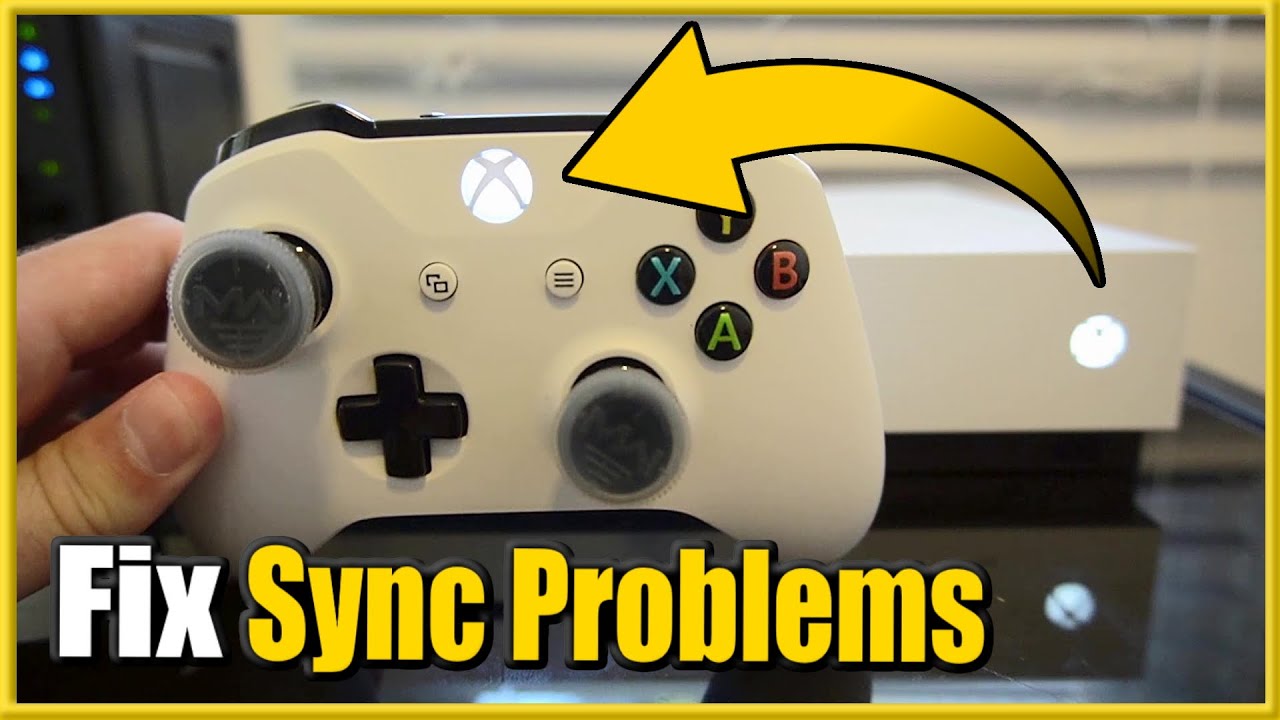
Credit: www.youtube.com
Xbox Controller Blinking And Pc Gaming
If you’re using your Xbox controller with a PC, a slow blinking light can mean slightly different things:
- The PC may not have the correct drivers installed.
- Bluetooth pairing may have failed.
- The USB port may not provide enough power.
Try these steps:
- Check for Windows updates and install the Xbox Accessories app from the Microsoft Store.
- Use a powered USB port on your PC, not a passive hub.
- Remove and re-pair the Bluetooth connection if using wireless.
Some users miss the need for updated drivers, especially after a Windows update. Make sure both your OS and controller are up to date for best results.
What To Do If Nothing Works
If your controller still blinks slowly after all these steps:
- Test with another Xbox or PC to see if the problem follows the controller.
- Check the warranty status on Microsoft’s website.
- Contact Microsoft Support for repair or replacement options.
- Avoid opening the controller yourself, as this can void the warranty.
Sometimes, hardware failures happen even with careful use. Getting help early can save you time and money.

Credit: www.reddit.com
Real-world Example
Let’s look at a real situation. Sarah is a college student who plays Xbox Series S in her dorm room. Her controller started blinking slowly every time she tried to play. At first, she changed the batteries, but the problem continued.
She then noticed her roommate had placed a Wi-Fi router right next to the Xbox. After moving the router to another side of the room, her controller connected instantly.
This example shows that sometimes the cause is not obvious. Checking your surroundings and not just the controller itself can make a big difference.
Quick Fixes Table
Here’s a handy table for when you need a fast solution:
| Problem | Quick Fix |
|---|---|
| Slow blinking, won’t connect | Replace batteries, re-pair controller |
| Blinking after update | Update firmware, restart console |
| Blinking when wired | Try new cable/port |
| Blinking on PC | Update drivers, re-pair Bluetooth |
| Nothing works | Contact Microsoft Support |
Bookmark this chart for quick reference during your next gaming session.
Frequently Asked Questions
Why Does My Xbox Controller Keep Blinking Slowly Even After Changing Batteries?
If new batteries don’t solve the slow blinking, the controller may have lost its connection to the console, or there could be wireless interference nearby. Try re-pairing your controller and moving any electronics or metal objects away from the console.
Sometimes, a firmware update is needed to restore proper connection.
Can A Slow Blinking Xbox Controller Be Fixed Without Buying A New One?
Yes, in most cases you do not need a new controller. Replacing batteries, updating firmware, and reducing wireless interference fix the majority of issues. Only if the controller is physically damaged or fails to turn on after all troubleshooting should you consider a replacement.
Does A Slow Blinking Light Mean My Controller Is Broken?
Not usually. A slow blinking light is a signal about connection or power problems, not hardware failure. Unless the controller shows other signs (like overheating or not turning on at all), you can likely fix it by following the steps in this article.
What Should I Do If My Controller Blinks Slowly Only When Connected To A Pc?
First, make sure your PC has the latest Windows updates and the correct drivers for the Xbox controller. If using Bluetooth, remove the device and pair it again. Try a direct USB connection using a good cable. If the problem continues, use the Xbox Accessories app to check for firmware updates.
Where Can I Find More Support For Xbox Controller Problems?
The official Xbox support website offers detailed troubleshooting and warranty information. For more advanced help, visit Xbox Support for guides and to contact Microsoft directly.
Conclusion
A blinking Xbox controller can interrupt your gaming, but it’s rarely a reason to panic. With a bit of patience and the right steps, you can get back in the game quickly. Next time you see that slow blinking light, you’ll know exactly what to do—and you might even help a friend avoid the same trouble.
Happy gaming!