
When your Roku Stick starts blinking, it can be both annoying and confusing. A tiny light on your device, which you probably never noticed before, suddenly becomes the center of your attention. Is it a sign of a serious problem? Is your streaming night ruined? Many Roku users face this exact situation, and there are several reasons behind a blinking Roku Stick. In this article, you’ll learn what different blinking patterns mean, what might be causing them, and how you can fix the problem confidently—even if you’re not a tech expert.
Understanding The Roku Stick’s Blinking Light
The blinking light on a Roku Stick is not just a random design. It’s a simple way for the device to communicate with you. By noticing the color, speed, and pattern of the blinking, you can often figure out what’s wrong before calling for help. Roku devices usually have a single LED indicator. The location and color of this light can vary by model, but its purpose is the same—to signal the device’s status.
Common Light Colors And What They Mean
- White Light: Usually means normal operation or minor issues.
- Red Light: Signals power or overheating issues.
- Amber/Yellow Light: Sometimes shows up on older models, usually means a connection or setup issue.
The blinking can be slow or fast, steady or irregular. Each pattern points to a different cause. Let’s break down the most common reasons your Roku Stick might be blinking.
Top Reasons Your Roku Stick Is Blinking
If your Roku Stick is blinking, it’s usually one of a few main causes. Here are the most common reasons, along with what the blinking pattern usually means.
1. Power Issues
If the light is blinking red or rapidly blinking white, your Roku Stick might not be getting enough power. This is one of the most frequent problems, especially if you’re using your TV’s USB port to power the device instead of the original power adapter.
Why does this happen?
TV USB ports often deliver less power than a wall adapter. Over time, cables can also wear out or become loose, causing power loss.
Signs:
- Light blinks as soon as you turn on the TV.
- Device restarts or freezes during use.
2. Wi-fi Or Network Problems
A blinking white or amber light often means your Roku Stick is having trouble connecting to your Wi-Fi network. This is common if you’ve changed your Wi-Fi password, moved your router, or if there is interference in your home.
Signs:
- Streaming apps won’t load.
- You see messages like “Not connected” or “Can’t find network.”
3. Remote Pairing Mode
Sometimes, the blinking light is not on the device but on the remote. This usually happens when the remote is in pairing mode—trying to connect to the Roku Stick. If your Roku Stick’s light also blinks at the same time, it might be waiting for remote confirmation.
Signs:
- The Roku doesn’t respond to button presses.
- The remote’s LED also blinks.
4. Software Updates Or System Errors
During a system update, the Roku Stick’s light might blink slowly or stay solid for a long time. If there’s a software error, the blinking can become rapid or unpredictable.
Signs:
- Device is stuck on the Roku logo.
- You see error messages on the screen.
5. Overheating
A red blinking light often means the Roku Stick is getting too hot. This can happen if the device is behind the TV or in a tight space with poor air flow.
Signs:
- Device feels hot to the touch.
- Streaming becomes slow or stops unexpectedly.
6. Hdmi Connection Problems
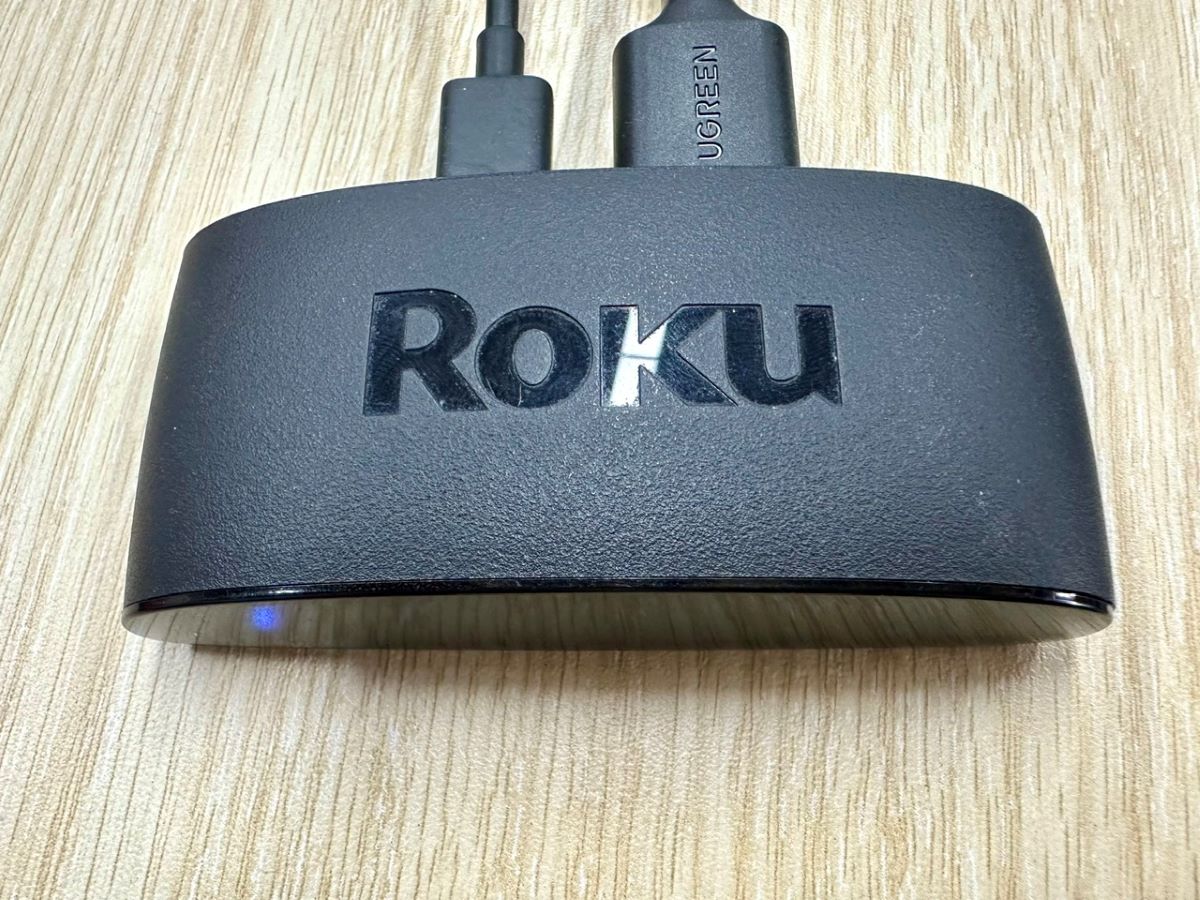
If the Roku Stick’s light blinks when you plug it into the TV, it might not be connecting properly to the HDMI port.
Signs:
- “No signal” message on your TV.
- Light blinks only when touching or moving the device.
Credit: pointerclicker.com
How To Fix A Blinking Roku Stick
The good news is that most blinking issues are easy to fix at home. Let’s look at the steps for each main problem.
Fixing Power Issues
1. Use The Official Power Adapter:
Plug your Roku Stick into the wall outlet using the adapter that came with it. Avoid using USB ports on your TV.
2. Check The Usb Cable:
Try a different cable if the light keeps blinking. Damaged or worn-out cables often cause power problems.
3. Test A Different Outlet:
Plug the adapter into another outlet to rule out power supply issues.
4. Give The Device A Break:
Unplug your Roku Stick for 10 minutes, then plug it back in.
Solving Wi-fi Or Network Problems
1. Restart Your Router And Roku Stick:
Power off both devices, wait a minute, then power them on again.
2. Check Wi-fi Signal Strength:
Move your Roku Stick closer to the router if possible. Walls and furniture can block the signal.
3. Update Network Settings:
Go to Settings > Network on your Roku and reconnect to your Wi-Fi.
4. Avoid Network Overload:
Limit the number of devices using Wi-Fi during streaming.
Pairing The Remote
1. Replace The Remote Batteries:
Weak batteries can cause pairing issues.
2. Press And Hold The Pairing Button:
This button is usually inside the battery compartment. Hold it for 5 seconds until the light blinks.
3. Wait For Confirmation:
The Roku Stick will flash when the remote is paired successfully.
Handling Software Errors Or Updates
1. Wait For Updates To Finish:
Some updates take several minutes. Do not unplug the device during this time.
2. Restart The Roku Stick:
If it’s stuck, unplug it for 30 seconds and plug it back in.
3. Factory Reset (last Resort):
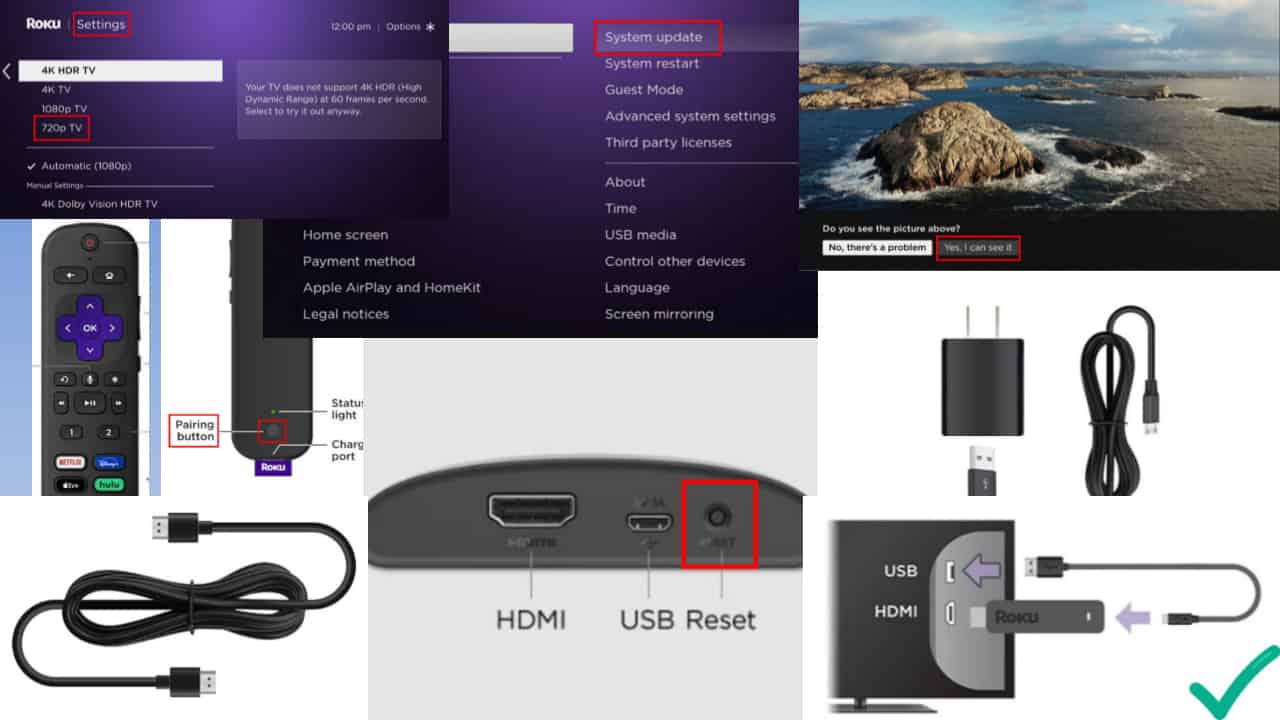
Press and hold the reset button (usually a small hole) for at least 10 seconds. This erases all data, so use only if other steps fail.
Overheating Solutions
1. Improve Air Circulation:
Move the Roku Stick to a spot where air can flow freely.
2. Avoid Placing Behind Hot Tvs:
Some TVs get hot and can transfer heat to the Roku.
3. Give The Device A Break:
Unplug the Roku Stick for 15 minutes if it’s hot.
Fixing Hdmi Connection Issues
1. Use The Hdmi Extender:
Roku provides a free HDMI extender for better placement. Request one from the Roku website if needed.
2. Try A Different Hdmi Port:
Some ports may not work well with streaming sticks.
3. Check For Loose Connections:
Make sure the stick is firmly connected and not hanging loosely.
Recognizing Blinking Patterns: What Do They Mean?
The pattern of the blinking light gives you clues about what’s happening. Here’s a quick comparison to help you identify your issue:
| Blinking Pattern | Common Cause | Quick Fix |
|---|---|---|
| Slow white blinking | Wi-Fi/network issue | Restart router/Roku, reconnect Wi-Fi |
| Rapid white blinking | Power problem | Use wall adapter, replace cable |
| Red blinking | Overheating or low power | Improve airflow, check power source |
| Blinking on remote | Remote pairing | Pair remote, replace batteries |
Advanced Troubleshooting: When Simple Fixes Don’t Work
Most Roku Stick blinking issues are solved with the steps above, but sometimes the problem is deeper. Here’s what you can do if nothing works.
Update Roku Firmware
Outdated firmware can cause unexpected issues. To check:
- Go to Settings > System > System Update.
- Select Check Now to download and install updates.
If your Roku won’t start, try a manual update using a USB drive (details on Roku’s official support).
Check For Interference
Other electronics like microwaves, cordless phones, or Bluetooth speakers can interfere with your Roku’s Wi-Fi signal. Move these devices away from your Roku and router.
Test On Another Tv
To rule out TV compatibility or HDMI port issues, try your Roku Stick on another TV.
Compare Your Setup
Here’s how different power and network setups can affect your Roku Stick:
| Setup | Reliability | Common Problems |
|---|---|---|
| Roku powered by TV USB | Low | Blinking, restarts, power loss |
| Roku powered by wall adapter | High | Rarely blinks, more stable |
| Wi-Fi router in same room | High | Strong connection |
| Wi-Fi router in another room | Medium | Signal drops, blinking |
When To Contact Roku Support
You’ve tried all the fixes, but your Roku Stick is still blinking. At this point, it’s time to get help from Roku support. You should reach out if:
- The blinking light never turns off, even after resets.
- The device does not show any picture on the TV.
- There is a burning smell, or the device is too hot to touch.
- The device is still under warranty.
Roku’s official support can walk you through advanced diagnostics or arrange a replacement if needed. For official help, visit the Roku Support site.
Credit: mspoweruser.com
Preventing Future Blinking Problems
A few simple habits can keep your Roku Stick working smoothly and avoid future blinking issues.
- Use Only Official Accessories: Third-party cables or adapters may not provide enough power.
- Keep the Device Cool: Avoid placing the Roku Stick in tight spots or behind equipment that gets hot.
- Update Regularly: Install firmware updates as soon as they’re available.
- Secure Connections: Make sure HDMI and power cables are plugged in tightly.
- Restart Routinely: Give your Roku Stick a restart every week or two to clear temporary glitches.
Non-obvious Insights Most Beginners Miss
Many first-time users focus only on the blinking light and forget to check the basics. Here are two important tips:
- Not all blinking means failure: Sometimes, a blinking light is normal during updates or remote pairing. Wait a few minutes before trying to fix it.
- TV compatibility matters: Some TVs, especially older models, have underpowered USB ports or compatibility issues with streaming sticks. Testing on another TV can save hours of frustration.
Also, many users overlook the impact of power quality. Even a small surge or unstable power supply can cause random blinking and restarts. Using a surge protector with your Roku Stick can prevent unexpected problems.
How Roku Stick Blinking Compares To Other Streaming Devices
It helps to know how Roku’s blinking light system compares with other popular streaming devices.
| Device | Indicator Light | Common Blinking Reasons | Unique Troubleshooting |
|---|---|---|---|
| Roku Stick | White/Red LED | Power, Wi-Fi, remote pairing, overheating | HDMI extender, official support options |
| Amazon Fire Stick | White/Amber LED | Power, Wi-Fi, software update | Reset with remote button combo |
| Google Chromecast | White/Orange LED | Network, setup, firmware update | Manual firmware flash |
| Apple TV | White LED | Power, HDMI, firmware update | iTunes recovery mode |
As you can see, blinking lights are common across all major streaming devices. Roku’s system is easy to understand, but it’s still important to check power and network first.
Frequently Asked Questions
Why Does My Roku Stick Blink But Still Work Fine?
Sometimes, the light blinks during normal updates or while pairing a remote, but the device continues to function. As long as you have a stable picture and apps work, the blinking is not a problem. However, if it happens often, check for pending updates or loose connections.
Can A Faulty Hdmi Port Cause The Roku Stick To Blink?
Yes, a damaged or loose HDMI port can cause the Roku Stick’s light to blink, especially if the power supply is interrupted. Try a different HDMI port or TV to see if the problem goes away.
What Should I Do If My Roku Stick Blinks After A Power Outage?
After a power outage, the Roku Stick may blink while restarting or updating. Unplug the device for 30 seconds, then plug it back in. If the blinking continues, check your power source and Wi-Fi.
Is It Safe To Use A Third-party Usb Cable Or Adapter?
It’s best to use the official Roku accessories. Third-party cables or adapters may not provide the right voltage or current, leading to blinking lights or even device damage. Always check the cable for signs of wear.
When Is A Blinking Roku Stick A Sign Of Hardware Failure?
If the blinking light never stops, the device gets very hot, or you see no image on your TV after trying all fixes, the Roku Stick may have a hardware problem. In this case, contact Roku Support for further help or replacement.
If you follow these steps and tips, you’ll be able to diagnose and fix most Roku Stick blinking problems on your own. Remember: the blinking light is your device’s way of asking for attention—not always a sign of disaster. Take a deep breath, check the basics, and you’ll be back to streaming in no time.
Credit: www.youtube.com