
If you own a Blink security camera and suddenly see a blinking red light, it can be confusing—and sometimes worrying. Does this mean someone is trying to break in? Is the camera broken? Or is it just a simple issue you can fix yourself?
This guide will help you understand exactly why your Blink camera is blinking red, what it means in different situations, and how to solve it quickly. With clear explanations and practical tips, you’ll know what to do next time that red light appears.
Understanding Blink Camera Status Lights
Blink cameras use colored lights to tell you what’s happening. These lights are small, but they give important signals. The most common colors are blue, green, and red. Each color, and whether it’s steady or blinking, means something different.
- Blue light: Usually means the camera is recording or detecting motion.
- Green light: Indicates a successful connection to Wi-Fi.
- Red light: Signals a problem or alert. Blinking red is a warning.
If your camera is blinking red, it’s not just a decoration. It’s trying to tell you something is wrong. The key is to understand what kind of problem the red light is pointing to.
The Main Reasons A Blink Camera Blinks Red
A blinking red light on your Blink camera almost always means there’s an issue. But what kind? Let’s look at the main causes:
- Wi-Fi Connection Issues: The camera can’t connect to your Wi-Fi network.
- Low or Dead Batteries: The battery is almost empty or already dead.
- Camera Setup Mode: The camera is waiting to be set up or reconnected.
- Firmware Update in Progress: The camera is updating its software.
- Motion Detection Alerts: The camera noticed movement.
- Hardware or Sensor Problems: There’s a physical issue with the camera.
- Server or Account Problems: Blink’s servers are down, or your account has a problem.
Each situation has its own fix. To solve the problem, you need to know which one applies to you.
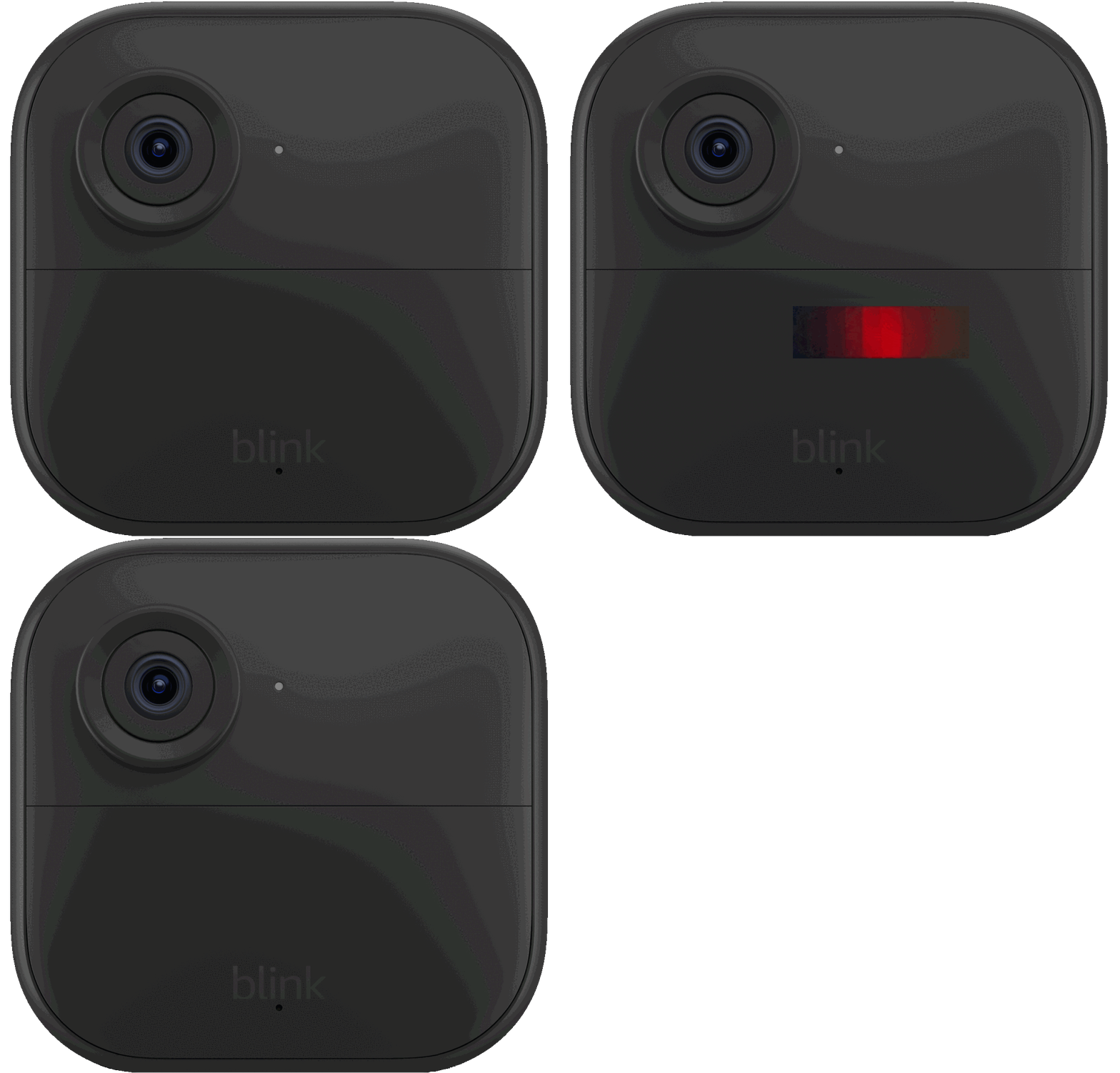
Credit: support.blinkforhome.com
How To Identify The Type Of Red Blink
Not all red blinks are the same. Sometimes the blinking is fast, sometimes slow, or it might be steady. Here’s a quick way to figure out what your camera is trying to say:
| Blinking Pattern | Possible Meaning |
|---|---|
| Slow, regular blink | Wi-Fi connection issue |
| Rapid blinking | Setup mode or firmware update |
| Steady red | Hardware or battery problem |
| Blinks after motion | Motion detected alert |
Watching the light pattern for 10–15 seconds can give you important clues.
Wi-fi Connection Problems
The most common reason for a blinking red light is a Wi-Fi connection problem. Blink cameras need a stable Wi-Fi signal to work. If they can’t connect, they blink red to warn you.
Causes Of Wi-fi Issues
- The router is too far from the camera.
- The Wi-Fi password has changed.
- The internet is down.
- The router has been reset or replaced.
- Interference from walls or electronics.
How To Fix
- Check your Wi-Fi: Make sure other devices can connect.
- Move the camera: Try placing it closer to the router.
- Restart your router: Unplug it for 30 seconds, then plug it back in.
- Re-enter Wi-Fi details: In the Blink app, follow instructions to reconnect.
- Reduce interference: Keep the camera away from microwaves or thick walls.
Pro Tip
Sometimes cameras can connect to 2. 4 GHz Wi-Fi only, not 5 GHz. Check your router’s settings to make sure the right band is enabled.

Credit: www.tischlerei-megat.de
Low Battery Or Power Issues
Blink cameras are known for running a long time on batteries, but no battery lasts forever. A blinking red light often means the power is low.
Signs Of Battery Problems
- The camera light blinks red, then turns off.
- The app says “Battery Critically Low.”
- The camera disconnects often.
What To Do
- Replace the batteries: Use two fresh AA lithium batteries (not regular alkaline).
- Check the contacts: Make sure the battery terminals are clean.
- Avoid rechargeable batteries: These often don’t provide enough voltage.
Data Point
Blink’s official specs say batteries should last up to 2 years with average use. If you’re changing batteries often, the camera may be in a high-traffic area or there could be another issue.
Camera In Setup Or Pairing Mode
If you just bought your Blink camera or have reset it, a blinking red light means it’s ready to pair with the Blink app.
When Does This Happen?
- After pressing the reset button.
- During the first-time setup.
- When moving the camera to a new network.
How To Fix
- Open the Blink app and select ‘Add Device.’
- Follow the prompts to scan the QR code on the camera.
- The red light should turn to blue or green once setup is complete.
Non-obvious Insight
Don’t rush the setup. If you try to connect before the red light starts blinking, the app may not find your camera. Wait until the blinking starts.
Firmware Update In Progress
Sometimes, the camera blinks red during a firmware update. This is when the camera is installing new software to fix bugs or add features.
What To Expect
- The red light blinks quickly.
- The camera may restart itself.
- It usually lasts 1–5 minutes.
What To Do
- Do not unplug or move the camera during an update.
- Wait for the light to stop blinking.
- If it blinks for more than 10 minutes, try restarting the camera.
Common Mistake
Many users unplug the camera during an update, which can cause software corruption. Patience is key.
Motion Detection Alerts
Some Blink cameras blink red for a second or two when they detect motion. This is a normal feature, not a warning.
When Does This Happen?
- The camera senses movement in its field of view.
- The red light blinks briefly, then stops.
What To Do
- No action needed; this shows motion detection is working.
- If you want to turn off the red blink, check the camera settings in the app.
Hardware Or Sensor Problems
If none of the above reasons fit, your camera may have a hardware problem. This is less common but important to consider.
Possible Issues
- The lens or sensor is dirty or damaged.
- Internal components are faulty.
- The camera was dropped or exposed to water.
What To Do
- Inspect the camera: Look for cracks, water, or dirt.
- Clean the lens and sensor area gently with a dry cloth.
- Try a reset: Press and hold the reset button (usually near the battery compartment).
- Contact support: If the problem continues, reach out to Blink for help.
Example
If your camera was working fine but started blinking red after a heavy storm, water damage is possible. Hardware issues often need professional repair.
Server Or Account Issues
Sometimes, the problem is not with your camera or Wi-Fi, but with Blink’s servers or your account.
Signs Of Server Issues
- Multiple cameras blink red at the same time.
- The Blink app won’t connect, but your internet works for other apps.
- You see server error messages in the app.
What To Do
- Check for outages on the Blink status page or on sites like DownDetector.
- Log out and log back in to the app.
- Wait and try again later—most server problems are fixed within hours.
Account Problems
- Make sure your subscription (if any) is active.
- Check that your email and password are correct.
- Update the app to the latest version.
How To Reset A Blink Camera
If you’ve tried everything and the camera still blinks red, a reset can fix many problems. Here’s how:
- Find the reset button: Usually inside the battery compartment for most Blink cameras.
- Press and hold for 10–15 seconds: Use a paperclip or similar tool.
- Release and wait: The camera should blink red, then go into setup mode.
After resetting, you’ll need to add the camera back to your Blink app.
Comparison: Blink Camera Models And Their Red Light Behavior
Different Blink cameras have slightly different behaviors. Here’s a quick comparison:
| Model | Red Light When | Battery Type |
|---|---|---|
| Blink Indoor | Wi-Fi issues, setup, low battery | AA lithium |
| Blink Outdoor | Wi-Fi, setup, water damage alert | AA lithium |
| Blink Mini | Power loss, setup, firmware update | Plug-in only |
| Blink XT2 | Motion, setup, low battery | AA lithium |
Knowing your camera model helps you understand what the red light means.
When To Contact Blink Support
If the red light keeps blinking and you’ve tried all the solutions, it may be time to call Blink support. Here’s when to ask for help:
- The camera has visible damage or has been exposed to water.
- You see error messages that won’t clear.
- The camera will not connect, even after reset and battery change.
Blink’s support team is trained to help with tricky issues and can offer warranty repairs if needed. You can find official support at the Blink Support site.
Preventing Red Light Issues In The Future
A few simple habits can help you avoid red light problems:
- Check your Wi-Fi strength where you plan to install the camera.
- Use only recommended batteries.
- Keep the camera firmware updated.
- Clean the camera lens and body every few months.
- Store your camera indoors during extreme weather if possible.
Real-world Examples
Example 1: Wi-fi Problem
Maria placed her Blink camera in her backyard, far from the router. After a few days, it started blinking red. She moved the router closer, and the red light stopped. The problem was weak Wi-Fi.
Example 2: Battery Issue
John’s Blink Outdoor camera blinked red every few minutes. He had been using regular AA batteries instead of lithium. After switching to the recommended batteries, the camera worked perfectly.
Example 3: Setup Mode
A new camera out of the box blinked red until it was added to the Blink app. After setup, the light turned blue.
Data Table: Common Causes And Fixes
To help you quickly troubleshoot, here’s a summary:
| Cause | How to Fix | Time Needed |
|---|---|---|
| Wi-Fi issue | Check network, move camera | 5–10 min |
| Low battery | Replace with AA lithium | 2–5 min |
| Setup mode | Use Blink app to pair | 5 min |
| Firmware update | Wait, don’t unplug | 1–5 min |
| Hardware problem | Inspect, clean, contact support | Varies |
Two Common Misunderstandings
- Red Light Means Intruder: Many people think a red blink means someone is trying to break in. In reality, it almost always means a technical issue, not a security alert.
- Any Battery Will Work: Using the wrong batteries is a top cause of red blinking. Only use AA lithium batteries for the best performance.
Key Tips For Quick Problem Solving
- Watch the blink pattern and note when it happens.
- Check the Blink app for error messages.
- Don’t ignore the red light; it won’t fix itself.
- Update your app and camera regularly.
- Contact support if you can’t solve the issue in 20–30 minutes.

Credit: support.blinkforhome.com
Frequently Asked Questions
Why Does My Blink Camera Blink Red When I Walk By?
If your camera blinks red briefly when you walk past, it’s simply detecting motion. This is normal and shows the camera is working. If the light keeps blinking, check for Wi-Fi or power issues.
Can I Turn Off The Red Blinking Light?
Some Blink cameras let you turn off the red status light for privacy or stealth. Go to the camera settings in the Blink app and look for the “Status LED” option. Turn it off if you prefer not to see the light.
Does A Red Blinking Light Mean My Camera Is Recording?
Not always. A red blink usually points to a problem or setup mode, not recording. Blink cameras often use a blue light to signal active recording. Check your camera model’s manual for exact details.
What If My Blink Camera Blinks Red After Changing Batteries?
If you see a red blink after putting in new batteries, double-check you’re using AA lithium batteries. If the problem continues, try resetting the camera. Also, make sure the batteries are inserted the right way.
How Do I Know If The Blink Servers Are Down?
If your camera and app both stop working, and other users report problems, the servers may be down. Visit the DownDetector site to see live reports and updates.
Conclusion
Your Blink camera’s red blinking light is there to help you, not to scare you. With a little troubleshooting, you can solve most issues yourself—fast. Just remember to stay calm, follow the steps above, and your camera will be back to protecting your home in no time.