
If you own a Sonos speaker and notice it blinking green, you might feel confused or concerned. What does this flashing light mean? Is your device broken, or is it trying to tell you something important? The green blinking light is one of the most common signals on Sonos devices, but it often causes anxiety for users who haven’t seen it before.
Understanding what the green light means, why it happens, and how to respond can help you solve issues quickly and enjoy your music without interruption.
In this detailed guide, we will break down the reasons behind the Sonos blinking green light, the steps you can take to fix it, and some hidden tips that even experienced Sonos users sometimes overlook. You’ll also find comparison tables, real-world examples, and answers to frequently asked questions—all explained in simple, clear English.
Let’s decode the Sonos blinking green issue together.
What Does The Sonos Blinking Green Light Mean?
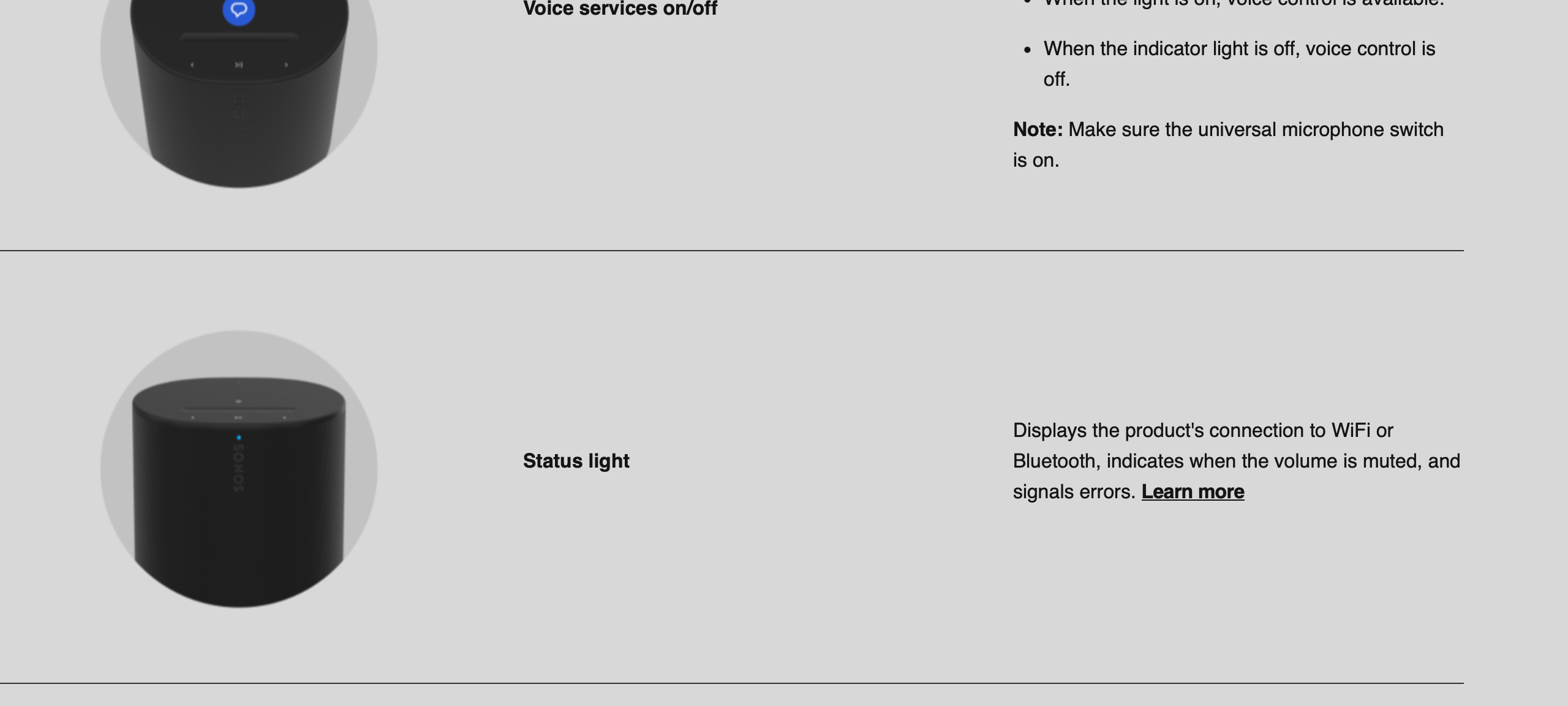
The blinking green light on a Sonos speaker is a clear signal from the device. Sonos uses different colors and patterns to communicate its status. When you see a green light flashing, it usually indicates that the speaker is in setup mode or ready for pairing. In some cases, it can also mean that the device has been reset and is waiting to be added to a new system.
Unlike a red or orange light, a green blinking light is not a warning or error. It’s more of an invitation: your Sonos speaker is ready for you to connect it. However, if the green light keeps blinking and you can’t set up your device, it may point to a problem that needs attention.
Sonos Light Indicators: Quick Overview
Here’s a simple table comparing Sonos light colors and what they mean:
| Light Color/Pattern | Meaning |
|---|---|
| Solid White | Speaker is working normally |
| Blinking Green | Ready for setup or pairing |
| Solid Green | Volume is muted |
| Blinking Orange | Temporary error or overheating |
| Solid Red | Critical error |
Knowing these signals helps you understand your speaker’s status at a glance.
Main Causes Of Sonos Blinking Green
The green blinking light usually relates to setup mode, but there are several specific causes:
- New Device Out of the Box: When you first power on a new Sonos speaker, it blinks green to show it’s ready for setup.
- Factory Reset: After a reset, the speaker flashes green, waiting to be added to a system.
- Unlinked or Removed Device: If you remove a speaker from your Sonos account, it may blink green until re-added.
- Lost Connection During Setup: If setup fails or is interrupted, the device may return to green blinking mode.
- Network Issues: Problems with Wi-Fi or router settings can cause the device to drop off the network and blink green.
- Firmware Update Problems: Rarely, a failed update can push the speaker back to setup mode.
Many users think a green blinking light is always a problem, but often, it just means the speaker is waiting for you to act. However, if you’ve completed setup and the light keeps blinking, it’s time to troubleshoot.
How To Fix A Sonos Blinking Green Light
Resolving the green blinking light is usually straightforward. Here’s a step-by-step guide to get your Sonos back on track.
1. Try Setting Up The Device
If your Sonos device is new or has been reset, open the Sonos app on your phone or tablet. The app should detect the speaker automatically and guide you through setup. Follow the instructions carefully, making sure your phone and speaker are on the same Wi-Fi network.
Tip: Use the latest version of the Sonos app for the smoothest experience.
2. Check Your Network
A weak or unstable Wi-Fi connection can interrupt setup and cause repeated green blinking. Make sure:
- Your router is powered on and working
- The speaker is within range of the Wi-Fi signal
- Other devices can connect to the network
If you have a dual-band router (2. 4 GHz and 5 GHz), try connecting your phone and speaker to the same band during setup.
3. Restart The Speaker
Unplug the power cord, wait 10 seconds, and plug it back in. Sometimes a simple restart can resolve temporary glitches.
4. Reset Only If Needed
Resetting your Sonos device erases all settings and should be a last resort. To reset, press and hold the Join button (it may look like infinity) while plugging in the power. Keep holding until the light flashes orange and white, then green.
Warning: Resetting deletes all settings and removes the speaker from your system.
5. Add The Speaker Again
After a reset or removal, you must add the device back in the app:
- Open the Sonos app.
- Tap “Settings,” then “System.”
- Choose “Add Product” and follow the on-screen steps.
6. Update Your Sonos System
Outdated firmware can sometimes cause issues. In the Sonos app, go to “Settings” → “System Updates” and check for any new updates.
7. Check For Interference
Other wireless devices, thick walls, or microwaves can interfere with the Wi-Fi signal. Try moving the speaker closer to the router or turning off other devices temporarily.
8. Contact Support If Problems Continue
If the green light still blinks after all these steps, there may be a hardware or deeper software issue. Contact Sonos Support for help. They can guide you through advanced troubleshooting or replacement if needed.
Common Mistakes When Dealing With Sonos Blinking Green
Many users repeat the same errors when trying to fix a blinking green light. Avoid these common pitfalls:
- Resetting too quickly: Users often jump to a factory reset before trying easier solutions. Always try setup, network checks, and restarts first.
- Ignoring network setup: Not realizing the phone and speaker must be on the same Wi-Fi band during initial setup.
- Overlooking app updates: Using an outdated Sonos app can cause compatibility problems.
- Misunderstanding light patterns: Confusing the green blinking light (setup) with solid green (muted sound).
- Not checking router settings: Some routers have firewalls or parental controls that block Sonos devices.
Hidden Insights Most Beginners Miss
1. Wired Setup Can Bypass Wi-fi Problems
If you struggle to connect over Wi-Fi, try plugging the Sonos speaker directly into your router using an Ethernet cable during setup. Once added, you can move it back to Wi-Fi.
2. Sonos Boost Can Solve Tough Network Issues
For homes with Wi-Fi dead spots, the Sonos Boost accessory creates a dedicated wireless network for your Sonos devices. This can help if the green blinking light is caused by weak Wi-Fi.
3. Multiple Sonos Systems Need Careful Handling
If you have Sonos speakers in different homes or locations, your app can get confused. Always make sure you’re on the right Wi-Fi network and have selected the correct system in the app.
Real-world Example: Troubleshooting Sonos Blinking Green
Let’s look at a typical scenario. Anna buys a Sonos One speaker and plugs it in. The light blinks green, but when she opens the Sonos app, the speaker doesn’t appear. Anna tries restarting the speaker, but nothing changes.
What solved her problem? Anna realized her phone was connected to her home’s 5 GHz Wi-Fi, but her Sonos speaker only supports 2. 4 GHz. When she switched her phone to the 2. 4 GHz band, the Sonos app detected the speaker instantly, and setup completed without issues.
This shows how small network details can make a big difference.

Credit: www.youtube.com
Comparing Sonos Models And Their Setup Lights
Most Sonos devices use the same color codes, but there are some model-specific details. Here’s a quick comparison:
| Sonos Model | Blinking Green Light? | Other Setup Indicators |
|---|---|---|
| Sonos One | Yes | Join button flashes during pairing |
| Sonos Beam | Yes | Light bar blinks during setup |
| Sonos Move | Yes | Battery light flashes if low charge |
| Sonos Roam | Yes | LED near charging port blinks |
| Sonos Play:5 (Gen 2) | Yes | White light pulses when updating |
The process is similar for most models, but always check your device’s manual for details.
When The Green Light Won’t Stop Blinking
If you’ve tried all normal steps and the green light keeps blinking, the issue might be more serious. Consider these possibilities:
- Hardware Fault: Internal problems can prevent the speaker from completing setup.
- Account Issues: If your Sonos account is blocked or you have changed email addresses, the speaker may not register.
- Network Restrictions: Some guest Wi-Fi networks or business routers block the ports Sonos needs to communicate.
If you suspect a hardware fault, contact Sonos support. For account or network issues, try setting up on a different network or with another device.
Advanced Troubleshooting: Network And Router Settings
Sometimes, your network setup is the real barrier. Here’s a table of common router settings that can block Sonos setup and what to do:
| Router Setting | Problem for Sonos | Recommended Action |
|---|---|---|
| AP Isolation (Client Isolation) | Prevents devices from seeing each other | Disable during setup |
| Firewall Restrictions | Blocks ports Sonos uses | Allow ports 4444, 1400, 3400, 3500, 4070 |
| MAC Address Filtering | Blocks unknown devices from joining | Add Sonos MAC address to allowed list |
| Separate Guest Network | Devices cannot communicate across networks | Connect Sonos and phone to main network |
Adjusting these settings often fixes stubborn blinking green issues.
Preventing Future Sonos Blinking Green Problems
You can avoid most green blinking issues by following a few best practices:
- Keep your Sonos app and speakers updated: Updates add new features and fix bugs.
- Ensure a strong Wi-Fi signal: Place your router in a central location.
- Use a secure but simple Wi-Fi password: Complicated characters can cause setup errors.
- Avoid frequent factory resets: Only reset when necessary.
- Register all devices to your Sonos account: This helps manage them easily if you switch phones or move.
By following these tips, you’ll spend less time troubleshooting and more time enjoying music.
When To Consider Professional Help
If your Sonos device is still blinking green after all troubleshooting, or if you see other colors like red or orange, it’s best to contact Sonos support. They may ask for device logs or guide you through advanced fixes. In rare cases, hardware repair or replacement may be needed.
Some users find that moving to a different home network (like a friend’s house or mobile hotspot) allows them to complete setup. If the device works there, the problem is likely with your original network.
Extra Tips For Advanced Users
- Static IP Assignment: Sometimes, giving your Sonos speaker a fixed IP address in your router settings can improve reliability.
- Network Switches: If you use network switches, make sure they are not blocking multicast traffic, which Sonos relies on.
- Power Cycling All Devices: Restart your modem, router, and Sonos devices together to clear network conflicts.
These steps are more advanced, but they can solve stubborn problems that basic troubleshooting misses.
Credit: en.community.sonos.com
Reliable Resources For Sonos Owners
For more detailed support, visit the official Sonos Support site. Their articles and community forums cover almost every possible issue, from setup to advanced networking.
Frequently Asked Questions
Credit: www.gadgetguy.com.au
What Does A Blinking Green Light On My Sonos Speaker Mean?
A blinking green light means your Sonos device is in setup mode or ready to be added to a system. It’s waiting for you to connect it using the Sonos app. If it continues to blink after setup, it may indicate a network or software issue.
Can I Use My Sonos Speaker While The Green Light Is Blinking?
No, while the green light is blinking, the speaker is not yet set up or linked to your system. You need to complete setup in the Sonos app before you can play music.
How Do I Stop The Green Light From Blinking On My Sonos Speaker?
Follow the setup process in the Sonos app, making sure both your phone and speaker are on the same Wi-Fi network. If the light keeps blinking, try restarting your router and speaker, or reset the device as a last resort.
Will Resetting My Sonos Speaker Fix The Blinking Green Light?
Resetting can fix the issue, but it should only be done if other steps fail. A reset erases all settings and you’ll need to set up the speaker again from scratch.
Why Does My Sonos Speaker Keep Blinking Green After Setup?
If the green light continues after setup, there may be a network problem, firmware issue, or a conflict in your Sonos account. Check your Wi-Fi connection, update your Sonos app and speakers, and ensure your account details are correct.
A blinking green light on your Sonos device is usually nothing to fear—it’s simply your speaker asking for attention. With the right steps, you can quickly solve the problem and get back to enjoying your favorite music. By understanding what the light means and how to respond, you’ll be ready for any future Sonos surprises.