
If you see your SkyBell video doorbell blinking red and green, you might feel confused or worried. This pattern often means your device needs attention, but it’s not always a sign of failure. In this guide, you’ll learn exactly what the red and green blinking means, how to fix common issues, and how to avoid mistakes that many users make. Whether you’re a homeowner, installer, or tech beginner, you’ll find practical steps to get your SkyBell working smoothly again.
What Does Skybell Blinking Red And Green Mean?
When your SkyBell blinks red and green, it’s trying to tell you something important. Most often, this pattern means the device is in sync mode. In other words, it’s ready to connect to your Wi-Fi network or is waiting to be set up.
However, there are other situations where this light pattern appears:
- The device failed to connect to Wi-Fi after a reset.
- There’s a problem with your home’s internet.
- The SkyBell is updating its firmware.
It’s easy to confuse this with an error, but usually, the red and green blinking is a sign that your SkyBell is not yet connected, not that it’s broken.
Common Causes Of Red And Green Blinking
Understanding why your SkyBell blinks this way helps you fix the problem faster. Here are the most frequent causes:
- New Installation or Reset: After you install or reset your SkyBell, the device enters sync mode and starts blinking red and green.
- Wi-Fi Issues: If your Wi-Fi signal is weak, or the password is wrong, SkyBell cannot connect and keeps blinking.
- Firmware Updates: Sometimes, during updates, you’ll see red and green lights. The device may need a few minutes to finish.
- Power Supply Problems: Low voltage or unstable power can cause connection failures and constant blinking.
- App Setup Not Complete: If you didn’t finish the process in the SkyBell app, the device stays in sync mode.
It’s important to watch for other signs, like audio prompts or app notifications, to confirm the exact reason.
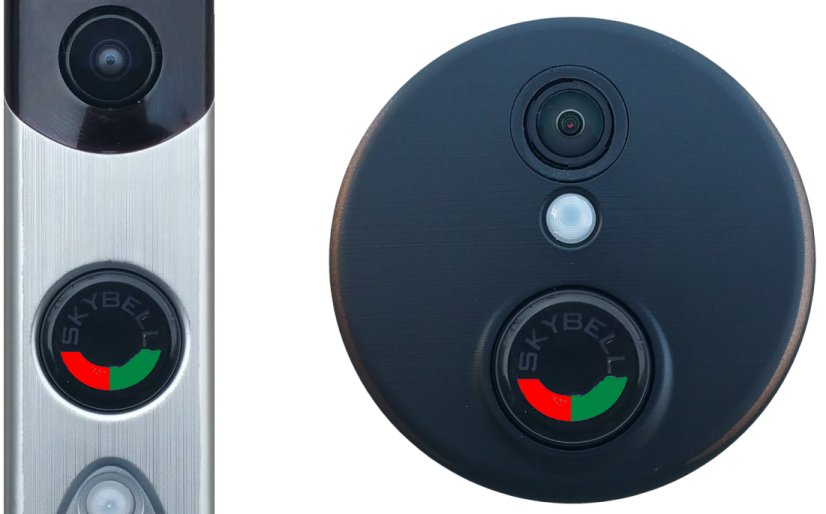
Credit: brinkshome.com
How To Fix Skybell Blinking Red And Green
You can solve most SkyBell issues yourself. Follow these steps in order, and you’ll often find the solution before calling support.
1. Check Your Wi-fi Connection
- Make sure your Wi-Fi network is working and has internet access.
- Test the connection with your phone near the SkyBell device.
- If your signal is weak (under -65 dBm), move your router closer or use a Wi-Fi extender.
2. Power Cycle Your Skybell
- Remove the SkyBell from its mount.
- Wait 30 seconds.
- Reattach it to restart the device.
A simple reset can clear minor software issues.
3. Confirm Power Supply
SkyBell needs a stable 16-24V AC power supply. If the voltage is too low, syncing will fail.
| SkyBell Model | Required Voltage | Common Issues |
|---|---|---|
| SkyBell HD | 16-24V AC | Low voltage, old wiring |
| SkyBell Trim Plus | 16-24V AC | Loose connections |
If you’re unsure, use a multimeter to test the voltage at the doorbell terminals.
4. Reset And Re-sync
- Press and hold the SkyBell button for about 60 seconds until the LED flashes rapidly.
- Wait for the red and green blinking to start again.
- Open the SkyBell app and follow instructions to reconnect.
5. Update The Skybell App
An outdated app can cause sync failures. Download the latest version from the App Store or Google Play.
6. Double-check Your Network Settings
- Make sure your Wi-Fi is 2.4 GHz (SkyBell does not work with 5 GHz networks).
- The SSID (network name) should have no special characters.
- Passwords must be entered correctly.
7. Wait For Firmware Updates To Finish
If the SkyBell is updating, the red and green lights will stop when it’s done. Don’t disconnect power during this stage.
8. Factory Reset (last Resort)
- Hold the button for over one minute until you see a fast red flash.
- Release and wait for the device to start blinking red and green again.
- Set up the device from scratch.
Insight: Many people forget that incorrect voltage is a leading cause of sync issues. Even if your old doorbell worked, SkyBell needs more power than some basic chimes.
Advanced Troubleshooting For Persistent Issues
If your SkyBell keeps blinking red and green after the basic steps, look for deeper problems.
Network Compatibility Problems
Some routers block devices like SkyBell by default. Check your router settings:
- Disable AP/Client isolation
- Enable DHCP
- Make sure MAC address filtering is off
You may need help from your internet provider if you can’t adjust these settings.
Interference From Other Devices
Microwaves, cordless phones, and baby monitors can block Wi-Fi signals. Try turning off nearby devices and see if the problem goes away.
Door Chime Compatibility
Some mechanical and digital chimes don’t work with SkyBell. Here’s a quick comparison:
| Chime Type | Compatible? | Notes |
|---|---|---|
| Mechanical | Yes | Most work, but check voltage |
| Digital | Sometimes | May need adapter |
| Wireless | No | Not supported |
If your chime buzzes or doesn’t ring, you may need an adapter or a different chime.
Account Or App Sync Errors
Sometimes, your SkyBell account has sync issues. Log out of the app, reboot your phone, and log in again. If the device still won’t connect, remove it from your account and add it as a new device.
Non-obvious tip: The SkyBell cloud can sometimes block a device if it was previously installed at a different address or by another user. Always remove the device from old accounts before reinstalling.
When To Contact Skybell Support
If you’ve tried all steps and your SkyBell still blinks red and green, it may be time to reach out for help. Before you call or email, gather this information:
- Model and serial number of your SkyBell
- Your router brand and model
- Details on your chime type and voltage
- Any error messages or audio prompts
This saves time and helps the support team diagnose the problem faster.
You can find official support at the SkyBell Support Center.
Common Mistakes To Avoid
Many users repeat the same errors when fixing a blinking SkyBell. Here’s what to avoid:
- Skipping the Power Check: Don’t assume your wiring is good—test the voltage.
- Using 5 GHz Wi-Fi: SkyBell only works on 2.4 GHz networks.
- Entering the Wrong Password: Double-check for typos, especially with special characters.
- Interrupting Firmware Updates: Never remove power while the device is updating.
- Rushing the Setup: Wait for each step to finish in the app before pressing the next button.
Pro insight: Some users have hidden mesh networks or guest networks with limited access. Always connect SkyBell to your main 2.4 GHz network.

Credit: help.fluenthome.com
How Skybell Compares To Other Video Doorbells
If you’re considering SkyBell or want to see how it stands with others, here’s a quick comparison:
| Feature | SkyBell HD | Ring Video Doorbell | Nest Hello |
|---|---|---|---|
| Wi-Fi Band | 2.4 GHz only | 2.4 & 5 GHz | 2.4 & 5 GHz |
| Power Needed | 16-24V AC | 8-24V AC | 16-24V AC |
| Free Video Storage | Yes | No | No |
| Works With Mechanical Chimes | Yes | Yes | Yes |
SkyBell’s free video storage is a strong advantage, but its single-band Wi-Fi support means you need a compatible network.
Keeping Your Skybell Reliable
Once your SkyBell is working, a few habits can keep it reliable:
- Update the app regularly to avoid sync problems.
- Check wiring connections every 6-12 months, especially in older homes.
- Restart your router monthly to keep your network fresh.
- Clean the camera lens gently with a microfiber cloth for a clear image.
Extra tip: Power surges can sometimes disrupt smart doorbells. If you live in an area with frequent storms, consider a surge protector for your doorbell transformer.
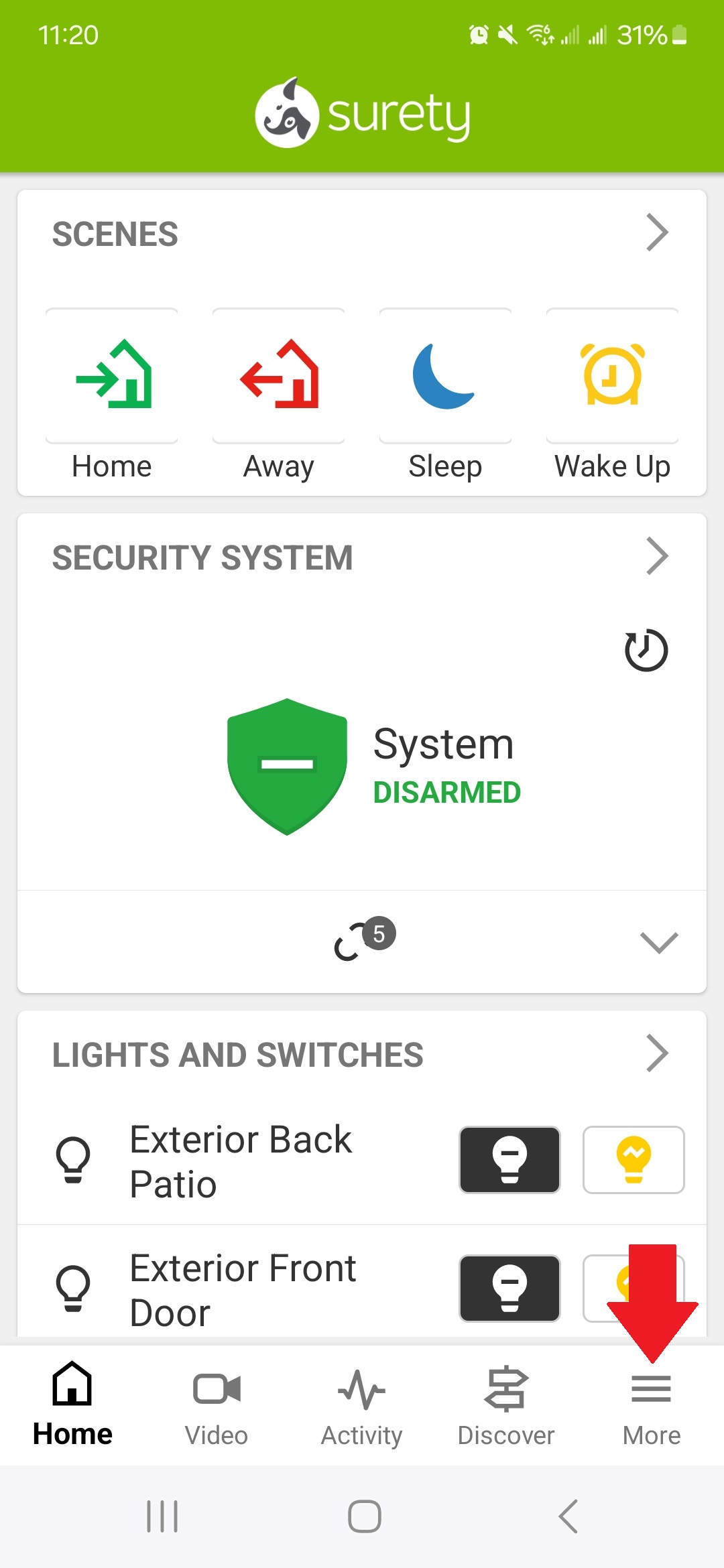
Credit: support.suretyhome.com
Frequently Asked Questions
Why Does My Skybell Blink Red And Green After Setup?
The red and green blinking means the device is still in sync mode and hasn’t connected to Wi-Fi. Double-check your network and restart the setup in the SkyBell app.
Can Skybell Work With 5 Ghz Wi-fi?
No, SkyBell only works with 2.4 GHz Wi-Fi networks. If your router uses 5 GHz, enable a 2.4 GHz band and connect the device to it.
What Voltage Does Skybell Need?
SkyBell requires 16-24 volts AC from your doorbell transformer. Lower voltage can cause sync issues and constant red and green blinking.
How Long Does A Firmware Update Take?
A SkyBell firmware update usually takes 3–10 minutes. Wait until the red and green lights stop blinking. Do not remove power during this process.
Where Can I Find More Help?
Visit the official SkyBell Support Center for detailed guides, contact information, and troubleshooting steps.
Getting your SkyBell out of red and green blinking mode often takes patience and careful steps. By following the tips above and checking your power, Wi-Fi, and app settings, you can solve most problems yourself. Remember, small details—like using the right Wi-Fi band or checking for hidden network settings—often make the difference between endless blinking and a working smart doorbell. With the right approach, your SkyBell will keep your home safe and connected.