
Samsung Solar Remote Blinking Red When Charging
Many Samsung TV owners have noticed their SolarCell Remote blinking red while charging. At first, this light can be confusing or even worrying. Is the remote malfunctioning? Is it charging properly? Understanding what the blinking red light means—and how the Samsung Solar Remote works—can help you avoid unnecessary concern and ensure your remote stays in top condition. Let’s explore what causes this, how to respond, and what steps you should take if the blinking continues.
How The Samsung Solarcell Remote Works
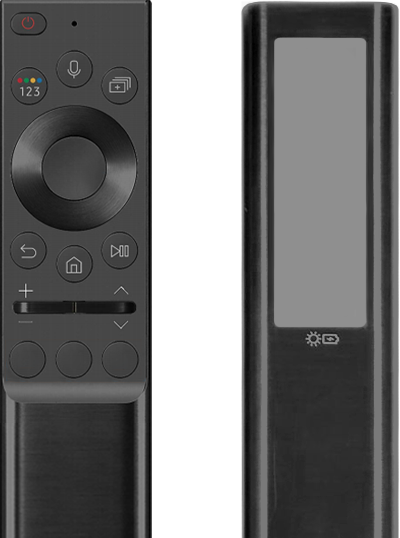
The Samsung SolarCell Remote is a modern replacement for traditional battery-powered TV remotes. It uses a solar panel on the back, allowing it to recharge using indoor or outdoor light. You can also charge it with a USB-C cable if needed.
This design helps reduce battery waste and offers convenience. But, with new technology come new behaviors—like the remote’s blinking red light during charging.
Key Features Of The Solarcell Remote
- Solar charging: Built-in solar panel charges under sunlight or indoor light.
- USB-C charging: Fast and reliable backup charging via cable.
- Eco-friendly: Reduces battery usage and electronic waste.
- LED indicator: Shows charging and operational status.
Charging Methods Compared
Here’s a quick look at the main charging options and their effectiveness:
| Charging Method | Average Time to Full Charge | Convenience | Best For |
|---|---|---|---|
| Sunlight (direct) | 2-3 hours | Moderate | Quickest charge, outdoors |
| Indoor light | 4-6 hours | High | Everyday use, indoors |
| USB-C cable | 30-60 minutes | Very high | Fastest, emergencies |
What Does The Blinking Red Light Mean?
The blinking red LED on your Samsung Solar Remote is a status indicator. It communicates several messages, depending on the situation. Most commonly, it appears during charging or when there’s a problem.
Normal Charging Indication
When you plug in your remote with a USB-C cable or place it under sufficient light, the red LED may blink. This usually means:
- The remote is actively charging
- The battery is not yet full
Once charging is complete, the blinking should stop, or the LED may turn off.
Other Reasons For Blinking Red Light
Sometimes, the blinking red light can mean something else:
- Pairing issue: The remote isn’t connected to your TV.
- Low battery: The remote’s power is very low.
- Malfunction: There’s a technical problem.
Understanding the pattern can help you decide what to do next.

Credit: www.youtube.com
When Is Blinking Red A Problem?
Not every red blink is a cause for alarm. But in some cases, it’s a sign that you need to act.
Normal Vs. Warning Patterns
Here’s a comparison of what different red light patterns mean:
| LED Pattern | Possible Meaning | Action Required? |
|---|---|---|
| Blinking while charging | Charging in progress | No |
| Blinking after charging for hours | Charging issue or battery problem | Yes |
| Fast blinking when pressing buttons | Pairing problem or low battery | Yes |
| Solid red or no light | Fully charged or remote off | No |
If the remote blinks red only during charging and then stops, there’s usually nothing to worry about. If it keeps blinking after charging is complete, that’s when you should investigate.
How To Fix Samsung Solar Remote Blinking Red When Charging
If your Solar Remote’s red light blinks for a long time—or the remote doesn’t work as expected—try these steps:
1. Check Charging Conditions
- Make sure the USB-C cable is firmly connected.
- Use the original cable if possible, as third-party cables may not deliver enough power.
- If using solar charging, ensure the remote is in bright light (natural sunlight works best).
2. Allow Enough Charging Time
Charging from a low battery might take longer—especially with indoor light. Leave the remote charging for at least 1 hour by USB-C or 3-4 hours under sunlight before testing again.
3. Test The Remote After Charging
Remove the remote from the charger and try using it with your TV. If it works and the light stops blinking, the issue is solved.
4. Reset The Remote
Sometimes, a simple reset can clear errors:
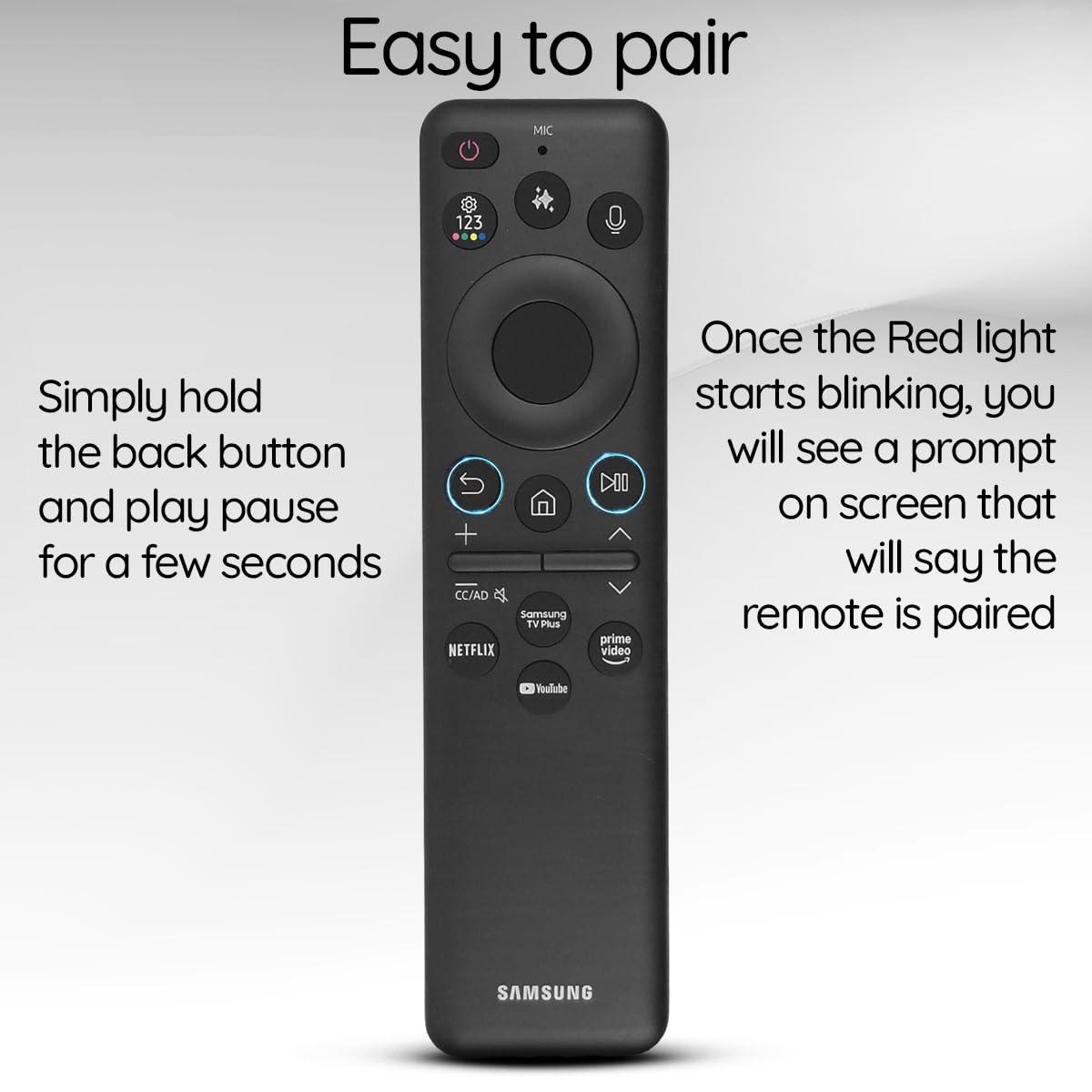
- Press and hold the Back and Play/Pause buttons at the same time for about 10 seconds.
- Release the buttons and wait for the remote to reconnect.
This can fix pairing or firmware issues that cause odd blinking.
5. Re-pair With Your Tv
If the remote still blinks red and won’t control your TV, try re-pairing:
- Turn on your TV.
- Point the remote at the TV.
- Press and hold the Return and Play/Pause buttons together.
- Wait for the pairing message on the TV screen.
6. Inspect For Physical Damage
Check the remote for:
- Cracks or dents
- Damaged charging port
- Dirty solar panel
Clean the solar panel with a soft, dry cloth. Avoid using water or harsh chemicals.
7. Try A Different Charger Or Port
If you’re using USB-C, plug the cable into a different power source or adapter. Some low-power adapters may not provide enough current.
8. Update Your Tv’s Firmware
Sometimes, remote problems are caused by outdated TV software. Go to your TV’s settings, check for firmware updates, and install the latest version.
9. Contact Samsung Support
If all else fails, contact Samsung customer service. Your remote may be faulty or need replacement. Keep your purchase details and model number handy.
Common Myths About The Samsung Solar Remote’s Red Light
Many users make quick assumptions when they see the red light. Here are some common myths—debunked:
- Myth: A blinking red light always means a problem.
- Fact: It often just means the remote is charging.
- Myth: You must always use sunlight to charge.
- Fact: Indoor light and USB-C work fine.
- Myth: The remote is broken if it blinks red for 10–20 minutes.
- Fact: This is normal during the charging process.
These misunderstandings can cause unnecessary stress. Knowing what the light means can save time and hassle.
How To Maximize Solar Remote Battery Life
To get the most out of your Samsung SolarCell Remote, follow these tips:
- Regular charging: Place the remote in bright indoor light or sunlight when not in use.
- Avoid full drain: Don’t let the battery get completely empty.
- Clean the solar panel: Dust and dirt can block light. Wipe gently every few weeks.
- Store in visible places: Avoid leaving the remote under pillows or inside closed drawers.
- Use USB-C sparingly: Only use cable charging when you need a quick top-up.
Troubleshooting: When The Light Won’t Stop Blinking
If your remote blinks red for hours—even after charging—consider these possible issues:
- Battery failure: The rechargeable cell may be faulty.
- Circuit board issue: Internal damage can confuse the LED indicator.
- Charging port damage: Bent or dirty contacts may block proper charging.
- Unsupported charger: Some low-quality adapters fail to provide enough power.
In these cases, replacement may be the only solution. Most remotes are covered by Samsung’s warranty for at least one year.
Real-world Example: How A Blinking Red Light Was Fixed
Sofia bought a new Samsung QLED TV with a SolarCell Remote. After a few weeks, she noticed the remote’s red light blinked continuously whenever she charged it with a USB-C cable. She tried changing the cable and adapter, but nothing worked.
Finally, she reset the remote by holding the Back and Play/Pause buttons together. The blinking stopped, and the remote started working normally. Sofia’s case shows that sometimes a quick reset is all it takes.
Credit: www.amazon.com
How Does The Samsung Solar Remote Compare With Regular Remotes?
You might wonder how the SolarCell Remote stands up to older battery-powered models. Here’s a quick side-by-side look:
| Feature | SolarCell Remote | Traditional Remote |
|---|---|---|
| Power Source | Solar/USB-C rechargeable | Disposable batteries |
| Battery Replacement | Not needed (in most cases) | Every 6-12 months |
| Eco Impact | Low (reduced waste) | High (more batteries) |
| Initial Cost | Higher | Lower |
| Charging Indicator | Yes (LED light) | No |
The SolarCell Remote is designed to be more sustainable and user-friendly, but its unique charging system means users need to understand new signals—like the blinking red light.
When To Seek Professional Help
If your remote:
- Blinks red for more than 24 hours after charging
- Doesn’t work with your TV after reset and re-pairing
- Shows visible physical damage
It’s time to contact Samsung support or visit a certified service center. Trying to open or repair the remote yourself may void the warranty.
Credit: www.samsung.com
Useful External Resource
For more official details on Samsung’s SolarCell Remote, see this guide on the Samsung Support website.
Frequently Asked Questions
Why Does My Samsung Solar Remote Blink Red Only When Charging?
The blinking red light usually means your remote is charging. It should stop once the battery is full. If it keeps blinking for hours, check your charger or reset the remote.
Can I Charge The Samsung Solar Remote Under A Lamp?
Yes, indoor lighting can charge the remote, but sunlight is faster. Make sure the remote’s solar panel faces the light for best results.
How Long Does It Take To Fully Charge The Solar Remote?
Charging with a USB-C cable usually takes 30–60 minutes. Under sunlight, expect 2–3 hours. Indoor lights may need 4–6 hours.
What Should I Do If The Remote Still Blinks Red After Charging?
Try resetting the remote, checking the charger, and re-pairing with your TV. If the problem continues, contact Samsung support for help.
Is It Safe To Leave The Remote Charging Overnight?
Yes, the remote has charging protection and will stop charging when full. However, always use certified cables and adapters.
The Samsung Solar Remote is a step toward greener technology. By understanding the meaning of the blinking red light and knowing how to troubleshoot, you can keep your remote working for years. With simple care and attention, most issues are easy to fix—so you can enjoy your TV without worry.