
If your Roku TV suddenly shows a blinking red light, it’s natural to feel frustrated or confused. This small signal can disrupt your favorite shows and leave you searching for answers. While Roku TVs are known for their reliability, problems like a blinking red light are not uncommon. Understanding what this signal means, what causes it, and how to fix it can save you time and money—and might get your screen working again faster than you think.
This guide will walk you through why a Roku TV blinks red, what steps to take, and when to seek professional help. You’ll also learn what beginners often miss, and how to prevent this issue in the future.
What Does A Roku Tv Blinking Red Light Mean?
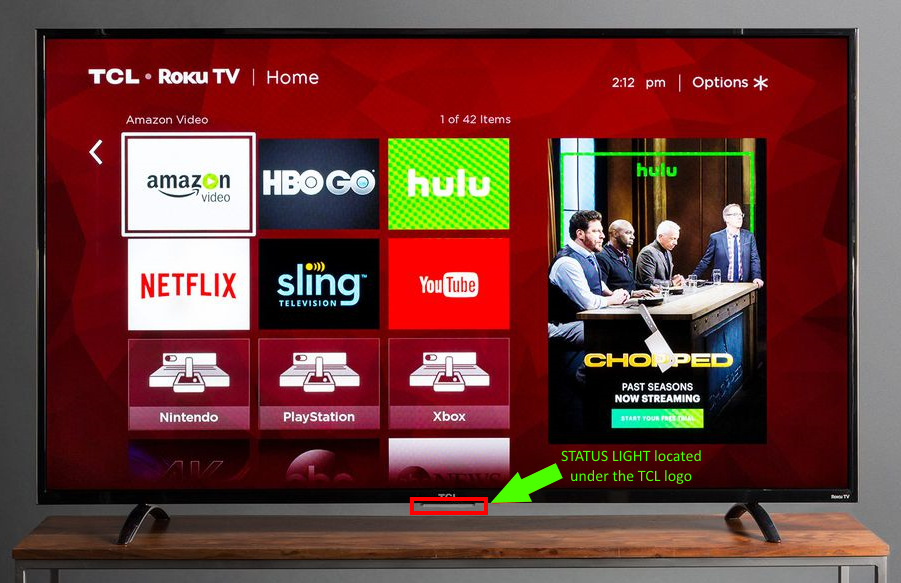
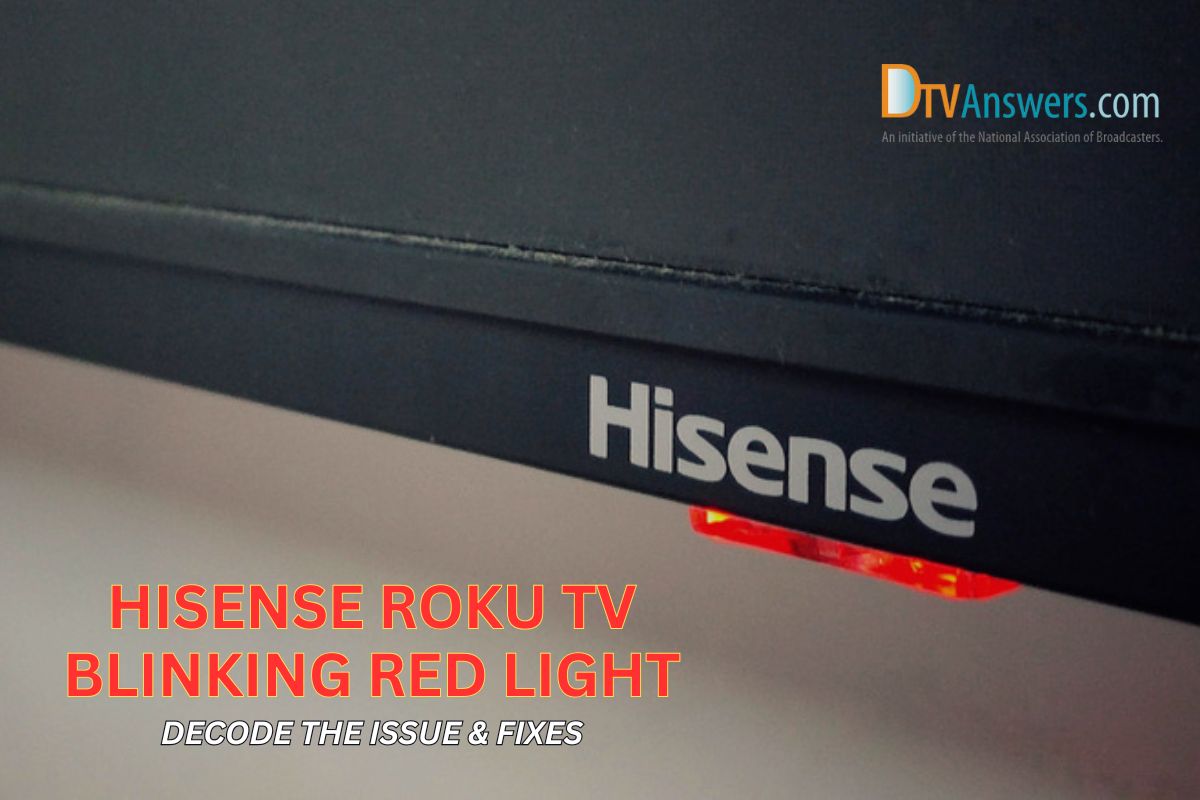
A blinking red light on a Roku TV is not just a random warning. It’s a signal that your TV is experiencing a problem—most commonly related to power supply, hardware malfunction, or internal system errors. The exact meaning can vary depending on the TV model, but most Roku TVs use red blinking lights to indicate:
- Insufficient power: The TV isn’t getting enough electricity.
- Overheating: The device has become too hot.
- Hardware failure: An internal component isn’t working correctly.
- Firmware or software issues: The system cannot boot up properly.
Unlike a solid red light, which usually signals a complete system failure, a blinking pattern often means the TV is trying to recover or alert you to a specific problem.
Common Causes Of The Blinking Red Light
Understanding the root of the problem can help you fix it faster. Here are the most common causes for a blinking red light on Roku TV:
- Power Supply Issues
- Using the wrong power adapter or a weak power source can make the TV blink red.
- Power surges or outages may damage the TV’s power board.
- Overheating
- Poor ventilation or dust build-up inside the TV can cause it to overheat and signal with a blinking red light.
- Faulty Hardware
- Problems with the mainboard, LED strips, or connectors may trigger the warning light.
- Software or Firmware Corruption
- Failed updates or corrupted files can stop the system from booting, making the light blink.
- Loose or Damaged Cables
- HDMI or power cables that are not securely connected can trigger the warning.
- Internal Short Circuit
- Rare, but a short inside the TV can lead to blinking lights.
Initial Troubleshooting: What To Try First
Before you panic or call for repairs, try these basic steps. Many users fix the issue at home with simple actions.
- Check the Power Source
- Plug your TV directly into a wall outlet. Avoid using power strips or extension cords.
- Confirm that the outlet works by plugging in another device.
- Inspect the Power Adapter and Cables
- Use only the original Roku TV power adapter.
- Check for frayed or damaged cables. Replace them if necessary.
- Let the TV Cool Down
- Turn off the TV and unplug it for at least 30 minutes.
- Make sure the vents are free of dust and the TV has enough space around it.
- Soft Reset
- Unplug the TV for 60 seconds, then plug it back in.
- Press and hold the power button on the TV (not the remote) for 10-15 seconds, if available.
- Disconnect External Devices
- Remove all HDMI, USB, and other external devices. A faulty accessory can cause system errors.
- Try a Different Power Outlet
- Sometimes, the problem is with the wall socket, not the TV.
Advanced Troubleshooting Steps
If the basic steps did not solve the problem, it’s time for a deeper look. Here’s how to go further without risking damage.
Firmware Recovery Mode
Some Roku TVs allow you to recover from firmware issues using a USB stick:
- Download the latest firmware from the official Roku support website.
- Copy it to a FAT32-formatted USB drive.
- Insert the drive into the TV’s USB port, and follow on-screen or manufacturer instructions.
Factory Reset
A factory reset can clear software errors, but will erase all your settings and installed apps.
- Locate the physical reset button (often a pinhole on the back).
- Press and hold for at least 20 seconds while the TV is powered on.
- Release and wait for the TV to reboot.
Internal Inspection
If you have some technical skill, check for loose connections inside the TV:
- Unplug the TV and wait a few minutes.
- Remove the back panel (if comfortable and safe).
- Inspect for burnt areas, loose ribbon cables, or dust buildup.
Warning: Opening your TV may void the warranty and can be dangerous. Only do this if you are confident and the TV is out of warranty.
Compare Troubleshooting Steps
Here’s a quick comparison of the most common troubleshooting actions and their estimated success rate:
| Troubleshooting Step | Difficulty | Success Rate |
|---|---|---|
| Unplug & replug TV | Easy | 60% |
| Change power outlet | Easy | 20% |
| Factory reset | Moderate | 30% |
| Internal inspection | Difficult | 10% |
| Firmware recovery | Moderate | 15% |
Most blinking red light issues are solved by simple power cycling or cable checks, but not all.
Credit: support.tcl.com
When To Call For Professional Help
Sometimes, a blinking red light points to a serious hardware problem. If your TV is under warranty, contact Roku or the manufacturer before opening the device. Signs that you need expert help include:
- The blinking red light continues after all troubleshooting steps.
- The TV won’t turn on at all, or the screen stays black.
- You hear popping or see burning smells—this can be a fire hazard.
A professional can check the mainboard, power supply, and other internal parts. They have tools to test for short circuits and replace faulty components.
How To Prevent Roku Tv Blinking Red Light Problems
Prevention is always better than repair. Here are smart habits to keep your Roku TV healthy:
- Use a Surge Protector
- Protects the TV from sudden spikes in electricity.
- Keep Your TV Cool
- Place the TV in a well-ventilated area.
- Clean dust from vents every few months.
- Update Software Regularly
- Allow the TV to install updates for better stability.
- Use Quality Cables
- Avoid cheap power and HDMI cables that can cause issues.
- Unplug During Storms
- If you live in an area with frequent lightning, unplug the TV during storms.
- Don’t Overload Outlets
- Too many devices on one outlet can reduce power stability.
Real-world Examples
To make things clearer, here are a few actual cases:
- Case 1: A user plugged their Roku TV into a cheap power strip. The TV blinked red until they plugged it directly into a wall outlet, solving the problem.
- Case 2: Another user’s TV overheated because it was inside a tight cabinet. After moving it to open space and cleaning the vents, the red light stopped blinking.
- Case 3: In rare cases, an internal board failed due to a power surge. This required professional repair and a new power board.
How Different Blinking Patterns Mean Different Problems
Not all blinking is the same. Pay attention to the number and speed of blinks:
- Rapid blinking: Often points to power or hardware failure.
- Slow, steady blinking: May indicate a firmware or update error.
- Blinking with a beeping sound: Suggests a more serious internal issue.
Check your TV’s manual or the Roku support site for your model’s exact meaning.
Comparing Roku Tv To Other Brands For Red Light Issues
How does Roku TV compare to other smart TVs when it comes to blinking light problems? Here’s a look:
| Brand | Common Cause of Blinking Red Light | User Fix Rate |
|---|---|---|
| Roku TV | Power supply or overheating | High |
| Samsung | Power board failure | Moderate |
| LG | Mainboard issues | Moderate |
| Sony | Firmware corruption | Low |
Roku TVs tend to have more user-fixable issues, especially if the problem is just with power or cables.
What Beginners Often Miss
- Ignoring the Power Adapter: Many users try everything except checking if they are using the correct power adapter. Third-party chargers can cause big problems.
- Ventilation Matters: Dust and poor air flow can cause overheating, but most people rarely clean their TV or check vents.
- Reading the Blink Pattern: Not all red blinks mean the same thing. Counting the blinks or checking for sound codes can give more clues.
Credit: www.dtvanswers.com
Useful Resources
For more technical details and support, visit the official Roku support page. You’ll find guides, software downloads, and contact information.
Frequently Asked Questions
Why Is My Roku Tv’s Red Light Blinking Rapidly?
A rapidly blinking red light usually means a power issue. Check if the power adapter and cables are original and undamaged. Try plugging the TV into a different outlet.
Can A Firmware Update Cause The Blinking Red Light?
Yes, if a firmware update fails or is interrupted, the TV may be unable to start correctly, causing the light to blink. Try a firmware recovery using a USB drive.
Is It Safe To Open My Roku Tv To Fix The Blinking Red Light?
Opening the TV can be dangerous and may void your warranty. Only attempt this if you have technical skills, and the TV is out of warranty. Otherwise, seek professional help.
How Long Should I Unplug My Roku Tv To Reset It?
For a proper soft reset, unplug the TV for at least 60 seconds. Some users also hold the power button (on the TV) for 10-15 seconds after unplugging.
Will A Blinking Red Light Always Mean My Tv Is Broken?
No, a blinking red light does not always mean hardware failure. Often, it’s a simple power or cable issue that you can fix at home. Try the troubleshooting steps before worrying about costly repairs.
A blinking red light on your Roku TV can be worrying, but it’s often fixable. Most problems come from power or simple connection issues. By following the steps above, you can often solve the issue yourself and get back to streaming.
If basic fixes don’t work, don’t risk further damage—professional help may be needed. Remember, prevention through proper care and the right accessories can save you from future problems. Stay calm, follow these tips, and your Roku TV will likely be back to normal soon.

Credit: www.youtube.com