
If you own a Razer Basilisk X Hyperspeed mouse and notice a blinking green light, you’re not alone. This tiny signal can cause confusion or worry, especially if you depend on your mouse for gaming or work. Understanding what the blinking green light means, how to fix it, and how to prevent future issues is important for smooth, reliable use. This article breaks down everything you need to know, using clear language and practical guidance. Let’s dive in and solve the blinking green light mystery.
What Is The Razer Basilisk X Hyperspeed?
The Razer Basilisk X Hyperspeed is a wireless gaming mouse designed for speed and accuracy. It uses Razer’s Hyperspeed Wireless technology, which reduces lag and improves connection stability. The mouse offers up to 285 hours of battery life in Bluetooth mode and up to 450 hours in Hyperspeed mode. It has six programmable buttons and a high-precision 16,000 DPI sensor.
Gamers and office workers both use this mouse because it’s reliable and comfortable. However, the blinking green light issue can interrupt your experience. To fix the problem, you first need to understand what the light means.
What Does The Blinking Green Light Mean?
A blinking green light on the Basilisk X Hyperspeed is not random; it’s a signal from the mouse. Razer uses LED lights to show different states:
- Solid green: Normal operation, battery is good.
- Blinking green: The mouse is in pairing mode or trying to connect.
- Blinking red: Low battery warning.
If your mouse’s green light blinks, it usually means one of these:
- The mouse is trying to connect to a device (PC, laptop, etc. ).
- The mouse is in pairing mode for Bluetooth or Hyperspeed Wireless.
- The connection has been lost, and the mouse is searching for a signal.
Some users mistake this for a battery problem, but usually, blinking green means a connectivity issue.

Credit: manuals.plus
Common Causes Of The Blinking Green Light
Several reasons can trigger the blinking green light. Here are the most frequent causes:
- Lost wireless connection: The USB dongle is not plugged in, or the PC can’t detect the mouse.
- Pairing mode activated: You pressed the pairing button by accident.
- Bluetooth conflict: The mouse is trying to connect to a device but can’t find it.
- Low battery: Sometimes, the mouse blinks before turning red.
- Firmware issue: Outdated software may cause false signals.
Understanding these causes helps you fix the blinking green light faster.
How To Fix The Blinking Green Light
Most blinking green light problems can be solved quickly. Here are step-by-step solutions:
1. Check The Wireless Dongle
- Make sure the USB wireless dongle is plugged into your computer.
- Try another USB port if the light keeps blinking.
- If possible, restart your PC.
2. Re-pair The Mouse
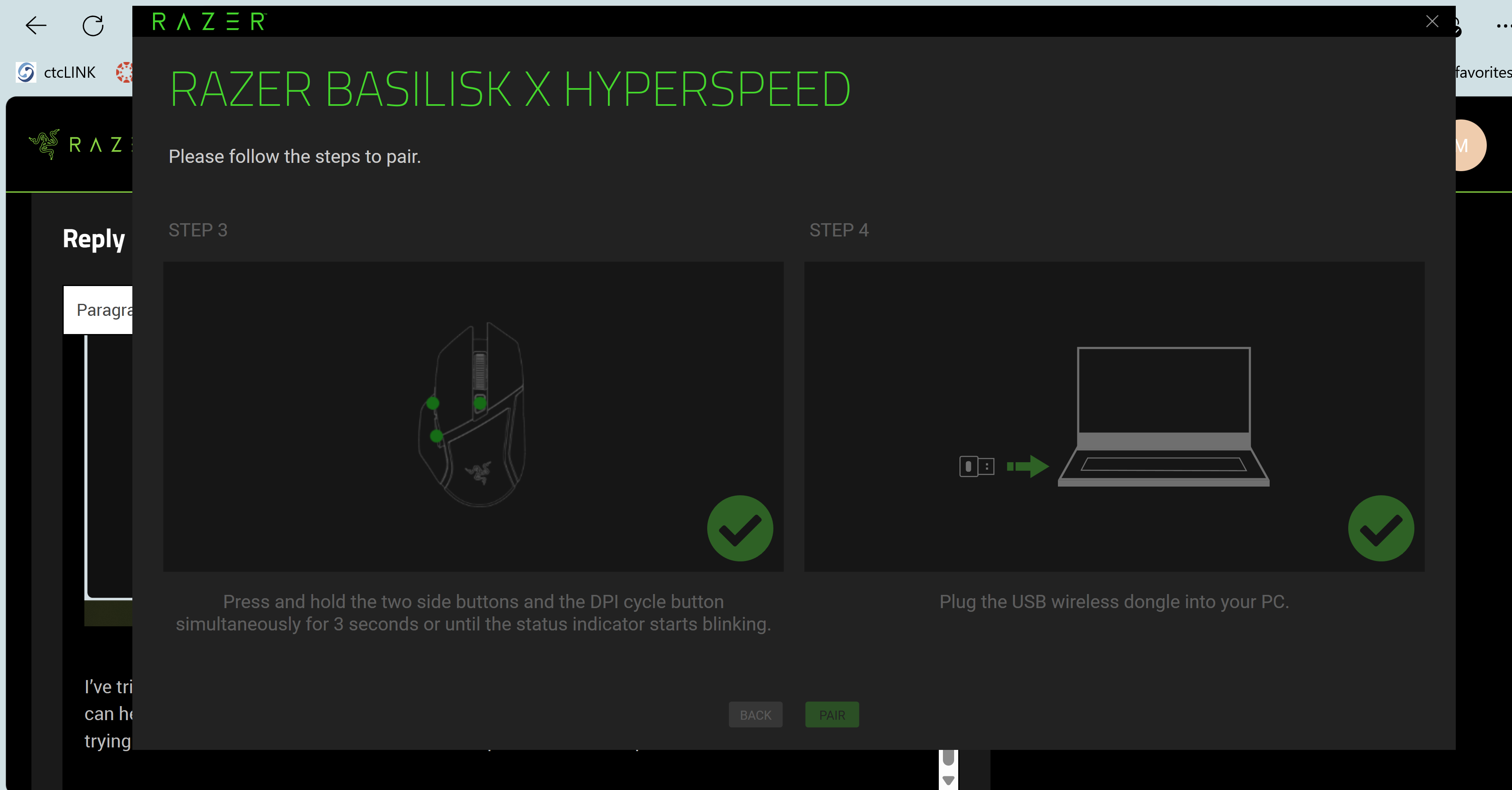
- Press and hold the pairing button under the mouse for 3 seconds.
- The green light should blink faster.
- Open Bluetooth settings on your device and select “Razer Basilisk X Hyperspeed.”
- Wait for the connection to complete.
3. Replace The Battery
- Open the battery compartment.
- Remove the old AA battery and insert a new one.
- Close the compartment and turn the mouse back on.
4. Update Firmware
- Visit the official Razer website.
- Download the latest Razer Synapse software.
- Follow the instructions to update your mouse’s firmware.
5. Reset The Mouse
- Turn the mouse off, wait 10 seconds, and turn it back on.
- If the issue continues, repeat the pairing steps.
These solutions fix most blinking green light issues. If the problem persists, your mouse may need professional repair.
Troubleshooting Checklist
Here’s a quick checklist to help you diagnose the blinking green light:
- Is the dongle plugged in securely?
- Is the battery fresh and installed correctly?
- Are you in Bluetooth mode or Hyperspeed mode?
- Is the PC’s Bluetooth or USB port working?
- Have you updated the mouse’s firmware?
- Did you accidentally activate pairing mode?
- Are other devices interfering with the signal?
By checking these points, you can often find the root cause quickly.
Comparing Wireless Modes
The Basilisk X Hyperspeed offers two wireless modes: Hyperspeed Wireless and Bluetooth. Each mode has its own benefits and issues.
| Feature | Hyperspeed Wireless | Bluetooth |
|---|---|---|
| Speed | Very fast (low latency) | Moderate (higher latency) |
| Battery Life | Up to 450 hours | Up to 285 hours |
| Connection Stability | Very stable | Can drop if devices interfere |
| Use Case | Gaming, fast tasks | Office, general use |
| Dongle Required | Yes | No |
Switching between modes can solve blinking green light issues, especially if one mode is unstable.
Battery Performance And Signals
Battery life is a key feature of the Basilisk X Hyperspeed. However, battery signals can cause confusion. Here’s how the mouse signals battery status:
| LED Signal | Status | Action Required |
|---|---|---|
| Solid Green | Good battery | No action |
| Blinking Green | Pairing or connecting | Check connection |
| Blinking Red | Low battery | Replace battery |
| No Light | Off or dead battery | Replace battery/turn on |
A common mistake is thinking blinking green means low battery. Always check the connection first.
Firmware And Software Issues
Firmware problems can cause blinking green lights. If your mouse is not updated, it may send wrong signals or fail to connect. Updating Razer Synapse often fixes these bugs. Some users ignore software updates, but this is a mistake.
Another insight: Windows updates can sometimes break wireless mouse connections. If your PC recently updated, try rolling back the Bluetooth driver or check device manager for errors.
For Mac users, Bluetooth compatibility can change after system updates. Always check if your Mac supports the latest Razer firmware.
Environmental Factors
Wireless mice can be affected by the environment. Here are two less obvious causes:
- Interference: Other wireless devices (routers, keyboards, headphones) can block the mouse’s signal.
- Distance: If the mouse is too far from the dongle or Bluetooth receiver, the signal drops.
A practical tip: Keep the mouse within 3 feet of the dongle for best performance. Avoid placing the dongle behind metal objects or inside USB hubs.
Real-world Example
Let’s look at a real case:
Maria uses her Basilisk X Hyperspeed for work. One morning, she sees a blinking green light. She checks the dongle—it’s plugged in. She tries changing the battery, but the light keeps blinking. After opening Razer Synapse, she finds an outdated firmware message.
Updating the software fixes the issue.
This shows that blinking green isn’t always a hardware problem; sometimes, software is the cause.
Credit: www.reddit.com
Comparing With Other Razer Mice
How does the Basilisk X Hyperspeed compare with other Razer mice for blinking light issues?
| Mouse Model | LED Signals | Common Issues |
|---|---|---|
| Basilisk X Hyperspeed | Green, Red | Connection, battery |
| DeathAdder V2 | RGB, Red | Firmware, cable |
| Mamba Wireless | RGB, Green | Battery, dongle |
| Naga Pro | RGB, Red | Button mapping, battery |
The Basilisk X Hyperspeed’s blinking green light is unique to its pairing and connection design.
Preventing Future Blinking Green Light Issues
To avoid blinking green light problems:
- Update software regularly: Don’t skip Razer Synapse updates.
- Check battery every month: Use high-quality AA batteries.
- Keep the dongle close: Place it in a front USB port.
- Avoid wireless interference: Keep routers and other wireless devices away from the mouse and dongle.
- Restart your PC: Sometimes, a fresh reboot solves hidden issues.
Many users overlook environmental interference. If your workspace is crowded with electronics, try moving the dongle or mouse.
Credit: insider.razer.com
When To Contact Razer Support
If you’ve tried all fixes and the green light keeps blinking, contact Razer support. Signs you need help:
- The mouse won’t connect to any device.
- The green light blinks even with a new battery and updated software.
- Firmware won’t update or install.
Keep your mouse’s serial number and purchase receipt ready. Razer support can offer advanced troubleshooting or warranty service.
You can find official support at Razer Support.
Frequently Asked Questions
Why Does My Basilisk X Hyperspeed Blink Green After Changing The Battery?
The mouse enters pairing mode after battery replacement. Press the pairing button to reconnect, or restart your PC to reset the connection.
Can The Blinking Green Light Mean My Mouse Is Broken?
Usually not. It means the mouse is searching for a connection. If it stays blinking after following troubleshooting steps, hardware damage is possible but rare.
How Do I Switch Between Hyperspeed And Bluetooth Modes?
Use the mode switch on the bottom of the mouse. Slide it to Bluetooth for pairing, or to Hyperspeed for faster wireless use with the dongle.
Does The Blinking Green Light Drain My Battery Faster?
Yes, if the mouse stays in pairing mode, it uses more power. Fix the connection quickly to save battery life.
What Is The Best Battery For Basilisk X Hyperspeed?
Use high-quality AA alkaline batteries. Rechargeable batteries work but may give shorter life. Avoid cheap batteries—they can cause signal issues.
The blinking green light on the Razer Basilisk X Hyperspeed is a common signal, but it’s easy to fix with the right steps. By understanding the meaning, checking connections, updating software, and keeping your workspace interference-free, you can enjoy smooth mouse performance.
If you ever feel stuck, Razer support is ready to help. With this knowledge, your gaming or work won’t be interrupted by a mysterious blinking green light.