
Many PlayStation 4 owners face a frustrating issue: the PS4 screen blinking. This problem can ruin your gaming experience, make movies unwatchable, and leave you searching for answers. Whether your screen flashes black, flickers with lines, or blinks on and off, the issue can have several causes. This guide helps you understand why your PS4 screen blinks, the main types of blinking, and how to fix each one. You’ll also learn how to prevent the problem from happening again.
Why Does The Ps4 Screen Blink?
The PS4 screen blinking issue usually means there’s a problem with the connection between your PS4 and your display (TV or monitor). Sometimes, the problem comes from inside the PS4 itself. Common reasons include:
- Loose or faulty HDMI cables
- Incorrect display settings
- Software bugs
- Overheating or hardware problems
Understanding which type of blinking you have is the first step to solving it.
Types Of Ps4 Screen Blinking
Screen blinking doesn’t always look the same. Here are the four main types you might see:
- Black Screen Blinking
- White or Colored Flicker
- Horizontal or Vertical Lines Blinking
- Intermittent Signal Loss
Each type points to different causes and needs a unique solution.
1. Black Screen Blinking
A sudden black screen that flashes on and off is one of the most common problems. You might see your game, then the screen goes black for a second, then comes back. This blinking can happen every few minutes or several times in a row.
Main Causes
- Loose HDMI cable
- Faulty HDMI port on PS4 or TV
- Resolution mismatch
- HDCP handshake failure (the digital copy protection between device and TV)
How To Fix
1. Check The Hdmi Cable
Unplug both ends of your HDMI cable and plug them back in tightly. Try a different cable if you have one—sometimes the cable is the problem.
2. Test Another Hdmi Port
Switch the cable to a different HDMI port on your TV or monitor. Some ports work better than others.
3. Change Resolution Settings
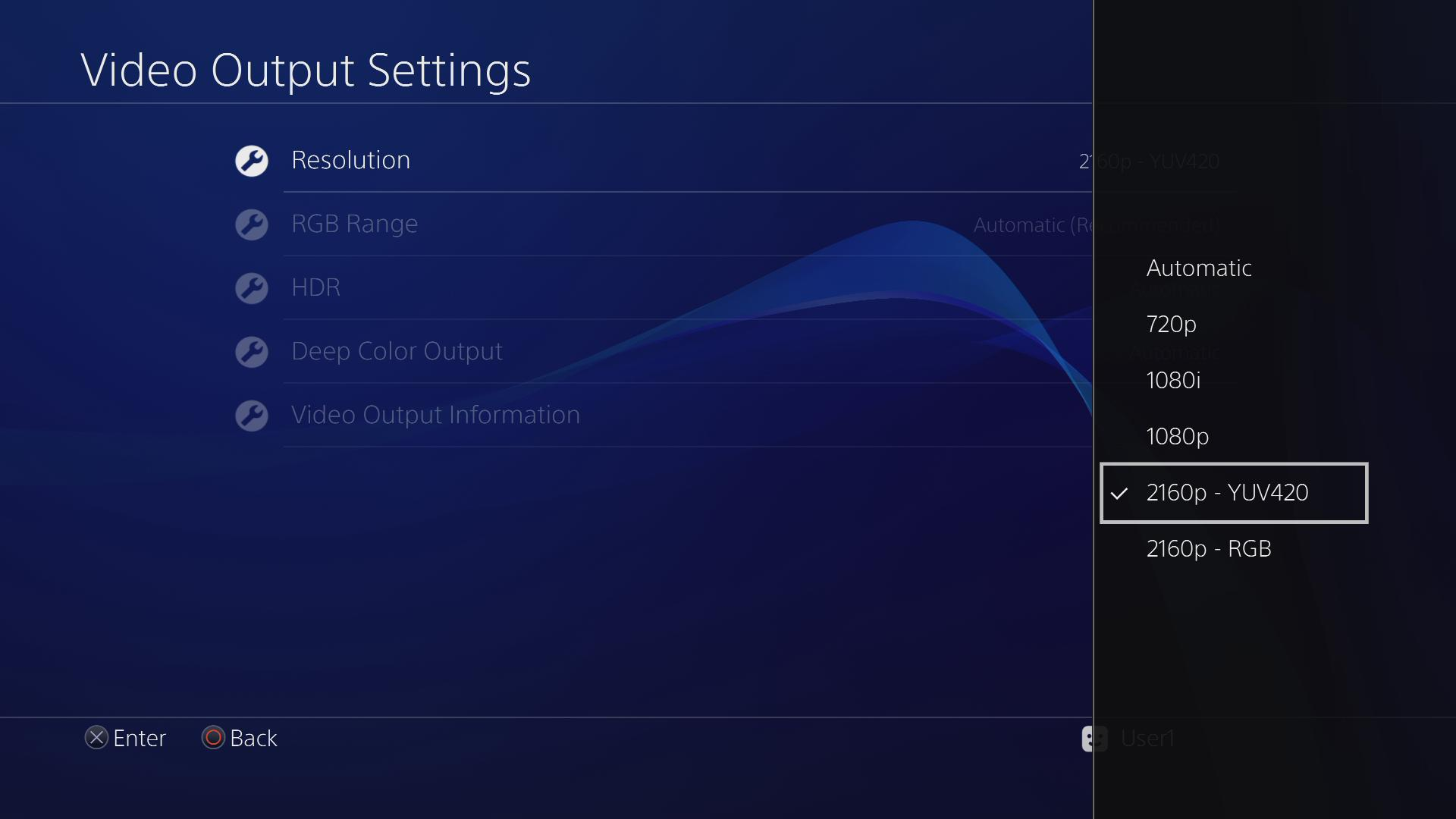
If your PS4 is set to a resolution your TV doesn’t support, it can blink. Start your PS4 in Safe Mode (hold the power button until you hear a second beep) and choose “Change Resolution.”
4. Disable Hdcp
Go to Settings > System > Enable HDCP. Turn this off if you’re having problems, but remember: you won’t be able to play Blu-ray discs or use some streaming apps.
Extra Insight
Many gamers don’t know that dirty HDMI ports can also cause black screen blinking. Use a can of compressed air to gently clean the ports on both your PS4 and your TV.
2. White Or Colored Flicker
Sometimes, the PS4 screen blinks with white flashes or strange colors. This type of blinking can look like a camera flash or short colored lines across your screen.
Main Causes
- Damaged HDMI cable or port
- Graphics chip overheating
- Outdated system software
- TV input problems
How To Fix
1. Replace Hdmi Cable
A cable with broken wires inside can cause white or colored flickers. Use a high-quality HDMI cable that supports HD and 4K.
2. Update Ps4 System Software
Go to Settings > System Software Update. Install the latest update to fix bugs that might cause flickering.
3. Check Tv Input Settings
Make sure your TV’s input settings match your PS4’s output (for example, RGB or YUV color space).
4. Allow Ps4 To Cool Down
If your PS4 feels hot, turn it off and let it cool for an hour. Make sure it has good airflow.
Extra Insight
Some users ignore software updates, thinking they only add new features. In reality, updates often fix display bugs that cause flickering.
3. Horizontal Or Vertical Lines Blinking
If you see moving lines—either up and down, or side to side—your PS4 screen is likely blinking due to signal interference.
Main Causes
- Electrical interference from other devices
- Bad HDMI cable or loose connection
- Faulty graphics hardware
How To Fix
1. Move Other Electronics Away
Devices like routers, speakers, or even phone chargers near your PS4 or TV can cause interference. Move them at least a few feet away.
2. Test With A Different Tv
Connect your PS4 to another TV or monitor. If the lines disappear, your original TV may have a problem.
3. Try Another Hdmi Cable And Port
Always rule out the easiest causes first.
4. Contact Sony Support
If you still see lines, your PS4’s graphics chip may be damaged. This needs a professional repair.
Extra Insight
Some gamers miss that surge protectors or power strips can also cause interference. Plug your PS4 and TV directly into the wall for testing.
4. Intermittent Signal Loss
This type of blinking means your screen goes completely blank for a few seconds, then comes back. It can happen randomly, especially when changing resolution or launching a new game.
Main Causes
- Weak HDMI connection
- Unsupported refresh rate
- Firmware bugs
- TV compatibility issues
How To Fix
1. Secure Hdmi Connections
Even a slightly loose cable can cause signal loss.
2. Set Ps4 Refresh Rate To Automatic
In Settings > Sound and Screen > Video Output Settings, set the refresh rate to “Automatic” or “60Hz.”
3. Update Tv Firmware
Some TVs need their own updates to work perfectly with consoles. Check your TV’s support website for updates.
4. Try A Different Tv Brand Or Model
Sometimes, a PS4 just doesn’t work well with certain TVs, especially older or off-brand models.
Extra Insight
Many people don’t realize that different HDMI ports on the same TV may support different features (4K, HDR, etc. ). Always use the port labeled “HDMI ARC” or “Game. ”

Credit: www.youtube.com
Comparing Causes And Solutions
Here’s a quick comparison to help you see the differences between each type:
| Type of Blinking | Main Cause | Best First Fix |
|---|---|---|
| Black Screen | Loose HDMI or HDCP error | Reconnect HDMI, check HDCP |
| White/Colored Flicker | Damaged HDMI, overheating | Replace HDMI, cool down |
| Lines Blinking | Interference, bad hardware | Move devices, test another TV |
| Signal Loss | Weak connection, refresh rate | Secure cable, set refresh rate |
Prevention Tips
Solving the problem is good, but preventing it is better. Here are ways to keep your PS4 screen from blinking in the future:
- Use high-quality HDMI cables (avoid very cheap or old cables)
- Keep your PS4 and TV in a cool, dust-free area
- Update your PS4 and TV firmware regularly
- Plug devices into a surge protector
- Don’t let cables hang loose or get pulled
An often-overlooked tip: Label your HDMI cables and ports. This avoids confusion if you have multiple devices.
When To Seek Professional Help
If you’ve tried all the above steps and your screen still blinks, the problem might be inside the PS4. Signs you need expert help include:
- Screen blinks after you try multiple TVs and cables
- You see blinking with other devices on the same TV
- The PS4 is unusually hot or makes loud fan noises
- You hear clicking or see error lights on the PS4
Don’t try to open your PS4 unless you’re experienced with electronics. Opening it can void your warranty or cause more damage. For repairs, contact PlayStation Support or a trusted repair shop.
Quick Troubleshooting Table
For a fast diagnosis, match your symptoms to common solutions below:
| Symptom | Possible Cause | What to Try First |
|---|---|---|
| Flicker when starting a game | Resolution mismatch | Change resolution in Safe Mode |
| Screen blinks after update | Software bug | Check for new update, restart PS4 |
| Lines after moving PS4 | Loose cable or interference | Reconnect cables, move electronics |
| Random blackouts | Bad HDMI or TV port | Try new cable and port |
Credit: support.tcl.com
Real-world Example
One gamer reported his PS4 Pro screen blinking only when playing in 4K. After trying many things, he found that his TV’s HDMI 1 port only supported 1080p, while HDMI 2 supported 4K. Switching the cable fixed the issue instantly.
This example shows how important it is to check your TV’s manual and specs.
Useful Resource
For more in-depth information about HDMI standards and troubleshooting display problems, you can visit the official PlayStation Support page.

Credit: www.reddit.com
Frequently Asked Questions
Why Does My Ps4 Screen Keep Blinking Black?
A black blinking screen usually means a loose HDMI cable, a bad port, or a resolution problem. Make sure your cable is secure and try another port. If the problem continues, start your PS4 in Safe Mode and change the resolution.
Can A Bad Hdmi Cable Cause The Ps4 Screen To Blink?
Yes, a damaged or low-quality HDMI cable is a common cause. Replace your cable with a new, high-speed HDMI cable to see if the problem goes away.
Will A System Update Fix Screen Blinking?
In many cases, yes. System updates often include bug fixes for display issues. Make sure your PS4 is using the latest software version for best results.
Is Screen Blinking A Sign Of Ps4 Hardware Failure?
Not always. Most blinking is caused by cables or settings, but if you’ve tried all solutions and the problem remains, hardware failure is possible. Contact Sony or a repair shop for help.
How Can I Stop My Ps4 Screen From Blinking During Games?
First, secure your HDMI connection and set your PS4’s output to match your TV’s supported resolution and refresh rate. Update your system software and keep the console well-ventilated to avoid overheating.
If you follow these steps, you can solve most PS4 screen blinking problems and get back to smooth gaming. Remember, the right cable and settings often make all the difference.