
If you own a PlayStation 4, you probably expect your controller to work smoothly every time you pick it up. But sometimes, things don’t go as planned. One of the most common issues is the PS4 controller blinking orange. This light can mean several things, and understanding it can save you time, money, and frustration. Whether you’re a casual gamer or someone who uses your PS4 daily, knowing what the orange light means—and how to fix it—can keep your gaming experience stress-free.
Let’s dive into the four main reasons your PS4 controller might be blinking orange, how to troubleshoot each, and what you can do to avoid future problems. With clear explanations and practical tips, you’ll feel confident next time you see that orange flash.
What Does The Orange Light On A Ps4 Controller Mean?
Before you begin troubleshooting, it’s important to know that the orange light isn’t always a sign of a problem. Sometimes, it’s just part of normal operation. The PS4 controller uses different colored lights to communicate its status. For example, blue often means Player 1, red for Player 2, and so on. The orange light, however, usually points to something specific:
- The controller is charging
- The controller is in rest mode
- There’s a connection issue
- A hardware fault may be present
The key is to pay attention to when and how the orange light blinks. Is it solid, slow blinking, or fast blinking? Each pattern tells a different story.
1. Blinking Orange While Charging
One of the most common reasons for a blinking orange light is charging. When you plug your controller into the PS4 console or a wall charger, the light bar often pulses orange. This means the controller is receiving power and the battery is not yet fully charged. Once it’s fully charged, the light usually turns off or changes to white or blue, depending on the system state.
If you see a slow, steady orange pulse, you can relax. This is completely normal.
How Long Does Charging Take?
A PS4 controller usually takes about 2 hours to fully charge from empty. However, if you’re using a third-party cable or charging from a computer, it might take longer. The quality of the cable and the power source matter more than most people realize. Cheap or damaged cables often cause charging problems.
What If The Light Blinks Rapidly?
A rapid blinking orange light during charging can signal a problem. This might mean:
- The cable is not connecting properly
- The charging port is dirty or damaged
- There’s an issue with the controller’s battery
Try using a different cable and cleaning the port gently with a dry brush or canned air. If the problem continues, your battery may need replacing.
Quick Charging Comparison
Here’s a simple comparison of charging times using different methods:
| Charging Method | Average Charging Time | Reliability |
|---|---|---|
| Official PS4 Console | 2 hours | Very High |
| Wall Adapter (5V/1.5A+) | 1.5-2 hours | High |
| PC USB Port | 2.5-3 hours | Medium |
| Third-Party Dock | Varies | Low to Medium |
Using the official cable and console is always the safest bet.

Credit: www.youtube.com
2. Blinking Orange In Rest Mode
Another reason you might see an orange light is when your PS4 is in Rest Mode. In this state, the console is not fully turned off, but it’s not running at full power either. The controller’s light will often pulse orange slowly, showing it’s connected to a system in rest mode and may be charging.
What Is Rest Mode?
Rest Mode allows your PS4 to download updates, charge controllers, and resume games quickly. It’s useful, but it can sometimes confuse users who expect the controller to turn off when the console does.
When Is It A Problem?
If your controller keeps blinking orange and won’t turn on after the console wakes from rest mode, this could be a sign of a software glitch. Sometimes, the controller fails to reconnect with the console properly. In rare cases, it may stay in a sort of “limbo” where it neither charges nor connects.
How To Fix Rest Mode Issues
- Unplug and Reconnect: Disconnect the controller and plug it back in.
- Reset the Controller: Use a paperclip to press the small reset button on the back of the controller for 5 seconds.
- Restart the PS4: Power cycle your PS4 by turning it off completely, then back on.
- Update System Software: Outdated firmware can cause connection issues.
These steps solve rest mode problems for most users. As a non-obvious tip, always use the console’s front USB ports for charging during rest mode. Some users find that using a rear USB port or a third-party dock doesn’t charge the controller correctly when in rest mode.
3. Blinking Orange Due To Connection Issues
A blinking orange light can also mean the controller is having trouble connecting to the PS4. This is common if you’ve recently paired the controller with a different console or used it on a PC.
Typical Connection Problems
- The controller is too far from the console
- There is interference from other wireless devices
- The controller was paired with another PS4 or PC
If the controller’s light bar blinks orange but doesn’t connect, it’s telling you it can’t find the console.
How To Reconnect Your Controller
- Wired Connection: Plug the controller into the PS4 with a USB cable, then press the PS button. This usually restores the connection.
- Forget and Re-pair: Go to the PS4’s settings and remove the controller from Devices > Bluetooth Devices, then pair it again.
- Reset the Controller: Use the reset button on the back.
If you use your controller on multiple devices, always unpair it before switching. This reduces confusion and connection issues.
Wireless Range And Interference
Did you know that the PS4 controller’s wireless range is about 30 feet? Walls, metal objects, and other wireless devices can reduce this range significantly. If you live in an apartment with many Wi-Fi networks, interference can be a real problem.
Here’s a quick look at factors affecting connection quality:
| Factor | Effect on Connection | Possible Solution |
|---|---|---|
| Distance | Weak Signal Beyond 30 ft | Move Closer |
| Obstacles (Walls/Furniture) | Signal Blocked | Minimize Obstacles |
| Interference (Wi-Fi, Bluetooth) | Random Disconnects | Reduce Competing Devices |
A simple fix is to play closer to your console and keep the area between you and the PS4 clear.

Credit: www.reddit.com
4. Blinking Orange Due To Hardware Fault
If none of the above situations apply and your controller keeps blinking orange, there may be a hardware issue. This could involve the battery, the internal circuit board, or even the charging port.
Signs Of Hardware Fault
- Controller blinks orange even when fully charged and connected
- No response to button presses
- Controller does not turn on
While software issues are more common, hardware faults do happen, especially with older controllers or after drops.
What You Can Try
- Inspect for Damage: Look for signs of physical damage, such as loose buttons or a rattling sound.
- Try Another PS4/Charger: Use the controller with a different PS4 or charger to see if the problem continues.
- Replace the Battery: If the controller is old, the battery may no longer hold a charge. Replacement batteries are available online.
- Professional Repair: If you’re not comfortable opening the controller, take it to a professional repair shop.
A key insight here is that DIY repairs can void your warranty. If your controller is still under warranty, contact Sony support before opening it.
Common Hardware Problems And Solutions
| Issue | Possible Cause | Solution |
|---|---|---|
| Persistent Orange Blinking | Faulty Battery | Replace Battery |
| No Charging | Broken USB Port | Repair or Replace Port |
| No Power | Damaged Circuit Board | Professional Repair Needed |
Never force a cable into the controller’s port; this is a leading cause of hardware failure.
Preventing Future Orange Light Issues
While some problems are out of your control, many can be avoided with good habits:
- Always use official or high-quality charging cables
- Charge your controller regularly, not just when it’s empty
- Keep the charging port clean and free of dust
- Avoid dropping the controller or exposing it to moisture
- Unpair the controller properly before using it with another device
A non-obvious tip: If you often switch between using your PS4 controller on a PC and your console, consider having a second controller. This can save you from frequent pairing and unpairing, which sometimes confuses the controller’s software.
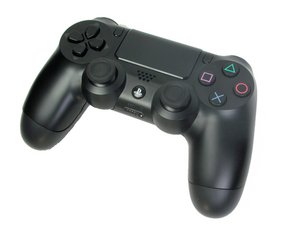
Credit: www.ifixit.com
When To Seek Help
If you’ve tried all the steps above and your controller still won’t work, it may be time to reach out for help. Sony’s official PlayStation support can guide you through more advanced troubleshooting, or arrange a repair if needed. If you want more information on the official support process, check the PlayStation Support page.
Frequently Asked Questions
Why Does My Ps4 Controller Blink Orange But Not Connect?
This usually means the controller is having trouble connecting to the console. It may be out of range, paired with another device, or facing interference. Try connecting it with a USB cable and pressing the PS button.
Is It Safe To Use My Ps4 Controller While It’s Blinking Orange?
Yes, if the orange light is slow and steady, it’s just charging or in rest mode. However, if it’s blinking rapidly and not working, you should troubleshoot for possible issues.
Can A Bad Battery Cause The Orange Light To Blink?
Absolutely. A weak or damaged battery can stop the controller from charging or holding a charge, which may trigger a blinking orange light. Replacing the battery often solves this.
What’s The Best Way To Clean My Ps4 Controller’s Charging Port?
Use a dry, soft brush or compressed air. Never use water or metal objects. Cleaning the port regularly can prevent charging issues.
Will Using Third-party Charging Docks Damage My Controller?
Some third-party docks are safe, but many don’t deliver the right power or fit properly, leading to charging problems. It’s best to use official PlayStation chargers or certified third-party products.
The orange light on your PS4 controller can mean several things, but with a bit of knowledge and the right approach, you can handle most issues yourself. Stay calm, follow the steps above, and you’ll likely get back to gaming in no time.
If all else fails, don’t hesitate to seek professional help—your controller (and your gaming time) is worth it.