
Many gamers love the PlayStation Vita, but sometimes a mysterious blinking orange light can turn excitement into frustration. You set your PS Vita down to charge, expecting to play soon, but instead, the light flashes orange and nothing happens. Is your device broken? Is the battery finished? Or is there a simple fix? Understanding what this blinking orange light means can help you avoid panic, save time, and possibly save money.
This guide explains the causes, solutions, and key tips for dealing with the PS Vita blinking orange light. Whether you’re a new owner or a long-time fan, these insights can help you handle the issue with confidence.
What Does The Blinking Orange Light Mean?
The blinking orange light on your PS Vita is not random. It is a built-in signal from the device. Usually, it relates to charging or battery issues. Let’s break down the main causes:
- Battery charging error
- Battery deeply discharged
- Charger or cable problem
- System software issue
- Internal hardware fault
Not all causes are serious. Sometimes it’s a minor glitch. But knowing the difference matters.
How The Ps Vita Charging Light Works
The PlayStation Vita uses a small LED near the charging port to show its status. Here’s a quick reference:
| Light Color | Status | What It Means |
|---|---|---|
| Orange (Solid) | Charging | Battery is charging normally |
| Orange (Blinking) | Error/Alert | Charging problem detected |
| No Light | Off/Not charging | Battery full or no power |
When the orange light blinks, your PS Vita is trying to tell you something is wrong with charging.

Credit: www.reddit.com
Main Causes Of The Blinking Orange Light
Let’s look closer at the main reasons this warning appears.
1. Battery Is Deeply Discharged
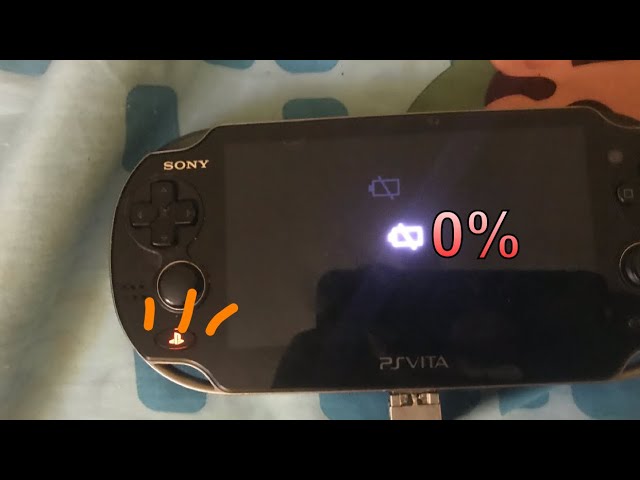
If you haven’t used your PS Vita for a long time, the battery may have drained completely. When this happens, the device may not start charging right away. Instead, it blinks the orange light to show the battery is “too empty” to charge normally.
This is common with older units or devices left unused for months.
2. Charger Or Cable Problem
Not all USB cables and chargers are the same. The PS Vita needs a specific voltage and current to charge. If you use a weak or faulty charger, or a cheap cable, the device may detect a problem and blink orange.
Common mistakes:
- Using smartphone chargers that deliver low power
- Using cables that do not support data and power
- Using third-party or damaged accessories
3. Dirty Or Damaged Charging Port
The charging port can collect dust, lint, or corrosion. If the connection is weak or dirty, charging may fail and trigger the blinking light. This is often missed by beginners.
4. System Software Glitch
Sometimes, the PS Vita’s system software can freeze or crash, making the charging system behave strangely. This can happen after failed updates, sudden power loss, or rare bugs.
5. Faulty Battery Or Internal Fault
If the battery is old or defective, it may no longer hold a charge. Internal hardware problems, like a broken charging circuit, can also cause the blinking orange light.
How To Fix The Ps Vita Blinking Orange Light
Now that you know the causes, here’s how to solve the issue. Start with the simplest solutions and move to advanced steps if needed.
1. Check Your Charger And Cable
Always use the original PS Vita charger and cable. If you use a different charger, make sure it can deliver at least 1.5A at 5V.
Here’s a quick comparison of charging accessories:
| Accessory Type | Compatible? | Common Issues |
|---|---|---|
| Official PS Vita Charger & Cable | Yes | None (if working properly) |
| Standard Phone Charger (1A or less) | Maybe | Slow charging, blinking light |
| High-Quality USB Cable (Data + Power) | Yes | Works if charger is strong enough |
| Cheap/Thin USB Cable | No | No charging, blinking light |
Try a different cable or charger if you suspect a problem. Avoid using PC or laptop USB ports for charging.
2. Leave It Charging For Several Hours
If the battery is deeply discharged, plug in the PS Vita and leave it for at least 4-6 hours. The blinking orange light may continue for a while, but sometimes the device will eventually recover and begin charging normally.
Pro tip: Do not try to turn on the PS Vita during this period. Let it rest and allow the battery to “wake up.”
3. Clean The Charging Port
Check the charging port for dust or debris. Use a soft brush or a can of compressed air to gently clean it. Never use metal objects, as this could cause damage.
If you see corrosion (green or white buildup), a small amount of isopropyl alcohol on a toothpick can help, but be gentle.
4. Reset The System
If the PS Vita is not responding, a soft reset can help.
Steps:
- Hold the Power button for 30 seconds.
- The system should power off completely.
- Wait a minute, then connect the charger and see if the light turns solid orange.
For more advanced resets:
- Hold Power + PS Button + Right Trigger for 5-10 seconds to access the recovery menu.
- Choose “Restart System” or “Rebuild Database.”
5. Replace The Battery
If none of the above works and your PS Vita is out of warranty, the battery may need replacing. The Vita’s battery is not meant to be user-replaceable, but many repair shops can handle it. Signs of a bad battery include:
- Device only works when plugged in
- Battery drains fast or never charges past a certain point
- Blinking orange light remains with all chargers
Warning: Do not try to replace the battery yourself unless you have experience with electronics. Opening the PS Vita can damage it further.
6. Software Update Or Restore
If your PS Vita starts up but acts strange, check for a system update under Settings > System Update. Sometimes, a software bug can cause charging errors. You can also restore the system to factory settings (after backing up your data).
7. Seek Professional Repair
If all else fails, contact Sony support or a trusted repair center. Internal hardware problems are rare but possible, especially with older devices.
Credit: www.youtube.com
Preventing Future Charging Problems
Prevention is easier than repair. Here are some practical tips:
- Use the official charger and cable when possible.
- Avoid letting the battery drain to 0% often.
- Store the PS Vita in a cool, dry place.
- Charge the device at least once every 1-2 months, even if not used.
- Keep the charging port clean and check cables for damage regularly.
Common Myths About The Blinking Orange Light
Many online forums share rumors or wrong advice. Here are a few common myths—and the truth behind them:
- “You must always use a Sony charger.”
False. Many quality chargers work if they deliver enough power, but official is safest.
- “A blinking orange light means your PS Vita is dead forever.”
False. Most cases are fixable, unless the battery or mainboard is damaged.
- “You can jump-start the battery with a 9V trick.”
Dangerous and not recommended. This can damage the PS Vita and is unsafe.
- “The light will fix itself if you shake the device.”
Not true. Physical force can break internal parts.

Credit: www.reddit.com
When To Consider Buying A New Ps Vita
If your PS Vita is more than 10 years old, repairs may be costly or parts hard to find. If you face repeated charging issues or other hardware failures (screen, buttons, etc. ), it may be time to upgrade. The used market still offers good deals, but always check the battery and charging before buying.
How The Ps Vita Compares To Other Handhelds
Is the PS Vita more prone to charging problems than other handhelds? Here’s a quick comparison:
| Device | Common Charging Issues | Average Battery Life (Years) |
|---|---|---|
| PS Vita | Blinking orange light, port wear | 4-7 |
| Nintendo 3DS | Loose charger, battery swelling | 3-6 |
| Nintendo Switch Lite | Slow charging, rare battery issues | 5-8 |
| PSP | Battery swelling, no power | 4-8 |
The PS Vita is not alone in facing charging issues, but its blinking orange light is a unique warning.
What Most Users Miss
Many users forget two important details:
- Battery age matters: Even if you rarely use the PS Vita, batteries age naturally and lose capacity over time—even when unused.
- Not all USB cables are equal: Cheap cables may look fine but deliver poor power or break easily. Always test with a known-good cable.
When To Ask For Help
If you have tried all the steps above and the blinking orange light remains, ask for professional help. Do not risk damaging the device further with DIY repairs. Sony support or a trusted repair shop can often diagnose and repair the problem.
If you want deeper technical information, the official PlayStation Vita Wikipedia page provides hardware specs and history.
Frequently Asked Questions
Why Does My Ps Vita Keep Blinking Orange Even With The Original Charger?
This usually means the battery is either deeply discharged or failing. Try leaving it plugged in for several hours without turning it on. If the problem remains, the battery might need to be replaced.
Can I Use A Phone Charger For My Ps Vita?
Some phone chargers work, but many do not provide enough power. Always check for at least 1. 5A output. Using underpowered chargers can cause the blinking orange light and slow charging.
Is It Safe To Keep Charging My Ps Vita Overnight?
Yes, if you use the original charger and cable. The PS Vita has built-in protection circuits. However, avoid charging on flammable surfaces and check the device for heat during long charging periods.
How Do I Know If My Ps Vita’s Battery Needs Replacement?
If the device only works when plugged in, never charges past a low percentage, or the blinking orange light appears with every charger, the battery is likely worn out.
Does The Blinking Orange Light Mean My Ps Vita Is Broken?
Not always. In most cases, it’s a temporary charging issue or a deeply discharged battery. Try the solutions in this article before assuming the device is permanently damaged.
When you understand the meaning behind the PS Vita blinking orange light and know how to respond, you can avoid panic and solve most problems at home. With the right care, your PS Vita will keep delivering classic handheld gaming for years to come.