
When your Philips TV remote suddenly stops working and the light keeps blinking, it can be confusing and annoying. Many people think their remote is broken or their TV has a major problem, but usually, the solution is much simpler. This blinking light is often the remote’s way of telling you something is wrong. If you know how to read these signals and try a few smart steps, you can often fix the issue quickly, without calling for help or buying a new remote. In this article, you’ll learn why the light blinks, what it really means, and the best ways to get your Philips TV remote working again. You’ll also discover common mistakes that waste time and how to avoid them.
Why Is The Philips Tv Remote Light Blinking?
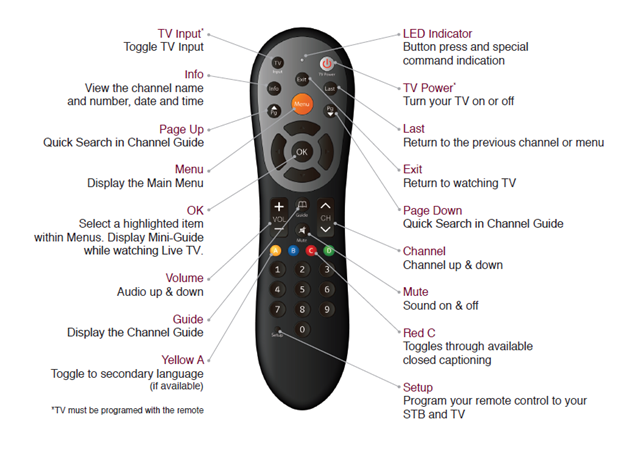
When you press a button on your Philips TV remote and see the blinking light, it’s sending a message. The remote uses this light to communicate—mostly with you, not the TV.
Here’s what the blinking often means:
- Low battery: Most common reason. The remote tries to send a signal, but the battery is too weak.
- Connection issue: The remote can’t talk to the TV. This happens if the TV and remote lose their pairing or if something blocks the signal.
- Error or interference: Sometimes, interference from other devices or a stuck button can confuse the remote.
Not all blinking is the same. A slow blink can mean one thing, while a rapid blink can mean another. The user manual sometimes explains these codes, but not always in detail. Many users miss this, trying random things instead of looking for the real cause.
Quick Fixes To Try First
Before you try anything complicated, start with the simplest steps. These quick checks solve most blinking remote issues.
1. Check The Batteries
Old or weak batteries are the number one reason for a blinking remote. Replace both batteries with new, high-quality ones. Make sure they are inserted in the correct direction.
2. Remove Obstacles
The remote uses either infrared (IR) or Bluetooth. IR needs a clear line between the remote and the TV sensor. Even something small, like a book or piece of paper, can block the signal.
- Restart your TV and remote
- Turn off your TV using the power button (not just the remote).
- Unplug the TV from the wall for 30 seconds.
- Remove the batteries from the remote.
- Plug the TV back in, turn it on, and re-insert the batteries.
This simple reset solves many pairing and signal problems.

Credit: www.youtube.com
Common Causes And Solutions
If those simple steps didn’t work, it’s time to look at the main reasons the blinking continues and how to fix them.
Battery Issues
Sometimes, the batteries seem fine but are actually too weak for strong signals. Cheap batteries or mixing old and new ones often cause problems. Always use a matching pair from a trusted brand.
Remote And Tv Pairing Problems
Many newer Philips TVs use Bluetooth or RF remotes. If the remote loses its connection, the light blinks. You may need to re-pair the remote.
- On most Philips TVs:
- Press and hold both the Home and OK buttons for 5 seconds.
- Wait for a message on the TV or a change in the blinking pattern.
- Follow any on-screen instructions.
- If this doesn’t work, check your TV’s manual for the exact steps.
Signal Interference
WiFi routers, cordless phones, and even microwaves can interfere with the signal—especially for Bluetooth remotes. Try turning off nearby devices or moving them away from the TV.
Stuck Or Dirty Buttons
Dirt or debris under the buttons can make the remote send constant signals, causing the light to blink nonstop. Clean the remote carefully:
- Remove the batteries.
- Wipe the buttons with a soft, damp cloth.
- Tap the remote gently, button side down, to remove loose dirt.
- Let it dry fully before inserting batteries.
Physical Damage
Dropping the remote or spilling something on it can damage the sensors. If you see cracks or water inside, the remote may need to be replaced.
How To Tell If The Problem Is The Remote Or Tv
It’s important to know whether your Philips TV remote is at fault or the TV itself. Here’s how to test:
| Test | If Remote Works | If Remote Fails |
|---|---|---|
| Try Remote on Another Philips TV | Remote is fine; TV may have a problem | Remote likely faulty |
| Use TV’s Physical Buttons | TV responds; remote is likely the issue | TV may have a sensor problem |
| Test with Phone Camera (see below) | Remote emits IR light; remote likely fine | No IR light; remote faulty |
Phone Camera Test
Most smartphone cameras can see infrared light. Here’s what to do:
- Turn on your phone’s camera.
- Point the remote at the camera and press any button.
- If you see a flashing light on your phone screen, the remote is sending a signal. If not, the remote is likely faulty.
Credit: customersupport.brctv.com
Advanced Fixes: When Basic Steps Don’t Work
If you’ve tried all basic solutions and the remote light is still blinking, try these advanced methods.
Resetting The Remote
Some Philips remotes support a factory reset:
- Remove the batteries.
- Press and hold the Power button for 30 seconds.
- Re-insert the batteries and try again.
This can clear stuck memory or errors that cause constant blinking.
Updating Tv Firmware
Outdated TV software can cause remote issues. Use the TV’s menu (using physical buttons if needed) to check for updates:
- Go to Settings > Software Update.
- Follow the on-screen steps to download and install updates.
A surprising number of remote issues are fixed by a simple software update, but many users never check this.
Replace The Remote
If none of these steps work, the remote may be broken. Order a genuine Philips remote using your TV’s model number. Beware of cheap, generic remotes—they often have compatibility issues and poor battery life.
Comparing Philips Tv Remote Technologies
Philips uses a few types of remote technology. Knowing your type helps you troubleshoot better.
| Type | How It Works | Common Problems |
|---|---|---|
| Infrared (IR) | Light signal to TV sensor | Blocked line of sight, battery issues |
| Bluetooth | Wireless radio connection | Pairing errors, interference |
| RF (Radio Frequency) | Long-range wireless | Pairing, battery, or signal interference |
Check your TV manual or the remote’s label to see which technology you have. This can speed up your troubleshooting.
Credit: www.airbeam.tv
When To Contact Philips Support
If you’ve tried every fix and the blinking light problem continues, it’s time to contact Philips customer support. They can help with:
- Advanced troubleshooting for your TV and remote model.
- Warranty replacement if your remote is covered.
- Advice on buying the correct replacement.
Keep your TV’s model number and purchase details ready when you call or chat.
For additional guidance, the official Philips support site has up-to-date troubleshooting steps: Philips Support.
Common Mistakes To Avoid
Some actions can make things worse or waste your time. Here’s what NOT to do:
- Don’t keep pressing buttons rapidly. This can confuse the remote and flood the TV with signals.
- Don’t use old or mismatched batteries. Always use a fresh pair of the same brand and type.
- Don’t try to open the remote unless you’re experienced. You could damage the sensors or lose tiny parts.
- Don’t ignore blinking patterns. Fast or slow blinking often means something specific—check your manual or Philips support pages.
- Don’t throw away the remote too soon. Many remotes are fixable with the steps above.
Preventing Future Remote Issues
Once your remote works again, a few habits can help you avoid more problems:
- Store your remote away from water, food, and direct sunlight.
- Replace batteries every six months, even if the remote still works.
- Clean the remote’s surface and buttons gently every few months.
- Don’t drop or sit on the remote.
- Update your TV software regularly.
Real-world Example: Solving A Blinking Philips Tv Remote
Maria noticed her Philips TV remote blinking quickly and not working. She replaced the batteries, but nothing changed. After reading her manual, she realized her remote was Bluetooth. She re-paired the remote using the Home and OK button method, and it worked again.
Later, her brother’s remote had a slow blinking light. This time, the problem was a blocked IR sensor—there was a small toy in front of the TV. Removing it solved the problem instantly.
These real stories show that the blinking light is a useful clue—if you know how to read it.
Frequently Asked Questions
Why Does My Philips Tv Remote’s Light Blink But Not Work?
A blinking light usually means low batteries, a pairing issue, or a blocked signal. Try new batteries, clear the space between the remote and TV, and re-pair the remote if possible.
How Can I Reset My Philips Tv Remote?
Most Philips remotes can be reset by removing the batteries, pressing and holding the Power button for 30 seconds, then reinserting the batteries. Check your manual for exact steps.
How Do I Pair My Philips Remote With My Tv?
On many models, hold the Home and OK buttons for 5 seconds until the TV gives instructions. If this doesn’t work, check your TV’s manual for the right method.
What If My Remote Works On Other Tvs But Not Mine?
This suggests a sensor problem or software issue on your TV. Try updating your TV’s firmware and make sure nothing blocks the TV’s sensor. If the problem continues, contact Philips support.
Can I Use A Universal Remote With My Philips Tv?
Yes, most universal remotes work with Philips TVs if programmed correctly. However, some advanced features (like voice search) may not be supported.
A blinking Philips TV remote light is usually easy to fix if you know what it means. By following the steps here, you can save time and money—plus avoid the frustration of a non-working remote. If all else fails, Philips support can help you get back to watching your favorite shows without hassle.