
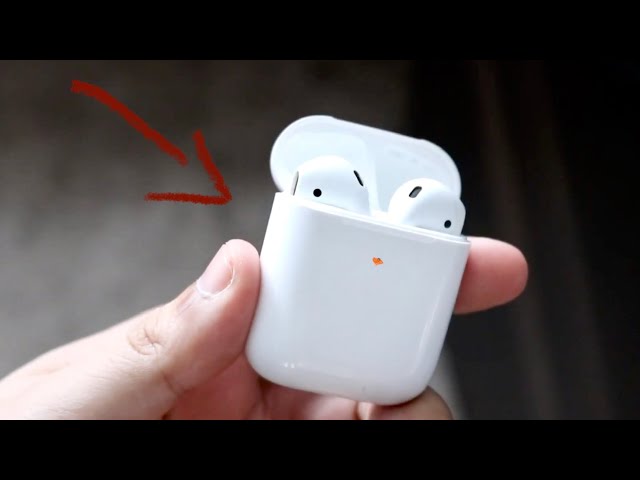
If you use AirPods, you may have noticed a small light on the charging case. Sometimes, instead of being solid green or white, this light starts blinking orange (sometimes called amber). For many users, this creates confusion or worry—what does it mean, and what should you do? This article gives clear answers about the orange blinking light on AirPods, what problems it signals, and how to fix them step by step. You’ll also find some useful tables, practical tips, and answers to common questions at the end.
What Does The Orange Blinking Light Mean?
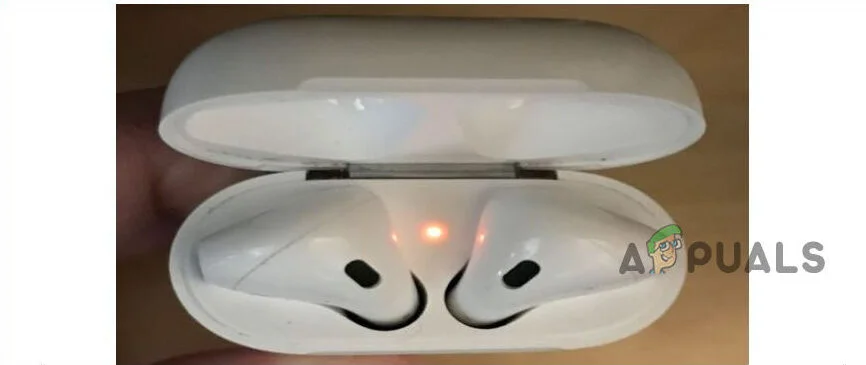
The orange blinking light on AirPods is not just a random color. It is a status indicator that tells you something important about your AirPods or the charging case. Here’s what it usually means:
- AirPods are not paired with your device.
- There is a connection or pairing error.
- The case or AirPods need to be reset.
- There is a battery issue or charging problem.
The light blinks orange to catch your attention. It’s a warning, not a normal status.
Solid Orange Vs. Blinking Orange
Some users confuse a solid orange light with a blinking one. Here’s a quick comparison:
| Status | Meaning |
|---|---|
| Solid orange (amber) | AirPods/case are charging or need charging |
| Blinking orange | Pairing error, reset needed, or connection problem |
Solid orange is usually normal, but blinking orange always means action is needed.
Common Reasons For Orange Blinking Light
Understanding the cause helps you solve the problem faster. Here are the most frequent triggers for the orange blinking light:
1. Failed Pairing Attempt
If your AirPods tried to connect to your device and failed, the case blinks orange.
2. Firmware Glitch
Sometimes, the AirPods’ software encounters a bug, and a reset is required.
3. Charging Error
Dirt in the case, a faulty cable, or a weak charger can prevent proper charging.
4. Mismatched Airpods
If you put two AirPods from different sets in the same case, the system cannot pair them and warns you with a blinking light.
5. Battery Issue
If the battery is not working well—maybe too low or not charging at all—the light can blink orange.
6. Factory Reset Needed
After a failed update or a long time without use, AirPods may need a reset.
Data On Airpods Issues
Apple does not share exact numbers, but user reports show:
- About 20% of AirPods users face pairing or connection issues in the first year.
- Over 70% of orange blinking cases are fixed by a simple reset.
These numbers show you are not alone if you see a blinking orange light.

Credit: www.youtube.com
How To Fix Orange Blinking Light On Airpods
You can usually fix this problem yourself. Follow these steps in order—most users will not need to go further than step 3.
1. Check The Charging Case And Cables
First, make sure everything is physically working:
- Use only an Apple-certified charging cable and adapter.
- Clean the charging contacts with a soft, dry brush.
- Make sure both AirPods are in the case and seated properly.
- Plug in the case and wait for 10–15 minutes.
If the light changes to green or stops blinking, the problem was with charging.
2. Restart And Reconnect Your Device
Turn off Bluetooth on your phone or computer, then turn it back on. Try pairing again:
- Open the AirPods case near your device.
- Wait for the setup animation to appear.
- If it does not, move to the next step.
3. Reset Airpods To Factory Settings
This step fixes most blinking orange issues. Here’s how:
- Put both AirPods in the charging case.
- Close the lid and wait 30 seconds.
- Open the lid, but leave AirPods inside.
- Press and hold the setup button on the back of the case for about 15 seconds.
- The light will flash white, then amber, then white again.
- Release the button when you see the white flash.
- Pair your AirPods with your device again.
This reset erases old connections and solves most software glitches.
4. Update Device Firmware
Outdated software on your phone or computer can cause pairing issues. Check for updates:
- For iPhones: Go to Settings > General > Software Update.
- For Macs: Use the System Preferences > Software Update.
Also, make sure your AirPods are near your device and charging—they update firmware automatically when possible.
5. Try A Different Device
If the orange light keeps blinking, try pairing your AirPods with another device. This test shows if the issue is with your AirPods or your main device.
- If they connect to a different device, the issue is with your original device.
- If not, your AirPods may need service.
6. Contact Apple Support
If none of the above steps help, your AirPods may have a hardware problem. Visit the nearest Apple Store or use the official support page. Sometimes, the battery or circuit inside the case or the AirPods themselves needs repair.
Comparing Airpods Models And Light Behavior
Different AirPods models have slightly different light behaviors. Here is an easy comparison:
| Model | Status Light Location | Orange Blinking Meaning |
|---|---|---|
| AirPods (1st & 2nd Gen) | Inside the case | Pairing error, reset needed |
| AirPods Pro | Front of the case | Pairing error, reset needed |
| AirPods (3rd Gen) | Front of the case | Connection or pairing issue |
Most troubleshooting steps are the same for all versions.
Practical Tips For Avoiding The Orange Blinking Light
Many problems can be avoided with good habits. Here are some tips from experienced users:
- Clean your AirPods and case regularly. Dust and earwax can block connections.
- Update your devices often. Keeping your phone, tablet, or computer updated prevents software mismatch.
- Use original accessories. Third-party cables can cause charging errors.
- Do not mix AirPods from different sets, even if they look the same.
- Store AirPods in the case when not in use to prevent battery drain.
Common Mistakes To Avoid
Some actions can make the problem worse or harder to diagnose. Here are mistakes to watch out for:
- Restarting devices repeatedly without resetting AirPods. This often does not help.
- Ignoring the blinking light. Using AirPods with a pairing error can drain the battery quickly or even damage the firmware.
- Using alcohol or water to clean contacts. Liquids can damage the electronics. Use only a dry brush or cloth.
- Trying to pair with too many devices at once. This can confuse the AirPods and cause more errors.
- Not waiting after reset. Give your AirPods and device a few seconds to recognize each other after resetting.
Credit: www.tanker.ee
When To Replace Your Airpods Or Case
Most orange blinking problems are temporary, but sometimes it means the hardware is at the end of its life. Here are signs it may be time to replace your AirPods or case:
- The orange light blinks even after reset and cleaning.
- Your AirPods do not hold a charge, even when new cables are used.
- The case or AirPods get hot during charging.
- The AirPods cannot be found by any device.
Apple AirPods batteries last about 2–3 years with regular use. If you reach this point and problems keep coming back, replacement may be the best option.
Real-world Example: Fixing A Persistent Orange Blinking Light
Let’s look at a typical case. Maria, a student, noticed her AirPods Pro case blinking orange after she borrowed a friend’s left AirPod. She tried charging, but nothing changed. After searching online, she did a factory reset using the setup button.
The light changed to white, and she was able to pair her AirPods again.
The key insight: Mixing AirPods from different sets can cause this error. Even if they are the same model, the firmware will reject mismatched AirPods.
Credit: fincalacoronilla.com
Understanding Airpods Status Lights: A Quick Reference
It helps to remember what each AirPods light means. Here is a handy summary:
| Light Color & Pattern | Meaning |
|---|---|
| Solid green | Fully charged |
| Solid orange (amber) | Charging or needs charging |
| Blinking white | Ready to pair |
| Blinking orange | Error, reset needed |
| No light | Case is out of battery |
This guide can help you diagnose problems quickly next time.
Non-obvious Insights About Airpods Troubleshooting
Many beginners believe that the orange blinking light means their AirPods are broken forever. In fact, most of the time it’s a temporary software issue. Also, many users don’t realize that firmware updates for AirPods happen automatically—there is no manual button or menu for it. Simply keeping your AirPods charged and near your device is enough for updates to install.
Another thing: The AirPods case can signal a problem even if one AirPod is missing. If you see the orange blink and only have one AirPod in the case, add the other if possible. The system expects both to be present for pairing and resetting.
Frequently Asked Questions
Why Does My Airpods Case Keep Blinking Orange Even After Charging?
If the orange light keeps blinking after charging, there is likely a pairing or connection error. Try resetting your AirPods using the setup button. If that fails, check for dirt in the charging case or consider contacting Apple Support.
Does The Orange Blinking Light Mean My Airpods Are Broken?
Not necessarily. The blinking orange light usually means a temporary issue—often solved by resetting or cleaning. Permanent hardware failure is less common.
Can Third-party Chargers Cause The Orange Blinking Light?
Yes. Non-Apple chargers may not deliver the correct power, causing charging problems and triggering the orange blink. Always use certified cables and adapters.
How Often Should I Clean My Airpods And Case?
For best results, clean your AirPods and case every two weeks. Use a dry, soft brush to remove dust and earwax from contacts and the charging port.
Where Can I Get Official Help For Airpods Issues?
You can visit the Apple Support page for troubleshooting guides and to contact customer service.
Seeing the orange blinking light on your AirPods can be frustrating, but with the right steps, most problems are easy to fix. By understanding what the light means, following the troubleshooting process, and avoiding common mistakes, you can keep your AirPods working well for years.
Stay calm, use the tips above, and your AirPods will usually be back to normal in minutes.