
When the power light on your Netgear router starts blinking, it’s easy to feel a little lost or frustrated. You just want your internet to work, but a blinking light signals that something isn’t right. Sometimes, it’s a simple fix.
Other times, it points to a deeper problem. Understanding what this blinking means, and knowing how to solve it, can save you time and keep your network running smoothly.
What Does The Netgear Router Power Light Blinking Mean?
The power light on a Netgear router gives a quick status update about the device. If it’s solid green or white, things are good. If it blinks, though, your router is trying to tell you something—maybe it’s starting up, updating, or facing a problem.
- Solid green/white: Router is working properly
- Blinking amber/orange: Startup or firmware update
- Blinking green/white: Booting up, checking connections, or error
- Off: No power
A blinking light isn’t always bad. During normal startup, you’ll see the light blink for a minute or two. But if it keeps blinking for several minutes, or starts after working fine, it’s usually a sign of trouble.
Common Causes Of A Blinking Power Light
There are several reasons your Netgear router’s power light may blink. Knowing these helps you troubleshoot faster.
- Firmware update in progress: Routers often update themselves to fix bugs and improve security. The power light blinks during this process. Unplugging the router now can cause damage.
- Corrupted firmware: If an update fails or is interrupted, the router might not boot properly, causing the light to blink endlessly.
- Power issues: A loose power cable, faulty adapter, or sudden outage can stop the router from starting.
- Hardware failure: Internal parts (like the memory or processor) can fail, especially in older routers.
- Startup problems: If the router gets stuck while turning on, it can’t finish loading, so the light keeps blinking.
- Reset in progress: If you just pressed the reset button, the router might be restoring to factory settings.
- Overheating: Too much heat can make the router unstable, leading to blinking lights as it tries to restart.

Credit: www.youtube.com
Quick Checks Before Troubleshooting
Before diving into detailed fixes, take a few simple steps:
- Make sure the power cable is plugged in securely.
- Check for any visible damage to cables or the adapter.
- Move the router to a cool, open area to prevent overheating.
- Look at other lights on the router. Are they blinking too, or just the power light?
- Wait 2–3 minutes to see if the blinking stops after starting up.
If none of these reveal the problem, it’s time to try more targeted solutions.
How To Fix A Blinking Power Light On Netgear Routers
Let’s go through some practical steps, from the easiest to the more advanced.
1. Reboot The Router
A simple reboot solves many issues.
- Unplug the router’s power cable from the wall.
- Wait 30 seconds.
- Plug it back in and watch the lights. If the power light stops blinking after a minute or two, your router is fine.
2. Check The Power Source
Weak or unstable power can cause startup issues.
- Plug the router into a different outlet.
- Try a different power adapter (with the same voltage and amp rating, if possible).
- Avoid power strips or extension cords, which may not deliver steady power.
3. Look For Overheating
Routers need good airflow. Too much heat can cause failures.
- Place the router on a hard, flat surface.
- Keep it away from direct sunlight or other heat sources.
- If it feels hot, unplug it for 10 minutes, then try again.
4. Inspect The Firmware
Firmware problems are a top cause of blinking power lights.
Manual Firmware Recovery (tftp Method)
If a failed update is the cause, you may need to reload the firmware manually. Netgear routers support TFTP (Trivial File Transfer Protocol) for recovery. This is a bit technical, but it’s worth a try before replacing your device.
- Download the correct firmware for your router model from the Netgear support website.
- Connect your computer directly to the router with an Ethernet cable.
- Set your computer to a static IP address (e.g., 192.168.1.10).
- Open the TFTP utility (Netgear provides one).
- Enter the router’s IP (usually 192.168.1.1), select the firmware file, and start the transfer while the router is in recovery mode (often by holding the reset button while powering on).
- Wait for the process to finish. The router should reboot with a steady power light.
Note: Be sure to use the exact firmware file for your model. Using the wrong file can permanently damage the router.
5. Perform A Factory Reset
Resetting the router erases custom settings and returns it to its original state.
- Find the reset button (usually a small hole on the back).
- Use a paperclip to press and hold for 10–15 seconds.
- Release and wait for the router to reboot.
If the light stops blinking, you’ll need to set up your Wi-Fi again.
6. Try A 30-30-30 Reset
Some users find success with this deeper reset:
- Hold the reset button for 30 seconds while the router is on.
- Keep holding the reset, unplug the power for 30 more seconds.
- Plug the power back in, but keep pressing the button for another 30 seconds.
- Release and let the router reboot.
This method forces a deeper reset for stubborn firmware or hardware issues.
7. Test With Minimum Connections
Disconnect all network cables except the power and one Ethernet cable to your computer. Sometimes, a shorted Ethernet port or bad device can cause problems. If the router boots normally in this state, add cables back one by one to find the culprit.
When To Replace Or Repair Your Router
If none of the above steps work, the problem may be hardware failure. Routers don’t last forever—most work reliably for 3–5 years, but can fail sooner with heavy use or power surges.
- If your router is under warranty, contact Netgear support.
- For older routers, it’s often cheaper to buy a new one than repair.
Here’s a quick comparison of when to repair vs. replace:
| Situation | Repair | Replace |
|---|---|---|
| Under warranty | Yes | No |
| Older than 3 years | Rarely | Usually |
| Physical damage | No | Yes |
| Firmware fix failed | No | Yes |
If you decide to buy a new router, look for models with automatic updates and strong security features. Mesh systems are a good choice for larger homes.
How To Avoid Power Light Problems In The Future
A little prevention goes a long way. Here are a few tips:
- Use a surge protector to shield your router from power spikes.
- Keep firmware up to date, but don’t interrupt updates once started.
- Place your router in a cool, open spot with good airflow.
- Restart your router every few weeks to keep it running smoothly.
- Don’t overload it with too many devices—consider upgrading if your home has dozens of smart gadgets.
Here’s a summary of simple steps to keep your router healthy:
| Tip | Why it matters |
|---|---|
| Surge protector | Prevents electrical damage |
| Regular updates | Keeps security strong |
| Good airflow | Prevents overheating |
| Periodic restarts | Fixes minor issues |
| Don’t interrupt updates | Prevents firmware corruption |
Credit: www.reddit.com
Non-obvious Insights Most Users Miss
It’s easy to focus on the router itself, but sometimes external factors cause blinking lights. For example, using a powerline adapter or a faulty smart plug can create unstable power, even if your other devices seem fine. Always test the router directly on a wall outlet for the most reliable results.
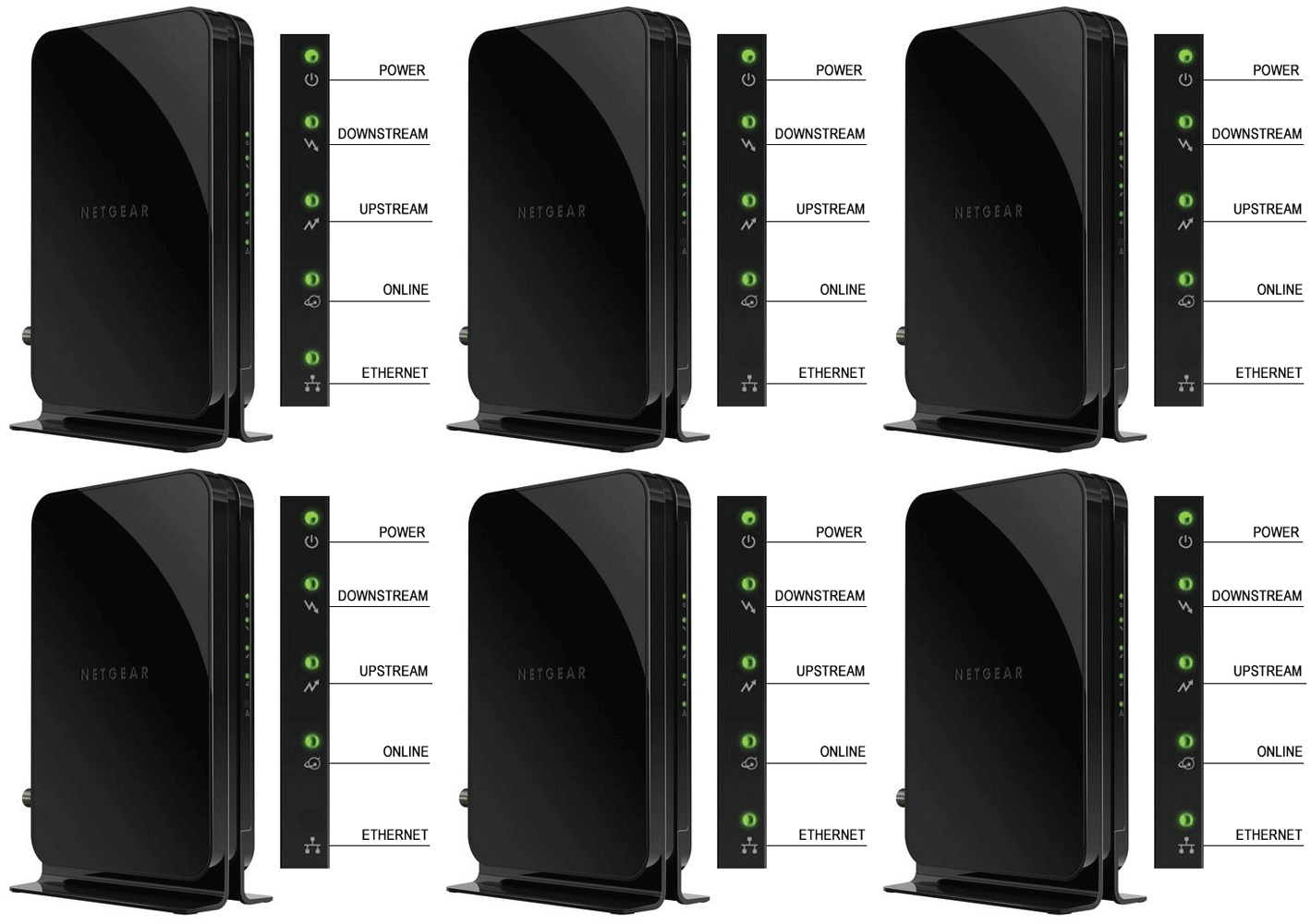
Another detail: Some Netgear routers use different colored power lights depending on the firmware version. Always check your exact model’s user manual for the correct light codes. Don’t assume all Netgear routers behave the same way—small differences can cause confusion.
When To Call For Help
If you’ve tried all the above steps and your Netgear router’s power light is still blinking, it may be time to get professional support. Netgear’s customer support can walk you through advanced recovery steps or process a warranty claim.
If your internet service provider (ISP) supplied your router, contact them as well. Sometimes, the problem lies with the modem, not the router, especially if all your devices lose connection at the same time.
Credit: statuslights.com
Frequently Asked Questions
Why Does My Netgear Router Power Light Keep Blinking After A Firmware Update?
A blinking power light after a firmware update usually means the update is still in progress or failed. Don’t turn off or unplug your router during this time. If it blinks for more than 10 minutes, try a manual firmware recovery using the TFTP method. Interrupting updates can corrupt the firmware.
Can A Power Surge Cause The Power Light To Blink?
Yes, a power surge can damage your router’s internal circuits, causing startup errors and blinking lights. Always use a surge protector to protect your router and other electronics from sudden spikes.
What If My Router Blinks But I Still Have Internet Access?
It’s rare, but sometimes a minor firmware glitch causes the power light to blink even when the router works. Try restarting the router. If the problem continues, consider a factory reset to clear any errors.
How Long Should The Power Light Blink During Normal Startup?
During a normal boot, the power light should blink for 1–2 minutes, then turn solid. If it keeps blinking longer than 3 minutes, something is wrong—check cables, power supply, or consider advanced troubleshooting.
Where Can I Find The Correct Firmware For My Netgear Router?
Always download firmware from the official Netgear Support site. Using files from other sources can damage your router. Enter your model number to find the right file.
Netgear routers are reliable devices, but even the best hardware needs a little care. By understanding what the blinking power light means, and knowing how to fix it, you’ll keep your home network healthy—and avoid unnecessary frustration. If all else fails, professional help and proper replacement are the way forward.