
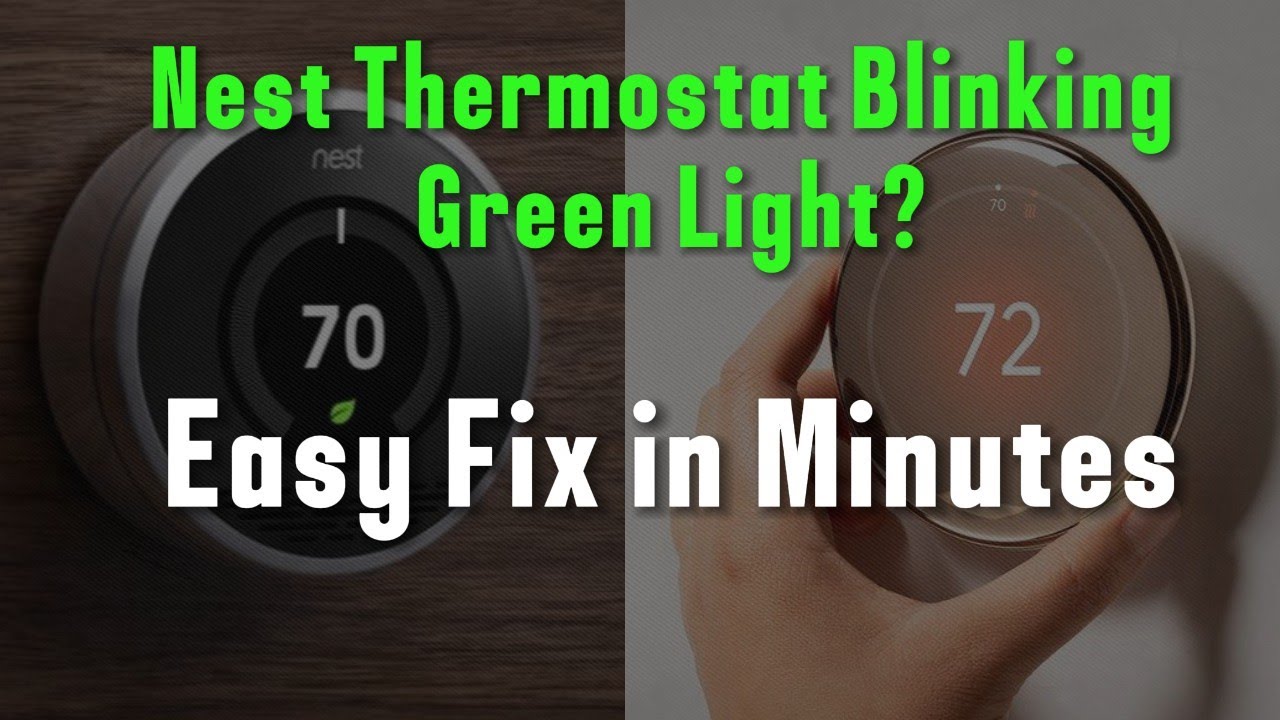
A blinking green light on your Nest thermostat, but no display, can feel confusing and even a little frustrating. Many Nest owners face this issue, but the good news is that it’s usually fixable. If your Nest shows a blinking green light with a blank screen, it’s trying to tell you something is wrong. This guide will help you understand what’s happening, why it occurs, and how to fix it step by step. Whether you’re new to smart thermostats or have used them for years, you’ll find clear solutions and insights here.
What Does A Blinking Green Light Mean On Nest?
When your Nest thermostat blinks green, it’s usually signaling that the device is updating software or restarting. Under normal conditions, this light appears briefly and then the screen comes back to life. However, if the green light keeps blinking and you see no display, it indicates a deeper problem.
The most common reasons include:
- Update stuck: The device tried to update but ran into an error.
- Power issue: Not enough voltage from the HVAC system.
- Hardware fault: Internal failure or loose wiring.
A blinking green light with a black screen is not a normal state. The thermostat should reboot and display information after updates, so if it stays blank, something is wrong.
Causes Of Nest Blinking Green Light With No Display
Understanding the root causes will help you fix the problem faster. Here are the main reasons your Nest might be showing this behavior:
1. Firmware Update Problems
Nest thermostats regularly download and install software updates. If the update process is interrupted—by a power loss or weak battery—the device may freeze with a blinking green light. Updates usually last a few minutes, but if it’s been over 10 minutes and the screen is still blank, something went wrong.
2. Power Supply Issues
Nest thermostats rely on steady power from your HVAC system. If the wiring is incorrect or your system isn’t sending enough power, the Nest might not boot up. This problem is common in homes without a C-wire (common wire), which provides constant power.
3. Wiring Or Installation Errors
Loose, damaged, or incorrectly connected wires can stop the Nest from starting correctly. After installation or service, a wire may be out of place, causing the device to blink green and stay blank.
4. Hardware Malfunction
In rare cases, the Nest’s internal hardware may be faulty. This could be due to a manufacturing defect or damage from electrical surges.
5. Battery Drain
Nest thermostats have an internal battery that charges from your HVAC system. If the battery becomes too low, the screen can go blank and the green light may blink as the thermostat tries to recover.
Credit: investorschule.de
Step-by-step Fixes For Nest Blinking Green Light With No Display
Let’s walk through practical solutions, starting from the simplest. Most users can fix the issue themselves, but some cases may need professional help.
1. Wait A Few Minutes
Sometimes, patience is all you need. Firmware updates or reboots may take up to 10 minutes. If you just finished installing or restarting your thermostat, give it a little time.
2. Perform A Manual Restart
If the green light blinks for more than 10 minutes, try a manual restart:
- Pull the Nest display off the base gently.
- Wait for 30 seconds.
- Push the display back onto the base until it clicks.
- Wait up to 5 minutes for the device to restart.
This often fixes temporary firmware glitches.
3. Check The Power Supply
Power issues are a leading cause of blank screens. To check the power:
- Remove the Nest display.
- Look at the connectors and wires. Make sure they’re firmly in place.
- Check that your HVAC system is turned on.
- If you have a multimeter, test the voltage between the Rc or Rh and C wires. Nest needs at least 24V AC to work reliably.
If your system lacks a C-wire, the Nest may struggle to keep its battery charged. Consider having a professional install a C-wire if power issues persist.
4. Charge The Internal Battery Directly
If the battery is drained, charge it using a USB cable:
- Pull the Nest display off.
- Find the USB port on the back (Micro-USB or Mini-USB depending on your model).
- Plug it into a standard USB charger.
- Leave it charging for at least 1 hour.
- Reattach the display and see if the screen turns on.
This jump-starts the Nest and can help it recover from a deep discharge.
5. Inspect And Reconnect Wires
Loose or poorly seated wires are a common culprit. With the display off:
- Check each wire for corrosion or damage.
- Ensure all wires are pressed fully into their connectors.
- If you find a loose wire, reconnect it and push it in securely.
Nest models have a wire-sensing feature and will not boot up if a critical wire is missing or loose.
6. Factory Reset (if Possible)
If the screen comes back but behaves strangely, consider a factory reset. This wipes any corrupted settings:
- Go to Settings > Reset > All Settings.
- Follow the on-screen prompts.
Only do this if your display is working again.
7. Contact Nest Support
If all else fails, the issue may be a hardware problem. Contact Nest customer support for further guidance or warranty service.
Comparing Nest Models: Power Requirements And Troubleshooting
Different Nest models handle power and updates slightly differently. Here’s a quick comparison to help you see how your model might react:
| Nest Model | Requires C-Wire? | Common Power Issues | Update Behavior |
|---|---|---|---|
| Nest Learning Thermostat (3rd Gen) | No (recommended for stability) | Low battery, screen blanking | Blinks green during update |
| Nest Thermostat E | No (recommended for stability) | Random restarts, battery drain | Blinks green briefly |
| Nest Thermostat (2020) | Yes (for all functions) | Will not function without C-wire | Shows update icon, blinks green |
Insight: If your model is the newer 2020 Nest Thermostat, a missing C-wire is often the cause of power issues and blank screens.
Signs You Need A Professional
While many issues can be fixed at home, some require a licensed HVAC technician. Here’s when to call for help:
- You’re unsure about handling wires or electricity.
- The thermostat doesn’t power on after charging and reconnecting wires.
- There’s no voltage at the Rc/Rh and C terminals.
- You see signs of damage, burning, or corrosion on the base.
A technician can check your system, add a C-wire, or replace a defective thermostat safely.
Preventing Future Nest Display Issues
After fixing the blinking green light, you can take steps to avoid future problems.
Regular Maintenance
- Clean the Nest and base plate every few months.
- Check wiring connections annually.
- Keep software updated by allowing automatic updates.
Power Stability
- If your system lacks a C-wire, consider an add-a-wire adapter or professional C-wire installation.
- Use surge protectors if your home is prone to electrical spikes.
Firmware Update Tips
- Don’t restart or power off the Nest during updates.
- Only update when you’re home, so you can monitor the process.
Real-world Example: Troubleshooting A Nest With Blinking Green Light
Let’s look at a real-life situation. Mark, a homeowner in Texas, installed a Nest Learning Thermostat. A few days later, he noticed the green light blinking and the display was blank.
Here’s what he did:
- Waited 10 minutes—no change.
- Removed the display and checked wires—all tight.
- Used a USB cable to charge the Nest for 1 hour.
- Reattached the display—it turned on, but after a few hours, the issue returned.
Mark finally called an HVAC technician. The tech found the system had no C-wire, and the Nest was losing power when the HVAC wasn’t running. After installing a C-wire, the Nest worked perfectly.
Key lesson: Many Nest display issues come from power problems, especially missing or faulty C-wires.
Data: Most Common Causes For Nest Green Light Issues
Looking at user reports and support data, here’s how the causes break down:
| Cause | Percentage of Cases |
|---|---|
| Power supply issues (C-wire missing/faulty) | 54% |
| Firmware update errors | 19% |
| Wiring/installation errors | 15% |
| Battery drain | 7% |
| Hardware faults | 5% |
Insight: More than half of all Nest blank screen issues are due to power supply problems.
Credit: www.allamericanpha.com
Troubleshooting Checklist
If your Nest is blinking green with no display, follow this checklist:
- Wait 10 minutes for the update.
- Manually restart the Nest.
- Inspect and reconnect all wires.
- Test or charge the internal battery.
- Check for a C-wire or low voltage.
- Reset if the display returns.
- Call support if nothing works.
Sticking to this order can save time and avoid unnecessary repairs.
When To Replace Your Nest Thermostat
Sometimes, replacement is the only option. Consider replacing your Nest if:
- The green light blinks for hours and support cannot help.
- The device is out of warranty and has a clear hardware fault.
- You’ve had repeated power or display issues, even after fixing wiring.
Modern thermostats are more reliable, and new models may solve old wiring or power problems.
Where To Find More Help
If you need more details, visit the official Nest support pages or trusted tech forums. For up-to-date advice and troubleshooting, check out Google Nest Help.
Frequently Asked Questions
Why Does My Nest Blink Green For A Long Time?
A Nest that blinks green for more than 10 minutes is usually stuck during a firmware update or restart. This can happen due to power interruptions, low battery, or software errors.
Can I Use My Nest Without A C-wire?
Some older models can run without a C-wire, but you may face power issues like blank screens or random restarts. The latest Nest Thermostat (2020) requires a C-wire for reliable operation.
What Should I Do If Charging The Nest Doesn’t Fix The Blank Screen?
If charging the Nest for at least an hour doesn’t restore the display, check for loose or damaged wires, insufficient voltage, or a hardware fault. If these steps fail, contact Nest support.
Is It Safe To Reset My Nest If The Screen Comes Back?
Yes, performing a factory reset can clear corrupted settings and resolve many display problems. Be aware this erases all schedules and preferences, so set them up again afterward.
How Do I Know If My Nest Thermostat Is Faulty?
Signs of a faulty Nest include a green light blinking for hours, no display even after charging, or repeated problems after fixing wiring and power. If troubleshooting doesn’t work, the device may need repair or replacement.
A blinking green light with no display can be stressful, but most issues are easy to fix with the right steps. By understanding the main causes and following a simple troubleshooting process, you can usually get your Nest thermostat working again quickly and avoid future problems.
If you ever feel unsure, don’t hesitate to reach out to a professional or visit the Nest support website for expert help.
Credit: www.youtube.com