
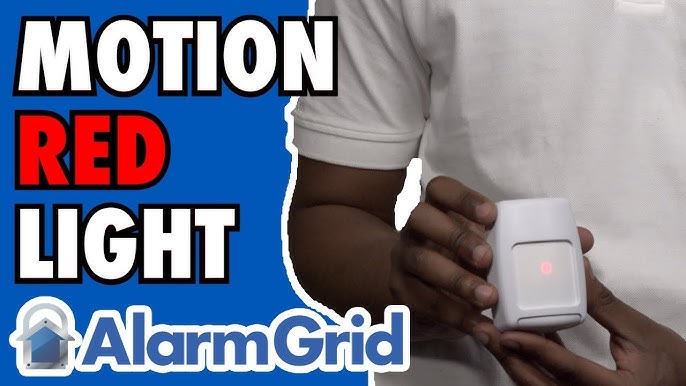
A blinking red light on a motion detector can be worrying or confusing. Is it a warning? Is your security system working as it should? Or is something wrong? You’re not alone—many people notice the motion detector blinking red light and wonder what it means. This article will help you understand why motion detectors blink red, what it signals, how to fix common problems, and when you might need professional help. You’ll also find practical tips and little-known facts to help you get the most from your security system.
What Does A Blinking Red Light Mean?
Most motion detectors use a red LED as a simple way to show activity or status. But the exact meaning depends on your detector model, security system, and how the light is blinking.
- Single red blink when someone walks by: Usually means the device detected movement.
- Continuous blinking: Could signal a problem like low battery, tampering, or a fault.
- No blinking at all: Might mean the detector is set to “armed” (light stays off to avoid giving away its position), or it’s not working.
Not all motion detectors behave the same. Some only blink during setup or testing, while others blink every time they sense motion. Always check your device’s manual, but let’s look at common reasons for a motion detector blinking red light.
Main Reasons A Motion Detector Blinks Red
Understanding why your motion detector blinks red can help you solve problems faster and keep your property safe. Here are the most common causes:
1. Normal Motion Detection
When the sensor detects movement, it often blinks red. This is the device’s way of telling you it’s working. You’ll see this during setup, testing, or when the system is in “test mode. ” Some detectors always blink, while others only do so in certain modes.
2. Low Battery
A blinking red light can warn you that the battery is almost dead. Many wireless motion detectors use red blinks to tell you it’s time to replace or recharge the battery. Ignoring this can lead to your sensor not working at all.
3. Tamper Alert
If someone tries to open or move the detector, it may blink red as a tamper warning. This is common in security systems to tell you the device was disturbed.
4. Fault Or Error
A constant or fast-blinking red light can mean the device has a fault, such as a sensor problem, bad wiring, or connection loss. If the light is different from the usual “motion detected” blink, check your manual for error codes.
5. Setup Or Test Mode
During installation or maintenance, some detectors enter a mode where the red LED blinks to show they are working. After setup, the blinking usually stops—or changes behavior.
6. Warm-up Cycle
After powering on, motion sensors often blink red for a short period. This is called the “warm-up” and usually lasts 30–60 seconds.
7. Environmental Issues
Changes in temperature, dust, or insects inside the sensor can cause false alarms and make the light blink. Cleaning the detector and checking for drafts can help.
How Different Brands Handle The Red Light
Here’s a quick look at how three popular motion detector brands use the red light:
| Brand | Red Light When Motion Detected | Red Light for Low Battery | Red Light for Fault |
|---|---|---|---|
| Honeywell | Blinks once | Blinks every 10 seconds | Continuous blinking |
| ADT | Blinks when armed | Short quick blinks | Solid red |
| SimpliSafe | Blinks when tested | Blinks every minute | Rapid blinking |
It’s easy to see that motion detector blinking red light does not mean the same thing for every brand. Always check your model’s guide if you’re unsure.
Diagnosing And Fixing A Blinking Red Light
If your motion detector is blinking red and you don’t know why, follow these steps:
1. Check The Battery
Most problems come from low battery power. Open the detector (follow safety instructions), and replace the battery with a new one of the same type. Wait a minute to see if the light changes.
2. Reset The Device
Turn the power off, wait 10 seconds, then turn it on again. For wireless devices, remove and re-insert the battery. This can clear error codes or glitches.
3. Clean The Sensor
Dust, cobwebs, or small insects inside the sensor can cause false triggers. Gently clean the lens with a dry cloth and check for anything blocking the sensor.
4. Check For Tampering
If the cover isn’t on tight, or someone has moved the detector, it might trigger a tamper alert. Reset the cover and make sure the device is secure.
5. Review The Manual
Your user manual often lists LED blinking codes. Look up your model and match the blinking pattern to the guide.
6. Inspect For Faults
Check wiring (for wired models), and look for signs of water damage or corrosion. If you find anything strange, you may need a replacement.
7. Test In Different Modes
Switch between “armed,” “disarmed,” and “test” modes. See if the blinking changes. Some detectors only blink in certain modes.
Credit: www.youtube.com
Common Mistakes People Make
Many users waste time or even make things worse by:
- Ignoring the red blink, thinking it’s normal when it’s a warning.
- Using the wrong battery or installing it backwards.
- Cleaning with water, which can damage the sensor.
- Covering the sensor with tape or objects, which causes more errors.
- Forgetting to check the manual for model-specific codes.
A surprising fact: In one industry survey, over 40% of false alarms from motion detectors were due to simple issues like dust, insects, or a loose cover—not a real fault.
When To Call A Professional
Some issues need expert help. Call a pro if:
- The red light blinks in a pattern you can’t find in the manual.
- You’ve changed the battery, cleaned the sensor, and reset everything, but the blinking continues.
- The sensor is connected to a larger security or smart home system and you’re worried about losing coverage.
- There are signs of water damage, rust, or broken parts.
Trying to fix advanced electronics without the right tools can make things worse. Most companies offer tech support—use it if you’re stuck.
How To Prevent Problems With Motion Detectors
Here are practical steps to avoid annoying red blinks:
- Regularly check and replace batteries—at least every 6–12 months.
- Clean the sensor lens with a dry, soft cloth every few months.
- Install detectors away from vents or heat sources, which can trigger false alarms.
- Seal any holes or gaps near the device to keep out insects and dust.
- Test your system monthly by walking in front of each sensor and checking for proper light behavior.
Motion Detector Blinking: Myths And Facts
Some users believe all red lights mean a problem. But that’s not true. Here’s a quick fact vs. myth table to clear up confusion:
| Statement | Myth or Fact? | Explanation |
|---|---|---|
| Red blinking always means low battery | Myth | It can also signal motion, tampering, or faults |
| Red light helps test the sensor | Fact | Many detectors blink to show they detect movement |
| All brands use the same blink codes | Myth | Codes vary—always check your manual |
| Blinking can mean the sensor is warming up | Fact | Some models blink for 30–60 seconds after power on |
Many beginners miss that a detector’s location matters. Placing a sensor near a window, heater, or frequently used air vent can cause it to blink red from false triggers. A little planning during installation can save you a lot of frustration.
Advanced Troubleshooting Tips
If you’re comfortable with electronics, try these steps:
- Check system logs: If you have a smart home system, see if it logs errors from the detector.
- Update firmware: Some new sensors can be updated to fix bugs that cause blinking.
- Swap sensors: Move a blinking detector to a new location or swap it with another to see if the problem follows the sensor or stays in the location.
- Test at different times: Sometimes, sunlight or changing temperatures affect sensors only at certain times of day.
Remember, always disconnect power before opening any sensor to avoid shocks or more damage.
When A Blinking Red Light Is Useful
A motion detector blinking red light can actually help you:
- Confirm the sensor is working during setup.
- Check the coverage area—walk around and watch for blinks to see if the detector “sees” you.
- Diagnose problems before they become serious.
In fact, some security experts recommend leaving the test mode enabled for a day after installation to make sure all sensors are placed well.
Credit: www.reddit.com
Little-known Insights
Two facts many beginners miss:
- Pet immunity settings: Some detectors have a switch for “pet immunity.” If it’s set wrong, even a small dog can trigger constant blinking.
- Invisible obstacles: Mirrors, glass, and shiny floors can reflect heat or movement, causing false triggers even if nothing is in front of the sensor.
Knowing these details can help you avoid hours of frustration and unnecessary calls for help.
Frequently Asked Questions
Why Is My Motion Detector Blinking Red When There’s No Movement?
This often means false triggers. Causes include dust, insects, temperature changes, or a loose cover. Clean the sensor and check for drafts or objects that could move (like curtains).
How Do I Know If The Blinking Means Low Battery?
Many detectors blink red every few seconds or minutes to signal low battery. Check your manual for the pattern, and try replacing the battery to see if the blinking stops.
Should My Motion Detector Always Blink Red?
Not always. Some models blink for motion, others only in test mode. If the blinking seems new or unusual, check your manual to make sure it’s normal for your device.
Can A Blinking Red Light Mean My Alarm System Is Broken?
It can, but not always. Sometimes it’s a simple problem like dust or battery. If you can’t fix it with basic steps, contact your alarm company or a trusted technician.
Where Can I Find More Technical Details About My Motion Detector?
You can visit the manufacturer’s website or check resources like the Wikipedia page on motion detectors for more in-depth information.
Conclusion
A blinking red light on your motion detector isn’t always bad news. Most of the time, it’s a helpful signal—if you know what to look for. By learning the most common causes, following simple steps to fix issues, and understanding your specific device, you can keep your home safe and your system working smoothly.
If you’re ever in doubt, don’t hesitate to get expert help. With the right knowledge, you’ll never be left wondering what that red blink means again.

Credit: www.amazon.com